
1. Introduction
The HMD OffGrid Satellite Communicator is designed to provide essential connectivity in areas without traditional cellular service. This device enables two-way messaging, location sharing, and SOS alerts, ensuring communication and safety during outdoor adventures. It connects to your smartphone via Bluetooth for enhanced functionality through a dedicated app.
Key Features:
- Two-Way Messaging: Send and receive messages using the OffGrid app.
- Location Sharing: Share your real-time location with contacts.
- Check-in Messages: One-button function to notify contacts of your safety.
- SOS Alerts: Request urgent assistance from local search-and-rescue teams.
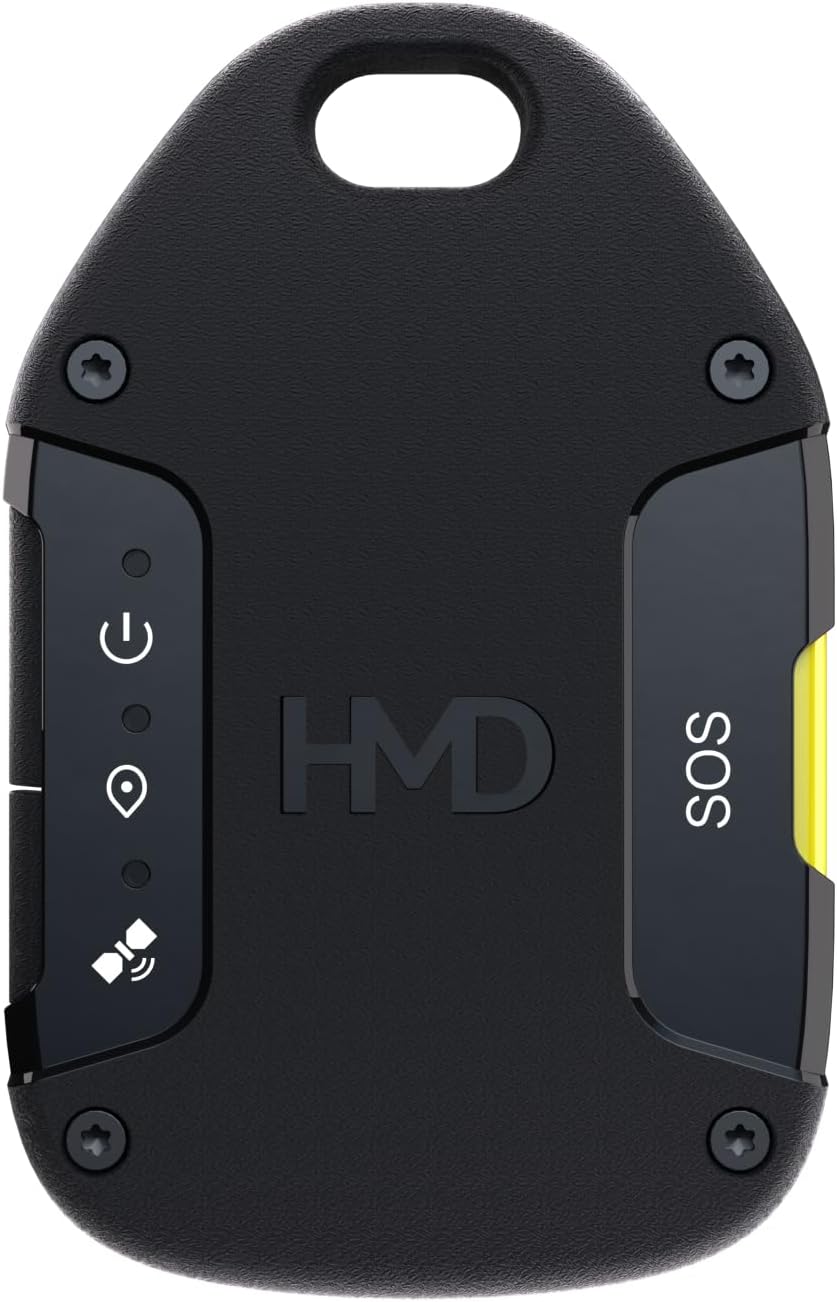
Figure 1: Front view of the HMD OffGrid Satellite Communicator, showing the HMD logo and indicator lights.
2. Setup
2.1 What's in the Box
- HMD OffGrid Satellite Communicator
- Charging Cable
- User Manual (this document)
2.2 Initial Device Activation
- Charge the Device: Connect the HMD OffGrid to a power source using the provided charging cable. Ensure the device is fully charged before first use.
- Download the App: Download the HMD OffGrid companion app from your smartphone's app store (available for Android and iOS).
- Pair with Smartphone: Open the HMD OffGrid app and follow the on-screen instructions to pair your device via Bluetooth.
- Select Subscription Plan: Activate your device and select a suitable subscription plan through the app to enable satellite services.

Figure 2: Side view of the HMD OffGrid, highlighting the USB charging port.
3. Operating Instructions
3.1 Powering On/Off
- To Power On: Press and hold the Power button until the device lights illuminate.
- To Power Off: Press and hold the Power button until the device powers down.
3.2 Sending Messages
- Ensure your HMD OffGrid is paired with your smartphone and has a clear view of the sky.
- Open the HMD OffGrid app on your smartphone.
- Navigate to the 'Messaging' section within the app.
- Compose your message and select the recipient(s).
- Tap 'Send'. The device will use the satellite network to transmit your message.
3.3 Location Sharing and Tracking
- Activate location tracking via the HMD OffGrid app. Your location will be periodically updated and shared with designated contacts.
- Use the 'Check-in' button on the device or within the app to send a quick safety notification with your current coordinates.
3.4 SOS Functionality
In an emergency, the SOS button provides direct access to search-and-rescue services. This feature operates independently of your smartphone connection, ensuring critical assistance even if your phone is unavailable.
- To Activate SOS: Locate the dedicated SOS button on the device.
- Press and hold the SOS button for 3 seconds.
- The device will send an emergency alert with your precise location to the global response team.
- Wait for confirmation or further instructions from the response team.

Figure 3: Image illustrating the SOS functionality of the HMD OffGrid device.
4. Maintenance
4.1 Battery Management
- The HMD OffGrid features a battery life of up to 3 days under typical usage.
- Recharge the device regularly using the provided USB cable.
- For optimal battery longevity, avoid extreme temperatures and store the device with a partial charge when not in use for extended periods.
4.2 Durability and Care
- The device boasts military-grade durability and IP68 weather sealing, making it resistant to dust and water.
- Clean the device with a soft, damp cloth. Avoid harsh chemicals or abrasive materials.
- Ensure the charging port cover is securely closed to maintain water resistance.

Figure 4: The HMD OffGrid device demonstrating its military-grade durability in a rugged environment.
5. Troubleshooting
5.1 Connectivity Issues
- No Satellite Signal: Ensure the device has a clear, unobstructed view of the sky. Move to an open area if necessary.
- Bluetooth Pairing Failure: Ensure Bluetooth is enabled on your smartphone and the device is in pairing mode. Restart both devices and try again.
- Messaging Delays: Satellite communication can sometimes experience delays due to satellite positioning or environmental factors. Ensure a clear line of sight to the sky.
5.2 Device Not Responding
- Check Battery: Ensure the device has sufficient battery charge. Connect to a charger if the battery is low.
- Restart Device: Power off the device and then power it back on.
6. Specifications
| Feature | Specification |
|---|---|
| Brand | HMD |
| Model Name | OffGrid |
| Special Feature | Waterproof |
| Connectivity Technology | Bluetooth |
| Map Type | Satellite |
| Included Components | Satellite Communicator |
| Battery Life | 3 days |
| Mounting Type | Wrist Mount |
| Operating System | Android, iOS |
| Compatible Devices | Smartphone |
| Control Method | App |
| Supported Satellite Navigation System | BeiDou, GLONASS, GPS, Galileo |
| Item Dimensions L x W x H | 3.7"L x 2.37"W x 0.47"H |
| Item Weight | 2.12 Ounces |
7. Warranty
The HMD OffGrid Satellite Communicator comes with a 1 Year Manufacturer Warranty. Please retain your proof of purchase for any warranty claims. For detailed terms and conditions, refer to the warranty information provided at the time of purchase or contact HMD customer support.
8. Support
For further assistance, technical support, or inquiries regarding your HMD OffGrid Satellite Communicator, please visit the official HMD website or refer to the contact information provided in your product packaging. Online resources, FAQs, and community forums may also be available for additional help.


