
1. Introduction
This manual provides instructions for the SEUNKWANG GX710S Wired Backlit Computer Keyboard. This keyboard features a simple white backlight, upgraded water drop pudding keycaps, an ergonomic design, and a durable metal panel. It is designed for use with various operating systems and devices.

Image 1: The SEUNKWANG GX710S Wired Backlit Computer Keyboard.
2. Package Contents
- SEUNKWANG GX710S Wired Backlit Computer Keyboard
- User Manual (this document)
3. Setup Instructions
The SEUNKWANG GX710S keyboard is a plug-and-play device, requiring no additional driver installation for basic functionality.
- Locate an available USB-A port on your computer (PC, laptop, etc.).
- Insert the USB connector of the keyboard into the USB-A port.
- The operating system will automatically detect and install the necessary drivers.
- The keyboard is ready for use once detected.

Image 2: The keyboard is compatible with various operating systems including Windows, Mac OS, Android, Google, and Linux, and devices such as PCs, laptops, tablets, and gaming consoles.
4. Operating Instructions
4.1 Backlight Control
The GX710S keyboard features a simple white backlight with adjustable brightness.
- Adjust Brightness: Press Fn + PU to increase brightness (5 levels).
- Adjust Brightness: Press Fn + PD to decrease brightness (5 levels).
- Turn Backlight On/Off: Press Fn + Menu key (usually the key next to the right Ctrl key) to toggle the backlight.

Image 3: Illustration of Fn key combinations for backlight adjustment and on/off.
4.2 Ergonomic Design and Stability
The keyboard is designed for comfortable typing.
- Adjustable Footrests: Two foldable footrests on the bottom allow for a 7° tilt, enhancing typing comfort.
- Anti-slip Stickers: Four anti-slip stickers ensure stability during use.
- Concave & Convex Keycaps: The keycap surface is shaped to fit fingertips, promoting smoother typing.
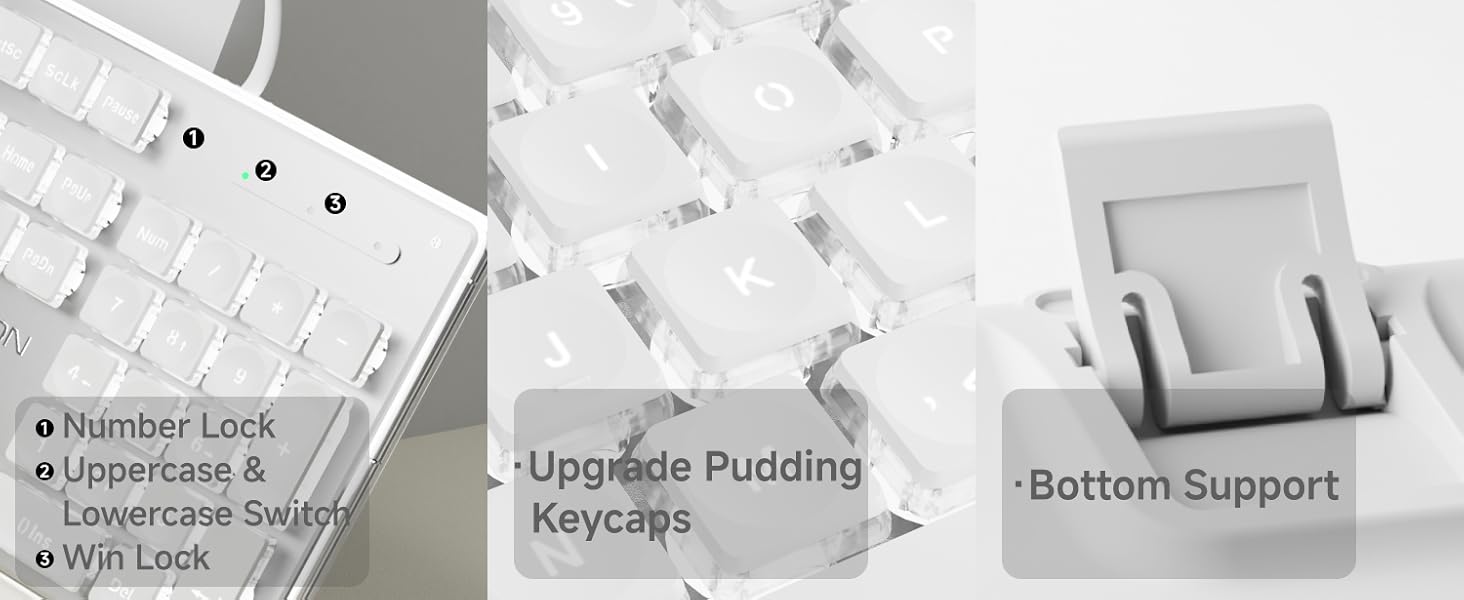
Image 4: Details of the keyboard's ergonomic design, including foldable stands and anti-slip feet.
4.3 Anti-Ghosting
The keyboard supports 26-key anti-ghosting, allowing multiple keys to be pressed simultaneously without conflict. This feature is beneficial for fast typing and gaming.

Image 5: Close-up showing indicator lights for Number Lock, Caps Lock, and Win Lock, along with the pudding keycap design and bottom support.
5. Maintenance
To ensure the longevity and optimal performance of your SEUNKWANG GX710S keyboard, follow these maintenance guidelines:
- Cleaning: Use a soft, dry cloth to wipe the surface of the keyboard. For dust and debris between keys, use compressed air. The suspended keycap design facilitates easier cleaning.
- Keycaps: The dual-color injection-molded pudding keycaps are designed to resist fading and remain non-greasy. Avoid using harsh chemicals or abrasive materials on the keycaps.
- Spills: In case of liquid spills, immediately disconnect the keyboard from your computer. Gently blot away excess liquid and allow the keyboard to air dry completely before reconnecting.
- Storage: Store the keyboard in a clean, dry environment away from extreme temperatures and direct sunlight.
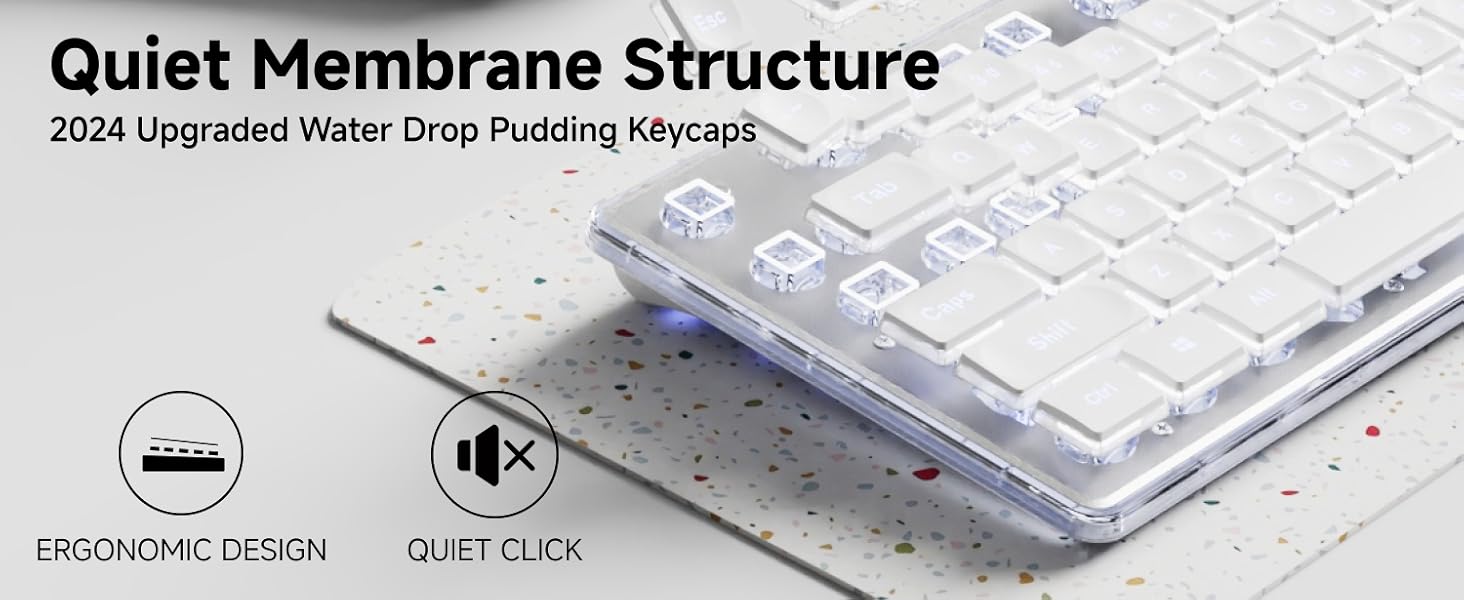
Image 6: Illustration highlighting the durability and non-fading properties of the dual-color injection-molded keycaps compared to standard keycaps.
6. Troubleshooting
If you encounter issues with your SEUNKWANG GX710S keyboard, please refer to the following common solutions:
| Problem | Possible Cause | Solution |
|---|---|---|
| Keyboard not responding | Loose USB connection, faulty USB port, system driver issue. |
|
| Backlight not working or dim | Backlight turned off, brightness set to lowest level. |
|
| Keys not registering correctly (ghosting) | Software conflict, extreme number of simultaneous key presses. |
|
If the problem persists, please contact customer support.
7. Specifications
| Feature | Detail |
|---|---|
| Model Number | GX710S |
| Connectivity Technology | USB-A (Wired) |
| Keyboard Type | Quiet Wired Membrane Keyboard |
| Backlighting | Simple White Backlight (5 adjustable levels) |
| Keycaps | Upgraded Water Drop Pudding Keycaps, Dual-color Injection-molded |
| Anti-Ghosting | 26-key Anti-ghosting |
| Panel Material | Thickened Metal Panel with Frosted Matte Finish |
| Ergonomics | Concave & Convex keys, 7° adjustable tilt with footrests |
| Compatible Devices | PC, Laptop, Notebook, Gaming Console, Projector, Smart TV, Smartphone, Tablet |
| Compatible Operating Systems | Windows, Linux, Chrome, Mac, Android |
| Product Dimensions | 17.32"L x 5.11"W x 0.78"H (44 x 13 x 2 cm) |
| Item Weight | 1.61 pounds (0.73 kg) |
8. Warranty and Support
SEUNKWANG provides comprehensive support for its products.
- Warranty: The SEUNKWANG GX710S keyboard comes with 48-month brand support.
- Customer Service: For any questions, troubleshooting assistance, or support regarding your product, please contact our expert team.
- Contact Information: Email Support: eweadnkeyboard@outlook.com

Image 7: Overview of after-sales support, including pre-sales Q&A, troubleshooting, accessories reissue, and returns/exchanges.