
Redragon K710
Redragon K710 Wireless Mechanical Gaming Keyboard User Manual
Model: K710 | Brand: Redragon
Product Overview
The Redragon K710 is a versatile wireless mechanical gaming keyboard designed with a vintage typewriter style. It features responsive blue mechanical switches, vibrant RGB backlighting, and a durable metal panel. With its tri-mode connection options (USB-C wired, Bluetooth, and 2.4Ghz wireless), it offers flexible connectivity for various devices and uses.
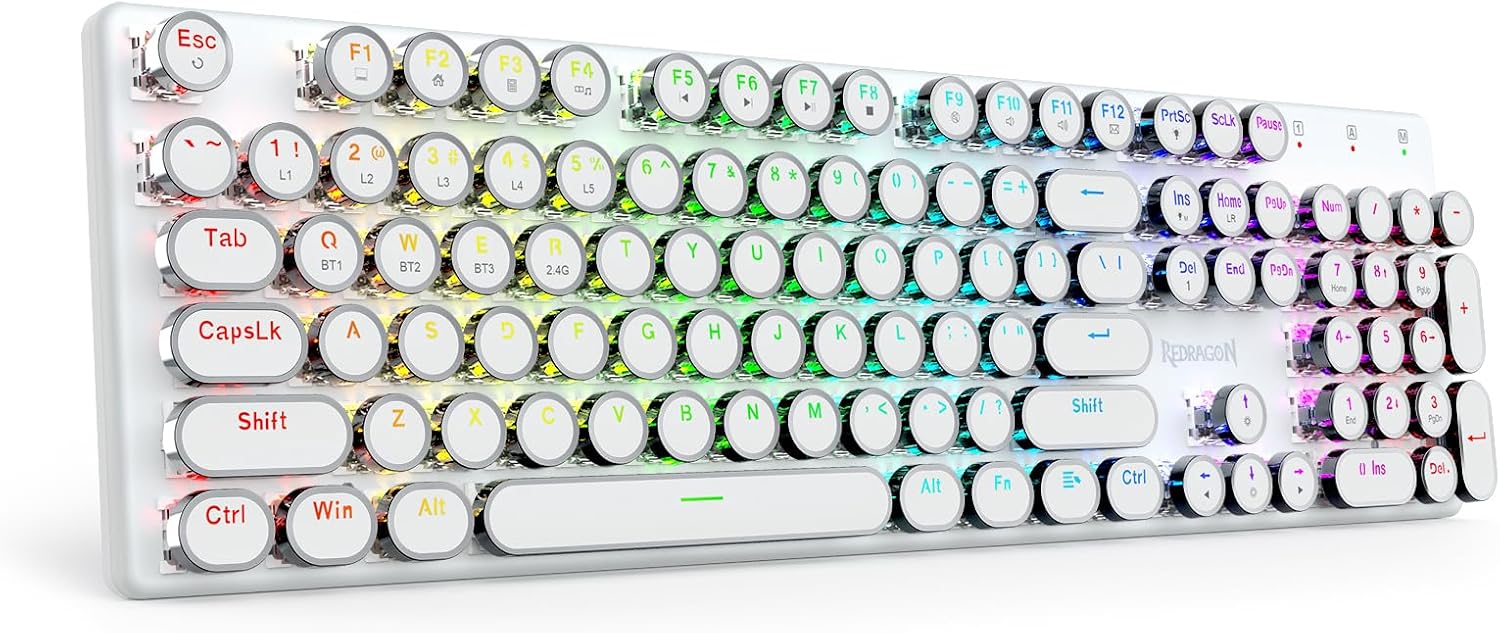
Image: Redragon K710 Wireless Mechanical Gaming Keyboard in white with RGB backlighting.

Image: Overview of the keyboard's key features including Tri-Mode Connection, Durable Battery, Clicky Blue Switches, Dynamic RGB, Metal Board, Redefine Software, 104 Keys Full Size, and Round Keycaps.
Setup and Connection
The Redragon K710 keyboard supports three connection modes: USB-C wired, 2.4Ghz wireless, and Bluetooth 3.0/5.0. Choose the mode that best suits your needs.
1. Wired Connection (USB-C)
Connect the provided USB-A to USB-C cable from your computer's USB port to the USB-C port on the keyboard. The keyboard will automatically switch to wired mode and begin charging if needed.
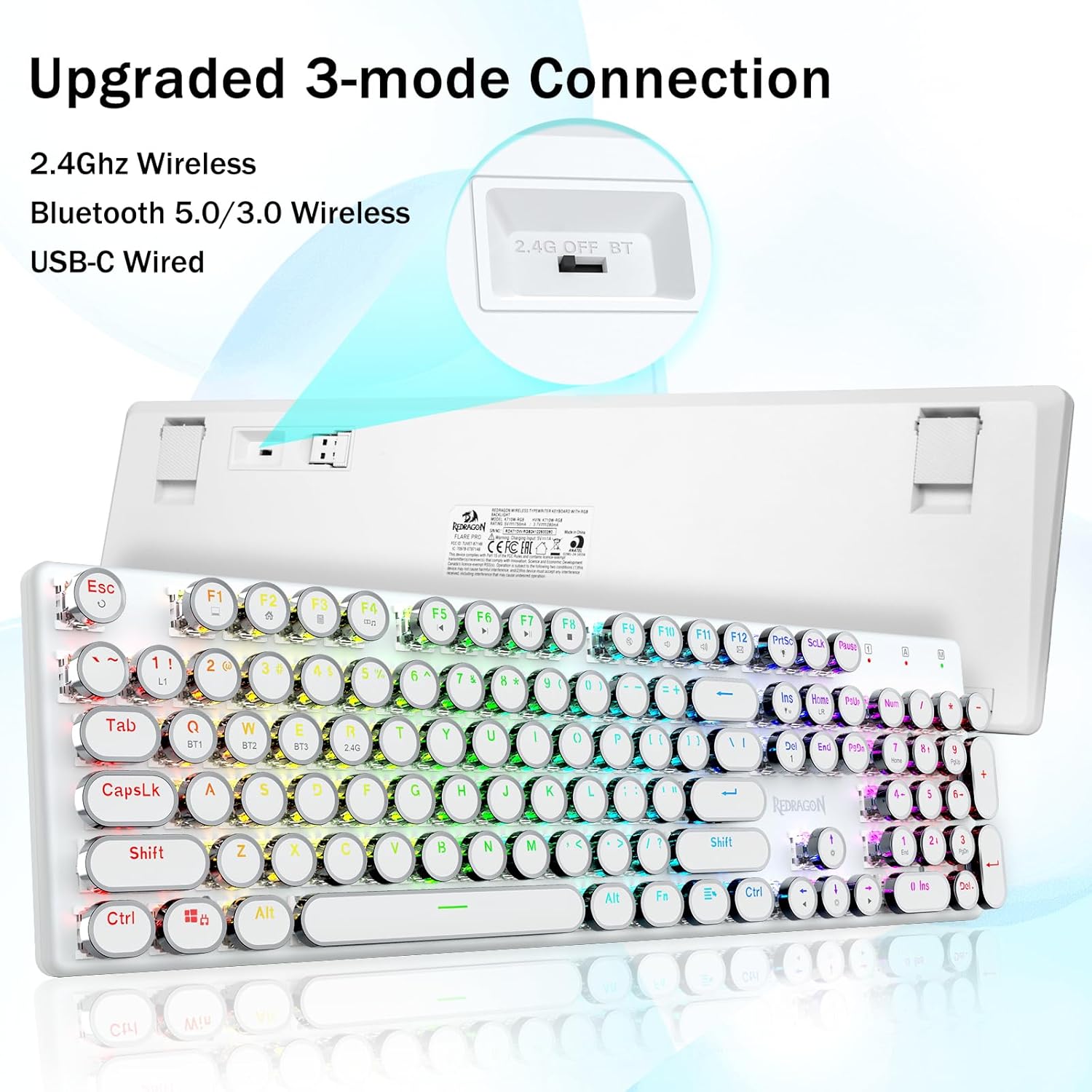
Image: The back of the Redragon K710 keyboard showing the USB-C port and the 2.4G wireless dongle storage compartment.
2. 2.4Ghz Wireless Connection
- Locate the 2.4G wireless dongle stored in the compartment on the back of the keyboard.
- Switch the connection mode switch on the keyboard to "2.4G".
- Insert the 2.4G dongle into an available USB port on your computer.
- Press and hold FN + R to enter 2.4G code binding mode. The keyboard will connect automatically.

Image: Diagram illustrating the 2.4G and Bluetooth connection steps for the Redragon K710 keyboard.
3. Bluetooth Wireless Connection
- Switch the connection mode switch on the keyboard to "BT".
- Press and hold FN + Q/W/E for 3 seconds to enter the corresponding Bluetooth channel pairing mode (BT1, BT2, or BT3). The indicator light will flash.
- On your device (PC, laptop, tablet, smartphone), search for Bluetooth devices and select "Redragon K710" to pair.
- Once paired, the indicator light will stop flashing and remain solid.

Image: The Redragon K710 keyboard highlighting its 3-mode connection (Bluetooth 5.0, 2.4Ghz, USB-C Wired) and compatibility with various devices including PC, Laptop, Tablet, Phone, PlayStation, and Xbox.
Operating Instructions
RGB Backlighting Control
The K710 features 16 preset RGB backlighting modes and customizable options.
- FN + INS: Switch between 16 different RGB lighting modes and effects.
- FN + ↑/↓: Adjust backlight brightness (5 levels).
- FN + DEL: Cycle through 7 different solid colors (Red, Green, Blue, Yellow, Purple, Cyan, White).
- FN + PrtSc: Toggle backlight on/off.
- Custom Backlighting: Press FN + 1 to enter game mode, then FN + Home to enter custom recording state. Press keys continuously to set specified colors, then FN + Home again to save.
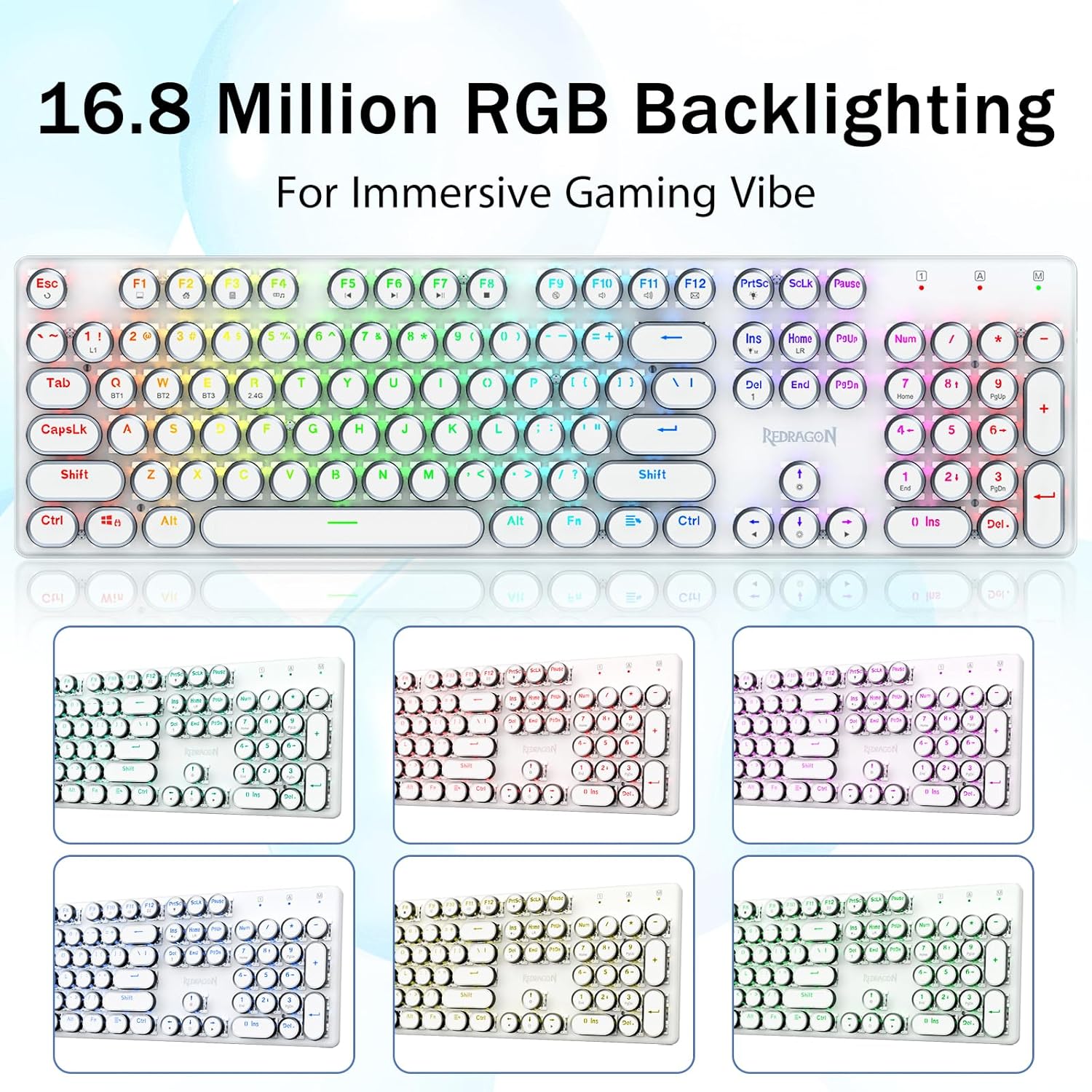
Image: The Redragon K710 keyboard showcasing different RGB backlighting patterns and colors.

Image: Visual guide on how to customize the backlighting directly on the Redragon K710 keyboard using FN key combinations.
Function Keys (FN Combinations)
Utilize the FN key in combination with F1-F12 and other keys for quick access to multimedia and system functions.
- FN + F1: My Computer
- FN + F2: Homepage
- FN + F3: Calculator
- FN + F4: Player
- FN + F5: Previous Track
- FN + F6: Next Track
- FN + F7: Play/Pause
- FN + F8: Stop
- FN + F9: Mute
- FN + F10: Volume -
- FN + F11: Volume +
- FN + F12: Mail
- FN + WIN: Lock/Unlock Windows Key
- FN + ESC (Hold 5s): Restore factory settings.

Image: The Redragon K710 keyboard layout showing the various FN key combinations for multimedia and system functions.
Battery Management
- Check Battery Level: Press FN + Alt to check the current battery level. The indicator lights will show the charge status.
- Auto Power Saving: In wireless mode, the backlight will turn off after 3 minutes of inactivity to conserve power. Press any button to wake up the keyboard.

Image: Diagram showing how to check the battery level on the Redragon K710 keyboard using FN + Alt, with indicators for 30%, 50%, and 100% charge.

Image: Illustration of the Redragon K710's auto power saving feature, where the backlight turns off after 3 minutes of inactivity in wireless mode.
LED Indicators
The keyboard features LED indicators for various statuses:
- 1: Numpad Lock indicator.
- A: Caps Lock indicator.
- M: Connection mode or battery charging indicator.

Image: Close-up of the Redragon K710 keyboard's top right corner showing the LED indicators for Numpad Lock, Caps Lock, and Connection/Charging status.
Pro Software Support
Expand your customization options by downloading the dedicated software. This allows you to design new lighting modes, effects, and set macros for enhanced efficiency in work and gaming.
Software link: bit.ly/K710WDriver
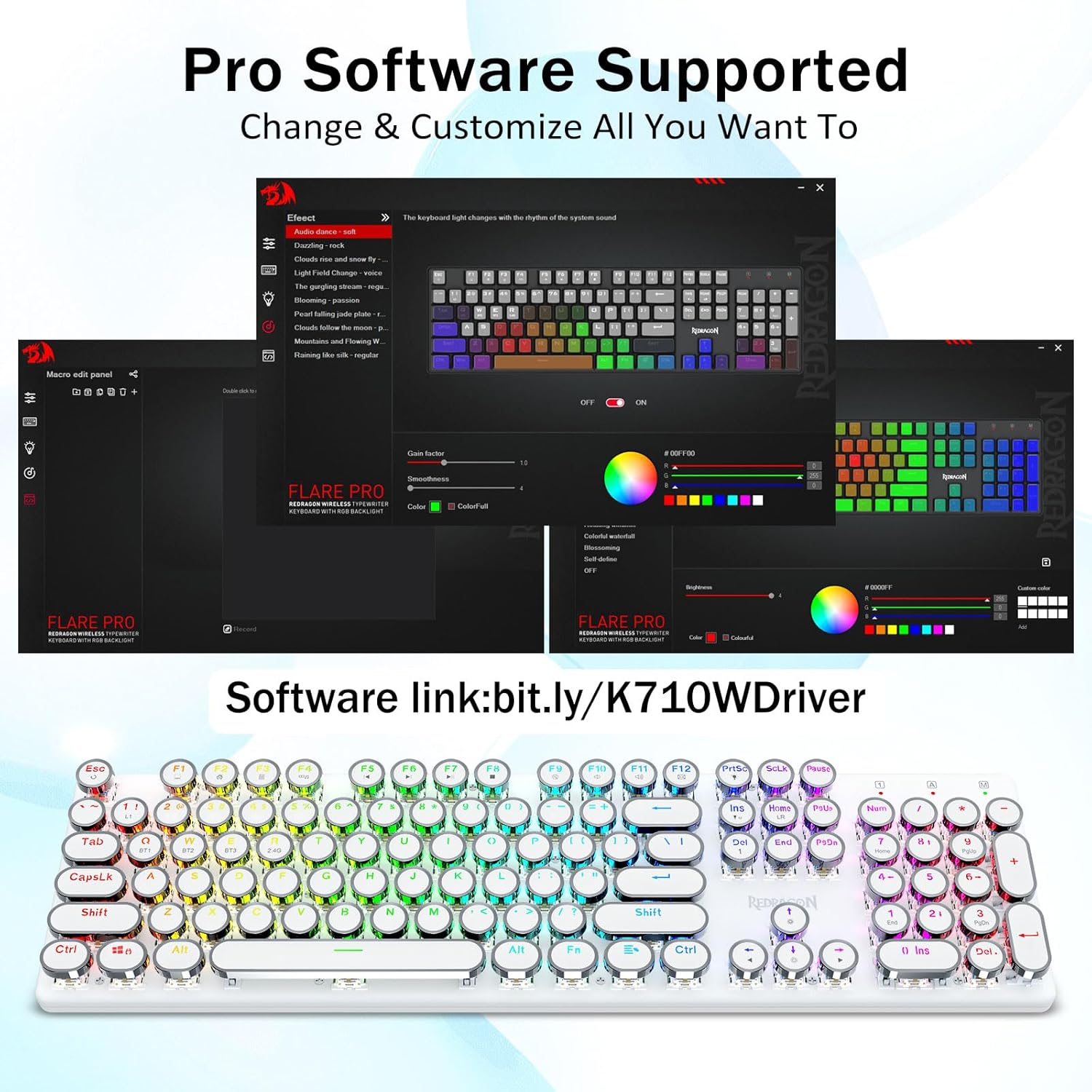
Image: Screenshots of the Redragon K710 Pro Software interface, demonstrating options for lighting customization and macro editing.
Key Features
- Typewriter Style Mechanical Blue Switches: Experience medium resistance, an audible click sound, and tactile feedback for responsive and precise typing. The vintage steampunk round keycaps provide a comfortable and stable typing touch.

Image: Close-up view of the Redragon K710's mechanical blue switches and the unique round keycaps, highlighting their design and functionality.
- Durable Metal Panel: The keyboard features a tank-solid metal top plate, ensuring stability and elegance on your desk for a premium typing experience.
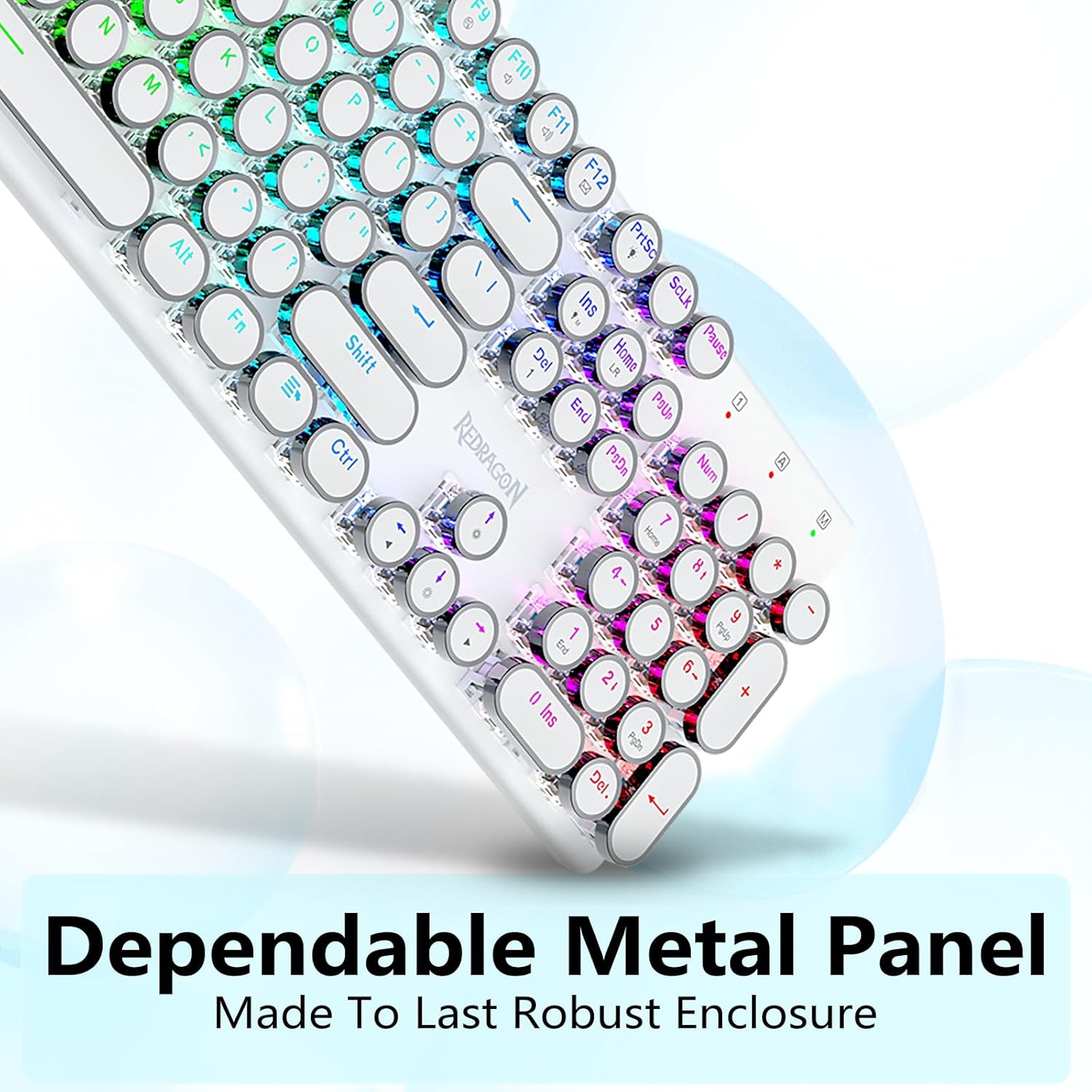
Image: Side view of the Redragon K710 keyboard, emphasizing its robust metal panel construction.
- 104-Key Anti-Ghosting: Supports simultaneous key presses without conflict, ensuring all your commands are registered accurately during intense gaming or fast typing.
- Built-in Durable Battery: Equipped with a 1600 mAh battery, providing up to 50 hours of use with backlighting on and 150 hours with backlighting off.

Image: The Redragon K710 keyboard with icons indicating its 1600 mAh battery, 50 hours of battery life with backlight on, and 150 hours with backlight off.
- Adjustable Rear Feet: Features adjustable feet with rubber pads for ergonomic positioning and stability.

Image: Close-up of the Redragon K710 keyboard's adjustable rear feet with rubber for stability and ergonomic tilt.
Maintenance
To ensure the longevity and optimal performance of your Redragon K710 keyboard, follow these maintenance tips:
- Cleaning: Regularly clean the keycaps and the keyboard surface with a soft, dry cloth. For deeper cleaning, you can use the provided keycap puller to remove keycaps and clean underneath.
- Keycap Replacement: The keyboard comes with additional replacement key mechanisms. Use the provided tool to carefully remove and replace any damaged or worn keycaps.
- Storage: When not in use for extended periods, store the keyboard in a dry, dust-free environment.
Video: An official Redragon video demonstrating the features of the K710 Typewriter Keyboard, including its clicky blue switches, RGB lighting, and 3-mode connectivity. This video also shows the process of removing and replacing keycaps and switches.
Troubleshooting
If you encounter any issues with your Redragon K710 keyboard, please refer to the following common troubleshooting steps:
- Keyboard Not Responding:
- Ensure the keyboard is fully charged or connected via USB-C cable.
- Check the connection mode switch (2.4G, BT, Wired) is set correctly.
- For 2.4G wireless, ensure the dongle is securely plugged into a USB port.
- For Bluetooth, ensure the keyboard is paired correctly and your device's Bluetooth is enabled. Try re-pairing if necessary.
- Try connecting the keyboard to a different USB port or computer to rule out port or system issues.
- Backlight Not Working or Incorrect:
- Press FN + PrtSc to ensure the backlight is not turned off.
- Adjust brightness using FN + ↑/↓.
- Cycle through modes with FN + INS or colors with FN + DEL.
- If custom settings are causing issues, try restoring factory settings by holding FN + ESC for 5 seconds.
- Keys Not Registering or Double Typing:
- Ensure the keyboard is clean and free of debris under the keycaps.
- If a specific key is problematic, consider replacing its switch using the provided tool and extra switches.
- Ensure the keyboard firmware is up to date if applicable (check Redragon's official website).
- Bluetooth Disconnection Issues:
- Ensure the keyboard is within the effective range of your device.
- Minimize interference from other wireless devices.
- Re-pair the Bluetooth connection.
Specifications
| Feature | Detail |
|---|---|
| Product Dimensions | 17 x 1.3 x 4.1 inches |
| Item Weight | 2.09 pounds |
| Manufacturer | Redragon |
| Item Model Number | K710 |
| Batteries | 1 LR44 batteries required (included) |
| Compatible Devices | Laptop, Gaming Console, PC, Tablet, Smartphone |
| Connectivity Technology | 2.4G, Bluetooth 5.0, USB-C |
| Keyboard Description | Gaming |
| Recommended Uses | Office, Multimedia, Everyday Use, Personal, Education, Gaming, Business |
| Special Features | Metal Panel, Ergonomic, Backlit, Round Keycap, Rechargeable |
| Color | White |
| Number of Keys | 104 |
| Keyboard Backlighting Color Support | RGB |
| Style | Retro |
| Country of Origin | China |
| Date First Available | January 4, 2025 |
Warranty and Support
For warranty information, technical support, or any inquiries regarding your Redragon K710 keyboard, please contact Redragon US directly through their official channels or visit their website.
What's in the Box:
- USB-A to USB-C Cable
- Keycap Puller
- Additional replacement key mechanisms (as mentioned in reviews)
- User Manual
Related documentsK710


Ask a question about this manual
Ask about setup, troubleshooting, compatibility, parts, safety, or missing instructions. Manuals+ will review the question and use this page’s manual context to help answer it.