
1. Introduction
This manual provides detailed instructions for the installation, operation, and maintenance of your TMEZON MZ-IP-V728TW IP 4-Wire Intercom Monitor. Please read this manual thoroughly before using the product to ensure proper function and to prevent damage.
The TMEZON MZ-IP-V728TW is an advanced IP-enabled 4-wire intercom monitor designed for home and office security systems, offering reliable communication and video monitoring capabilities.
2. Safety Information
- Ensure all electrical connections are made by a qualified electrician and comply with local electrical codes.
- Do not expose the monitor to water, moisture, or extreme temperatures.
- Avoid placing the monitor near strong magnetic fields or sources of interference.
- Disconnect power before performing any maintenance or installation procedures.
- Use only the power adapter and accessories supplied or recommended by TMEZON.
- Keep the device out of reach of children.
3. Package Contents
Verify that all items listed below are present in your package:
- TMEZON MZ-IP-V728TW IP 4-Wire Intercom Monitor
- Mounting Bracket
- Power Adapter (AC/DC)
- Connection Cables (4-wire, network cable)
- Mounting Screws and Wall Plugs
- User Manual (this document)
4. Product Overview
4.1. Monitor Components
The TMEZON MZ-IP-V728TW monitor features a high-resolution display, touch-sensitive buttons, and various ports for connectivity.
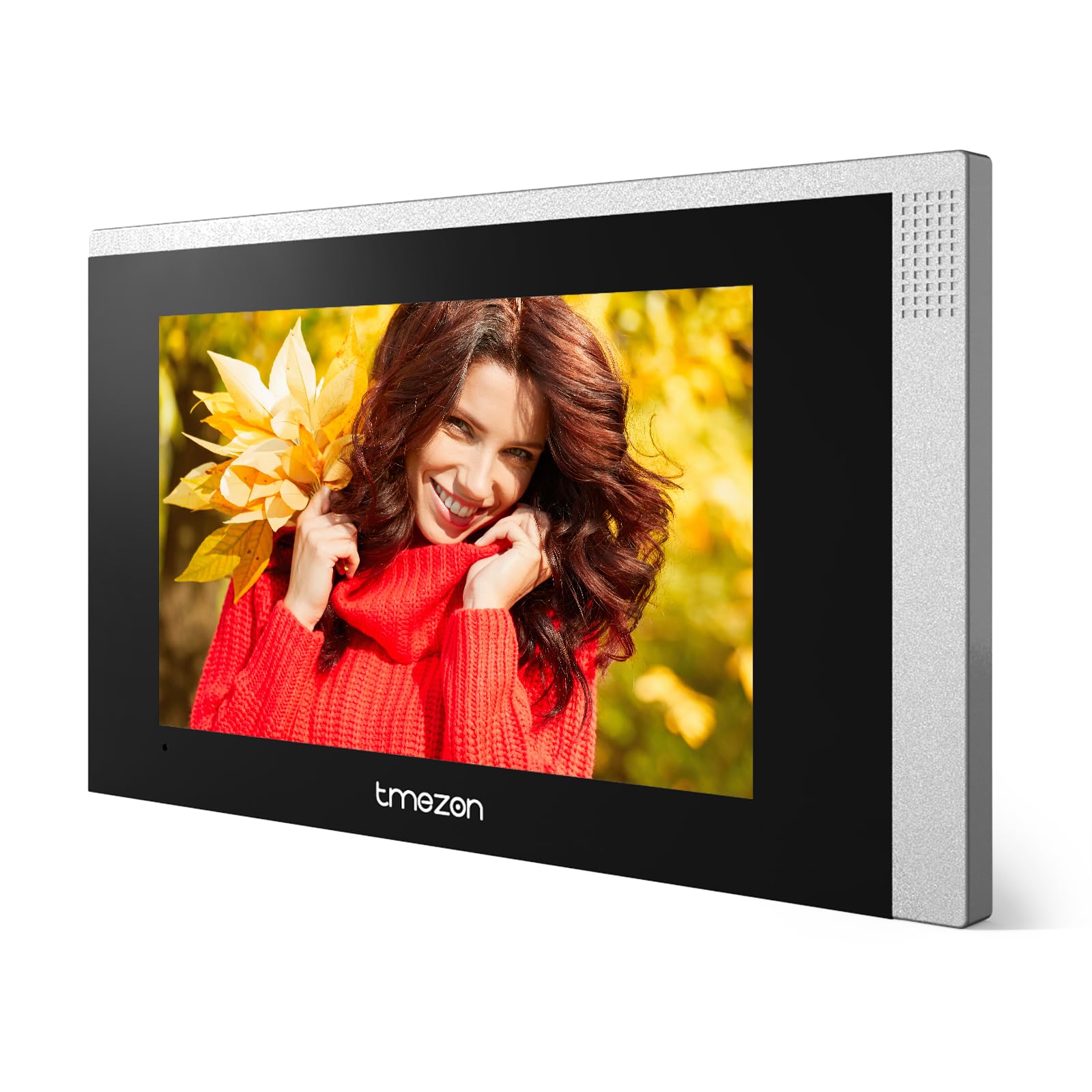
Image 1: Front view of the TMEZON MZ-IP-V728TW IP 4-Wire Intercom Monitor, showing the display and control buttons.
- Display Screen: Main interface for video and menu navigation.
- Function Buttons: (e.g., Answer, Door Release, Monitor, Menu, Talk) - specific functions may vary slightly based on firmware.
- Microphone: For two-way audio communication.
- Speaker: For audio output.
- Rear Ports: Power input, 4-wire terminal, Ethernet port (RJ45), alarm inputs/outputs (if applicable).
4.2. Key Features
- IP-enabled for remote access and integration with smart home systems.
- 4-wire connection for reliable power and data transmission.
- High-resolution color display for clear video.
- Two-way audio communication.
- Door release function.
- Multiple indoor monitor support.
- Recording and snapshot capabilities (if equipped with storage).
5. Setup
5.1. Installation Location
Choose a suitable indoor location for the monitor, typically at eye level, away from direct sunlight, heat sources, and areas with high humidity. Ensure there is sufficient space for wiring and ventilation.
5.2. Mounting the Monitor
- Mark the desired mounting position on the wall.
- Use the mounting bracket as a template to mark the screw holes.
- Drill holes at the marked positions and insert wall plugs.
- Secure the mounting bracket to the wall using the provided screws.
- Ensure the bracket is level and securely fastened.
5.3. Wiring Connections
The MZ-IP-V728TW uses a 4-wire connection system. Proper wiring is crucial for system functionality. Refer to the wiring diagram provided with your outdoor station and other system components.
- Wire 1 (Video): Connects to the video signal output of the outdoor station.
- Wire 2 (Audio): Connects to the audio signal output/input of the outdoor station.
- Wire 3 (Power +): Connects to the positive power supply from the outdoor station or power distributor.
- Wire 4 (Ground -): Connects to the ground/negative power supply.
- Ethernet (RJ45): Connect to your local network router for IP functionality and remote access.
- Power Input: Connect the AC/DC power adapter to the monitor's power input port.
Note: A detailed wiring diagram specific to your complete intercom system (including outdoor station, additional monitors, and power supply) should be consulted. If you are unsure, consult a professional installer.
5.4. Initial Power-Up
- After all wiring is complete and secure, plug in the power adapter.
- The monitor will power on and display the TMEZON logo.
- Follow the on-screen prompts for initial setup, including language selection, date/time, and network configuration.
6. Operating Instructions
6.1. Answering a Call
When a visitor presses the call button on the outdoor station, the monitor will ring and display the visitor's video. Press the Answer button to establish two-way audio communication.
6.2. Door Release
During a call or while monitoring, press the Door Release button to unlock the connected electronic lock. Ensure the door is clear before activating the release.
6.3. Monitoring
Press the Monitor button to view the live video feed from the outdoor station without an incoming call. Press it again to end monitoring.
6.4. Menu Navigation
Press the Menu button to access the monitor's settings. Use the arrow buttons (if physical) or touch screen gestures to navigate through options. Common settings include:
- System Settings: Language, Date/Time, Ringtone, Volume.
- Network Settings: Wi-Fi configuration, IP address.
- Recording/Playback: View recorded videos or snapshots (if storage is installed).
- Alarm Settings: Configure external alarm sensors (if connected).
7. Maintenance
- Cleaning: Use a soft, dry cloth to clean the monitor screen and body. Do not use abrasive cleaners or solvents.
- Firmware Updates: Periodically check the TMEZON official website for firmware updates to ensure optimal performance and security.
- Power Cycle: If the monitor becomes unresponsive, disconnect the power adapter for 10 seconds and then reconnect it.
8. Troubleshooting
| Problem | Possible Cause | Solution |
|---|---|---|
| Monitor does not power on. | No power supply; faulty adapter; loose connection. | Check power adapter connection; ensure outlet has power; try a different adapter if available. |
| No video from outdoor station. | Incorrect wiring; faulty outdoor station; damaged cable. | Verify 4-wire connections; check outdoor station power; inspect cable for damage. |
| No audio during call. | Volume too low; incorrect wiring; faulty microphone/speaker. | Adjust monitor volume; check audio wire connection; test with another monitor if possible. |
| Door release not working. | Incorrect wiring to electric lock; faulty lock; insufficient power. | Verify door release wiring; check electric lock functionality; ensure adequate power supply to the lock. |
| Cannot connect to network (IP function). | Incorrect network settings; faulty Ethernet cable; router issue. | Check network cable connection; verify IP settings (DHCP/Static IP); restart router. |
9. Specifications
| Feature | Specification |
|---|---|
| Model Number | MZ-IP-V728TW |
| Manufacturer | TMEZON |
| Power Type | AC/DC |
| Connectivity | 4-Wire, IP (Ethernet) |
| Included Components | Monitor (schermo) |
| ASIN | B0DRJJFFP8 |
10. Warranty and Support
TMEZON products are designed for reliability and performance. This product comes with a standard manufacturer's warranty. Please refer to the warranty card included in your package or visit the official TMEZON website for detailed warranty terms and conditions.
For technical support, troubleshooting assistance, or warranty claims, please contact TMEZON customer service through their official website or the contact information provided with your purchase. When contacting support, please have your product model number (MZ-IP-V728TW) and purchase details ready.
For more information, visit the TMEZON Store on Amazon.


