
1. Introduction
This manual provides detailed instructions for the Blackview Active 10 Pro 5G Rugged Tablet. It covers essential information regarding the device's features, setup, operation, maintenance, and troubleshooting. Please read this manual thoroughly before using your tablet to ensure proper and safe operation.
1.1 Safety Information
- Do not attempt to disassemble or repair the device yourself.
- Use only approved chargers and accessories.
- Avoid exposing the device to extreme temperatures outside its operating range (-20°C to +60°C).
- Ensure all ports are properly sealed when exposed to water or dust.
- Keep the device away from strong magnetic fields.
1.2 What's in the Box
The Blackview Active 10 Pro package typically includes the following items:
- Blackview ACTIVE 10 PRO Tablet x1
- TPU Protective Case x1
- User Manual x1
- Power Adapter x1
- USB Cable x1
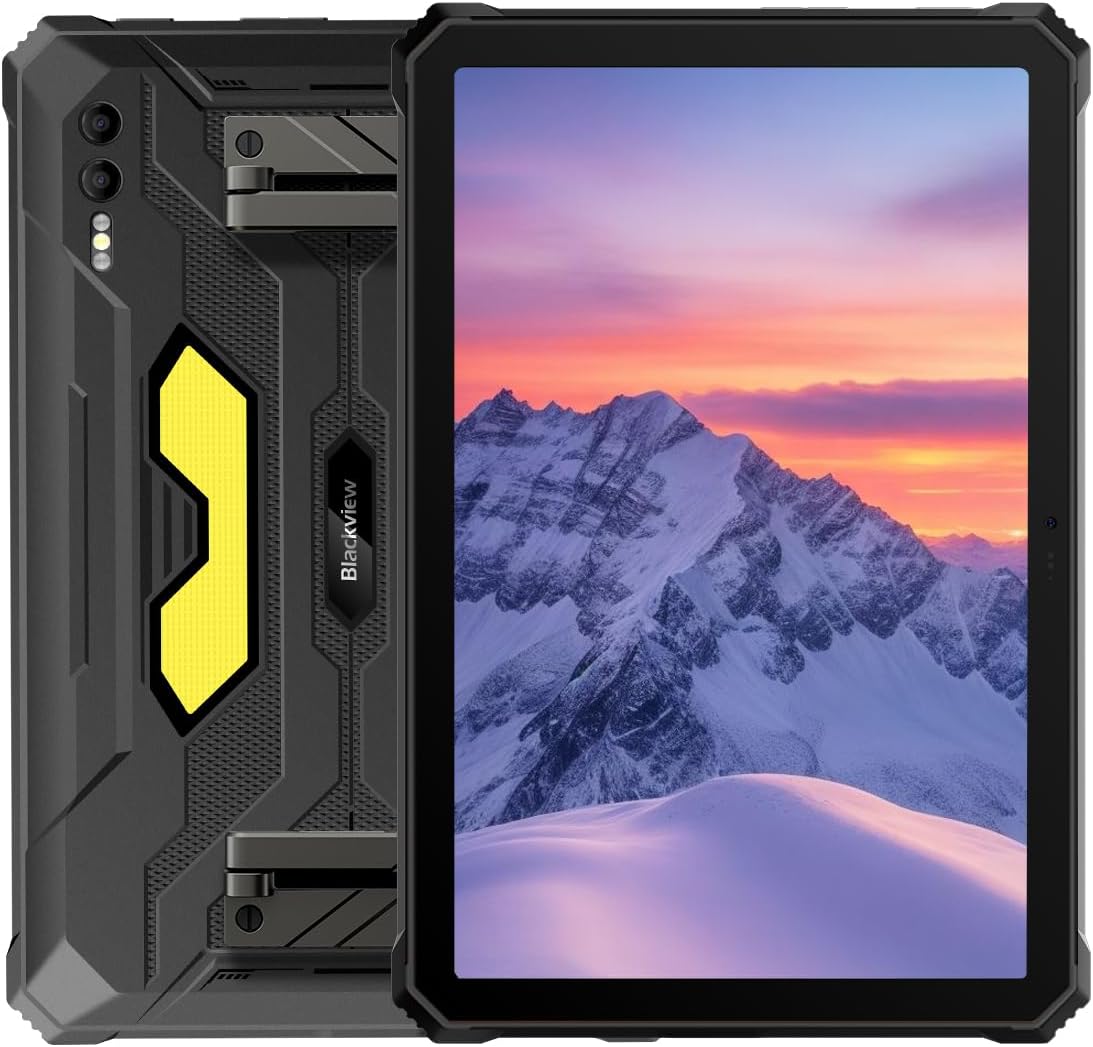
Image: Front and back view of the Blackview Active 10 Pro 5G Rugged Tablet, showcasing its robust design and display.
2. Setup
2.1 Initial Charging
Before first use, fully charge the tablet using the provided power adapter and USB cable. The tablet features a 30,000mAh solid-state battery, which may take several hours to fully charge.
2.2 Powering On/Off
- To Power On: Press and hold the Power button until the Blackview logo appears on the screen.
- To Power Off: Press and hold the Power button until the power options menu appears, then select "Power off".
- To Restart: Press and hold the Power button until the power options menu appears, then select "Restart".
2.3 SIM and SD Card Installation
The Active 10 Pro supports Dual SIM 5G connectivity and expandable storage up to 2TB via an SD card.
- Locate the SIM/SD card tray on the side of the tablet.
- Use the provided SIM ejector tool to open the tray.
- Carefully place the Nano-SIM cards and/or microSD card into the designated slots. Ensure correct orientation.
- Gently push the tray back into the tablet until it clicks into place.
2.4 Initial Setup Wizard
Upon first power-on, the tablet will guide you through an initial setup wizard. Follow the on-screen prompts to:
- Select your language.
- Connect to a Wi-Fi network.
- Sign in with your Google account or create a new one.
- Set up screen lock (PIN, pattern, password, or fingerprint).
- Review and accept terms and conditions.
3. Operating Instructions
3.1 Basic Navigation (Android 14)
The Blackview Active 10 Pro runs on Android 14, offering an intuitive user experience.
- Home Screen: Swipe left or right to navigate between home screens.
- App Drawer: Swipe up from the bottom of the screen to access all installed applications.
- Notifications & Quick Settings: Swipe down from the top of the screen to view notifications and access quick settings toggles.
- Multitasking: Swipe up from the bottom and hold to view recent applications.
3.2 Using the 400lm Camping Lantern
The tablet features a powerful 400 lumen camping lantern integrated into its design.

Image: The Blackview Active 10 Pro's 400 lumen camping lantern providing bright illumination in a dark outdoor setting.
- Activation: The lantern can typically be activated via a dedicated button or a quick settings toggle in the notification panel.
- Modes: It offers multiple modes including constant light, SOS signal, and rapid flashing for emergencies. Refer to the on-screen controls for mode selection.
3.3 Camera Operation
The Active 10 Pro is equipped with a 108MP rear camera, a 50MP front camera, and a 20MP night vision camera.

Image: A detailed view of the Blackview Active 10 Pro's rear camera setup, highlighting the 108MP main sensor.
- Launching Camera: Tap the Camera app icon on your home screen or app drawer.
- Switching Cameras: Use the camera switch icon to toggle between front, rear, and night vision cameras.
- Modes: Explore various shooting modes such as Photo, Video, Portrait, Night, and Pro mode for advanced settings.
- AI Enhancement: The 108MP HM6 camera utilizes AI for automatic scene recognition and image optimization.
3.4 Audio Features (Harman Kardon Speakers)
Experience high-quality audio with the built-in Dual Harman Kardon Stereo Smart-PA BOX Speakers, enhanced by Harman AudioEFX®.

Image: A visual representation of the Blackview Active 10 Pro's Harman Kardon speaker system, illustrating immersive sound output.
- Volume Control: Use the physical volume buttons on the side of the tablet or the on-screen volume slider.
- Audio Settings: Access sound settings in the tablet's main Settings app to adjust equalizer, sound profiles, and other audio enhancements.
3.5 Connectivity (5G & Wi-Fi)
The tablet supports Dual 5G connectivity and Wi-Fi (802.11a/b/g/n/ac).
- Mobile Data (5G): Ensure your SIM card is properly installed and your mobile data plan is active. Enable 5G in network settings for optimal speeds.
- Wi-Fi: Go to Settings > Network & internet > Wi-Fi to connect to available Wi-Fi networks.
- Bluetooth: Pair with Bluetooth devices (headphones, speakers) via Settings > Connected devices > Bluetooth.
3.6 Display Features
The Active 10 Pro features an 11-inch FHD+ IPS display with a 1920x1200 resolution, 90Hz refresh rate, and 360 nits brightness.

Image: An infographic illustrating the key display specifications of the Blackview Active 10 Pro, including resolution, refresh rate, and brightness.
- Brightness: Adjust screen brightness from the quick settings panel or Display settings.
- Refresh Rate: The 90Hz refresh rate provides smoother scrolling and animations. This can usually be adjusted in Display settings if a lower refresh rate is desired for battery saving.
4. Maintenance
4.1 Cleaning the Device
To clean your tablet, use a soft, lint-free cloth. For stubborn dirt, slightly dampen the cloth with water. Avoid using harsh chemicals or abrasive materials.
4.2 Water and Dust Resistance (IP68/IP69K, MIL-STD-810H)
The Blackview Active 10 Pro is designed to be highly durable, with IP68 and IP69K ratings for water and dust resistance, and MIL-STD-810H certification for ruggedness.

Image: The Blackview Active 10 Pro partially submerged in water, illustrating its IP68 water resistance capabilities.
- Water Resistance: The tablet can withstand submersion up to 1.5 meters deep for 30 minutes. Ensure all port covers are securely closed before exposure to water.
- Dust Resistance: It is fully protected against dust ingress.
- Drop Resistance: Certified to MIL-STD-810H, it can survive drops and extreme temperatures (-20°C to +60°C).
- Screen Durability: Features Corning Gorilla Glass 5 for scratch resistance.
4.3 Battery Care (30,000mAh Solid-State Battery)
The tablet's 30,000mAh solid-state battery offers exceptional longevity, up to 90 days of standby time.
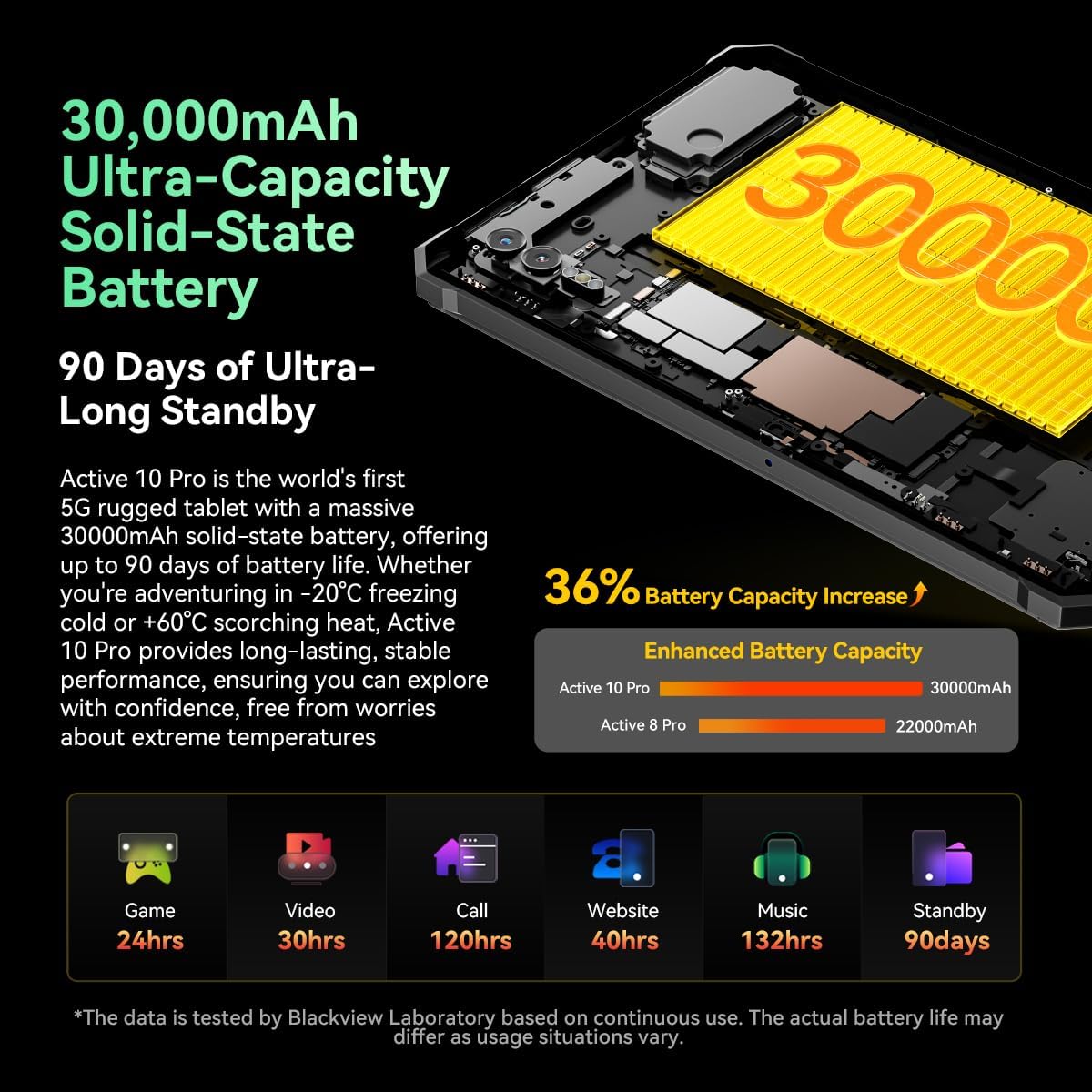
Image: An infographic highlighting the Blackview Active 10 Pro's 30,000mAh solid-state battery and its impressive 90-day standby capability.
- Avoid completely draining the battery frequently.
- Store the device in a cool, dry place if not used for extended periods.
- Use only the original charger to prevent battery damage.
4.4 Software Updates
Regularly check for and install software updates to ensure optimal performance, security, and access to new features.
- Go to Settings > System > System update to check for available updates.
- Ensure your tablet is connected to Wi-Fi and has sufficient battery life before starting an update.
5. Troubleshooting
This section addresses common issues you might encounter with your Blackview Active 10 Pro tablet.
| Problem | Possible Cause | Solution |
|---|---|---|
| Device does not turn on | Low battery; software crash | Charge the tablet for at least 30 minutes. Press and hold the Power button for 10-15 seconds to force restart. |
| Cannot connect to Wi-Fi | Incorrect password; router issue; Wi-Fi disabled | Verify Wi-Fi password. Restart your router. Toggle Wi-Fi off and on in settings. |
| Apps are crashing or freezing | Insufficient RAM; app bug; outdated software | Close background apps. Clear app cache/data (Settings > Apps). Update the app or tablet software. |
| Slow performance | Too many apps running; low storage; software issues | Close unused apps. Free up storage space. Restart the tablet. |
| Charging slowly or not at all | Faulty cable/adapter; dirty charging port | Use the original charger. Check for debris in the charging port. Try a different power outlet. |
5.1 Factory Reset
If you experience persistent issues, a factory reset may resolve them. Warning: This will erase all data on your tablet. Back up important data before proceeding.
- Go to Settings > System > Reset options.
- Select "Erase all data (factory reset)".
- Confirm your decision and enter your PIN/pattern if prompted.
- The tablet will restart and begin the reset process.
6. Specifications
Detailed technical specifications for the Blackview Active 10 Pro 5G Rugged Tablet.
| Feature | Specification |
|---|---|
| Brand | Blackview |
| Model Name | ACTIVE 10 PRO Black |
| Product Dimensions | 26.76 x 17.9 x 1.95 cm; 1.21 kg |
| Battery | 1 Lithium Polymer battery required (included) |
| Battery Capacity | 30,000mAh (9 Watt-hours) |
| Average Battery Life (usage) | 80 Hours |
| Standby Battery Life | 90 Days |
| Screen Size | 11 Inches |
| Screen Resolution | 1920 x 1200 pixels (FHD+) |
| Processor | MediaTek Dimensity 7300 (Octa-Core 5G, 4nm) |
| Processor Speed | 2.5 GHz |
| RAM Size | 12 GB (expandable to 36GB) |
| Internal Storage | 512 GB |
| Maximum Expandable Memory | 2 TB |
| Connectivity Type | Wi-Fi, Dual SIM 5G |
| Wireless Type | 802.11a/b/g/n/ac |
| Rear Camera Resolution | 108 MP (HM6) + 20MP (Night Vision) |
| Front Camera Resolution | 50 MP |
| Operating System | Android 14 |
| Color | Black |
| Weight | 1.21 Kilograms |
| Water/Dust Resistance | IP68, IP69K |
| Rugged Certification | MIL-STD-810H |
| Display Brightness | 360 nits |
| Display Refresh Rate | 90Hz |
| Audio | Dual Harman Kardon Stereo Smart-PA BOX Speakers with Harman AudioEFX® |
7. Warranty and Support
7.1 Product Warranty
The Blackview Active 10 Pro tablet comes with a standard manufacturer's warranty. Please refer to the warranty card included in your product packaging for specific terms, conditions, and duration. Keep your proof of purchase for warranty claims.
7.2 Customer Support
For technical assistance, troubleshooting beyond this manual, or warranty inquiries, please contact Blackview customer support.
- Visit the official Blackview website for support resources, FAQs, and contact information.
- You may also find additional support through the retailer where you purchased the device.
Visit the Blackview Store on Amazon for more product information and support.


