
1. Introduction
Welcome to the user manual for your Kinhank Super Console X4 Plus. This device is a versatile entertainment system designed to provide a comprehensive retro gaming experience combined with modern media capabilities. It features a powerful S905X4 chipset, supports multiple operating systems including EmuELEC 4.6 for gaming, Android 11.0 for smart TV functions, and CoreE for audio, all capable of delivering stunning 4K UHD visuals. This manual will guide you through the setup, operation, and maintenance of your console to ensure optimal performance and enjoyment.

Figure 1: The Super Console X4 Plus connected to a display, showing a game in progress.
2. Package Contents
Please verify that all items are present in your package.
- Super Console X4 Plus Unit
- Power Adapter
- HDMI Cable
- Game Controllers (quantity may vary by package)
- User Manual (this document)
- MicroSD Card (pre-installed with games and EmuELEC system)
3. Setup Instructions
- Connect to Power: Insert the power adapter into the DC IN port on the console and plug the other end into a power outlet.
- Connect to Display: Use the provided HDMI cable to connect the console's HDMI OUT port to an HDMI input on your television or monitor.
- Connect Controllers: Connect your game controllers to the console. Wired controllers can be plugged into the USB ports. Wireless controllers may require pairing according to their specific instructions.
- Power On: Press the power button on the console. The system will boot up.
- Initial Setup: Follow the on-screen prompts for initial language selection, network connection (Ethernet or Wi-Fi), and other basic settings.
4. Operating the Console
4.1 System Overview: Three Systems in One
The Super Console X4 Plus integrates three distinct operating systems:
- EmuELEC 4.6: Dedicated retro gaming system with pre-loaded games and emulators.
- Android 11.0: Smart TV system for streaming, apps, and web browsing.
- CoreE: Audio system for enhanced sound quality.
You can switch between these systems as needed to access different functionalities. Refer to the on-screen menu for system switching options.

Figure 2: The console's interface displaying the EmuELEC 4.6 loading screen and Android TV options, highlighting its multi-system capability.
4.2 Gaming with EmuELEC 4.6
The console comes pre-loaded with over 60,000 classic games and supports more than 65 emulators.
- Navigating Games: Use your controller to browse through the game libraries.
- Launching Games: Select a game and press the designated button (usually 'A' or 'Start') to launch it.
- Saving Progress: Most emulators allow you to save your game progress. Refer to the in-game or emulator-specific menus for saving and loading options.
- Adding Games: The system supports adding new game ROMs. This typically involves transferring files to the MicroSD card via a computer. Consult online resources or the EmuELEC community for detailed instructions on adding games.
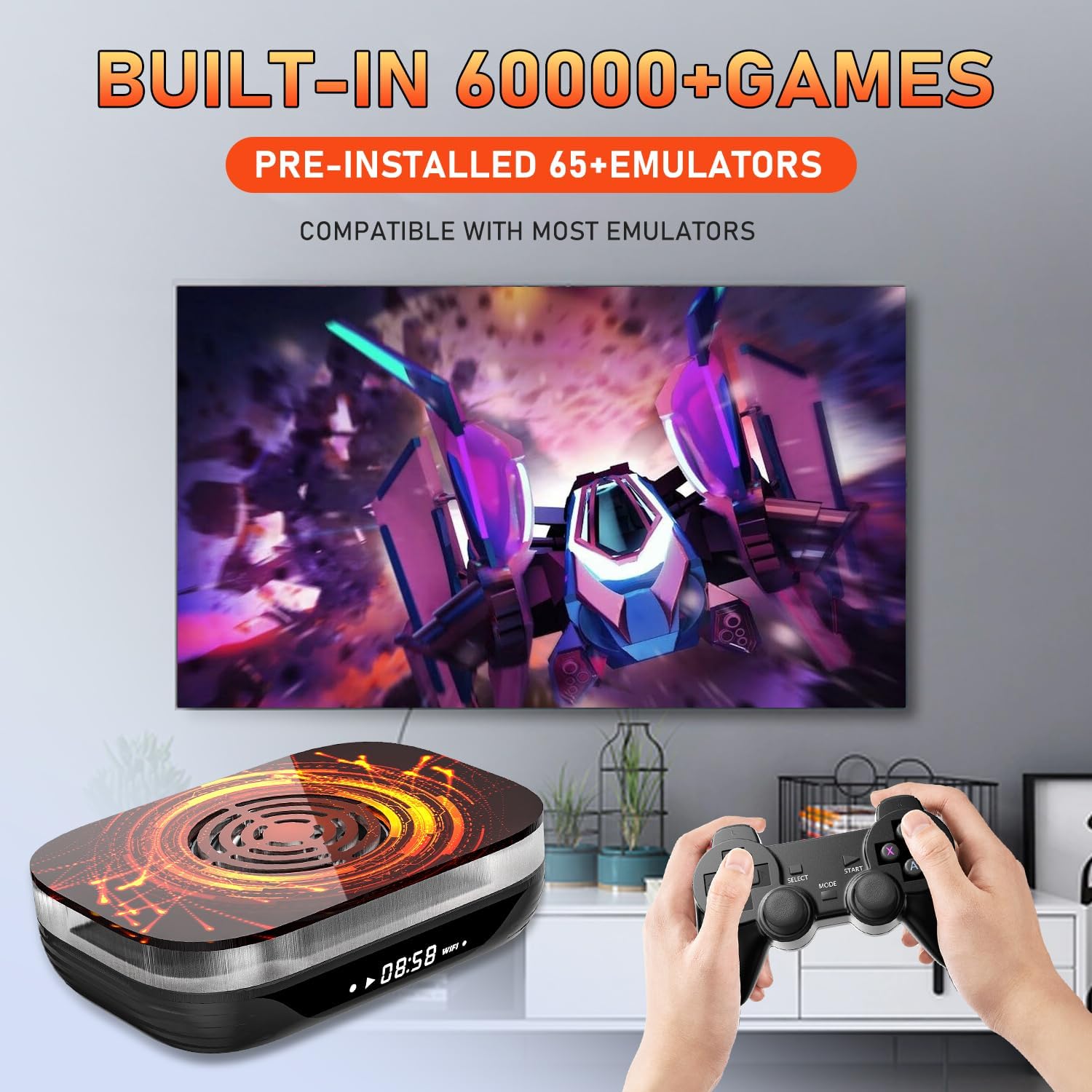
Figure 3: Visual representation of the console's extensive game library and emulator support.
4.3 Android 11.0 for Media and Apps
Switch to the Android 11.0 system to access smart TV functionalities.
- Streaming: Install and use popular streaming applications.
- Web Browsing: Use a web browser to access the internet.
- App Installation: Download and install applications from the Google Play Store.
5. Performance and Connectivity
The Super Console X4 Plus is powered by an Amlogic S905X4 chipset, featuring a quad-core ARM Cortex A55 CPU and Mali-G31MP2 GPU, coupled with 4GB of RAM. This configuration ensures stable and fast performance for both gaming and media consumption.

Figure 4: Detailed view of the Amlogic S905X4 chip, highlighting its key components for performance.
5.1 Network Connectivity
- Ethernet: Supports 1000M Ethernet for a stable wired internet connection.
- Wi-Fi: Features Dual-Band Wi-Fi (2.4G/5G) for flexible wireless connectivity.
6. Display Output
Experience immersive visuals with support for high-resolution output. The console supports:
- 8K resolution at 24 frames per second (fps)
- 4K resolution at 60 frames per second (fps)
Ensure your display device (TV/monitor) and HDMI cable support these resolutions for the best visual experience.

Figure 5: Illustration of the console's capability to output video in 8K, 4K, and 1080p resolutions.
7. Cooling System
The Super Console X4 Plus features a built-in cooling fan to maintain optimal operating temperatures during extended gaming sessions. This helps ensure smooth and uninterrupted performance by preventing overheating.

Figure 6: Internal view illustrating the integrated cooling fan for thermal management.
8. Specifications
| Feature | Detail |
|---|---|
| Model Number | Super Console X4 Plus |
| Processor | Amlogic S905X4 (Quad-core ARM Cortex A55 CPU) |
| GPU | Mali-G31MP2 |
| RAM | 4GB |
| Operating Systems | EmuELEC 4.6, Android 11.0, CoreE |
| Game Emulators | 65+ emulators supported |
| Pre-installed Games | 60,000+ |
| Video Output | 8K@24fps, 4K@60fps |
| Network | 1000M Ethernet, Dual-Band Wi-Fi (2.4G/5G) |
| Dimensions | 22.3 x 17.5 x 12.09 cm |
| Weight | 848 g |
| Language | English (default) |
9. Troubleshooting
If you encounter issues with your Super Console X4 Plus, please refer to the following common problems and solutions:
- No Power:
Ensure the power adapter is securely connected to both the console and a working power outlet. Try a different outlet if necessary.
- No Display/Black Screen:
Verify the HDMI cable is firmly connected to both the console and your TV/monitor. Ensure your TV is set to the correct HDMI input source. Try a different HDMI cable or port.
- Controllers Not Responding:
For wired controllers, ensure they are plugged into the USB ports. For wireless controllers, check battery levels and ensure they are properly paired with the console according to their specific instructions.
- Slow Performance / Games Lagging:
Performance issues, especially with heavier systems like PS1, Dreamcast, or N64, can sometimes be attributed to the speed of the MicroSD card. If you experience significant slowdowns, consider upgrading the MicroSD card to a higher-speed, reputable brand. Ensure the console has adequate ventilation and is not overheating. Close any unnecessary applications running in the Android system if you are experiencing slowdowns there.
- Games Not Loading / Corrupted:
Some game files may be corrupted or incompatible. Try re-downloading or replacing the game ROM. Ensure the emulator for that system is correctly configured. If many games are affected, the MicroSD card might be faulty or corrupted.
- Network Connection Issues:
For Wi-Fi, ensure the correct password is entered and the console is within range of your router. For Ethernet, check the cable connection and router status. Restart your router and the console.
10. Maintenance
- Cleaning: Use a soft, dry cloth to clean the exterior of the console. Do not use liquid cleaners or abrasive materials. Ensure ventilation openings are free from dust.
- Software Updates: Periodically check for system updates for both EmuELEC and Android to ensure optimal performance and access to the latest features. Follow the on-screen instructions for updating.
- Storage: Store the console in a cool, dry place away from direct sunlight and extreme temperatures when not in use.
- MicroSD Card Care: Handle the MicroSD card with care. Avoid frequent removal and insertion to prevent damage. Always safely eject the card from a computer before removing it.
11. Warranty and Support
For warranty information and technical support, please refer to the documentation provided with your purchase or contact Kinhank customer service directly. Keep your proof of purchase for warranty claims.
For further assistance, you may also visit the official Kinhank website or relevant online communities for the Super Console X4 Plus.


