
1. Introduction
This manual provides essential instructions for the safe and efficient use of your Blackview BV6200 Plus rugged smartphone. Please read this guide thoroughly before operating your device to ensure optimal performance and longevity. The Blackview BV6200 Plus is designed for durability, featuring a robust construction, a large capacity battery, and advanced communication capabilities.
2. Product Overview
The Blackview BV6200 Plus is a rugged smartphone built to withstand challenging environments. It features a durable exterior, a powerful 11000mAh battery, a 3W ultra-loud speaker, and a high-resolution camera system. The device operates on Android 14 and supports dual SIM functionality.
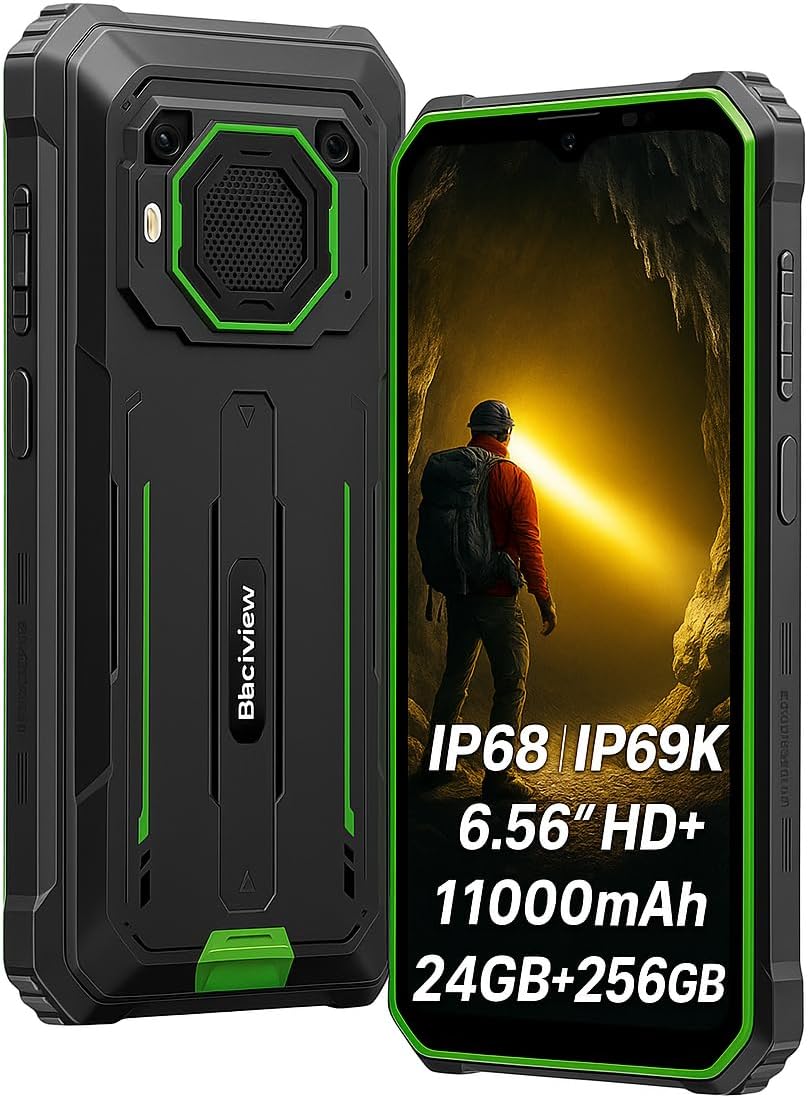
Figure 2.1: Front and rear view of the Blackview BV6200 Plus smartphone.
2.1 Package Contents
Upon unboxing, please verify that the following items are included:
- Blackview BV6200 Plus Smartphone
- USB Type-C Cable
- Power Adapter
- SIM Ejector Tool
- User Manual (this document)
3. Setup
3.1 SIM Card and SD Card Installation
- Locate the SIM card tray on the side of the device.
- Insert the SIM ejector tool into the small hole next to the tray and press gently until the tray pops out.
- Place your Nano-SIM card(s) and/or microSD card (up to 1TB) into the designated slots on the tray. Ensure the gold contacts face downwards.
- Carefully reinsert the tray into the phone until it clicks into place.
3.2 Initial Power On
Press and hold the Power button (located on the right side of the device) for a few seconds until the Blackview logo appears. Follow the on-screen instructions to complete the initial setup, including language selection, Wi-Fi connection, and Google account setup.
3.3 Charging the Device
Before first use, it is recommended to fully charge the device. Connect the USB Type-C cable to the phone's charging port and the other end to the power adapter. Plug the adapter into a wall outlet. The device supports 18W fast charging, allowing a full charge in approximately 3 hours.

Figure 3.1: The Blackview BV6200 Plus supports 18W fast charging.
4. Operating Instructions
4.1 Basic Functions
- Making Calls: Open the Phone app, enter the number, and tap the call icon.
- Sending Messages: Open the Messages app, tap 'Start chat', enter recipient and message, then send.
- Internet Connectivity: Connect to Wi-Fi via Settings > Network & internet > Wi-Fi, or enable mobile data via Settings > Network & internet > Mobile network.
4.2 Camera Operation
The Blackview BV6200 Plus features a 16MP AI rear camera and a 13MP AI front camera. Open the Camera app to capture photos and videos. Various modes, including an underwater camera mode, are available.

Figure 4.1: The 16MP AI rear camera system.
4.3 Ultra-Loud Speaker
The device is equipped with a 3W ultra-loud stereo speaker, capable of producing sound up to 98dB. This feature is ideal for outdoor use or situations where high volume is required.

Figure 4.2: Detail of the 3W ultra-loud stereo speaker.
4.4 Display Features
The 6.56-inch HD+ display offers clear visuals. It features an intelligent 90Hz dynamic refresh rate for smooth scrolling and responsive touch interactions.
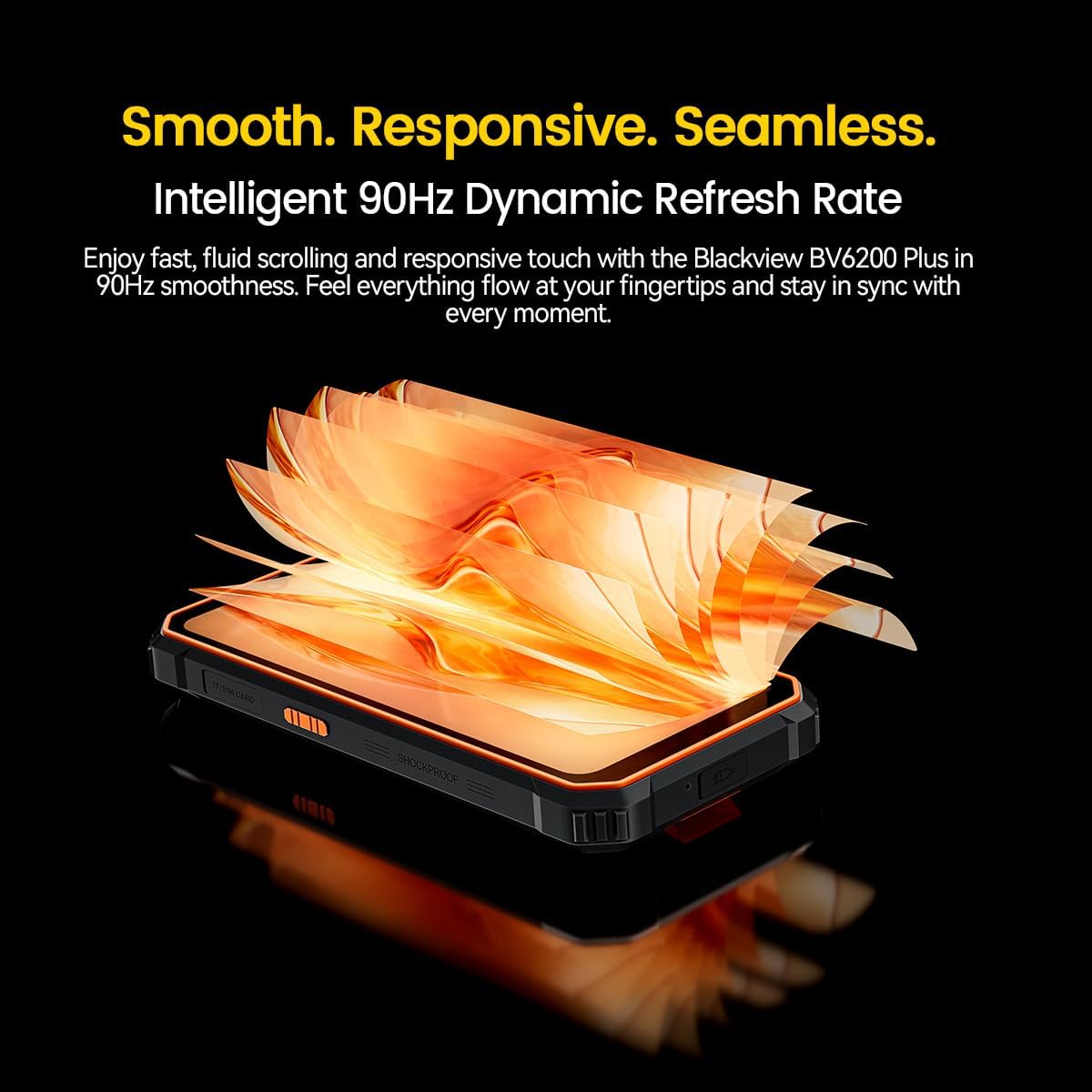
Figure 4.3: The 90Hz dynamic refresh rate display.
4.5 Glove Mode
The Blackview BV6200 Plus includes a Glove Mode, allowing you to operate the touchscreen effectively even while wearing gloves. This is particularly useful in cold weather or industrial environments. To activate/deactivate Glove Mode, navigate to Settings > Smart Assistant > Glove Mode.
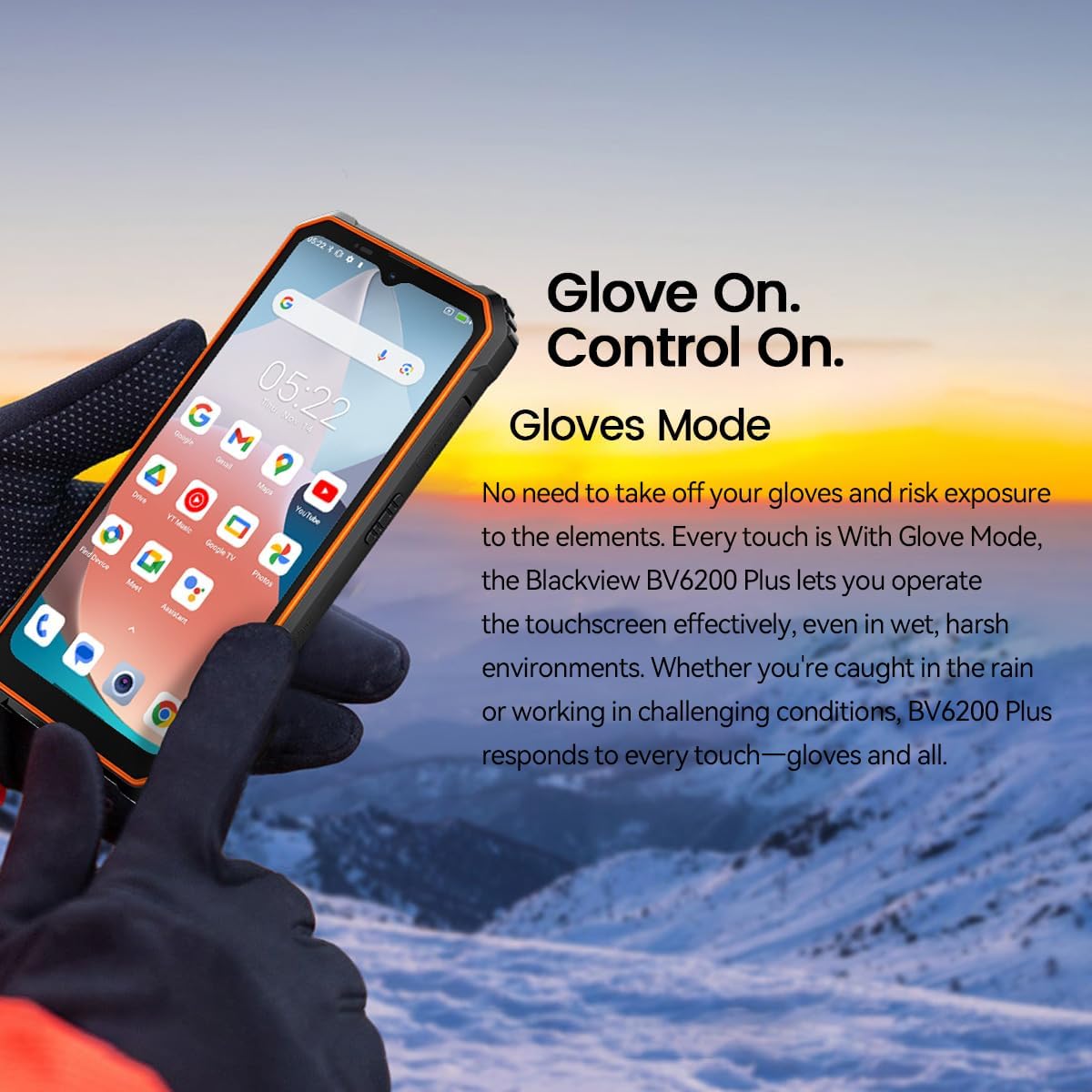
Figure 4.4: Operating the device with gloves using Glove Mode.
4.6 NFC Functionality
The device supports Near Field Communication (NFC) for contactless payments, quick pairing with compatible devices, and data exchange. Ensure NFC is enabled in Settings > Connected devices > Connection preferences > NFC.
5. Maintenance
5.1 Water and Dust Resistance (IP68 & IP69K)
The Blackview BV6200 Plus is certified with IP68 and IP69K ratings, indicating resistance to dust ingress and water immersion. It can withstand submersion in water up to 1.5 meters for 30 minutes. While designed to be robust, avoid intentional prolonged submersion or exposure to high-pressure water jets beyond specified limits. Ensure all ports are securely closed before exposing the device to water or dust.
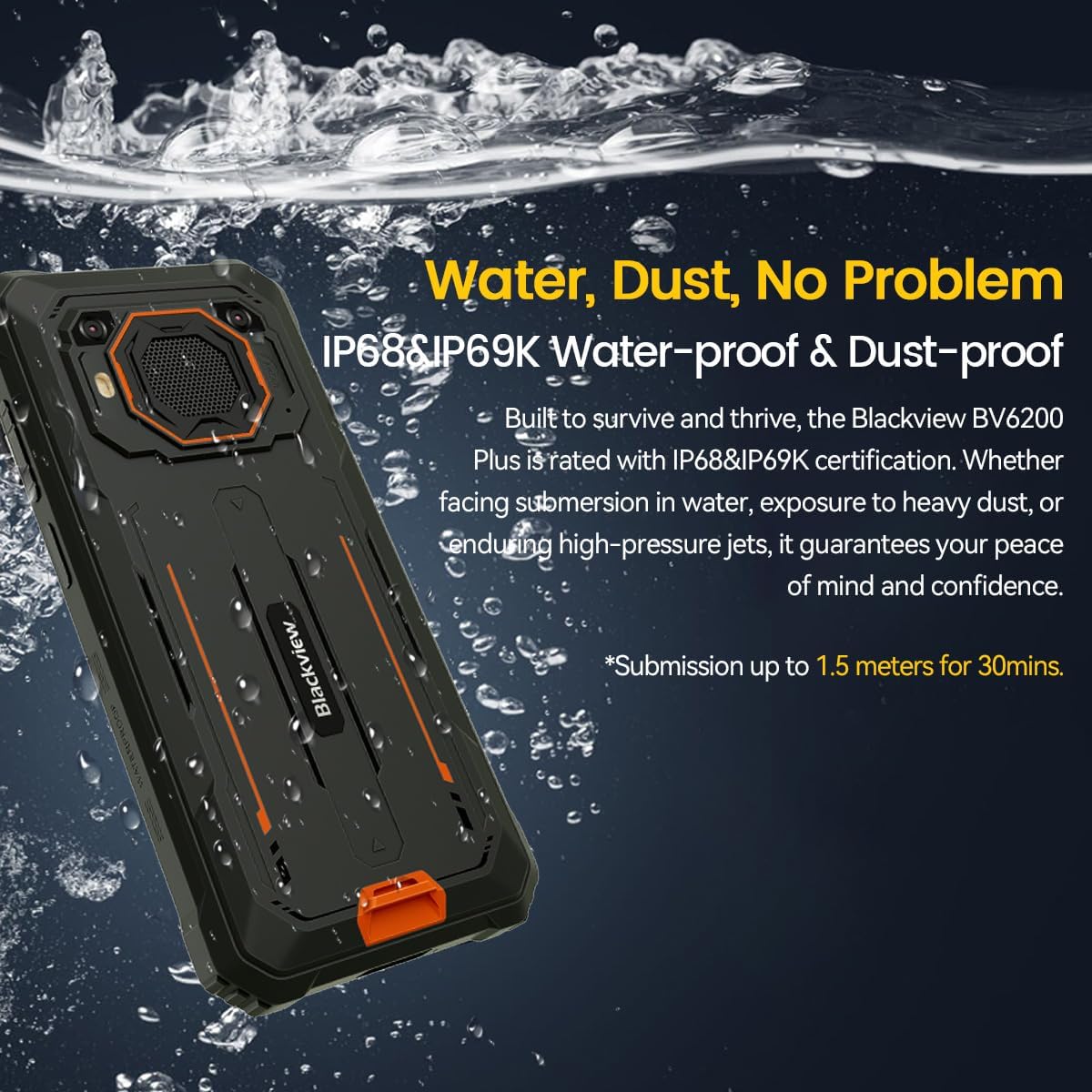
Figure 5.1: The device's water and dust resistance.
5.2 Drop Protection
The device features a reinforced, shock-absorbing frame and is MIL-STD 810H certified, providing 360° drop protection. It is designed to withstand drops from up to 1.2 meters. Despite its ruggedness, extreme impacts should still be avoided to prevent potential damage.

Figure 5.2: The device's robust drop protection design.
5.3 Battery Care
To maximize battery life and performance:
- Avoid exposing the device to extreme temperatures.
- Use only the original charger and cable provided.
- Do not allow the battery to fully discharge frequently.
- If the device will not be used for an extended period, charge it to about 50% before storing.
6. Troubleshooting
If you encounter issues with your Blackview BV6200 Plus, refer to the following common solutions:
- Device not turning on: Ensure the battery is charged. Connect to the charger for at least 15 minutes before attempting to power on again.
- Charging issues: Check if the charging cable and adapter are securely connected. Try a different outlet or charging accessory.
- Network connectivity problems: Verify that your SIM card is correctly inserted and activated. Check network settings and ensure mobile data or Wi-Fi is enabled. Restart the device.
- Apps crashing or freezing: Close and reopen the app. Clear the app's cache and data in Settings > Apps. If the issue persists, uninstall and reinstall the app.
- Touchscreen unresponsive: Restart the device. If the issue continues, perform a factory reset (backup data first).
For more complex issues, please contact Blackview customer support.
7. Specifications
| Feature | Specification |
|---|---|
| Brand | Blackview |
| Model Number | BV6200 PLUS |
| Operating System | Android 14 |
| Display Size | 6.56 Inches |
| Display Resolution | 720 x 1280 |
| RAM | Up to 24GB (8GB + 16GB Extended) |
| Internal Storage | 256GB |
| Expandable Storage | SD card slot up to 1TB |
| Battery Capacity | 11000mAh Lithium-polymer |
| Charging | 18W Fast Charging, 5W Reverse Charging |
| Rear Camera | 16 Megapixels AI |
| Front Camera | 13 Megapixels AI |
| Speaker | 3W Ultra-loud Stereo Speaker (98dB) |
| Connectivity | TYPE-C, GSM, 3G, 4G, Bluetooth, GPS, WIFI, NFC |
| Durability | IP68 & IP69K Water/Dust Resistant, MIL-STD 810H Drop Protection |
| CPU Speed | 1.6 GHz |
8. Warranty and Support
Your Blackview BV6200 Plus smartphone comes with a 2-year manufacturer's warranty. This warranty covers manufacturing defects under normal use. Please retain your proof of purchase for warranty claims.
For technical support, warranty service, or further inquiries, please visit the official Blackview website or contact their customer service department. Contact information can typically be found on the Blackview official website or in the packaging materials.


