
1. Introduction
This manual provides comprehensive instructions for the setup, operation, and maintenance of your ONITOON G70 Wireless Bluetooth Keyboard. Designed for versatility and comfort, this keyboard offers dual connectivity modes, a unique retro aesthetic, and an ergonomic layout for an enhanced typing experience.
2. Package Contents
- 1x ONITOON G70 Wireless Bluetooth Keyboard
- 1x Magnetic Bear Doll
- 1x USB Receiver (located in the battery compartment)
- 1x Type-C Adapter
- 2x AAA Batteries
3. Setup
3.1 Battery Installation
- Locate the battery compartment on the underside of the keyboard.
- Open the battery compartment cover.
- Insert the two AAA batteries, ensuring correct polarity (+/-) as indicated inside the compartment.
- Close the battery compartment cover securely.
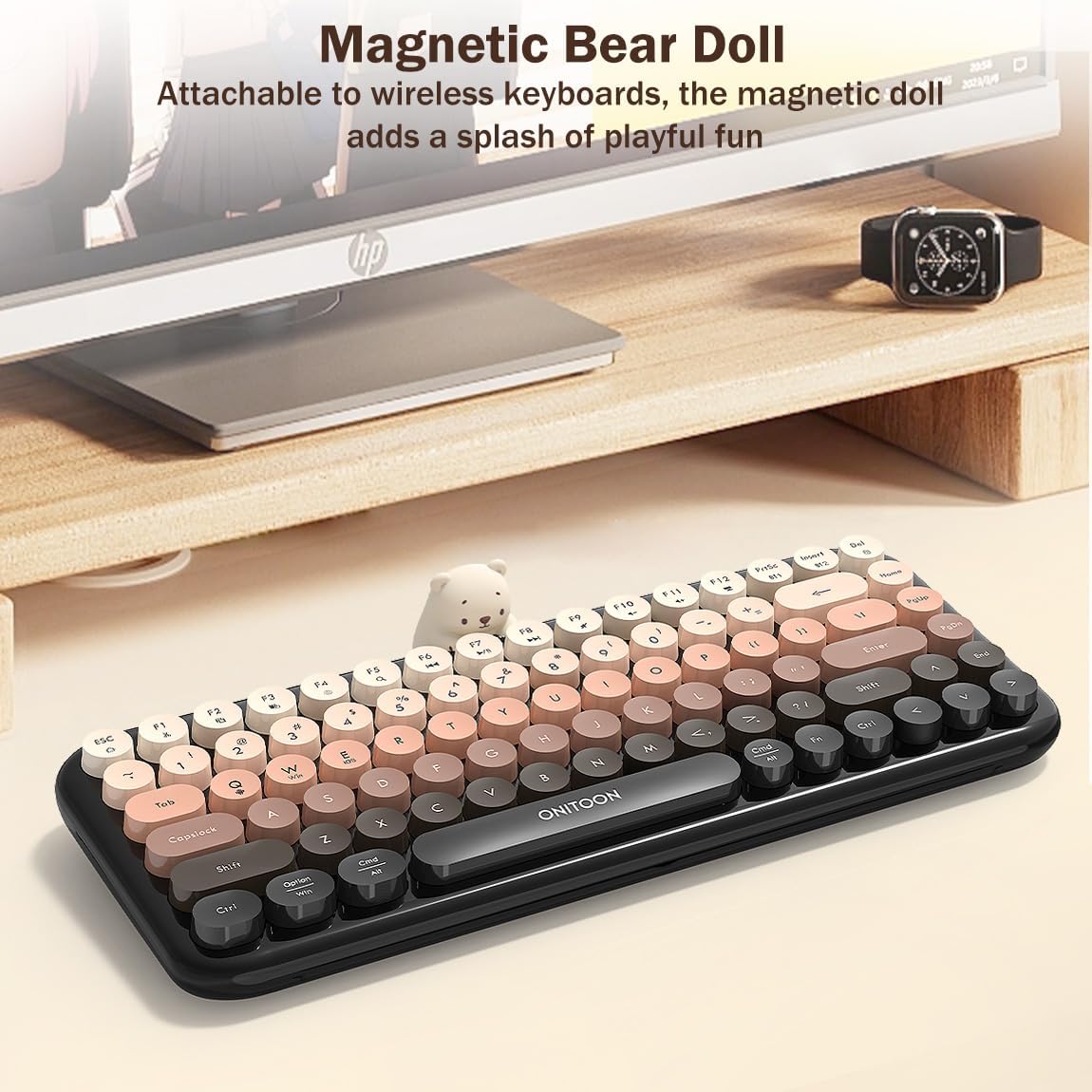
Figure 3.1: Battery compartment and USB receiver storage.
3.2 Connectivity
The ONITOON G70 keyboard supports both 2.4GHz wireless and Bluetooth connections, allowing you to pair with up to two devices.
3.2.1 2.4GHz Wireless Connection
- Retrieve the USB receiver from its storage slot in the battery compartment.
- Plug the USB receiver into an available USB port on your computer or laptop.
- Turn on the keyboard using the power switch located on the underside.
- The keyboard should automatically connect. If not, press FN + Del keys simultaneously to switch to 2.4GHz channel.

Figure 3.2: Connecting via 2.4GHz USB receiver.
3.2.2 Bluetooth Connection
- Turn on the keyboard using the power switch.
- Press Fn + BT1 or Fn + BT2 to select a Bluetooth channel. The indicator light will flash, signifying pairing mode.
- On your device (iPad, tablet, smartphone, etc.), navigate to Bluetooth settings and search for available devices.
- Select 'ONITOON G70' from the list to pair.
- Once paired, the indicator light will stop flashing.
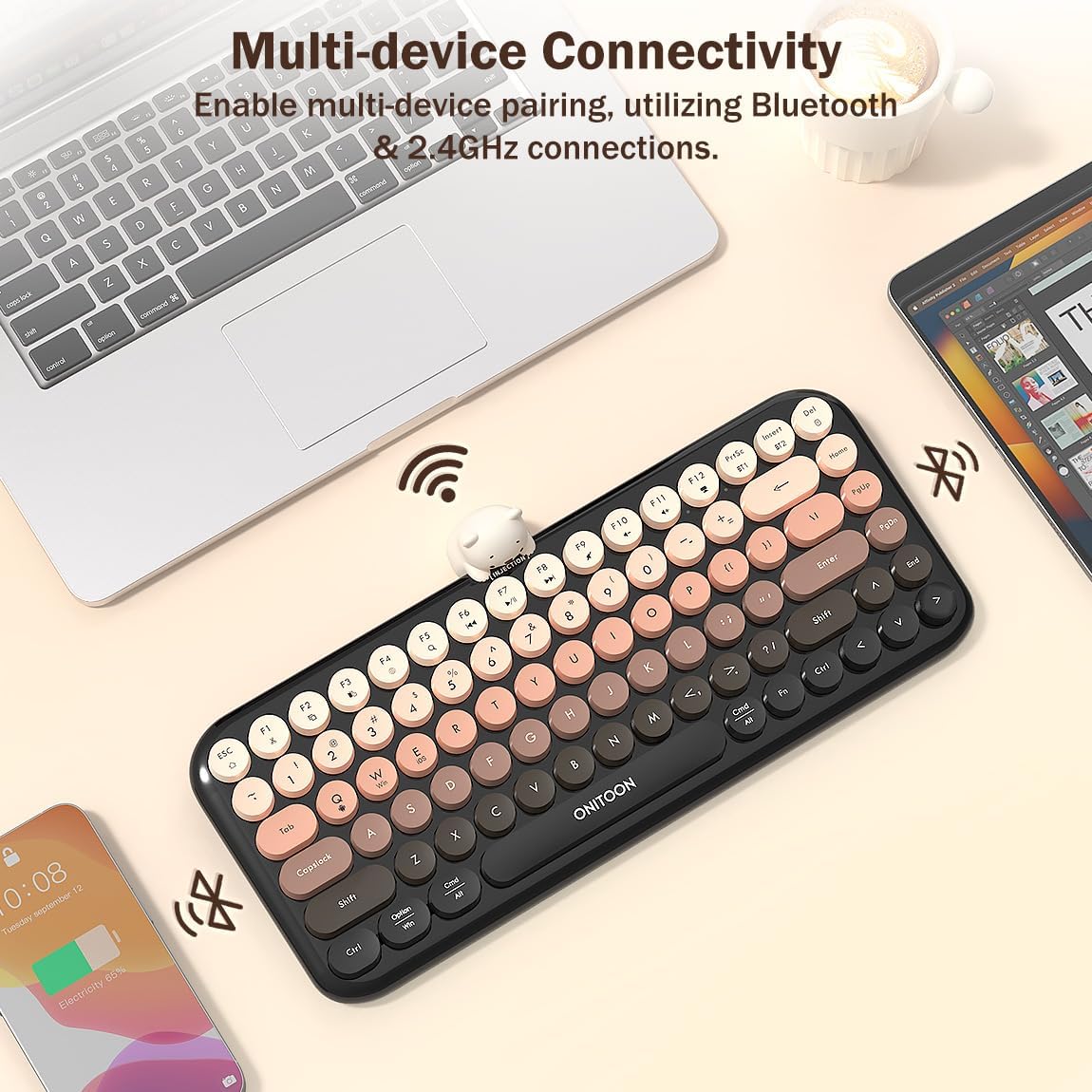
Figure 3.3: Multi-device Bluetooth connectivity.

Figure 3.4: Bluetooth connection to a tablet and smartphone.
4. Operating Instructions
4.1 Basic Functions
The G70 keyboard features 84 retro round keycaps designed for comfortable typing. The keys offer a slight clicking sound and responsive rebound, providing a satisfying tactile experience.

Figure 4.1: Typing on the G70 keyboard with rounded keycaps.
4.2 Multimedia Shortcuts
The keyboard is equipped with 13 multimedia hotkeys for convenient control. These shortcuts are activated by pressing the FN key in combination with the corresponding function key (F1-F12, Del).
- FN + F1: Cut
- FN + F2: Copy
- FN + F3: Paste
- FN + F4: Language Switch
- FN + F5: Search
- FN + F6: Previous Song
- FN + F7: Play/Pause
- FN + F8: Next Song
- FN + F9: Mute
- FN + F10: Volume Down
- FN + F11: Volume Up
- FN + F12: Screen Lock
- FN + PrtSc: BT1 Connection
- FN + Insert: BT2 Connection
- FN + Del: 2.4GHz Connection
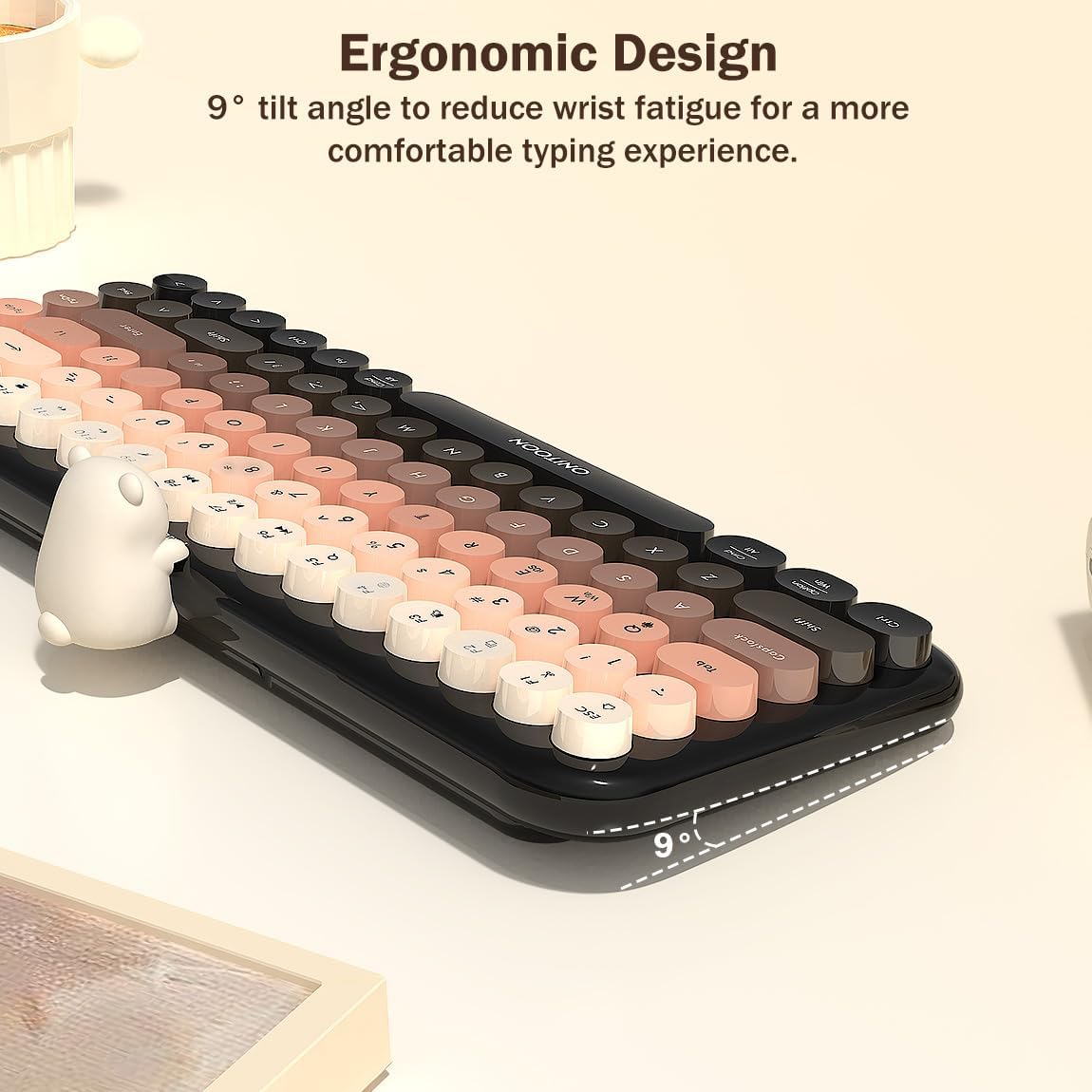
Figure 4.2: Multimedia shortcut keys.
4.3 Magnetic Bear Doll
The included white bear doll can be magnetically attached to the keyboard at the designated 'INJECTION' position, adding a decorative element to your workspace.

Figure 4.3: ONITOON G70 keyboard with magnetic bear doll.

Figure 4.4: Magnetic bear doll attached to the keyboard.
5. Ergonomics and Design
The G70 keyboard features a 9° tilt angle and non-slip mat to reduce wrist fatigue during extended typing sessions. The round keycaps are designed to fit fingertips comfortably, and the varied five-color scheme creates a visually rich layering effect.
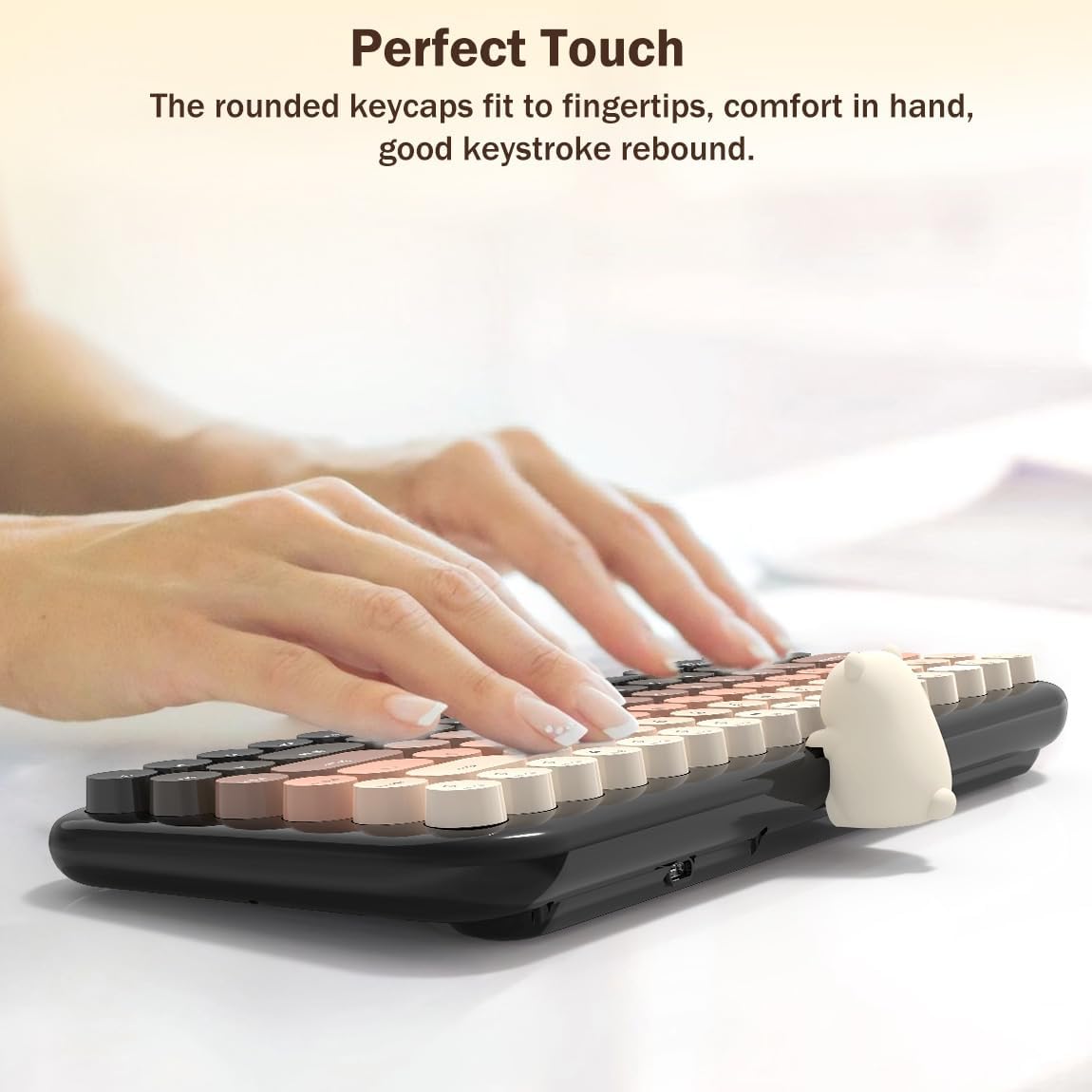
Figure 5.1: Ergonomic 9° tilt angle.

Figure 5.2: Comfortable typing experience with ergonomic design.

Figure 5.3: Unique colorful retro round keycaps.
6. Maintenance
To maintain the keyboard's appearance and functionality, regularly clean it using a soft, dry cloth. For dust accumulation between keys, use compressed air to gently clear debris. Avoid using harsh chemicals or abrasive materials.
7. Troubleshooting
- Connectivity Issues: If the keyboard disconnects frequently or fails to connect, ensure batteries are properly installed and charged. For 2.4GHz connection, press FN + Del. For Bluetooth, press Fn + BT1 or Fn + BT2 to re-enter pairing mode. Remove and re-add the device in your device's Bluetooth settings if necessary.
- Keys Not Responding: Check battery levels. If keys are sticky, gently clean around them.
8. Specifications
| Product Dimensions | 12.72 x 5.28 x 1.38 inches |
| Item Weight | 1.79 pounds |
| Manufacturer | ONITOON |
| Item Model Number | G70 |
| Batteries | 2 AAA batteries required (included) |
| Compatible Devices | PCs, desktops, Laptops (Dongle), Tablets, iPad, iPhone (Bluetooth) |
| Connectivity Technology | 2.4GHz Cordless, Bluetooth |
| Special Feature | Dual-mode Wireless/Bluetooth, Ergonomic, Hotkeys and Media Keys, Magnetic Bear Doll, Retro Round Keycaps |
9. Warranty and Support
For any connectivity or functionality issues, please contact ONITOON customer service. We aim to reply within 24 hours to assist you with your concerns.