
1. Introduction
Thank you for choosing the isYoung Smart Bird Feeder with Camera. This device combines a traditional bird feeder with advanced technology, allowing you to observe and interact with local bird species directly from your smartphone. Featuring AI bird identification, 2K HD video, motion detection, and solar power, this feeder offers an immersive bird-watching experience. This manual provides essential information for proper installation, operation, and maintenance to ensure optimal performance and longevity of your product.
2. Safety Information
- Placement: Ensure the feeder is mounted securely to prevent it from falling, which could cause injury or damage. Avoid placing it directly over pathways or areas where people frequently gather.
- Power Source: The solar panel provides continuous power. If manual charging is required, use the provided USB cable and a compatible power adapter. Do not use damaged cables or chargers.
- Water Exposure: While the feeder is IP65 weatherproof, avoid submerging it in water. Ensure the charging port cover is securely closed when not in use.
- Children and Pets: Keep small parts and tools out of reach of children and pets during assembly and maintenance.
- Wildlife Interaction: Do not attempt to physically interact with birds or other wildlife attracted to the feeder. Observe from a safe distance.
- Temperature: Operate the device within recommended temperature ranges to prevent damage to the battery and electronic components.
3. Package Contents
Verify that all components are present before proceeding with installation:
- isYoung Smart Bird Feeder with Camera
- 5W Solar Panel
- Mounting Bracket (for wall/tree/pole)
- USB Charging Cable
- Installation Screws and Anchors
- User Manual
- AAA Batteries (1 included, for camera)
4. Product Overview
The isYoung Smart Bird Feeder is designed for ease of use and robust performance in outdoor environments.
Components
- Feeder Housing: Main structure holding bird seed and camera.
- Camera Module: Integrated 2K HD camera with AI capabilities.
- Solar Panel: External panel for continuous power charging.
- Perches/Trays: Designed for birds to land and feed comfortably.
- Seed Container: Holds up to 1.25 liters (5.5 cups) of bird seed.
- Mounting Arm: Attaches the feeder to various surfaces.
Key Features
- AI Bird Identification: Recognizes over 16,000 bird species.
- 2K HD Video & Color Night Vision: Clear footage day and night.
- 170° Wide-Angle View: Broad coverage of feeding activity.
- Motion Detection: Alerts you to bird arrivals via the VicoHome app.
- 5W Solar Panel: Eco-friendly and continuous power supply.
- IP65 Weatherproof: Durable design for outdoor use.
- Two-Way Voice & Siren: Deter unwanted visitors like squirrels.
- App Control: Manage settings, view live feed, and access recordings via VicoHome app (2.4GHz WiFi required).

Figure 4.1: Overview of the isYoung Smart Bird Feeder, showing the camera, solar panel, and seed tray.
5. Setup
5.1 Assembly
- Unpack Components: Carefully remove all items from the packaging.
- Install Camera: Insert the camera module into its designated slot within the feeder housing. Ensure it is seated firmly.
- Attach Perches/Trays: Secure the bird perches and feeding trays to the feeder as indicated in the diagrams.
- Connect Solar Panel: Plug the solar panel cable into the charging port on the feeder camera. Ensure the port cover is sealed after connection.
5.2 Mounting Options
The feeder offers versatile mounting options. Choose the most suitable location with good sunlight exposure for the solar panel and within range of your 2.4GHz WiFi network.
- Wall Mount: Use the provided screws and anchors to secure the mounting bracket to a sturdy wall.
- Tree Mount: Use the included strap to attach the mounting bracket to a tree trunk.
- Pole Mount: Attach the mounting bracket to a compatible pole using the provided hardware.

Figure 5.1: Illustration of different mounting methods for the bird feeder.

Figure 5.2: Visual guide to pole, tree, and wall installation methods.
5.3 App Installation and Connection
- Download VicoHome App: Search for "VicoHome" in your smartphone's app store (iOS or Android) and download it.
- Create Account: Open the app and follow the on-screen instructions to create a new user account.
- Add Device: Tap the "+" icon to add a new device. Select the Smart Bird Feeder from the list of available devices.
- Connect to WiFi: Follow the app's instructions to connect the feeder to your 2.4GHz WiFi network. Ensure your phone is also connected to the same 2.4GHz network during setup.
- Pairing: The app will guide you through the pairing process, which may involve scanning a QR code on the camera or pressing a reset button.
- Initial Charge: For first-time use, it is recommended to fully charge the feeder's internal battery using the USB cable before relying solely on solar power.

Figure 5.3: Solar panel for continuous operation and USB charging option.
6. Operating Instructions
6.1 Real-time Monitoring
Once connected, open the VicoHome app to view a live feed from your bird feeder camera. You can monitor bird activity in real-time from anywhere.

Figure 6.1: Real-time notifications on your smartphone when birds arrive.
6.2 AI Bird Identification
The camera's AI automatically detects and identifies bird species. When a bird is detected, the app will provide a notification and attempt to identify the species, often displaying its name and a confidence percentage.
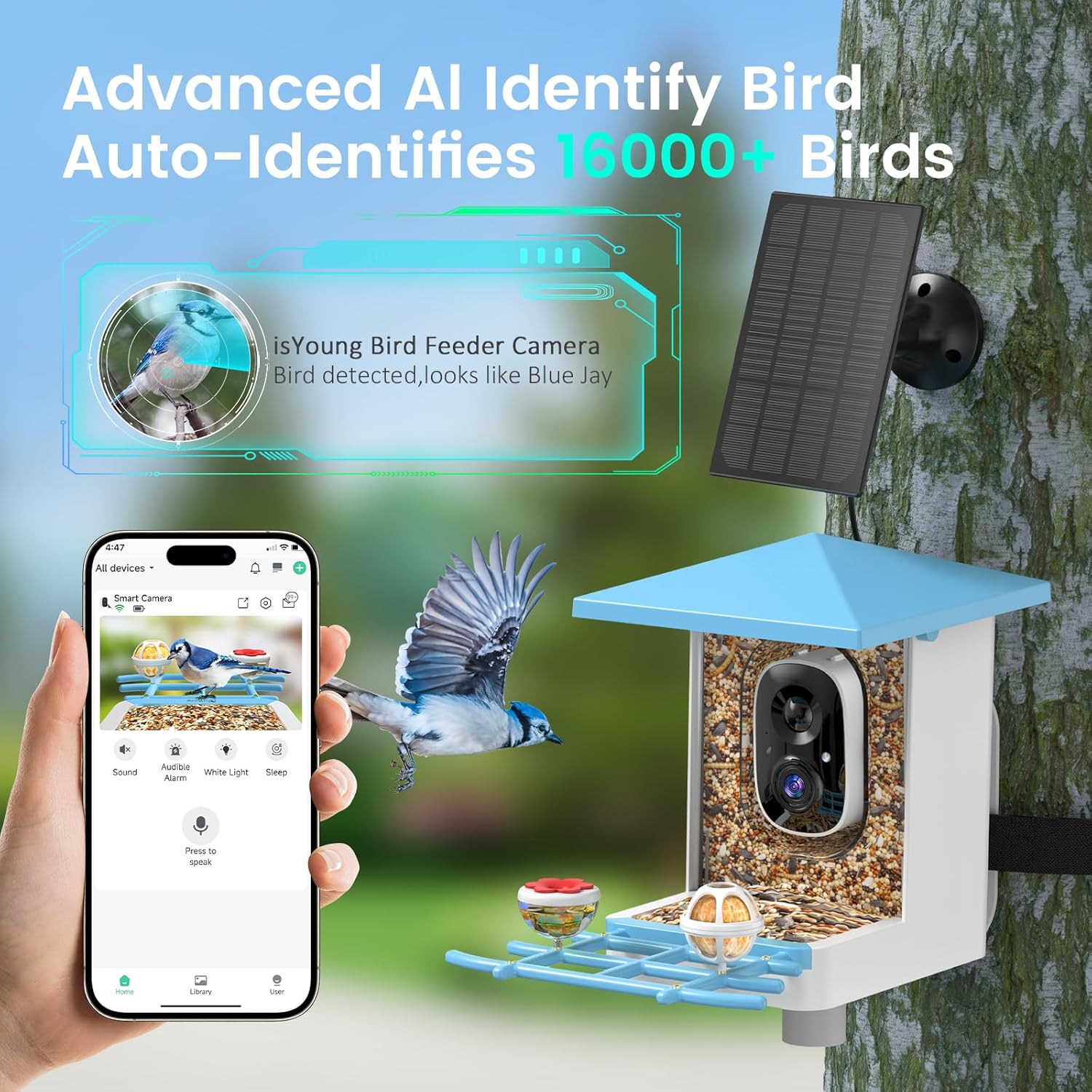
Figure 6.2: AI automatically identifies bird species visiting the feeder.

Figure 6.3: AI recognition capabilities for identifying various bird species.
6.3 Two-Way Voice and Siren Alarm
Use the app's two-way voice feature to speak through the feeder's speaker, or activate the siren alarm to deter squirrels or other unwanted animals from the feeder.

Figure 6.4: Using two-way voice to deter squirrels.
6.4 Video Recording and Cloud Storage
The camera records video clips when motion is detected. These clips can be stored in the cloud (30-day free trial available) or on a local MicroSD card (not included). You can review past events and download footage from the app.

Figure 6.5: Cloud storage and MicroSD card options for video recordings.

Figure 6.6: Screenshot and screen recording features within the app.
6.5 Night Vision
The camera features full-color night vision, allowing you to observe birds clearly even in low-light conditions or at night.

Figure 6.7: Enhanced 2K camera with color night vision for clear nighttime viewing.
7. Maintenance
7.1 Refilling Bird Seed
The feeder has a capacity of 1.25 liters (5.5 cups). To refill, open the top cover of the feeder and pour in your desired bird seed. Ensure the cover is securely closed afterward to protect the seeds from weather.
7.2 Cleaning
Regular cleaning is essential for bird health and feeder longevity.
- Frequency: Clean the feeder every 1-2 weeks, or more often during wet weather or high bird traffic.
- Disassembly: Carefully remove the camera module and solar panel connection before cleaning.
- Cleaning Solution: Use a mild soap and water solution or a diluted bleach solution (1 part bleach to 9 parts water) to disinfect the feeder.
- Rinse and Dry: Rinse all parts thoroughly with clean water and allow them to air dry completely before reassembling and refilling.
- Camera Lens: Gently wipe the camera lens with a soft, dry cloth to remove dust or smudges.
7.3 Battery and Solar Panel Care
- Solar Panel: Periodically wipe the solar panel surface to remove dirt, dust, or debris that may obstruct sunlight and reduce charging efficiency.
- Battery: The built-in 5000mAh battery is designed for long-lasting operation. If the feeder is placed in an area with insufficient sunlight for extended periods, manual charging via the USB cable may be necessary.

Figure 7.1: Weatherproof features including drainage holes and easy refill mechanism.
8. Troubleshooting
| Problem | Possible Cause | Solution |
|---|---|---|
| Feeder not connecting to WiFi | Incorrect WiFi password; 5GHz WiFi network; Feeder too far from router; Weak signal. | Ensure correct 2.4GHz WiFi password. Move feeder closer to router or use a WiFi extender. Restart feeder and router. |
| No motion detection alerts | Motion detection disabled in app; App notifications turned off; Low battery. | Check app settings to ensure motion detection is active and notifications are enabled. Ensure feeder battery is charged. |
| Poor video quality | Dirty camera lens; Weak WiFi signal; Low light conditions. | Clean the camera lens. Improve WiFi signal strength. Ensure adequate lighting or rely on color night vision. |
| Solar panel not charging | Panel obstructed; Insufficient sunlight; Panel dirty. | Relocate panel to an area with direct sunlight. Clean the panel surface. Check cable connection. |
| AI not identifying birds | Poor image clarity; Bird not in database; Software issue. | Ensure camera lens is clean and video quality is good. Update app and feeder firmware. |
9. Specifications
| Feature | Detail |
|---|---|
| Model Number | G08mini-Blue |
| Brand | isYoung |
| Camera Resolution | 2K HD (1080p mentioned in features, 2K in title, using 2K as higher spec) |
| Field of View | 170° Wide-Angle |
| AI Recognition | Identifies 16,000+ bird species |
| Night Vision | Full-Color Night Vision |
| Connectivity | 2.4GHz WiFi |
| Power Source | 5W Solar Panel, Built-in 5000mAh Battery |
| Weather Resistance | IP65 Weatherproof |
| Seed Capacity | 1.25 Liters (5.5 cups) |
| Product Dimensions | 14.84"L x 10.5"W x 9.84"H |
| Item Weight | 4.05 pounds |
| Included Components | Stand, Tray, USB Charging Cable |

Figure 9.1: Product dimensions of the bird feeder.
10. Warranty and Support
For warranty information, technical support, or customer service inquiries, please refer to the contact details provided on the product packaging or the official isYoung website. Keep your purchase receipt as proof of purchase for any warranty claims.


