
Introduction
Thank you for choosing the Lefant M1 Robot Vacuum Cleaner with Mop. This manual provides essential information for the safe and efficient operation, maintenance, and troubleshooting of your device. Please read it thoroughly before first use and keep it for future reference.
Package Contents
Verify that all items are present in the package:

Image: Contents of the Lefant M1 package, including the robot, charging dock, water tank, dustbin, various brushes, filters, and cloths.
- Lefant M1 Robot Vacuum Cleaner
- Docking Station x 1
- Water Box (160ml) x 1
- Dust Box (520ml) x 1
- Cleaning Cloth x 1
- Disposal Cleaning Cloth x 5
- Mopping Pad Plate x 1
- Side Brushes x 4
- High Efficiency Filter x 2
- Adapter x 1
Setup
1. Charging the Robot
Place the docking station against a wall in an open area, ensuring there are no obstacles within 1 meter (3 feet) to the sides and 1.5 meters (5 feet) in front. Connect the adapter to the docking station and plug it into a power outlet. Place the robot onto the docking station to charge. For first use, ensure the robot is fully charged, which typically takes about 4-5 hours. The robot automatically recharges when the battery level falls below 15%.
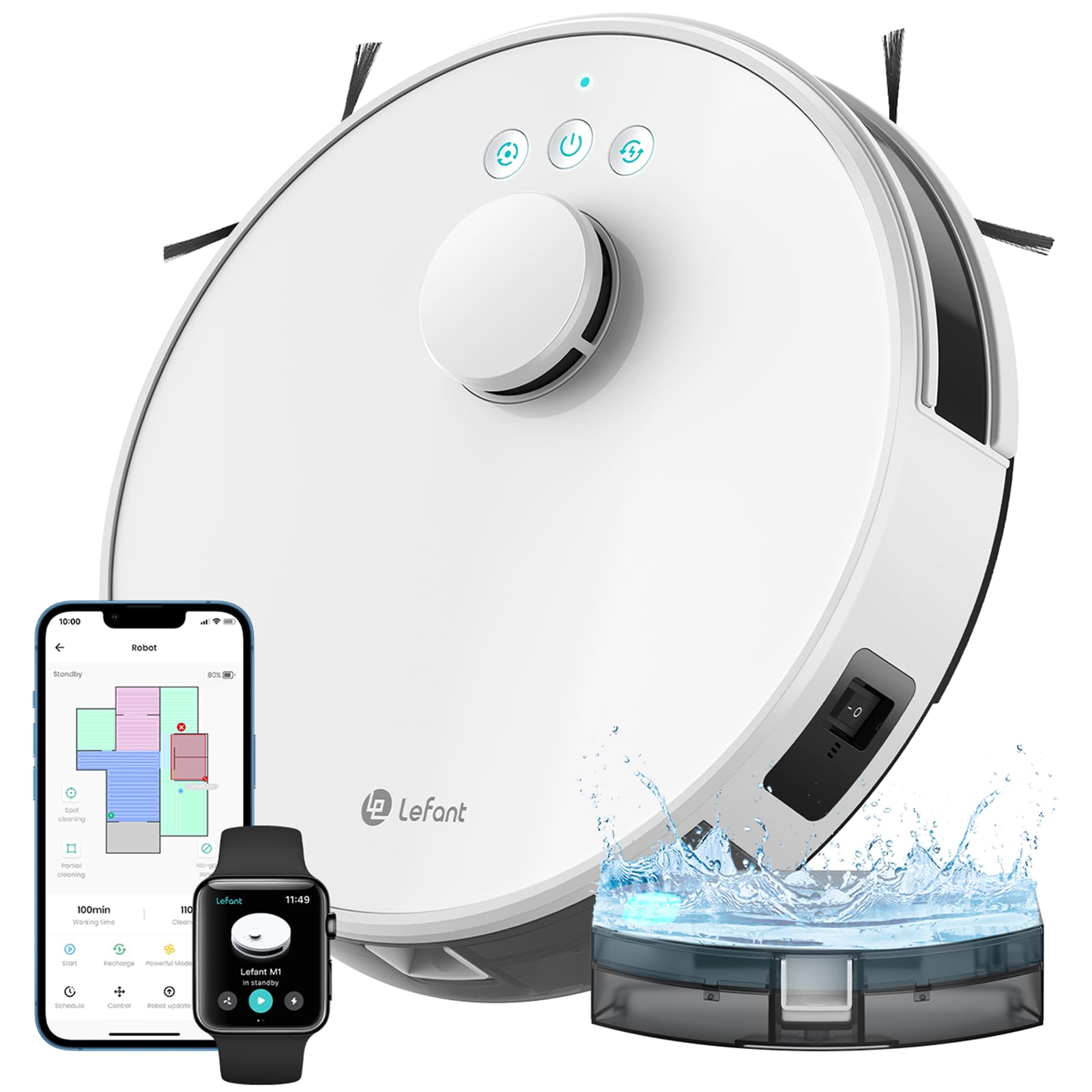
Image: The Lefant M1 robot vacuum positioned on its charging station.
2. App and Wi-Fi Connection
Download the "Lefant App" from your mobile device's app store. Follow the in-app instructions to connect your robot to your home Wi-Fi network. The Lefant M1 supports 2.4 GHz Wi-Fi networks only. Ensure your router is configured for 2.4 GHz or that you are connected to a 2.4 GHz network during setup.

Image: A smartphone screen showing the Lefant app with various control options next to the M1 robot vacuum.
The app allows for advanced control, including setting cleaning schedules, adjusting suction modes, defining no-go zones, and viewing real-time maps.
Operating Instructions
1. Cleaning Modes and Suction Power
The Lefant M1 offers 5500Pa powerful suction with three adjustable modes: Quiet, Standard, and Max. Select the appropriate mode via the Lefant App based on your cleaning needs.

Image: Visual representation of the M1's 5500Pa suction power and its ability to adapt to uneven floor surfaces.
2. Sweeping, Vacuuming, and Mopping
The M1 combines sweeping, vacuuming, and mopping functions. To use the mopping feature, fill the 160ml electronically controlled water tank and attach the mopping pad plate with a cleaning cloth. The app allows you to adjust three water flow levels to suit different floor types. The honeycomb mop cloth is designed to lock in moisture and reduce water marks.

Image: The M1 robot vacuum with its electric water tank and mopping plate, illustrating the water distribution for mopping.
3. Navigation and Mapping
The M1 utilizes dToF Laser Navigation and SLAM mapping technology for efficient cleaning. It scans its environment up to 15 meters, even in darkness, to create real-time maps. The FreeMove 3.0 system provides 720° omnidirectional detection for obstacle avoidance and adaptive path planning.

Image: The M1 robot vacuum emitting laser beams to navigate and map a room, highlighting its advanced navigation system.
The multi-floor mapping feature allows the app to store up to 3 separate maps, automatically recognizing different floor plans.

Image: An illustration showing the M1's ability to map and store layouts for multiple floors (1F, 2F, 3F).
4. No-Go Zones and Scheduling
Using the Lefant App, you can define specific "No-Go Zones" to prevent the robot from entering certain areas. You can also create custom cleaning schedules for automated cleaning sessions.
5. Voice Control
The Lefant M1 is compatible with Amazon Alexa and Google Assistant. Once connected, you can use voice commands for hands-free operation, such as "Alexa, turn on M1" or "Hey Google, start cleaning."

Image: The M1 robot vacuum and a smart speaker, demonstrating voice command integration with Alexa.
Maintenance
Regular maintenance ensures optimal performance and extends the lifespan of your Lefant M1.
1. Emptying the Dustbin
The M1 features a 520ml dustbin. It is recommended to empty the dustbin after each cleaning cycle, especially if you have pets. Open the robot's top cover, remove the dustbin, and dispose of collected debris. Clean the dustbin with a dry cloth.
2. Cleaning Filters
The robot uses a sponge filter and high-efficiency filters. Tap the filters to remove loose dirt. Filters can be rinsed with water, but must be completely dry before reinstallation to prevent damage to the vacuum motor. Replace filters every 3-6 months, or as needed, depending on usage.
3. Water Tank and Mop Cloth Care
After mopping, empty any remaining water from the 160ml water tank. Remove the mop cloth from the mopping pad plate and rinse it thoroughly. Allow the mop cloth to air dry completely before storing or reusing. Replace disposable cleaning cloths as needed.
Important: Always empty the water reservoir after cleaning to prevent water leakage when the robot is docked or stationary.
4. Cleaning Side Brushes and Roller Brush
Periodically check the dual side brushes and the roller brush for tangled hair or debris. Use a cleaning tool (often included with the robot) or scissors to cut and remove any tangled hair. Ensure the brushes spin freely. The M1's dual side brushes provide enhanced edge coverage.
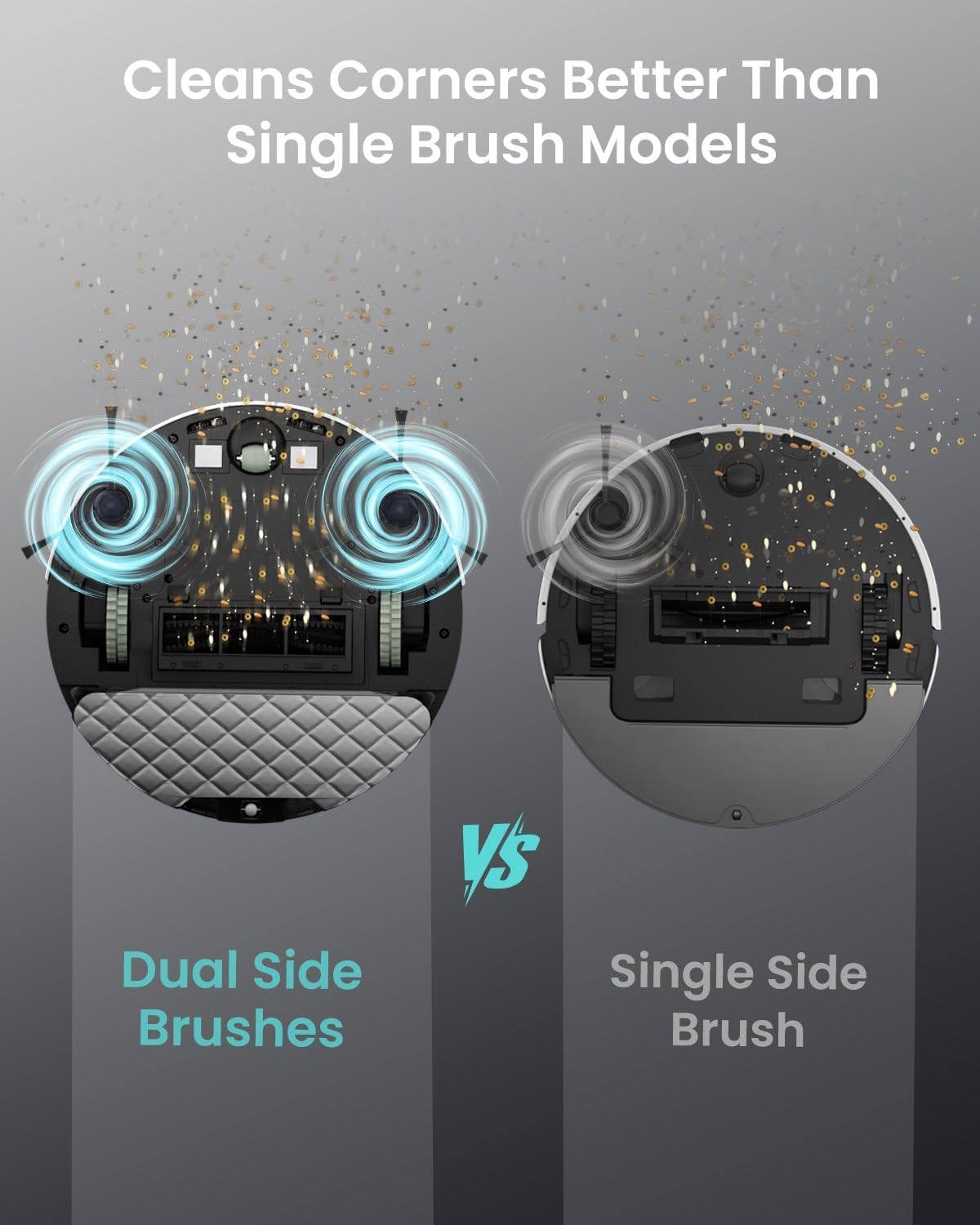
Image: An underside view comparing the M1's dual side brushes with a single brush design, illustrating improved corner cleaning.
5. Cleaning Sensors and Charging Contacts
Wipe the robot's sensors (cliff sensors, anti-collision sensors, LDS laser sensor) and the charging contacts on both the robot and the docking station with a clean, dry cloth. This ensures proper navigation and charging.
Troubleshooting
If you encounter issues with your Lefant M1, refer to the following common problems and solutions:
| Problem | Possible Cause | Solution |
|---|---|---|
| Robot does not turn on or charge. | Battery depleted; charging contacts dirty; docking station not powered. | Ensure docking station is plugged in. Clean charging contacts on robot and dock. Place robot manually on dock to ensure connection. |
| Robot cannot connect to Wi-Fi or App. | Incorrect Wi-Fi password; 5GHz Wi-Fi network; weak signal; router issues. | Verify Wi-Fi password. Ensure you are connecting to a 2.4 GHz network. Move robot closer to router. Restart router and robot. |
| Robot gets stuck frequently. | Obstacles (cables, rugs, furniture); dirty sensors. | Clear floor of small obstacles. Use No-Go Zones for problematic areas. Clean all sensors. |
| Poor cleaning performance. | Full dustbin; clogged brushes; dirty filters. | Empty dustbin. Clean side brushes and roller brush. Clean or replace filters. |
| Mopping function leaves puddles or streaks. | Water tank not emptied; mop cloth saturated or dirty; incorrect water flow setting. | Always empty the water tank immediately after mopping. Clean or replace mop cloth. Adjust water flow level in the app. |
If the problem persists, please refer to the support section for further assistance.
Specifications
| Feature | Detail |
|---|---|
| Brand | Lefant |
| Model Name | M1 |
| Special Feature | No-Go Zone |
| Color | White |
| Product Dimensions | 13"L x 13"W x 3.5"H |
| Included Components | Lefant M1 Robot Vacuum |
| Filter Type | Sponge |
| Battery Life | 150 minutes |
| Power Source | Battery Powered |
| Batteries Included | Yes (1 AAA batteries for remote, if applicable, or internal for robot) |
| Control Method | App, Voice |
| Form Factor | Round |
| UPC | 643985180000 |
| Item Weight | 9.31 pounds |
| Manufacturer | Lefant |
| Item Model Number | M1 |
| Surface Recommendation | Hard Floor |
Warranty and Support
Warranty Information
Lefant products typically come with a limited warranty. Please refer to the warranty card included in your product packaging or visit the official Lefant website for detailed warranty terms and conditions. Keep your proof of purchase for warranty claims.
Customer Support
For technical assistance, troubleshooting not covered in this manual, or spare parts inquiries, please contact Lefant customer support. Contact information can usually be found on the official Lefant website or on the product packaging. When contacting support, please have your model number (M1) and purchase details ready.


