
1. Introduction
This user manual provides comprehensive instructions for the safe and effective operation of your DEPSTECH DS320 Dual Lens Borescope and DS260 Endoscope Camera. Please read this manual thoroughly before use and retain it for future reference. This bundle offers versatile inspection capabilities for various applications, from home maintenance to professional diagnostics.
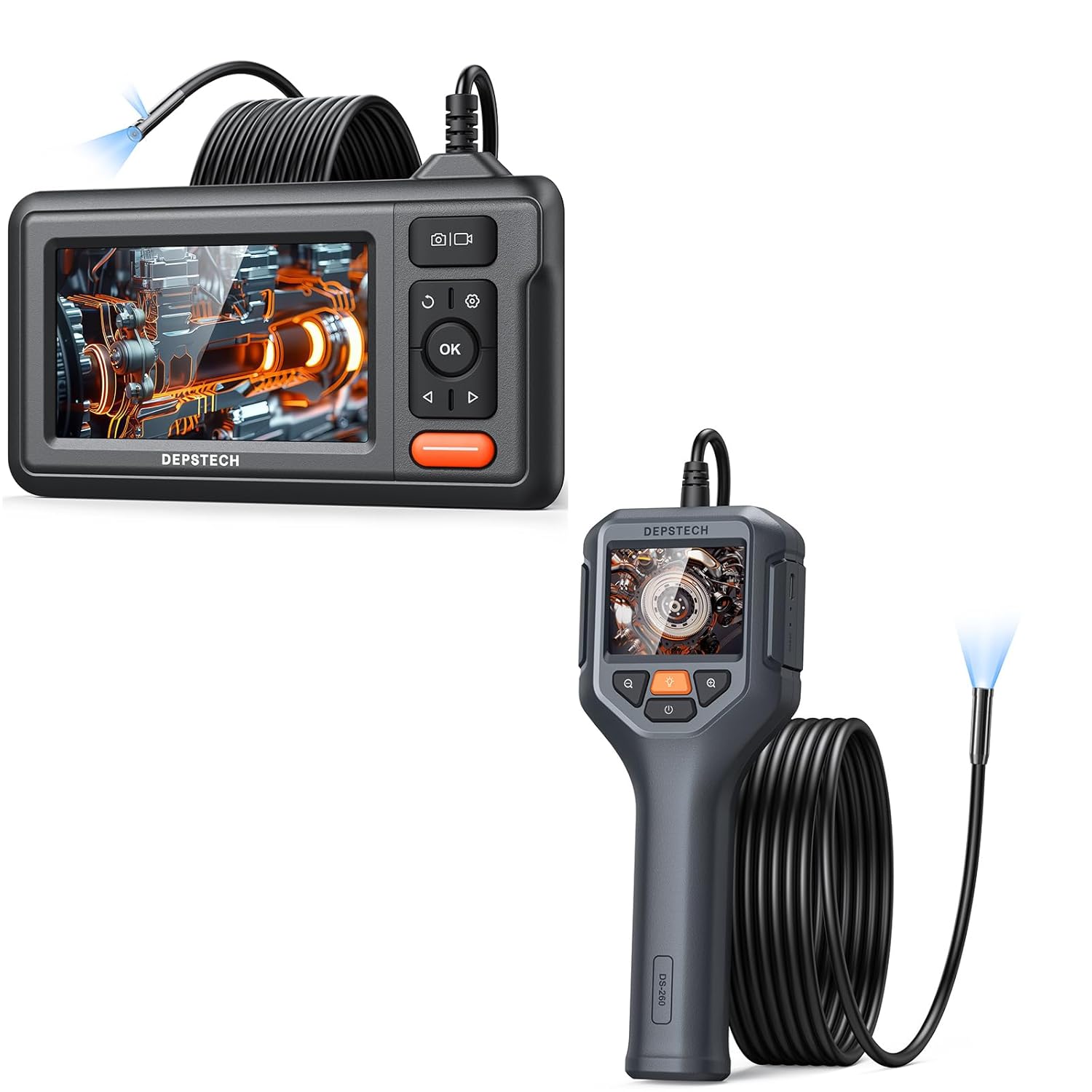
Figure 1.1: The DEPSTECH DS320 Dual Lens Borescope (top) and DS260 Endoscope Camera (bottom) included in the bundle.
2. Package Contents
Please check the package contents upon unboxing to ensure all items are present and undamaged:
- 1 x DEPSTECH DS320 Dual Lens Borescope Unit
- 1 x DEPSTECH DS260 Endoscope Camera Unit
- 1 x USB Charging Cable (for DS320)
- 1 x USB Charging Cable (for DS260)
- 1 x User Manual
- Accessories (e.g., hook, magnet, side mirror - specific to model, check individual product packaging)
3. Product Overview
3.1 DEPSTECH DS320 Dual Lens Borescope

Figure 3.1: Front view of the DEPSTECH DS320 Borescope, showing the 4.3-inch IPS display and control buttons.
- 4.3-inch IPS Display: High-definition screen for clear viewing.
- Dual Lens Probe: Features both a front-facing and a side-facing camera for comprehensive inspection.
- Adjustable LED Lights: 7 lights for illumination in dark environments.
- Control Buttons: Power, OK, Navigation (Up/Down/Left/Right), Photo/Video capture, Settings, Light adjustment.
- Micro SD Card Slot: For storing captured images and videos.

Figure 3.2: Illustration of the DS320's dual lens system, showing both the front camera (A) and side camera (B) with their respective focal ranges.
3.2 DEPSTECH DS260 Endoscope Camera

Figure 3.3: The DEPSTECH DS260 Endoscope Camera, featuring an ergonomic handle and integrated display.
- 2.4-inch IPS Screen: Compact display integrated into the handheld unit.
- Ergonomic Handle: Designed for comfortable grip and ease of use.
- Single Lens Probe: Standard forward-viewing camera.
- Adjustable LED Lights: For optimal illumination.
- Direct Operation: No Wi-Fi or app required.

Figure 3.4: Close-up view of the DS260's vivid 2.4-inch IPS screen, highlighting its display quality.
4. Setup
4.1 Charging the Device
Both the DS320 and DS260 units come with a built-in rechargeable battery. Before first use, fully charge the device.
- Connect the provided USB charging cable to the charging port on the device (DS320: side, DS260: bottom).
- Connect the other end of the USB cable to a standard 5V/1A USB power adapter (not included) or a computer USB port.
- The charging indicator light will illuminate during charging and turn off or change color when fully charged.
4.2 Inserting a Micro SD Card (DS320 Only)
The DS320 requires a Micro SD card (not included, up to 32GB recommended) to save photos and videos. The DS260 does not support external storage.
- Locate the Micro SD card slot on the side of the DS320 unit.
- Gently insert the Micro SD card with the gold contacts facing down until it clicks into place.
- To remove, push the card in slightly until it springs out.
5. Operating Instructions
5.1 Powering On/Off
- To Power On: Press and hold the Power button (usually marked with ⚡ or ⏺ symbol) for 2-3 seconds until the screen illuminates.
- To Power Off: Press and hold the Power button again for 2-3 seconds until the screen turns off.

Figure 5.1: The DS320 Borescope being held, demonstrating its readiness for immediate use without complex setup.

Figure 5.2: The DS260 Endoscope Camera being used to inspect a sink drain, highlighting its "Instant Explore" capability.
5.2 Adjusting LED Brightness
Both models feature adjustable LED lights on the camera probe to illuminate dark inspection areas.
- Press the Light adjustment button (often marked with a light bulb icon 💡) repeatedly to cycle through different brightness levels or to turn the lights off.
5.3 Switching Lenses (DS320 Only)
The DS320 allows you to switch between the front and side cameras.
- While in live view, press the Lens Switch button (often marked with a camera icon with arrows 📷) to toggle between the front camera, side camera, or both (if supported by the specific model firmware).
5.4 Capturing Images and Videos
- To take a photo: In live view, press the Photo/Video button (often marked with a camera icon 📷 or shutter icon) once. The screen may briefly flash to indicate a photo has been taken.
- To record a video: In live view, press and hold the Photo/Video button for 2-3 seconds. A recording indicator (e.g., red dot, timer) will appear on the screen. Press and hold the button again to stop recording.
- Note: Only the DS320 saves media to an SD card. The DS260 does not have recording capabilities.
5.5 Playback Mode (DS320 Only)
Review captured images and videos on the DS320.
- From live view, press the Mode button (often marked with a play icon ► or menu icon) to enter playback mode.
- Use the Up/Down navigation buttons to browse through your files.
- Press the OK button to view a photo or play a video.
- Press the Mode button again to exit playback mode and return to live view.
5.6 Zoom Function (DS260 Only)
The DS260 features a digital zoom function to magnify the live view.
- Press the Zoom button (often marked with a magnifying glass icon 🔍 or +/-) to cycle through available zoom levels (e.g., 1x, 1.5x, 2x).

Figure 5.3: Visual representation of the DS260's zoom capabilities, showing 1x, 1.5x, and 2x magnification levels for detailed inspection.
6. Maintenance
- Cleaning the Probe: After each use, especially in dirty or wet environments, gently wipe the camera probe and lens with a soft, damp cloth. For stubborn grime, a small amount of rubbing alcohol can be used. Ensure the probe is dry before storage.
- Cleaning the Display: Use a soft, lint-free cloth to clean the display screen. Avoid abrasive materials or harsh chemicals.
- Storage: Store the devices in a cool, dry place, away from direct sunlight and extreme temperatures. Keep the probe cable neatly coiled to prevent kinks or damage.
- Battery Care: For optimal battery life, avoid fully discharging the battery frequently. If storing for extended periods, charge the battery to about 50% every few months.
7. Troubleshooting
| Problem | Possible Cause | Solution |
|---|---|---|
| Device does not power on. | Low battery. | Charge the device fully. |
| No image on screen. | Probe not connected properly (DS320). Camera lens is dirty or blocked. | Ensure the probe is securely connected. Clean the camera lens. |
| Image is blurry or unclear. | Lens is dirty. Object is outside focal range. | Clean the camera lens. Adjust the distance between the camera and the object. |
| Cannot save photos/videos (DS320). | No Micro SD card inserted or card is full/corrupted. | Insert a Micro SD card. Format the card (via device settings) or replace it. |
| LED lights are not working. | Lights are turned off or at lowest setting. | Press the light adjustment button to increase brightness. |
8. Specifications
8.1 DEPSTECH DS320 Dual Lens Borescope
- Display: 4.3-inch Full Color IPS Screen
- Resolution: 1080P (for recording)
- Camera: Dual Lens (Front & Side)
- LED Lights: 7 adjustable LEDs
- Storage: Micro SD Card (up to 32GB, not included)
- Battery: Rechargeable Lithium-ion

Figure 8.1: The large 4.3-inch IPS display of the DS320, offering HD resolution and a wide 178-degree viewing angle for clear visuals.
8.2 DEPSTECH DS260 Endoscope Camera
- Display: 2.4-inch IPS Screen
- Resolution: 1080P (for live view)
- Camera: Single Lens
- LED Lights: Adjustable LEDs
- Storage: Not supported
- Battery: Rechargeable Lithium-ion
- Zoom: Digital Zoom (1x, 1.5x, 2x)
9. Safety Information
Please observe the following safety precautions:
- Do not use the device in environments with flammable or explosive gases.
- Do not immerse the main unit in water. The camera probe is waterproof, but the main unit is not.
- Keep the device out of reach of children.
- Do not attempt to disassemble or modify the device. This will void the warranty and may cause damage.
- Use only the provided charging cables.
- Avoid direct eye exposure to the LED lights.
- If the device malfunctions, refer to the troubleshooting section or contact customer support.
10. Warranty and Support
DEPSTECH products typically come with a standard manufacturer's warranty. Please refer to the warranty card included in your package or visit the official DEPSTECH website for detailed warranty terms and conditions.
For technical support, troubleshooting assistance, or warranty claims, please contact DEPSTECH customer service through their official website or the contact information provided in your product packaging.
Website: www.depstech.com


