
Introduction
The Omezizy 247 WiFi Thermal Label Printer is designed for efficient and reliable label printing for various applications, including shipping, barcode, and mailing labels. This printer offers both wireless (Wi-Fi) and wired (USB) connectivity, making it compatible with a wide range of operating systems and devices. Its advanced thermal technology ensures fast, high-resolution printing without the need for ink or toner.
Package Contents
Please verify that all items listed below are included in your package. If any items are missing or damaged, please contact customer support.
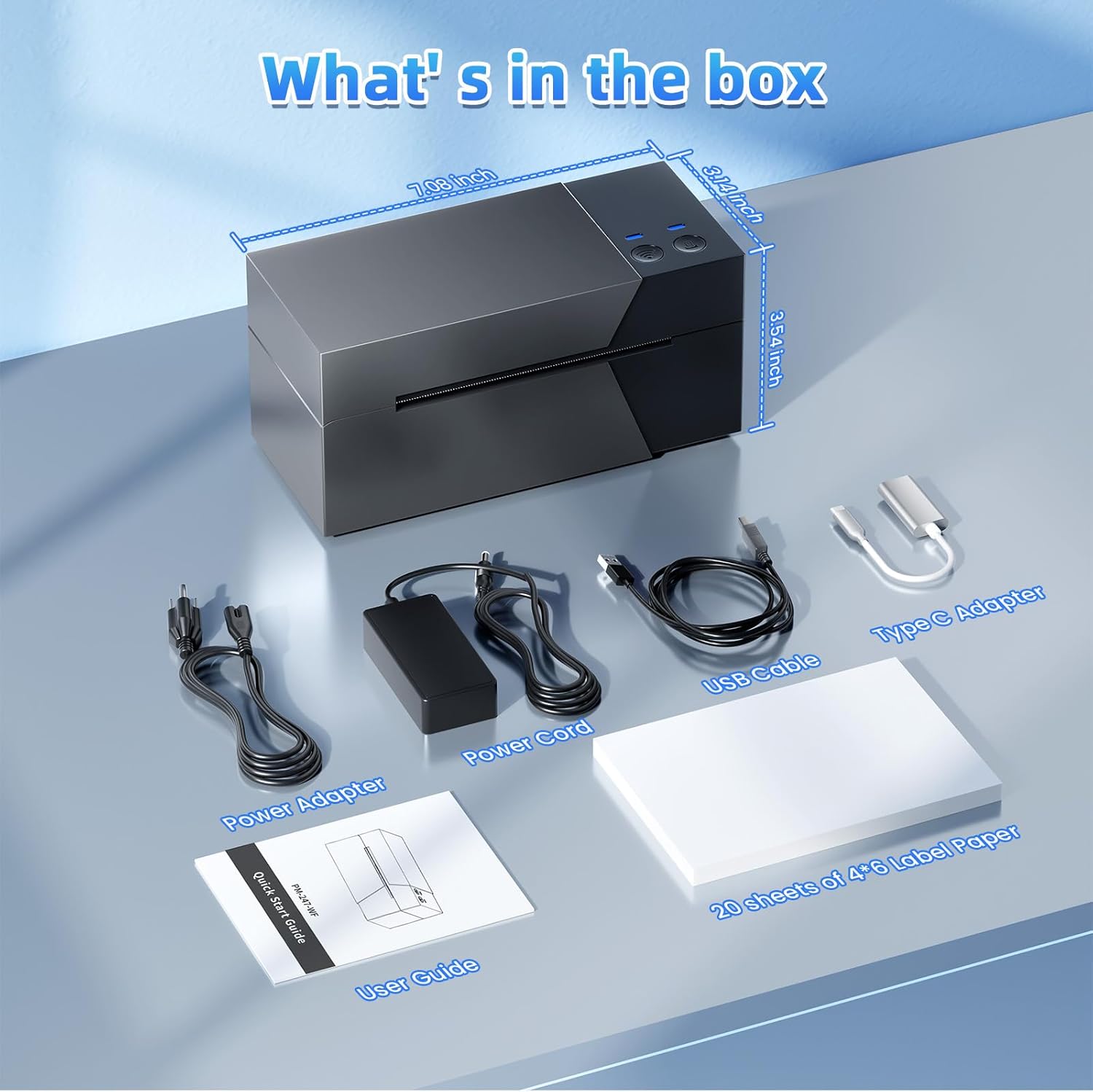
Image: The package contents, including the Omezizy 247 WiFi Thermal Label Printer, power adapter, power cord, USB cable, Type-C converter, user guide, and a starter pack of 4x6 label paper.
- Omezizy 247 WiFi Thermal Label Printer
- Power Adapter
- Power Cord
- USB Cable
- Type-C Converter
- User Guide
- 20 sheets of 4x6 Label Paper
Physical Overview
Familiarize yourself with the main components of your Omezizy thermal label printer.
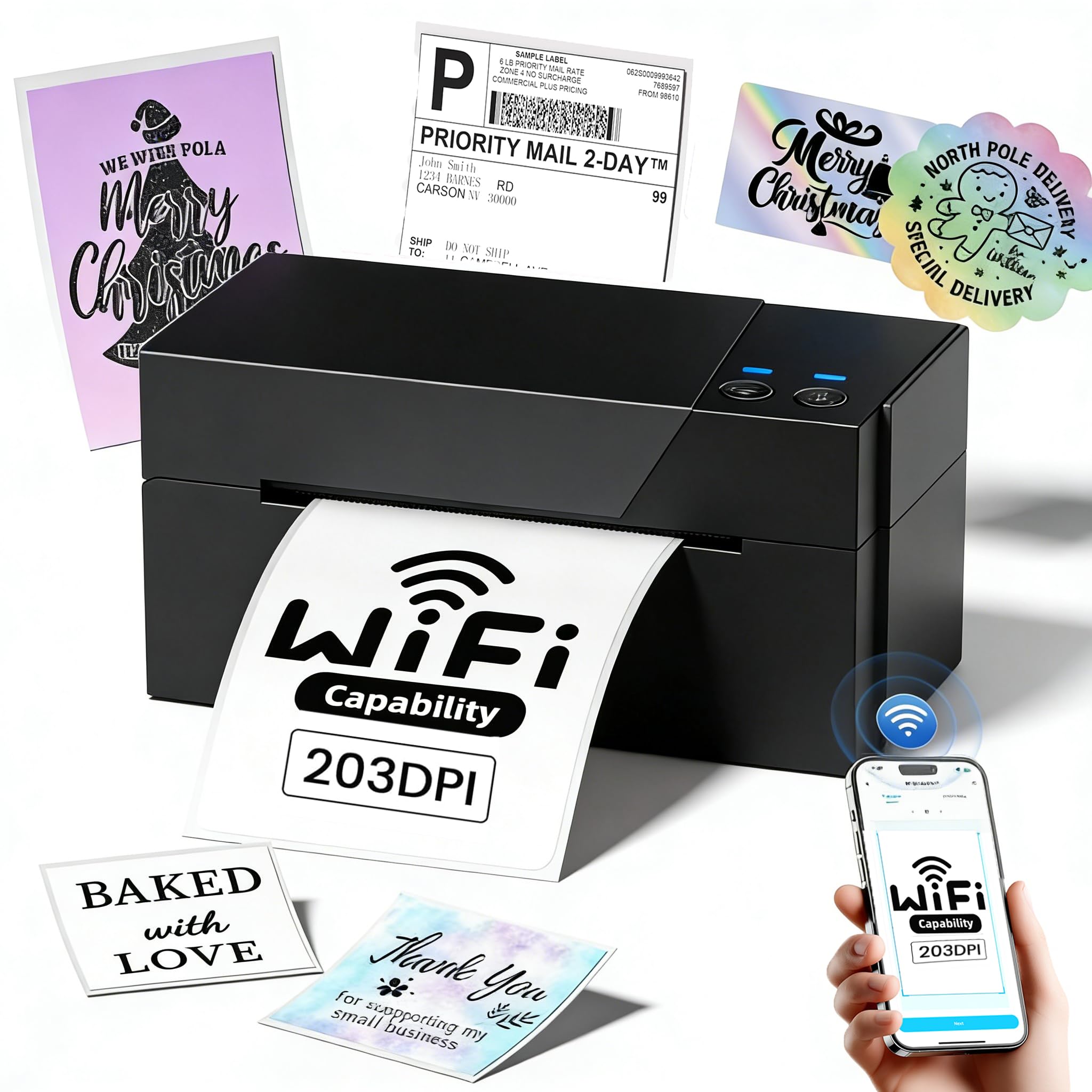
Image: Front view of the Omezizy 247 WiFi Thermal Label Printer.
Printer Dimensions
- Product Dimensions: 18.3D x 8.8W x 8.9H Centimetres
- Item Weight: 1360 Grams
Initial Setup
1. Connecting Power
- Connect the power adapter to the printer's power port.
- Plug the power cord into a wall outlet.
- Press the power button to turn on the printer.
2. Loading Labels
The printer supports label widths from 1 to 4.6 inches.

Image: Illustration of loading labels into the printer, demonstrating support for various label widths from 1 to 4.6 inches.
- Open the top cover of the printer.
- Adjust the label guides to match the width of your labels.
- Insert the labels, ensuring the print side is facing up and the labels feed smoothly into the printer mechanism.
- Close the top cover. The printer will automatically detect and calibrate the label size.
Connectivity
Wi-Fi Connection
The Omezizy 247WF printer supports stable 5GHz Wi-Fi for wireless printing from multiple devices.

Image: Multiple devices (smartphone, laptop, tablet) wirelessly connected to the Omezizy printer via Wi-Fi.
- Ensure your printer is powered on and within range of your Wi-Fi network.
- Download the dedicated Omezizy printing application from your device's app store (Android/iOS) or install the driver for Mac/Windows/Linux from the official website.
- Follow the in-app or driver instructions to connect the printer to your Wi-Fi network. This typically involves selecting the printer from a list of available devices and entering your Wi-Fi password.
- Once connected, the printer's Wi-Fi indicator light will confirm the connection.
USB Connection
For direct connection to a computer, use the provided USB cable.

Image: The printer connected to a laptop via USB, demonstrating dual connectivity options.
- Connect one end of the USB cable to the printer and the other end to your computer.
- If prompted, install the printer drivers. Drivers are available on the official Omezizy website or included on a setup disk (if provided).
- Your computer should recognize the printer as a connected device.
Operating Instructions
Using the Mobile App (Wi-Fi)
The Omezizy app provides a user-friendly interface for printing from your smartphone or tablet.

Image: The Omezizy mobile application interface, showcasing its multi-functional capabilities for label design and printing.
- Open the Omezizy app on your device.
- Ensure the printer is connected to the same Wi-Fi network as your device.
- Select the document or image you wish to print. The app supports various functions including text recognition, file printing, custom barcode generation, and image identification.
- Adjust print settings such as label size and orientation within the app.
- Tap the print button to send the job to the printer.
Printing from Computer (USB/Wi-Fi)
The printer is compatible with major shipping platforms and operating systems.

Image: Compatibility with various shipping and e-commerce platforms.
- Open the document or label file on your computer.
- Go to 'File' > 'Print' or use the print shortcut (Ctrl+P for Windows, Command+P for Mac).
- Select the Omezizy 247 WiFi Thermal Label Printer from the list of available printers.
- Ensure the correct label size (e.g., 4x6 inches) is selected in the print settings.
- Click 'Print'.
Maintenance
Cleaning the Print Head
Regular cleaning of the print head ensures optimal print quality and extends the printer's lifespan.
- Turn off the printer and unplug the power cord.
- Open the top cover to access the print head.
- Gently wipe the print head with an alcohol swab or a lint-free cloth lightly dampened with isopropyl alcohol.
- Allow the print head to dry completely before closing the cover and turning the printer back on.
General Care
- Keep the printer in a clean, dust-free environment.
- Avoid exposing the printer to direct sunlight or extreme temperatures.
- Use only high-quality thermal labels to prevent damage to the print head.
Troubleshooting
This section addresses common issues you might encounter with your Omezizy thermal label printer.
No Power
- Ensure the power cord is securely connected to both the printer and the wall outlet.
- Verify that the power outlet is functional by plugging in another device.
Poor Print Quality
- Clean the print head as described in the Maintenance section.
- Ensure you are using high-quality thermal labels.
- Check print density settings in your printer preferences or app.
Labels Not Feeding Correctly
- Verify that labels are loaded correctly with the print side up.
- Adjust the label guides to fit the label width snugly but without excessive pressure.
- Ensure there are no obstructions in the label path.
Cannot Connect via Wi-Fi
- Confirm the printer and your device are connected to the same Wi-Fi network.
- Restart both the printer and your Wi-Fi router.
- Ensure the Omezizy app or drivers are up to date.
Technical Specifications
| Feature | Specification |
|---|---|
| Model Name | PM-247 WIFI Thermal Label Printer 4x6 |
| Connectivity Technology | USB, Wi-Fi (5GHz) |
| Printing Technology | Thermal |
| Max Print Speed Monochrome | 72 labels per minute (ppm) |
| Resolution | 203 DPI (Dots Per Inch) |
| Supported Label Width | 1" - 4.6" (25.4 - 117mm) |
| Maximum Media Size | 4 x 6 inch |
| Product Dimensions (D x W x H) | 18.3D x 8.8W x 8.9H Centimetres |
| Item Weight | 1360 Grams |
| Operating System Compatibility | Android, iOS, Mac, Windows, Linux |
| Special Feature | Portable |
Warranty Information
For detailed warranty information, please refer to the warranty card included in your product packaging or visit the official Omezizy website. Keep your purchase receipt as proof of purchase for any warranty claims.
Customer Support
If you encounter any issues or have questions regarding your Omezizy 247 WiFi Thermal Label Printer, please contact our professional support team:
- Phone Support: Available Monday-Friday, 9:00 AM - 5:00 PM EST.
- Email Support: Available for general inquiries and technical assistance.
- Live Chat: Available Monday-Friday, 7:30 PM - 4:30 AM EST.
- Remote Desktop Support: Available when needed for complex issues.
Please refer to the contact information provided in your user guide or on the official Omezizy website for specific contact details.


