1. Introduction
The Tenda i29 WiFi 6 AX3000 Ceiling Mount Access Point is designed to provide high-speed dual-band connectivity and extensive coverage for various environments, including businesses, offices, and hotels. Utilizing the latest WiFi 6 (802.11ax) technology, it delivers faster speeds, increased network capacity, and a seamless user experience. Advanced features such as OFDMA, MU-MIMO, and intelligent roaming enhance network efficiency and ensure stable connections, even in high-density areas. The device supports PoE+ for simplified and cost-effective installation. Enhanced security protocols like WPA3 protect your network from modern threats, making the i29 an ideal choice for professional and commercial networking needs.
2. Product Overview
2.1 Key Features
- Next-Gen WiFi 6 Speed: Experience up to 3000 Mbps concurrent dual-band speed (2.4 Gbps on 5 GHz and 574 Mbps on 2.4 GHz), offering 2.5 times faster rates than previous WiFi 5 models.
- Wide Area Coverage: High-power RF design and advanced signal processing provide WiFi coverage up to 5400 sq. ft, with a 20% better signal range than traditional APs.
- High Capacity, Low Latency: OFDMA and MU-MIMO technologies boost network efficiency, supporting simultaneous connections for up to 254 clients, suitable for crowded environments.
- Seamless Roaming: Supports 802.11k/v protocols, allowing devices to automatically switch to the strongest access point without interrupting video calls or online meetings.
- Secure and Reliable: Advanced WPA3 encryption protects against brute-force attacks, ensuring maximum data security even with simple passwords.
- Easy Installation with PoE+: The 802.3at PoE+ standard enables both power and data transmission through a single Ethernet cable, simplifying ceiling or wall-mounted installations.
- Smart Energy Efficiency: Built with TWT (Target Wake Time) technology, it optimizes power consumption for connected devices, extending battery life while maintaining performance.
2.2 Package Contents
- Tenda i29 WiFi 6 AX3000 Access Point
- Power adapter (PoE injector)
- Mounting hardware (screws, anchors)
- Quick Installation Guide (not included in this manual, but typically part of the package)
2.3 Product Views
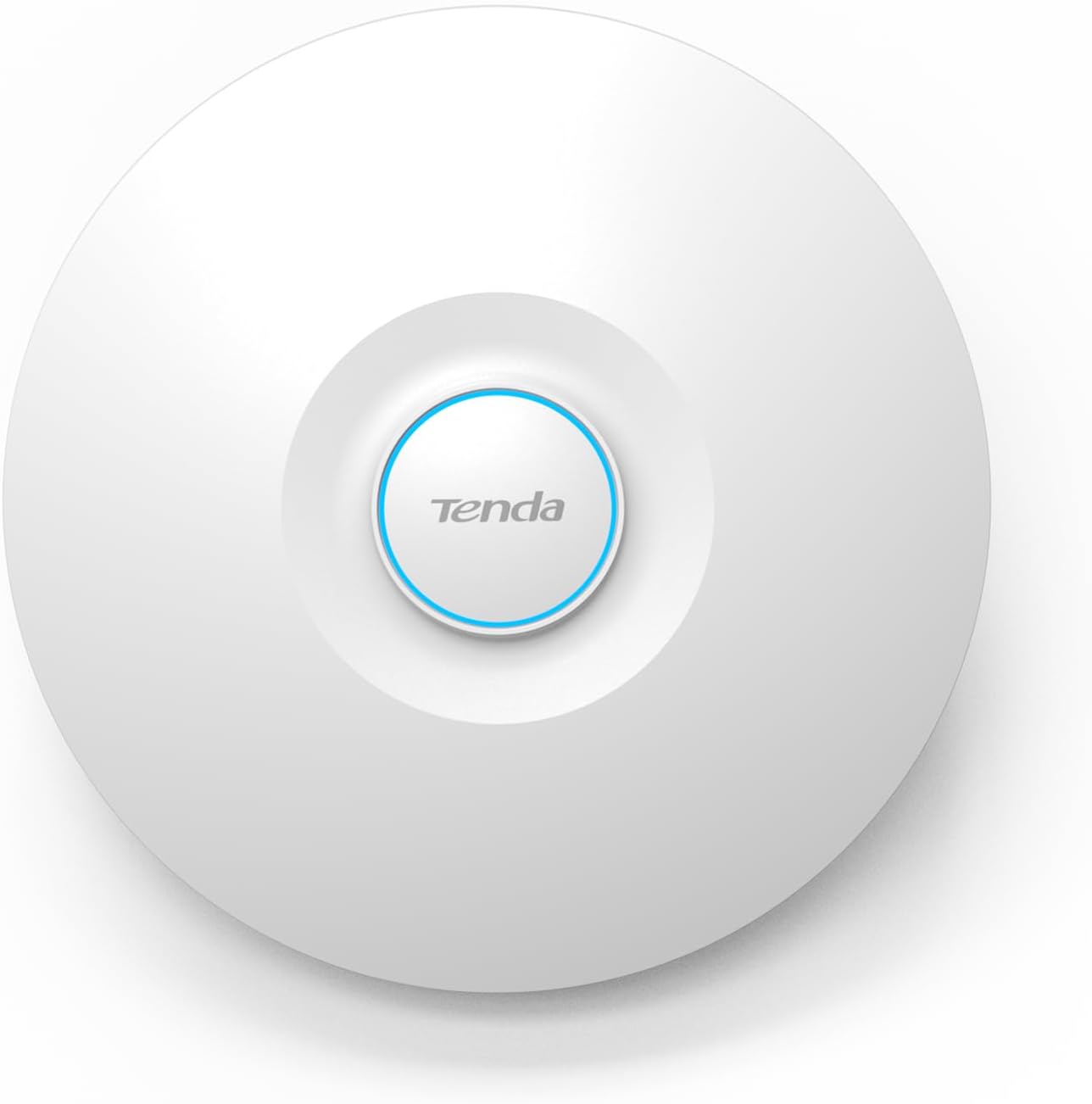
Figure 1: Tenda i29 WiFi 6 Access Point (Top View)
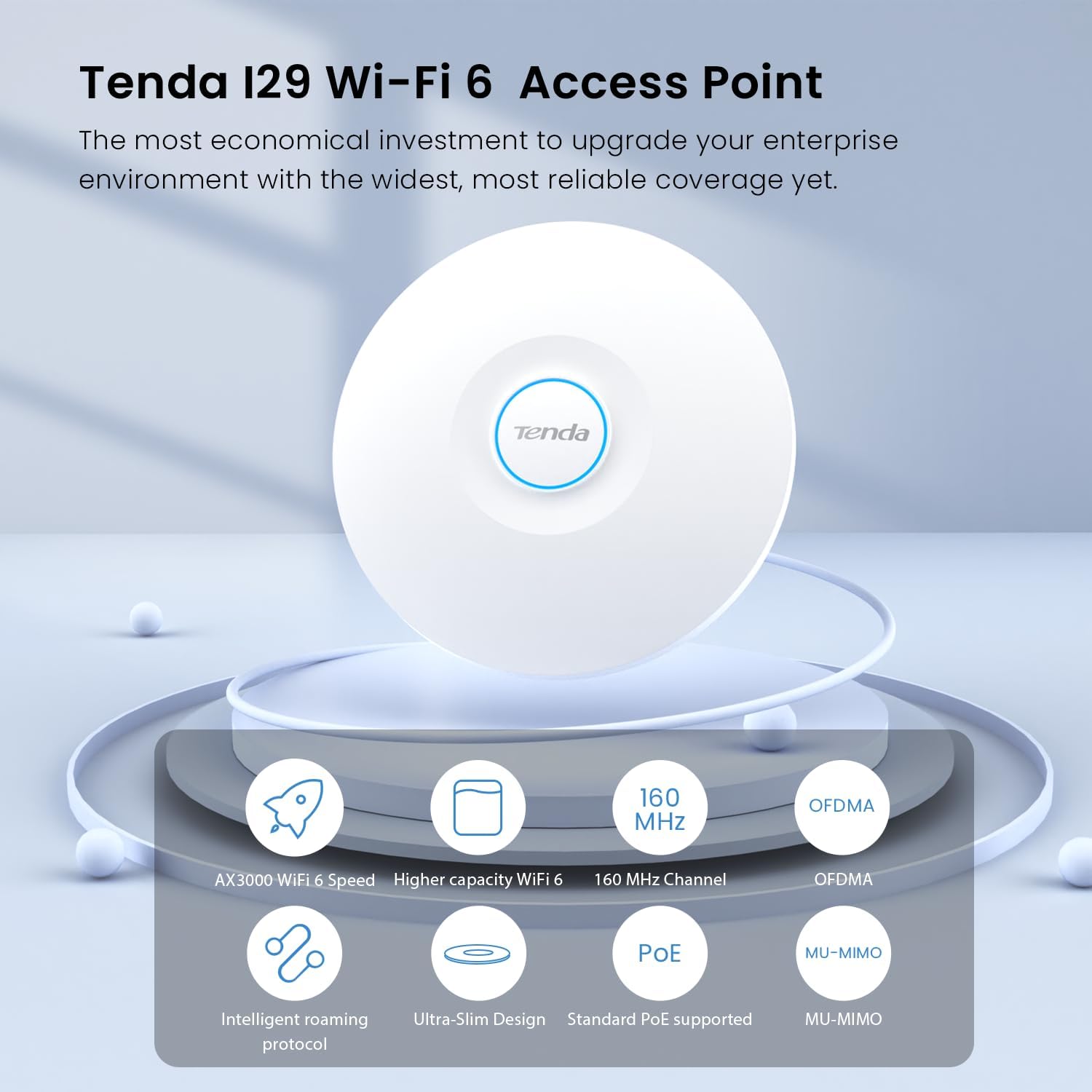
Figure 2: Tenda i29 Wi-Fi 6 Access Point with highlighted features like AX3000 speed, 160 MHz channel, OFDMA, MU-MIMO, intelligent roaming, ultra-slim design, and standard PoE support.
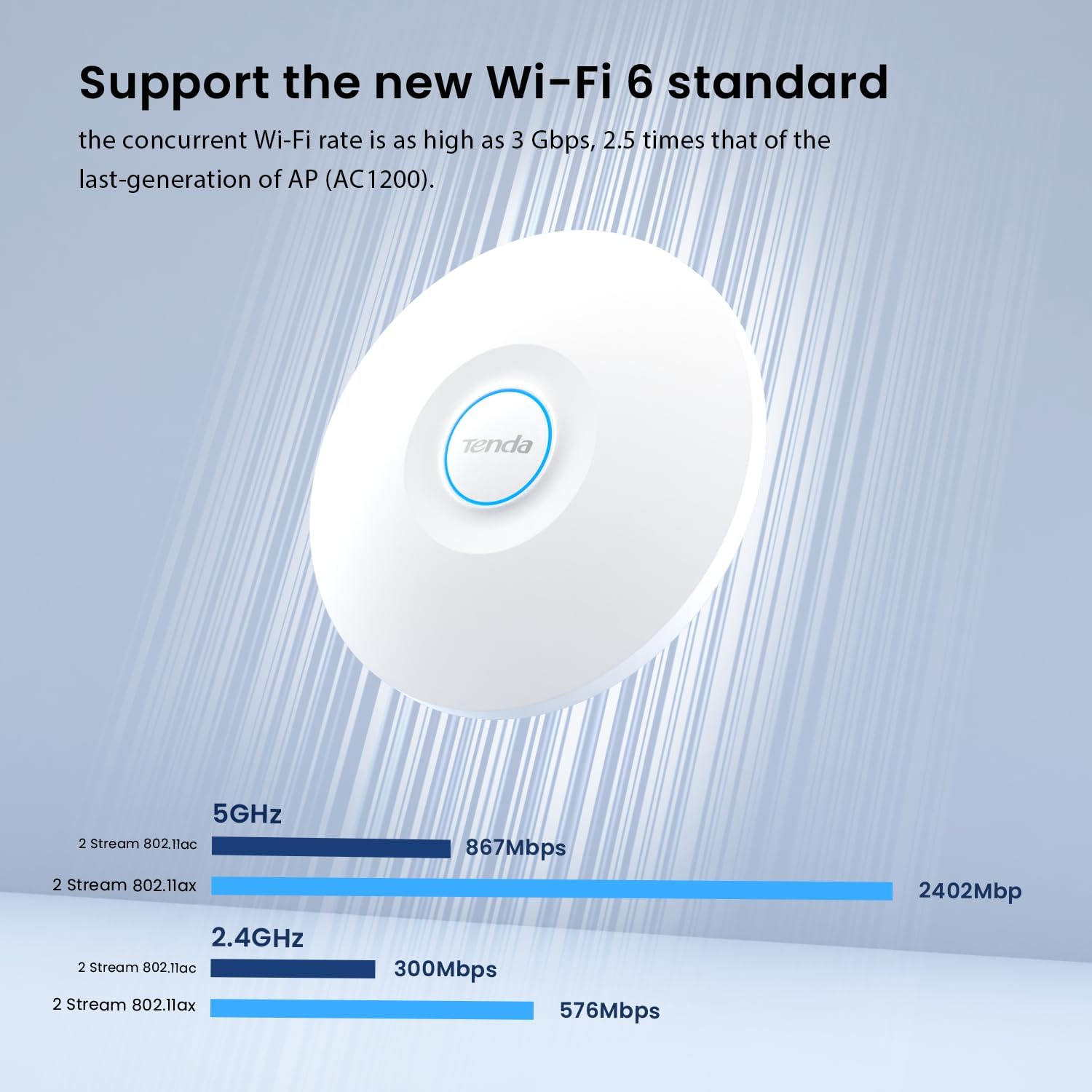
Figure 3: Wi-Fi 6 Speed Comparison, showing 2.4 Gbps on 5GHz and 576 Mbps on 2.4GHz for 802.11ax.
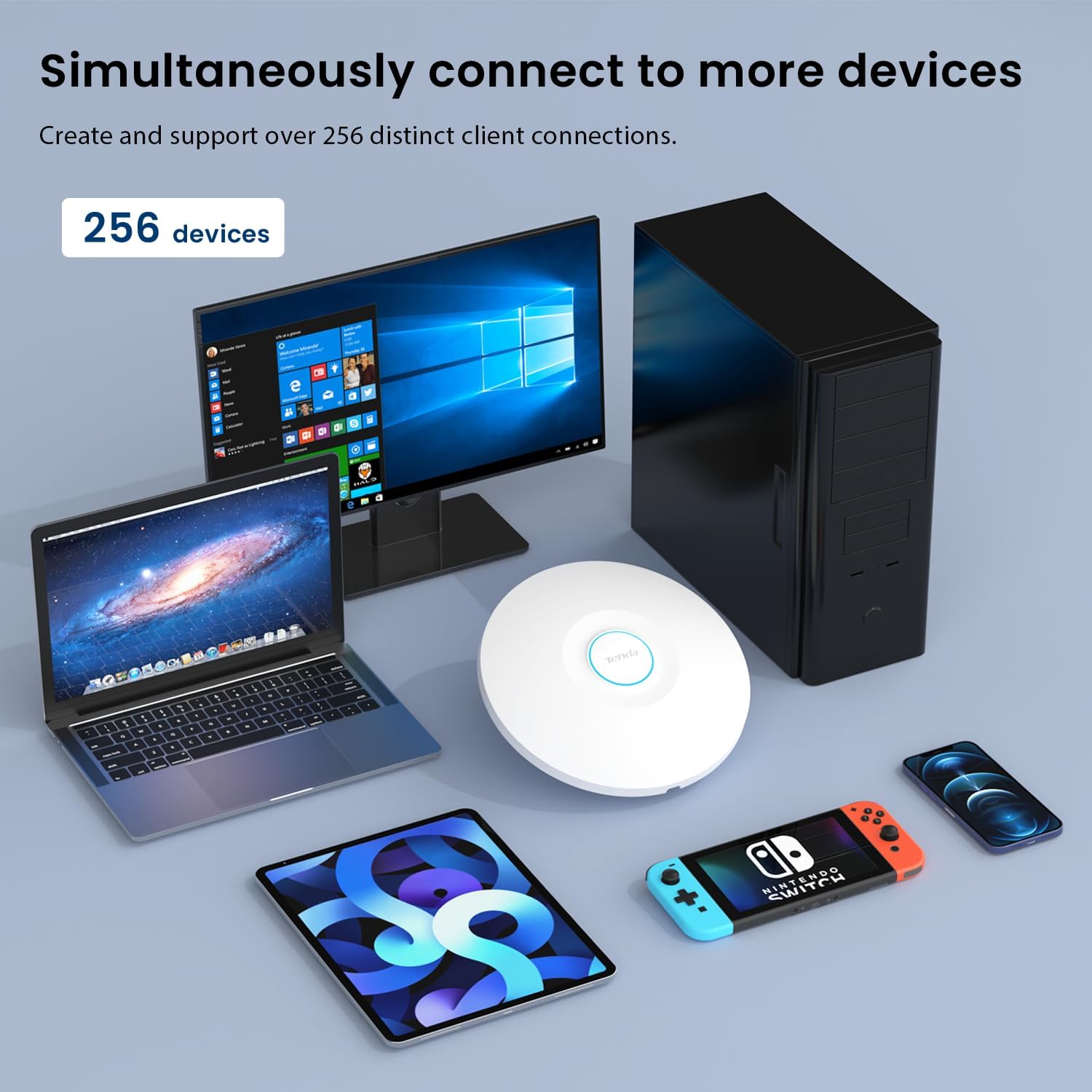
Figure 4: The Tenda i29 Access Point simultaneously connecting to a laptop, desktop, tablet, and gaming console, illustrating its capacity for 256 devices.
3. Setup and Installation
3.1 Mounting Options
The Tenda i29 is designed for flexible installation and can be mounted on a ceiling or a wall. Ensure the chosen location provides optimal signal coverage and is within reach of an Ethernet cable for PoE+ power and data.
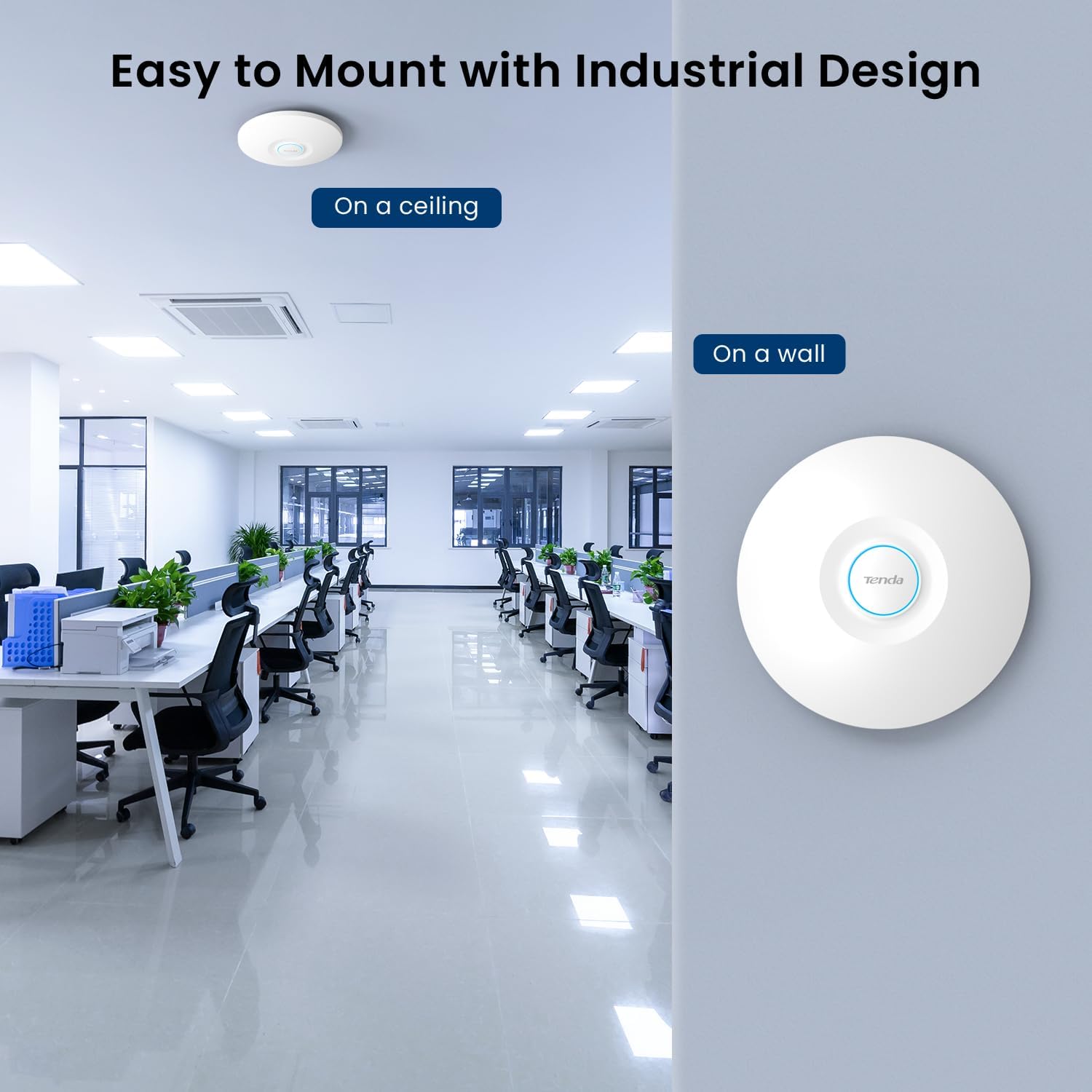
Figure 5: Mounting options for the Tenda i29, showing it installed on a ceiling and a wall in an office setting.
3.2 Powering the Device (PoE+)
The i29 supports Power over Ethernet Plus (PoE+), allowing both power and data to be transmitted over a single Ethernet cable. Connect the AP to a PoE+ enabled switch or use the included PoE injector. This simplifies wiring and installation, especially for ceiling or wall mounts.
3.3 Initial Configuration
For initial setup and management, it is recommended to use the Tenda mobile application. This app provides a streamlined process for getting your Access Point online and configuring basic settings. While direct web portal access is available, some users may find the app more straightforward for initial setup.
- Connect the Tenda i29 to your network using an Ethernet cable from the PoE+ port to your router or PoE+ switch.
- Ensure the device powers on (check indicator lights).
- Download the Tenda Wi-Fi app from your mobile device's app store.
- Follow the in-app instructions to discover and configure your i29 Access Point. This typically involves creating an account and setting up your Wi-Fi network name (SSID) and password.
- For advanced configurations or if you encounter issues with the app, you may access the web management interface. The default IP address is often 192.168.0.254, but it may obtain an IP address via DHCP from your router. You can find the assigned IP address through your router's client list or by using network scanning tools. The default login credentials are typically "admin" for both username and password.
4. Operating Instructions
4.1 Connecting Devices
Once the Tenda i29 is configured, devices can connect to its Wi-Fi network using the SSID and password you have set. The dual-band capability allows devices to connect to either the 2.4 GHz or 5 GHz frequency band, depending on their capabilities and proximity to the AP.
4.2 Network Management
Manage your network settings, connected devices, and advanced features through the Tenda mobile app or the web management interface. Regular access to these interfaces allows for monitoring network performance, updating Wi-Fi passwords, and configuring guest networks.

Figure 6: Illustration of a Superfast WiFi 6 Mesh Network, demonstrating automatic connectivity between access points across different floors of a building.

Figure 7: 802.11k/v/r seamless roaming in action, where devices automatically connect to the AP with the best signal when moving within a large coverage area like an office.
5. Advanced Features
5.1 OFDMA and MU-MIMO
The i29 leverages OFDMA (Orthogonal Frequency Division Multiple Access) and MU-MIMO (Multi-User, Multiple-Input, Multiple-Output) technologies to significantly enhance network efficiency. OFDMA allows multiple users to transmit data simultaneously on different sub-carriers within a single channel, reducing latency. MU-MIMO enables the AP to communicate with multiple devices at once, improving overall throughput and capacity, especially in environments with many connected clients.

Figure 8: OFDMA and MU-MIMO technologies enhancing channel capacity for efficient data transmission, allowing access for up to 150 devices simultaneously.
5.2 Seamless Roaming (802.11k/v/r)
For environments with multiple access points, the i29 supports 802.11k/v/r protocols. These standards facilitate seamless roaming, allowing client devices to automatically and quickly switch to the access point with the strongest signal as users move around, ensuring uninterrupted connectivity for applications like video calls and online meetings.
5.3 WPA3 Encryption
The i29 incorporates WPA3, the latest Wi-Fi Protected Access security protocol. WPA3 provides enhanced encryption and protection against brute-force attacks, offering a more secure network environment even when using simpler passwords.
5.4 Target Wake Time (TWT)
TWT is a power-saving feature of Wi-Fi 6 that allows the i29 to schedule when devices wake up to send or receive data. This optimizes power consumption for connected devices, particularly IoT devices, prolonging their battery life without compromising network performance.
6. Maintenance
- Firmware Updates: Regularly check for and install firmware updates through the Tenda app or web interface. Firmware updates often include performance improvements, new features, and security patches.
- Cleaning: Keep the device clean and free from dust to ensure proper ventilation and prevent overheating. Use a soft, dry cloth for cleaning.
- Network Monitoring: Periodically monitor your network's performance and connected devices through the management interface to identify any potential issues early.
7. Troubleshooting
7.1 Cannot Access Web Management Interface
- Check IP Address: The default IP is 192.168.0.254. However, if connected to a router with DHCP enabled, the AP might have obtained a different IP. Check your router's connected devices list for the assigned IP address.
- Default Credentials: Ensure you are using the default username "admin" and password "admin" (case-sensitive). If you have changed them, use your updated credentials.
- Direct Connection: If issues persist, try connecting your computer directly to the AP's LAN port (via the PoE injector if not using a PoE switch) and manually set your computer's IP address to be in the same subnet (e.g., 192.168.0.100 with subnet mask 255.255.255.0) to access the default IP.
7.2 Inconsistent or Dropping Connection
- Signal Strength: Ensure the AP is placed in a central location to maximize coverage and minimize interference.
- Interference: Other electronic devices (cordless phones, microwaves, Bluetooth devices) can cause interference. Try changing the Wi-Fi channel in the AP's settings.
- Firmware: Ensure the AP's firmware is up to date.
- Client Devices: Test with multiple devices to determine if the issue is with the AP or a specific client device.
7.3 Factory Reset
If you encounter persistent issues or forget your login credentials, a factory reset can restore the device to its default settings. Locate the reset button (usually a small pinhole) on the device. With the device powered on, press and hold the reset button for approximately 10-15 seconds until the indicator lights behave differently (e.g., flash rapidly or turn off and on). Release the button, and the device will reboot with factory defaults.
8. Specifications
| Attribute | Value |
|---|---|
| Model Name | I29-V2.0 |
| Brand | Tenda |
| Connectivity Technology | Wi-Fi |
| Wireless Communication Standard | 802.11ax (WiFi 6) |
| Frequency Band Class | Dual-Band (2.4 GHz & 5 GHz) |
| Max Wireless Speed | Up to 3000 Mbps (2.4 Gbps on 5 GHz, 574 Mbps on 2.4 GHz) |
| Power Supply | 802.3at PoE+ |
| Item Weight | 1.1 pounds |
| Package Dimensions | 12.4 x 11.42 x 4.29 inches |
| Compatible Devices | Personal Computer, Security Camera, etc. |
| Special Feature | Access Point Mode, OFDMA, MU-MIMO, Seamless Roaming, WPA3, TWT |
9. Warranty and Support
For warranty information and technical support, please refer to the official Tenda website or contact Tenda customer service. Keep your purchase receipt for warranty claims. Support resources, including FAQs and updated drivers, are typically available on the manufacturer's website.
Tenda Official Website: www.tendacn.com


