
Blackview Mega2
Blackview Mega2 Android 15 Tablet User Manual
Model: Mega2
1. Introduction
The Blackview Mega2 is a high-performance Android 15 tablet designed for seamless multitasking, immersive entertainment, and enhanced productivity. Featuring a 12-inch FHD+ 2K display, a powerful Octa-core Unisoc T615 processor, and extensive memory options, this tablet is equipped to handle a wide range of applications from work to gaming.

Figure 1.1: Blackview Mega2 Tablet and Accessories
This image displays the Blackview Mega2 tablet along with its standard accessories, including a power adapter, USB cable, a free stylus pen, a screen protector, and a protective case. The tablet itself features a large 12-inch screen and a sleek gray finish.
2. Setup
2.1 Initial Charging
Before first use, fully charge your Blackview Mega2 tablet. Use the provided USB cable and power adapter.
- Connect the USB cable to the tablet's charging port.
- Plug the power adapter into a wall outlet.
- The charging indicator will illuminate. Allow approximately 3-4 hours for a full charge.
2.2 Power On/Off
- To Power On: Press and hold the Power button until the Blackview logo appears.
- To Power Off: Press and hold the Power button until the power options menu appears, then select "Power off".
2.3 Screen Protector and Case Installation
The tablet comes with a screen protector and a protective case for enhanced durability.
- Screen Protector: Carefully align and apply the screen protector to the tablet's display, ensuring no dust or bubbles.
- Protective Case: Gently insert the tablet into the provided protective case, ensuring all edges are securely covered.
3. Operating Instructions
3.1 Display and Visuals
The Blackview Mega2 features a 12-inch FHD+ 2K display with Widevine L1 support for high-definition streaming and TÜV Rheinland Low Blue Light Certification for reduced eye strain.

Figure 3.1: Immersive Visual Experience
This image illustrates the tablet's large 12-inch display, showcasing its vibrant colors and clear resolution, ideal for media consumption and general use.
3.2 Performance and Storage
Equipped with an Octa-core Unisoc T615 processor and up to 24GB RAM (8GB physical + 16GB expansion), the tablet ensures smooth performance. It includes 256GB internal storage, expandable up to 2TB via microSD card.

Figure 3.2: RAM and ROM Configuration
This diagram visually represents the tablet's memory configuration, highlighting its 8GB physical RAM with an additional 16GB virtual RAM expansion, alongside 256GB of internal storage.
3.3 Battery Management
The 9000mAh battery provides extended usage times. Optimize battery life by managing background apps and screen brightness.

Figure 3.3: 9000mAh Battery Performance
This infographic details the expected battery life of the 9000mAh battery under different usage scenarios, such as web browsing, video playback, gaming, music, calls, and standby time.
3.4 Camera Features
Capture moments with the 8MP front and 16MP rear AI-powered cameras. Utilize the Magic AI Photo Editor for advanced image enhancements.
- AI Magic Erase: Remove unwanted objects from photos.
- AI One-Tap Sky Replacement: Change the sky in your images.
- AI Portrait Unblur: Sharpen blurry portraits.
- AI Color Focus: Highlight specific colors.

Figure 3.4: Magic AI Photo Editor Capabilities
This image demonstrates the various AI-powered photo editing features available on the tablet, showing before-and-after examples of Magic Erase, Sky Replacement, Portrait Unblur, and Color Focus.
3.5 Stylus Pen Usage
The included stylus pen allows for precise input, drawing, and note-taking.
- Use the stylus for detailed tasks, digital art, or handwriting notes.
- The tablet supports smooth and responsive stylus input.

Figure 3.5: Stylus Pen in Use
This image shows a user actively writing or drawing on the Blackview Mega2 tablet screen with the provided stylus pen, demonstrating its utility for creative and productive tasks.
3.6 Productivity Features
The tablet comes with a pre-installed WPS Office Suite and supports split-screen multitasking for enhanced productivity.
- WPS Office Suite: Create and edit documents, spreadsheets, and presentations.
- Split Screen with App Pairing: Run two applications side-by-side for efficient multitasking.

Figure 3.6: WPS Office Suite and Productivity
This image shows the Blackview Mega2 tablet in a productivity setup, displaying the WPS Office Suite interface, suggesting its capability for document creation and editing, potentially with an external keyboard.
3.7 Connectivity
The tablet supports 802.11ax Wireless Type (Wi-Fi 6) for fast and stable internet connections.
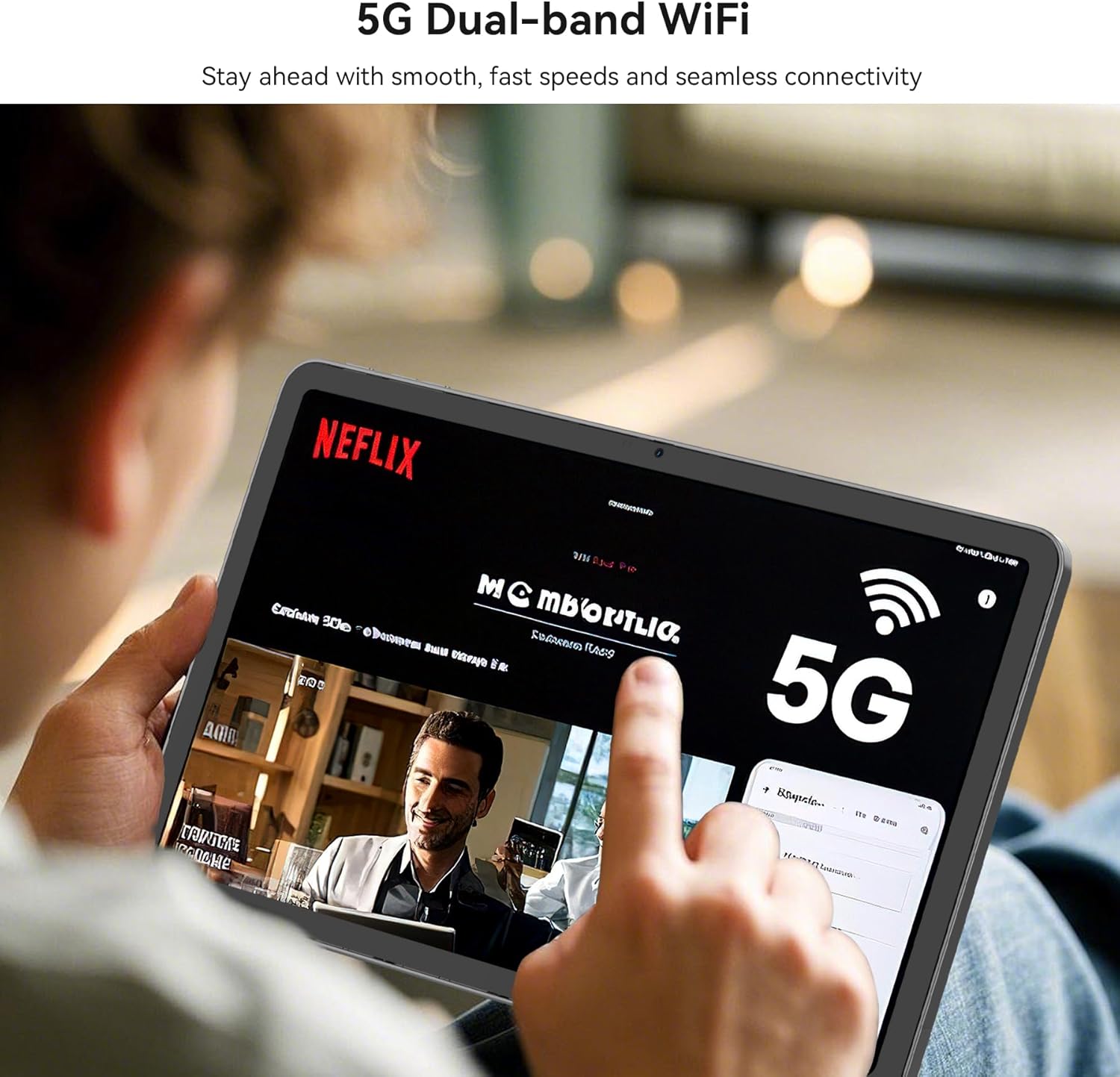
Figure 3.7: 5G Dual-band WiFi Connectivity
This image depicts a user interacting with the Blackview Mega2 tablet, with a prominent "5G" icon on the screen, indicating its support for high-speed dual-band Wi-Fi connectivity.
3.8 Android 15 Operating System
The tablet runs on the latest Android 15 operating system, offering enhanced features, security, and user experience.

Figure 3.8: Android 15 Interface
This image showcases the Blackview Mega2 tablet's screen displaying the Android 15 operating system interface, emphasizing its modern and intuitive design.
4. Maintenance
4.1 Cleaning the Tablet
- Use a soft, lint-free cloth to clean the screen and body.
- Avoid using abrasive cleaners or solvents.
- For stubborn smudges, slightly dampen the cloth with water or a screen cleaner.
4.2 Battery Care
- Avoid extreme temperatures, both hot and cold, as they can degrade battery performance.
- Do not leave the tablet fully discharged for extended periods.
- For long-term storage, charge the battery to around 50-60%.
4.3 Software Updates
Regularly check for and install system updates (OTA Updates) to ensure optimal performance and security.
- Go to Settings > System > System update to check for available updates.
- Ensure a stable Wi-Fi connection and sufficient battery life before starting an update.
5. Troubleshooting
| Problem | Possible Solution |
|---|---|
| Tablet does not power on. | Ensure the tablet is fully charged. Press and hold the Power button for at least 10 seconds to force a restart. |
| Screen is unresponsive. | Restart the tablet. If the issue persists, perform a factory reset (backup data first). |
| Wi-Fi connection issues. | Restart your Wi-Fi router and the tablet. Forget the network and reconnect. Ensure you are within range. |
| Apps are crashing or freezing. | Clear the app's cache and data (Settings > Apps > [App Name] > Storage). Update the app or reinstall it. |
| Battery drains quickly. | Reduce screen brightness, disable unused features (Bluetooth, GPS), close background apps, and check for app updates. |
6. Specifications
| Feature | Detail |
|---|---|
| Model | Blackview Mega2 |
| Operating System | Android 15 |
| Display Size | 12 Inches |
| Screen Resolution | 2000x1200 (FHD+ 2K) |
| Processor | Octa-core Unisoc T615 (2.2 GHz) |
| RAM | 24GB (8GB physical + 16GB expansion) |
| Internal Storage | 256GB ROM |
| Expandable Storage | Up to 2TB via microSD card |
| Battery Capacity | 9000mAh |
| Rear Camera | 16MP AI Camera |
| Front Camera | 8MP AI Camera |
| Wireless Type | 802.11ax (Wi-Fi 6) |
| Dimensions (LxWxH) | 9.6 x 6.7 x 0.3 inches |
| Item Weight | 3.39 pounds (approx. 615 grams) |
| Color | Gray |
7. Official Product Video
Video 7.1: Blackview Android 15 Tablet Mega2 2025 Overview
This video provides a comprehensive overview of the Blackview Mega2 Android 15 Tablet, showcasing its key features such as the 12-inch 2K FHD+ display, AI Photo Editor, up to 36GB RAM, 256GB ROM, and split-screen functionality. The video highlights the tablet's design, performance, and various use cases, including productivity and entertainment. (Duration: 0:48)
8. Warranty and Support
Blackview offers a 720-day worry-free warranty for the Mega2 tablet, ensuring peace of mind for users. This warranty covers manufacturing defects and ensures high-quality product performance.
- Warranty Period: 720 days from the date of purchase.
- Customer Service: 24-hour customer service is available.
- Support Contact: For any questions or issues, please contact Blackview customer service through the Amazon order page for free replacement or assistance.

Figure 8.1: Blackview Two Year Warranty Support
This image highlights Blackview's commitment to quality with a "Blackview Two Year Warranty Support" graphic, indicating that products undergo strict examination and testing, and users can enjoy a 24-month free repair warranty and lifetime technician support.
Related documentsMega2


Ask a question about this manual
Ask about setup, troubleshooting, compatibility, parts, safety, or missing instructions. Manuals+ will review the question and use this page’s manual context to help answer it.