
Introduction
This manual provides detailed instructions for the installation, operation, and maintenance of your GeekTale Fingerprint Deadbolt with Passage Door Knob (Model F08). Please read this manual thoroughly before installation and use to ensure proper function and safety. Keep this manual for future reference.
Setup and Installation
The GeekTale Fingerprint Deadbolt is designed for easy installation on standard doors. Follow these steps for a successful setup.
1. Check Door Compatibility and Dimensions
Before installation, verify that your door dimensions are compatible with the lock. The deadbolt is designed to fit standard door preparations.

Image: Diagram illustrating the dimensions of the deadbolt and passage door knob components, along with the required door bore holes. Ensure your door matches these specifications for proper fit.
2. Installation Steps
The installation process is designed to be quick and hassle-free. Refer to the included installation guide for detailed diagrams and step-by-step instructions.

Image: Visual representation of the easy installation process for the GeekTale Fingerprint Deadbolt, highlighting the simplicity of assembly.
3. Initial Battery Charge
The lock features a built-in rechargeable battery. Before first use, ensure the lock is fully charged. A full charge typically lasts up to 6-8 months.

Image: The GeekTale deadbolt connected to a USB-C charging cable, illustrating the built-in rechargeable battery feature.
4. App Download and Fingerprint Registration
Download the dedicated mobile application to manage your lock. Follow the in-app instructions to register fingerprints (up to 20) and set up other access methods.

Image: A hand placing a finger on the deadbolt's sensor, demonstrating the quick fingerprint unlock feature with a 0.3-second recognition speed.
Operating Instructions
Your GeekTale Smart Lock offers multiple convenient ways to access your property.
1. Access Methods
- Fingerprint: Place your registered finger on the sensor for quick unlocking. The lock recognizes fingerprints in approximately 0.3 seconds.
- Mobile App: Use the dedicated mobile application to unlock the door via Bluetooth.
- Physical Key: In case of battery depletion or other issues, use the provided physical keys as a backup.

Image: A visual guide showing the three primary methods to unlock the deadbolt: fingerprint recognition (up to 20 fingerprints), Bluetooth control via the app, and traditional physical keys.
2. Twist to Lock & Unlock Mechanism
After unlocking via fingerprint or app, twist the exterior knob to open the door. To lock the door, twist the interior panel.

Image: A split image showing the exterior knob being twisted to unlock and the interior panel being twisted to lock the door, highlighting the intuitive mechanism.
3. Smart App Control Features
The mobile application provides comprehensive control and monitoring capabilities for your lock.
- Manage Users: Add or remove authorized users and their fingerprints.
- View Access Log: Review a history of who accessed the lock and when.
- Low Battery Alert: Receive timely notifications when the battery level is low, typically around 20%.
- Sound Settings: Adjust or mute the lock's operational sounds.
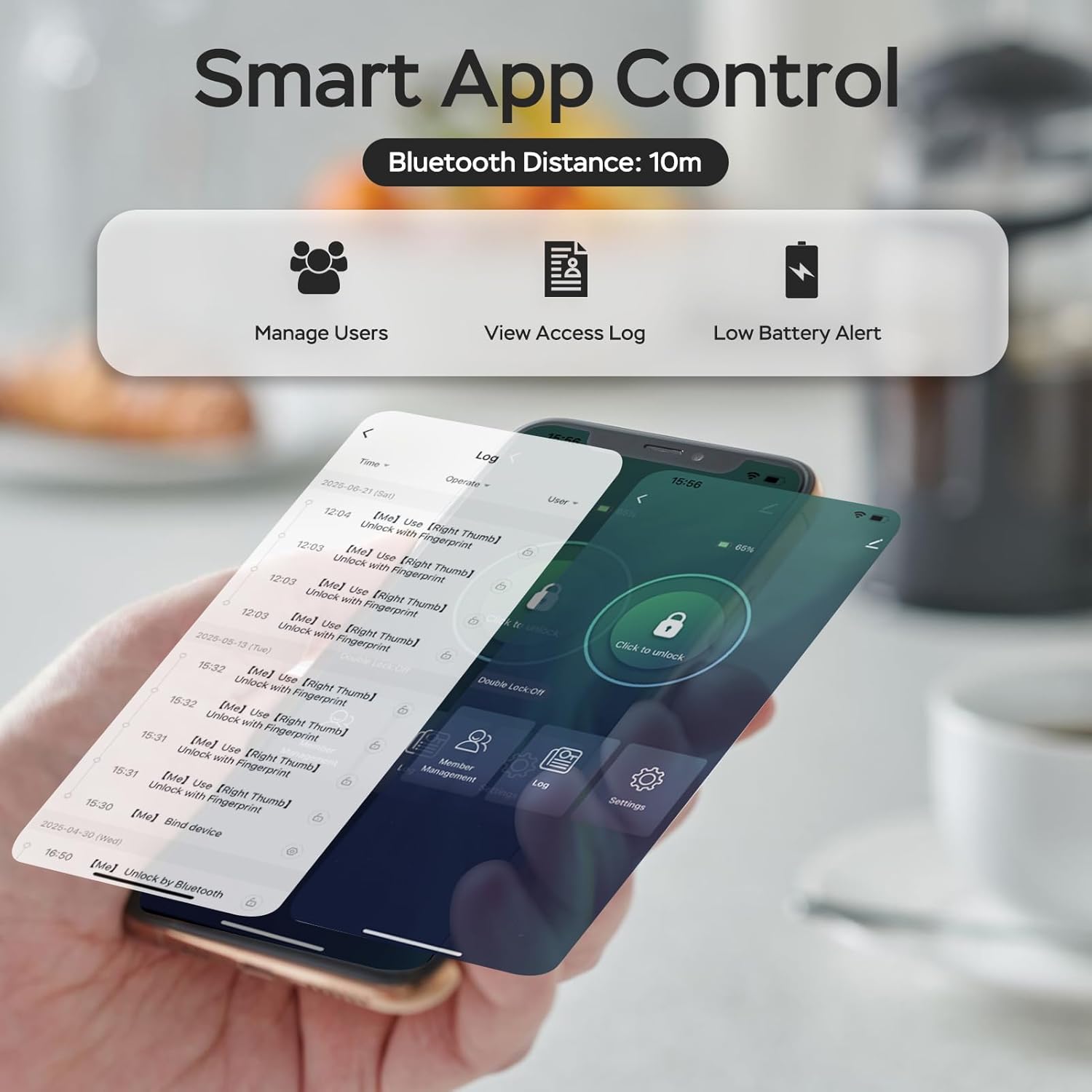
Image: A smartphone displaying the lock's mobile app interface, which allows users to manage access, view historical logs, and receive low battery alerts.
4. Remote Unlock with Gateway (Sold Separately)
For remote unlocking and voice control features, a compatible gateway device (sold separately) is required. This gateway connects the lock to your home Wi-Fi network, enabling remote management and real-time notifications.
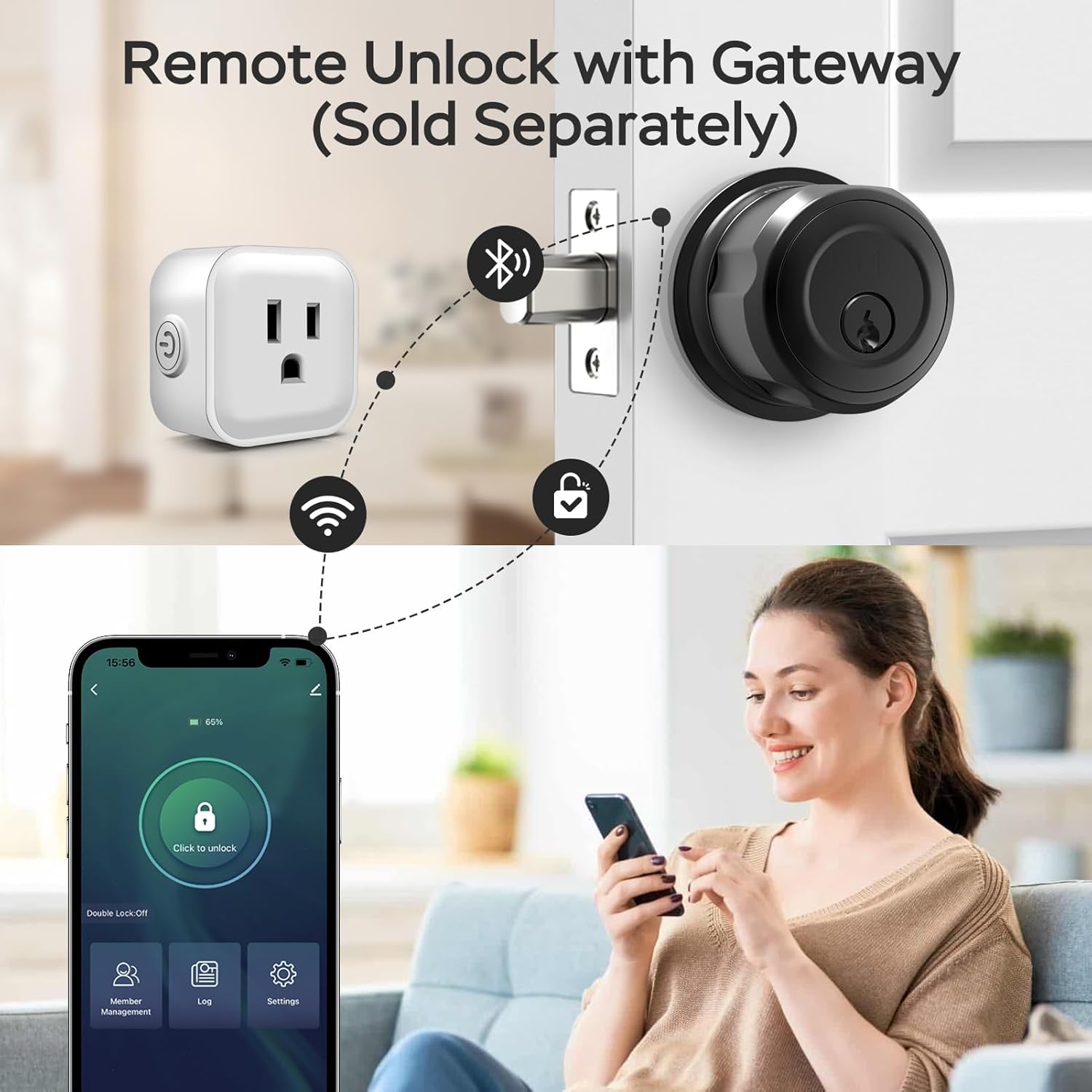
Image: A diagram illustrating the connection between the smart deadbolt, a gateway device (plugged into an outlet), and a smartphone, enabling remote unlocking and control.
Maintenance
Proper maintenance ensures the longevity and optimal performance of your smart lock.
1. Battery Charging
The built-in rechargeable battery provides power for up to 6-8 months on a single charge. When the low battery alert is received, charge the lock using a USB-C cable. A full charge takes approximately 3 hours.
2. Cleaning
Clean the lock's exterior with a soft, dry cloth. Avoid using abrasive cleaners or solvents, as these can damage the finish and electronic components. Keep the fingerprint sensor clean for accurate recognition.
3. Physical Key Storage
Store the two unique physical keys in a secure location outside your home, accessible only to trusted individuals, for emergency backup access.
Troubleshooting
If you encounter issues with your GeekTale Fingerprint Deadbolt, refer to the following common solutions.
- Lock not responding: Check the battery level. If low, recharge the lock. If fully charged, try using a physical key.
- Fingerprint not recognized: Ensure your finger is clean and dry. Try re-registering your fingerprint through the app. Ensure the sensor is clean.
- App connectivity issues: Ensure Bluetooth is enabled on your smartphone and you are within range (approximately 10 meters). Try restarting the app or your phone. If using a gateway, ensure it is powered on and connected to Wi-Fi.
- Lock not charging: Verify the USB-C cable and power adapter are functioning correctly. Ensure the charging port on the lock is free of debris.
- Lock not operating in cold weather: Extreme cold can affect electronic devices. If experiencing issues in low temperatures, consider using the physical key.
If problems persist after attempting these solutions, please contact GeekTale customer support for further assistance.
Specifications
| Brand | GeekTale |
| Model Number | F08 |
| Lock Type | Deadbolt |
| Material | Aluminum |
| Color | Black |
| Item Dimensions (L x W x H) | 2.56 x 2.56 x 3.03 inches |
| Special Features | Store 20 Fingerprints, App Control, Twist to Unlock & Lock, Rechargeable Battery, Easy Install |
| Control Method | App, Touch |
| Connectivity Protocol | Bluetooth |
| Battery Life | Up to 6-8 months on a single charge |
Warranty Information
GeekTale products typically come with a limited manufacturer's warranty. For specific details regarding your product's warranty period and terms, please refer to the warranty card included in your product packaging or visit the official GeekTale website.
Customer Support
If you require further assistance, have questions about your product, or need to report an issue, please contact GeekTale customer support. Contact information can typically be found on the official GeekTale website or in your product packaging.
Online Support: Visit the GeekTale official website for FAQs, troubleshooting guides, and contact forms.
Email Support: Refer to your product documentation for the customer service email address.