1. Introduction
The RAINPOINT HWG023 WiFi Antenna Gateway is designed to extend the reach and stability of your smart irrigation system. It acts as a central hub, connecting your RAINPOINT Wi-Fi enabled water timers, sprinkler controllers, smart hose timers, and other compatible devices to your home's 2.4GHz Wi-Fi network. This allows for remote control and automated scheduling of your garden, lawn, and yard watering needs via the RAINPOINT HOME app.
The gateway features an upgraded antenna for a signal transmission distance of up to 250 meters, capable of penetrating 3-4 walls, ensuring a wider and more stable connection compared to traditional Wi-Fi hubs. One gateway can be paired with up to 8 compatible RAINPOINT devices, creating a fully connected and efficient smart watering ecosystem.

Image 1.1: Overview of the RAINPOINT Smart Irrigation System with the Gateway.
2. Package Contents
Please verify that all items are present in your package:
- 1 x RAINPOINT HWG023 WiFi Antenna Gateway
- 1 x Type-C USB Cable
- 1 x Power Adapter
- 1 x User Manual
- 1 x Quick Guide

Image 2.1: Detailed view of the RAINPOINT HWG023 Gateway and its included accessories.
3. Specifications
| Feature | Specification |
|---|---|
| Model Number | HWG023 |
| Brand | RAINPOINT |
| Color | White |
| Material | Plastic |
| Product Dimensions | 2"D x 2"W x 2"H |
| Item Weight | 4.2 ounces |
| Wi-Fi Frequency Band | 2.4GHz (only) |
| Signal Transmission Distance | Up to 250 meters (820 feet) |
| Compatible Devices | Up to 8 RAINPOINT Wi-Fi devices (e.g., soil/rain sensors, HTV107B, HTV145, HTV210B, HTV245) |
4. Setup
4.1 Download the RAINPOINT HOME App
Search for "RAINPOINT HOME" in your device's app store (Google Play for Android, App Store for iOS) and download the application. Register or log in with an existing account.
4.2 Connect the Gateway to Power
Plug the provided Type-C USB cable into the gateway and connect the power adapter to a standard electrical outlet. The gateway will power on, indicated by a light.

Image 4.1: RAINPOINT HWG023 Gateway with labeled ports and antenna.
4.3 Pair the Gateway with the App
- Open the RAINPOINT HOME app.
- On the "My Home" screen, tap the "+" icon in the upper right corner to add a device.
- Select the HWG023 Gateway from the list of available devices.
- Follow the on-screen instructions to connect the gateway to your 2.4GHz Wi-Fi network. Ensure your phone is connected to the same 2.4GHz Wi-Fi network during the pairing process.
- The gateway's indicator light will flash during pairing and turn solid blue once successfully connected.
Note: The gateway only supports 2.4GHz Wi-Fi. If your router broadcasts both 2.4GHz and 5GHz, ensure your phone is connected to the 2.4GHz band during setup.

Image 4.2: Quick setup of the gateway with the mobile application.
4.4 Connect RAINPOINT Devices to the Gateway
Once the gateway is successfully paired, you can add compatible RAINPOINT devices (e.g., water timers, sensors) through the app. The gateway will then facilitate communication between these devices and your Wi-Fi network.

Image 4.3: Expanding your garden watering system with the gateway and multiple devices.
5. Operating Instructions
5.1 App Interface Overview
The RAINPOINT HOME app provides a centralized interface to manage all your connected devices. Key sections include:
- My Home: Displays all connected devices and their online status.
- Info: Provides weather information and device-specific data (e.g., last water usage, next scheduled plan).
- Smart: Allows creation of smart scenes and automations based on conditions (e.g., weather, time, device status).
- Plan: For setting up and managing watering schedules.
- Me: Account settings and general app configurations.
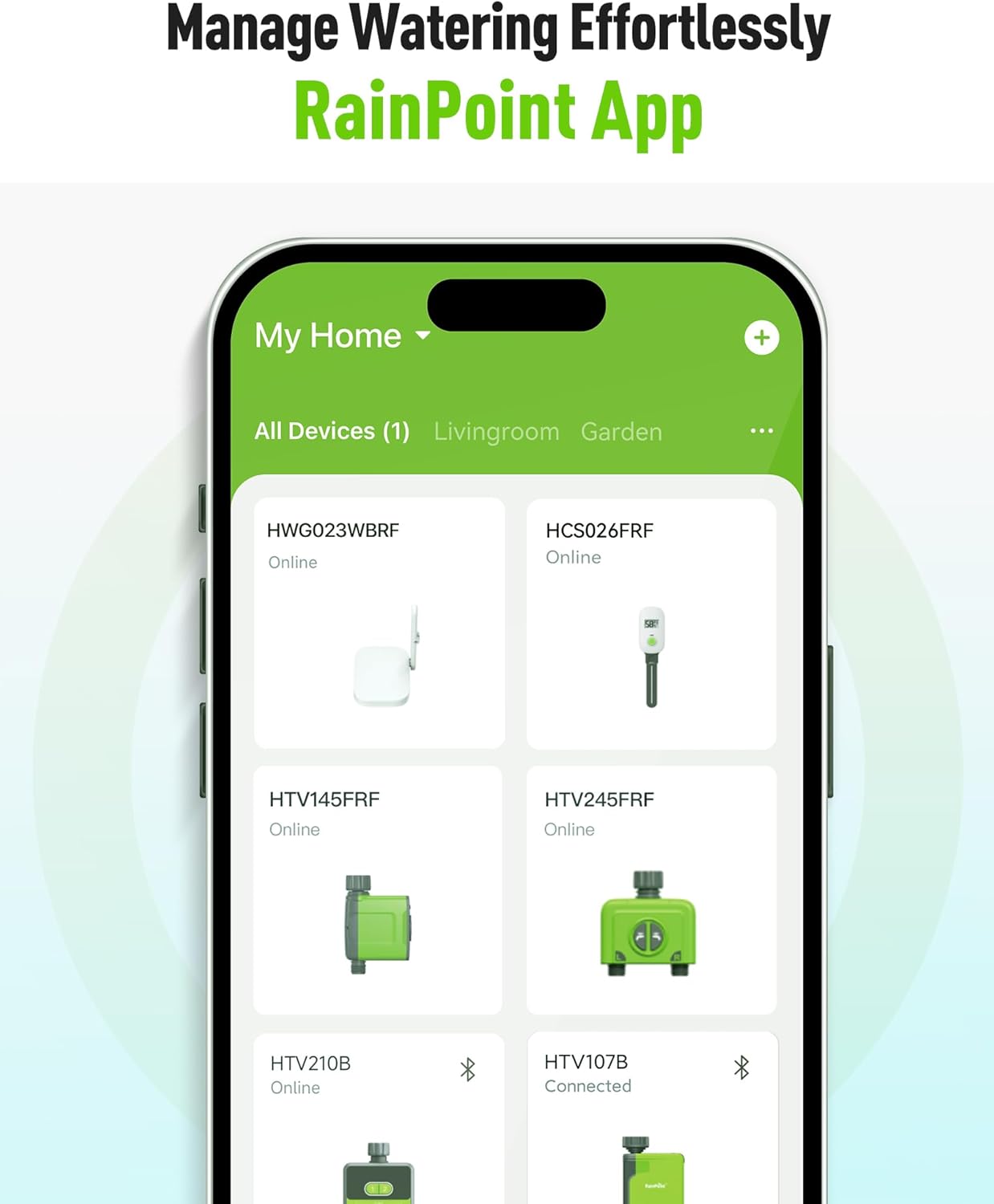
Image 5.1: RAINPOINT HOME app for effortless watering management.
5.2 Manual Control
You can manually turn on or off watering for individual devices directly from the app's "My Home" screen by selecting the device and toggling its status.
5.3 Scheduled Watering
In the "Plan" section of the app, you can set up to 6 separate watering plans for each device. Choose from three different watering modes: Normal Irrigation, Interval Irrigation, and Cycle & Soak. Customize start times, durations, and repeat cycles (e.g., every day, odd dates, even dates, custom intervals).
5.4 Automatic Watering with Sensors
When the Wi-Fi timer is paired with a RAINPOINT soil sensor (not included), it can automatically irrigate or stop watering according to the soil temperature and humidity data. The app will automatically synchronize local weather information, and the timer can be automatically executed according to weather trigger conditions you set.
5.5 Rain Delay
Manually set a rain delay or enable automatic rain delay based on weather forecasts to prevent overwatering.
5.6 Water Flow Meter
The built-in water flow meter tracks water usage in the last 30 days or the last year, providing insights into your water consumption.
5.7 Voice Control (Alexa Integration)
The RAINPOINT HOME app can be linked with Amazon Alexa via the Tuya Smart skill. This allows you to control your watering devices using voice commands. Follow the instructions in the app to link your Tuya Smart account with Alexa and discover devices.
Video 5.1: Instructions on how to connect a water timer to Alexa via the Tuya app, demonstrating the ecosystem's voice control capabilities.
6. Maintenance
The RAINPOINT HWG023 Gateway is designed for indoor use and should be kept within its specified working temperature range (3°C-40°C / 37.4°F-104°F). Ensure the gateway is always powered to maintain connectivity with your devices and the app.
For connected water timers, ensure batteries are replaced as needed. The app will send low battery alerts.
7. Troubleshooting
7.1 Connectivity Issues
- Wi-Fi Band: Ensure your home Wi-Fi network is 2.4GHz. The gateway does not support 5GHz Wi-Fi.
- Signal Strength: The gateway uses a 433MHz RF connection to communicate with RAINPOINT devices. It must be within an 820ft range, line of sight, of the Wi-Fi Hub. If there are walls, iron gates, or bushes blocking the signal, shorten the distance between the gateway and the devices for better reception.
- Placement: Do not place the Wi-Fi timer in an underground valve box or anywhere your Wi-Fi and RF signal will be obstructed.
7.2 Device Not Pairing
If the gateway fails to pair, you may need to reset it. Press and hold the operation button on the gateway for a few seconds until the indicator light flashes rapidly. Then attempt the pairing process again through the app.
Video 7.1: Guide on how to reset the RAINPOINT WiFi Hub to its default settings for re-pairing.
7.3 Low Battery / Valve Failure
The app will send you alert messages when connected devices have low battery, water shortage, or valve failure (leakage).
8. Warranty and Support
For any questions or support, please contact RAINPOINT customer service:
- WhatsApp: +1 626-780-5952
- Free Hotline (US): +1 833-381-5659
- Email: service@rainpointonline.com
- Website: www.rainpointonline.com


