Introduction
This manual provides detailed instructions for the installation, setup, operation, and maintenance of your Blindsmart Matter Thread Smart Blinds Motor. This motor is designed to automate roller shades with 38mm tubes, offering seamless integration with Matter-compatible smart home ecosystems like Apple Home, Google Home, and SmartThings. It includes a 6-channel remote for convenient control.
Important Notes
- This motor requires a Thread Border Router for operation. Ensure your smart home system is equipped with a compatible Thread Border Router.
- At least one remote control is necessary to set the upper and lower limits of the blind motor.
- This motor is specifically designed for roller shade tubes with a 38mm diameter. Verify your tube's diameter before installation.
Package Contents
Please verify that all components are present in your package:
- Smart Blinds Motor
- 6-Channel Remote Control
- End Cap
- Mounting Brackets
- USB Charging Cable
- User Manual

Image: Overview of the Blindsmart Matter Thread Smart Blinds Motor and its accompanying components, including the motor unit, 6-channel remote, end cap, mounting brackets, and USB charging cable.
Product Specifications
| Model Number | BSDJ-MT25B-N+ZMT6 |
| Compatible Tube Diameter | 38mm |
| Input Voltage | 5V/2A |
| Rated Power | 9.6W |
| Rated Current | 0.8A |
| Battery Capacity | 2600mAh (Lithium, included) |
| Rated RPM | 20/25/30 rpm |
| Torque | 1.1Nm |
| Load-bearing Capacity | 4KG |
| Item Weight | 1 pound |
| Material | Aluminum |

Image: Detailed diagram illustrating the dimensions and key parameters of the motor, remote, solar panel (optional), USB cable, and mounting brackets.
Installation
Follow these steps to install the motor into your roller shade tube:
- Verify Tube Diameter: Ensure your roller shade tube has an inner diameter of 38mm. Use a measuring tool to confirm.

Image: A ruler being used to measure the inner diameter of a roller shade tube, confirming it is 38mm.
- Insert Motor: Carefully slide the motor into one end of the roller shade tube. Ensure it fits snugly.

Image: The smart motor being carefully inserted into the open end of a roller shade tube.
- Secure Motor: Push the motor fully into the tube until it is securely seated.

Image: The smart motor fully inserted and secured within the roller shade tube, ready for bracket attachment.
- Attach End Cap: Insert the end cap into the opposite end of the roller shade tube.
- Mount Brackets: Attach the provided mounting brackets to your window frame or wall. Then, secure the roller shade assembly (with motor and end cap) into the brackets.

Image: A hand attaching the mounting bracket to the motor end of the roller shade assembly.
- Accessory Options: If your existing tube or brackets require different accessories, refer to the diagram below for standard and optional accessory dimensions. Contact customer service if replacement accessories are needed.

Image: A diagram illustrating the dimensions of both standard and optional accessories for the motor, including different crown and drive adapters.
Remote Control Pairing
To pair the 6-channel remote control with your motor and set the limits:
- Press the motor's setting button for 2 seconds.
- On the remote, select a channel and press the [PRG] button within 10 seconds.
- The motor will respond, indicating successful pairing.
- Follow the remote's instructions to set the upper and lower travel limits for your shade. This step is crucial for proper operation.

Image: A three-step diagram showing how to pair the remote control: press the motor setting button, select a channel on the remote, and confirm pairing.
App Connection and Smart Home Integration
The Blindsmart motor integrates seamlessly with Matter-compatible smart home systems.
Connecting to the App
- Press the motor's setting button for 6 seconds.
- The orange LED will blink twice.
- The blue LED will blink continuously, indicating the motor is in pairing mode.
- Open your preferred Matter-compatible smart home app (e.g., Apple Home, Google Home, SmartThings) and follow the in-app instructions to add a new device. You may need to scan a QR code provided with the product.

Image: A three-step diagram showing how to connect the motor to a mobile app: press the setting button, observe orange LED blinks, then blue LED blinks for pairing mode.
Matter Thread Network
The motor utilizes a built-in Thread module, allowing it to share the same Thread mesh network with other Matter devices for reliable communication.

Image: A diagram depicting a multi-level smart home environment where various Matter devices, including the curtain roller, connect via a Thread mesh network, managed by a gateway and router.
Compatible Smart Home Platforms

Apple Home

Google Home

SmartThings

Amazon Alexa
Operation
Once installed and paired, you can control your smart blinds motor using the following methods:
Remote Control
Use the included 6-channel remote to open, close, or stop your blinds at any desired position. The remote allows for direct control without needing a smart home hub.

Image: A hand holding the remote control, demonstrating its use to adjust blinds in a modern bathroom setting.
App Control
Through your Matter-compatible smart home app, you can precisely control the opening and closing percentage of your blinds. This also enables scheduling and automation features.

Image: A smartphone displaying an application interface for controlling window coverings, showing a slider for adjustment and current open percentage.

Image: A kitchen interior showing roller blinds being controlled via a mobile application, with arrows indicating movement.
Voice Control
Integrate with voice assistants like Siri (Apple Home) or Google Assistant (Google Home) to control your blinds using simple voice commands.

Image: A bedroom setting illustrating voice commands like 'Hey Siri, close the curtains' and 'Hey Google Home, open the curtains' being used to control smart blinds.
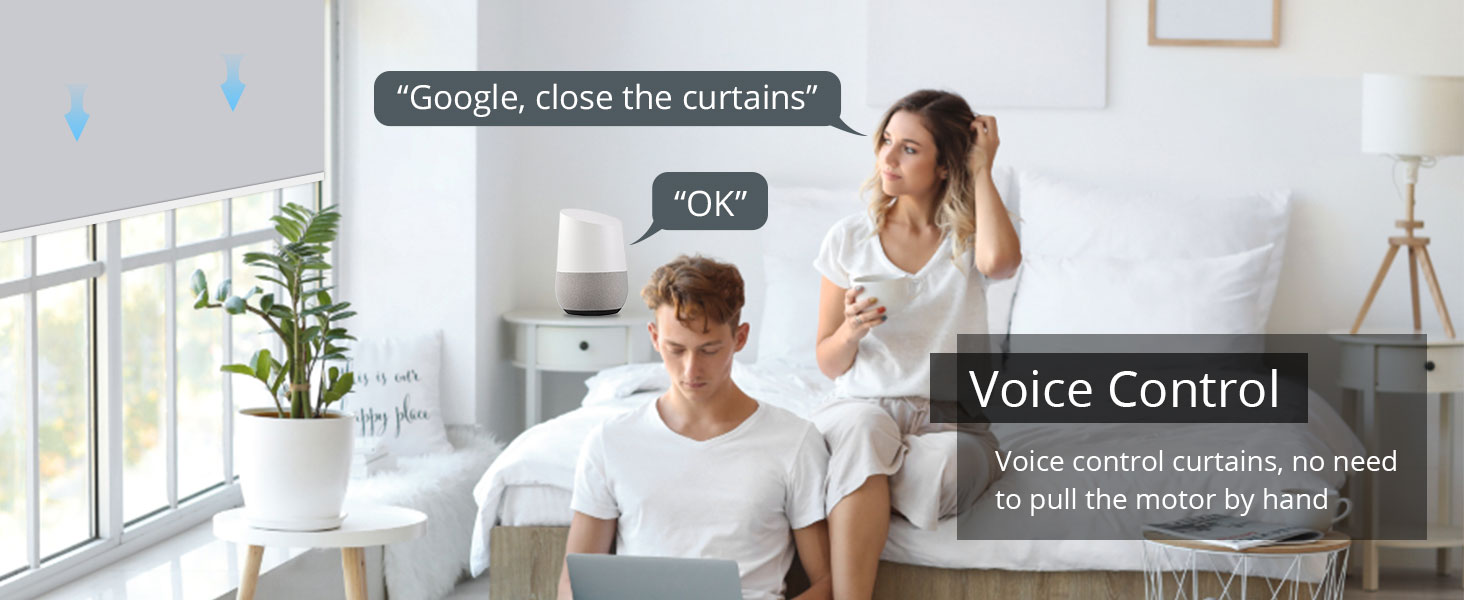
Image: A couple in a bedroom using voice commands to control their smart blinds, with a smart speaker visible.
Maintenance
To ensure the longevity and optimal performance of your Blindsmart motor:
- Charging: The motor has a built-in 2600mAh rechargeable battery. Charge it using the provided USB cable when the battery indicator is low. The USB port is located on the motor unit.

Image: A detailed view of the motor's end, highlighting the built-in 2600mAh battery, USB charging port, setting button, and LED indicator.
- Cleaning: Periodically wipe the motor and remote control with a soft, dry cloth. Avoid using abrasive cleaners or solvents.
- Environmental Conditions: Ensure the motor is not exposed to extreme temperatures or excessive moisture.
Troubleshooting
If you encounter issues with your Blindsmart motor, refer to the following common solutions:
- Motor Not Fitting Tube: Double-check your roller shade tube's inner diameter. It must be 38mm. If the fit is too tight or loose, contact customer support for alternative accessories.
- Remote Not Working/Setting Limits:
- Ensure the remote's battery (CR2450 3V) is correctly installed and has sufficient power.
- Re-attempt the remote pairing process as described in the 'Remote Control Pairing' section.
- If limits cannot be set, perform a factory reset on the motor (refer to the full user manual for specific steps, if available, or contact support).
- App Connection Issues/Unreliable Smart Control:
- Verify that you have a functional Thread Border Router and that it is online.
- Ensure the motor is within range of your Thread network.
- Re-attempt the app connection process.
- Check for firmware updates for your Thread Border Router and the smart home app.
- If using multiple motors, ensure each is properly paired and configured within your smart home system.
- Motor Not Responding:
- Check the motor's battery level and recharge if necessary.
- Ensure the motor is not physically obstructed.
- Perform a factory reset if other troubleshooting steps fail.
Warranty and Support
For warranty information or technical support, please contact Blindsmart customer service through the vendor's official channels or visit the Blindsmart store on Amazon. Keep your purchase receipt for any warranty claims.


