1. Introduction
This manual provides detailed instructions for the installation, operation, and maintenance of your podofo 9-inch Android Car Radio, specifically designed for the Volkswagen Beetle models from 2012 to 2018. Please read this manual thoroughly before using the product to ensure proper functionality and safety.
2. Product Overview
The podofo Android Car Radio is an advanced infotainment system featuring a 9-inch touchscreen display with 1024x600 resolution and 2.5D anti-scratch glass. It operates on the Android 13 system with 2GB RAM and 64GB ROM, offering a comprehensive suite of features for an enhanced driving experience.

Image 1: podofo 9-inch Android Car Radio and included accessories (rear camera, microphone, Canbus box, and smartphone with CarPlay/Android Auto icons).
Key Features:
- Android 13 Operating System: Provides a modern and intuitive user interface.
- 9-inch Touchscreen Display: High-resolution (1024x600) with 2.5D anti-scratch glass for clear visuals and durability.
- Wireless CarPlay & Android Auto: Seamless integration with your smartphone for navigation, calls, messages, and music.
- GPS Navigation: Supports both online and offline maps.
- WiFi & Hotspot Connectivity: Access to online applications like YouTube, Spotify, and Netflix.
- Bluetooth Connectivity: For hands-free calling and audio streaming.
- FM/RDS Radio: Clear radio reception with station information display.
- AHD Rear View Camera Support: Automatic display of rear view when reversing, with night vision and 170° wide angle.
- Steering Wheel Control (SWC): Allows control of essential functions directly from your vehicle's steering wheel.
- Mirror Link: Project your mobile phone screen onto the car radio display.
3. Package Contents
Please verify that all items listed below are included in your package. If any items are missing or damaged, contact customer support immediately.

Image 2: All components included in the package, including the head unit, cables, and accessories.
- 1 x Car MP5 Player (Main Unit)
- 1 x Radio Housing
- 2 x Power Cable (Main Power Harness)
- 1 x GPS Antenna
- 1 x Rear Camera Input Cable
- 1 x RCA Cable
- 2 x USB Cable
- 1 x AHD Rear Camera
- 1 x Microphone (MIC)
- 1 x Canbus Box
- 2 x Mounting Bracket
- 4 x Screw
- 1 x Installation Tool
- 1 x Antenna Adapter
- 1 x User Manual
4. Setup and Installation
Installation of the podofo Android Car Radio requires technical knowledge and should ideally be performed by a qualified professional. Incorrect installation can damage the unit or your vehicle. Ensure the vehicle's battery is disconnected before starting installation.

Image 3: Visual comparison of the car's dashboard before and after the podofo car radio installation.
General Installation Steps:
- Preparation: Disconnect the negative terminal of the car battery. Remove the original car radio unit and trim panel.
- Mounting: Secure the new podofo car radio into the dashboard opening using the provided mounting brackets and screws.
- Wiring:
- Connect the main power cable harness to the car's wiring and the radio unit.
- Connect the GPS antenna and position it for optimal signal reception (e.g., on the dashboard).
- Connect the rear camera input cable and route it to the rear of the vehicle for the AHD camera.
- Connect the RCA cables for audio/video output if external amplifiers or monitors are used.
- Connect the USB cables for external devices or data transfer.
- Connect the microphone for hands-free calling.
- Integrate the Canbus box if your vehicle requires it for steering wheel controls or other vehicle data.
- Connect the radio antenna.
- Testing: Reconnect the car battery. Turn on the ignition and test all functions of the car radio, including audio, touchscreen, navigation, Bluetooth, and camera.
- Final Assembly: Reinstall any removed trim panels.
Note: Refer to your vehicle's specific wiring diagram and the included wiring instructions for detailed connections. If you are unsure, seek professional assistance.
5. Operating Instructions
5.1. Wireless CarPlay and Android Auto
This unit supports wireless Apple CarPlay and Android Auto, allowing seamless integration with your smartphone for navigation, communication, and entertainment.

Image 4: A driver using the car radio with wireless CarPlay/Android Auto for navigation and music, showing voice assistant interaction.
- Enable Bluetooth and Wi-Fi: On your smartphone, ensure Bluetooth and Wi-Fi are enabled.
- Pair Device: On the car radio, go to the Bluetooth settings and pair with your smartphone.
- Activate CarPlay/Android Auto: Once paired, the system should prompt you to activate CarPlay (for iPhone) or Android Auto (for Android phones). Follow the on-screen instructions.
- Voice Control: Use voice commands (e.g., "Hey Siri" or "Hey Google") via the connected microphone for hands-free operation.
Mirror Link: For devices not supporting CarPlay/Android Auto, or if you prefer to mirror your phone's screen, use the Mirror Link function. Connect your phone via USB or Wi-Fi and follow the instructions on the car radio display.
5.2. GPS Navigation
The unit comes with built-in offline map support and can utilize online navigation applications when connected to the internet.

Image 5: Display showing GPS navigation with map interface and various navigation app icons, alongside WiFi connection options and streaming app icons.
- Offline Maps: Access the pre-installed navigation application for offline map usage.
- Online Navigation: Connect the unit to a Wi-Fi hotspot (from your phone or a dedicated device) to use online navigation apps like Google Maps, Waze, etc.
- Split Screen: The system supports split-screen mode, allowing you to run navigation and another application (e.g., music player) simultaneously.
5.3. Bluetooth Connectivity
Connect your smartphone via Bluetooth for hands-free calling and audio streaming.
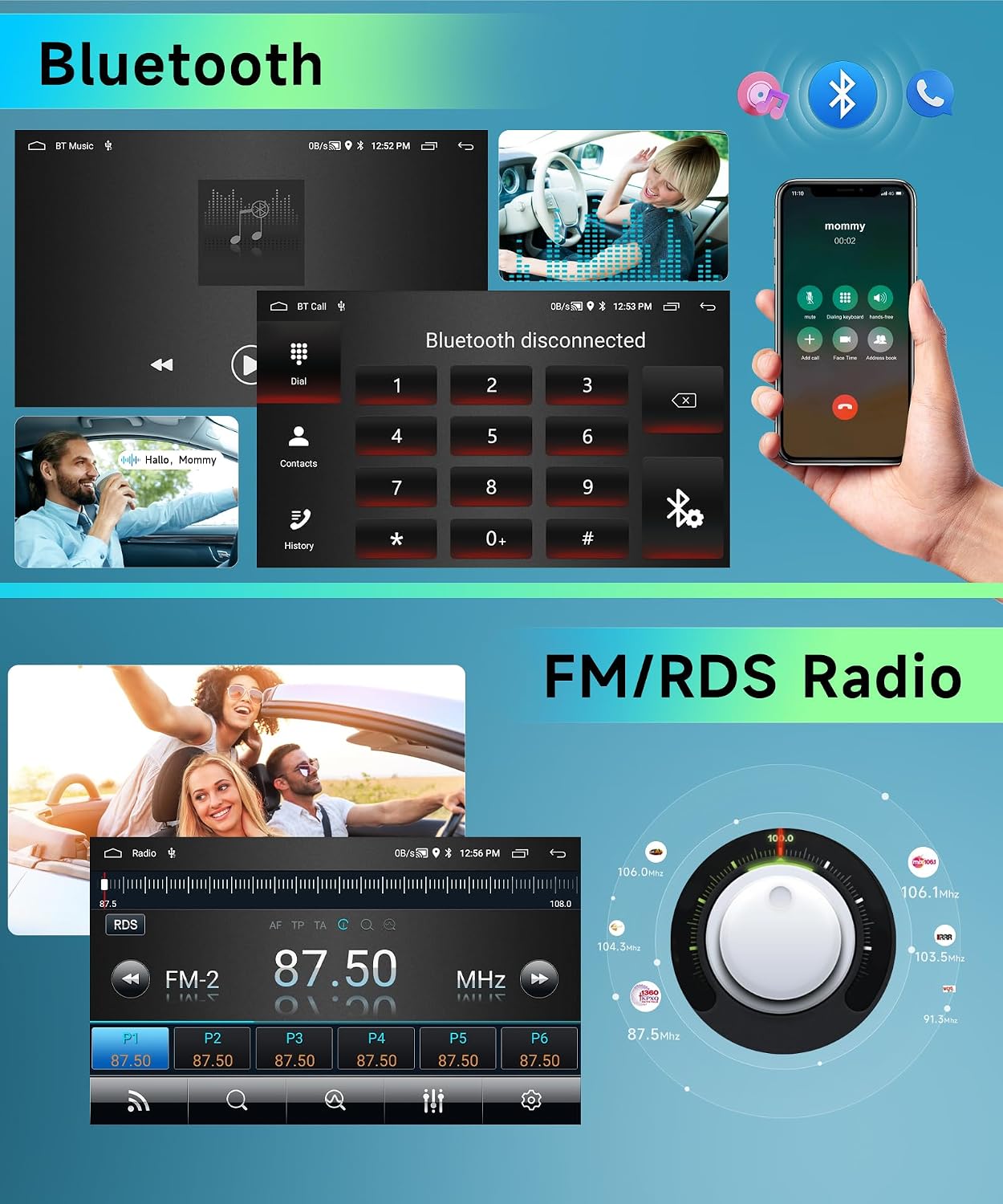
Image 6: Screenshots of the car radio's Bluetooth interface for calls and music, and the FM/RDS radio tuning screen.
- Pairing: Enable Bluetooth on your phone and the car radio. Search for available devices on the car radio and select your phone to pair.
- Hands-Free Calling: Once paired, you can make and receive calls directly from the car radio display. Your contacts may sync automatically.
- Audio Streaming: Play music from your phone through the car's speakers via Bluetooth.
5.4. FM/RDS Radio
Enjoy your favorite radio stations with clear reception and RDS (Radio Data System) functionality.
- Tuning: Use the touchscreen interface to scan for stations or manually tune to a specific frequency.
- RDS: When available, RDS will display station information such as station name, song title, or traffic announcements.
- Presets: Save your preferred stations to preset buttons for quick access.
5.5. Rear View Camera
The included AHD rear view camera provides a clear view of the area behind your vehicle when reversing.

Image 7: The car radio display showing the rear view camera feed with parking guidelines, and a separate section illustrating the steering wheel control setup menu.
- Automatic Activation: The display automatically switches to the rear camera view when the vehicle is put into reverse gear.
- Features: The camera offers IP69 waterproof rating, night vision, HD image quality, and a 170° wide-angle view.
5.6. Steering Wheel Control (SWC)
Control essential functions of the car radio directly from your vehicle's steering wheel buttons for safer driving.
- Setup: Access the "Steering Wheel Control" settings in the unit's menu.
- Programming: Follow the on-screen instructions to program each steering wheel button to its corresponding function (e.g., volume up/down, next/previous track, answer/end call).
6. Specifications
| Feature | Specification |
|---|---|
| Brand | podofo |
| Model | 2+64G |
| Operating System | Android 13 |
| RAM | 2 GB |
| ROM (Internal Storage) | 64 GB |
| Screen Size | 9 Inches |
| Display Type | Touch screen (Capacitive) |
| Screen Resolution | 1024x600 |
| Connectivity | Bluetooth, Wi-Fi |
| Special Features | Android Auto, Apple CarPlay, GPS Navigation, FM/RDS Radio, Rear Camera Input, Steering Wheel Control, Mirror Link |
| Tuner Technology | FM, NO DAB |
| Product Dimensions | 33 x 15 x 29 cm |
| Item Weight | 1.4 Kilograms |
7. Troubleshooting
If you encounter issues with your podofo car radio, please refer to the following common troubleshooting steps:
- No Power:
- Check all power connections and fuses.
- Ensure the car battery is properly connected and charged.
- No Sound:
- Verify speaker connections.
- Check volume levels on the unit and ensure mute is not activated.
- Confirm audio source selection is correct.
- GPS Signal Issues:
- Ensure the GPS antenna is properly connected and has a clear view of the sky.
- Try moving the antenna to a different location on the dashboard.
- Bluetooth Connection Problems:
- Ensure Bluetooth is enabled on both the car radio and your smartphone.
- Delete previous pairings and try pairing again.
- Restart both devices.
- Rear Camera Not Displaying:
- Check the rear camera input cable connection.
- Ensure the camera is receiving power.
- Verify the reverse gear signal wire is correctly connected.
- Steering Wheel Controls Not Working:
- Ensure the Canbus box (if applicable) is correctly installed and connected.
- Re-program the steering wheel buttons in the unit's settings.
- Unit Freezes or Responds Slowly:
- Perform a soft reset (refer to the unit's specific reset procedure, often a small reset button).
- Close unnecessary background applications.
If the problem persists after attempting these steps, please contact podofo customer support for further assistance.
8. Warranty and Support
For warranty information, please refer to the documentation provided with your purchase or contact the seller directly. podofo is committed to providing quality products and customer service.
For technical support, troubleshooting assistance, or inquiries regarding your product, please contact the seller "Podofo electronic" via your Amazon order page or visit the official podofo website for contact details.
Seller: Podofo electronic


