
zhiroad B0DPMG279Z
zhiroad 4K Dual Dash Cam User Manual
Model: B0DPMG279Z
Introduction
Thank you for choosing the zhiroad 4K Dual Dash Cam. This manual provides detailed instructions on how to install, operate, and maintain your dash camera system. Please read this manual thoroughly before using the product to ensure proper functionality and safety.
This advanced dash cam system features a 4K front camera and a 1080P rear camera, offering comprehensive coverage and clear recording for your driving safety. With built-in WiFi, G-Sensor, 24/7 parking monitoring, and loop recording, it's designed to capture every critical moment on the road.
What's in the Package
Please check the contents of your package to ensure all items are present:
- 4K Dash Cam (Front Unit)
- Rear Camera
- Power Cable (Car Charger)
- 64GB SD Card
- Card Reader
- User Manual
- Reset Pin
- Installation Accessories (Adhesive Film, Fixing Screw, Mounting Tool, Adhesive Pad)

Image: All components included in the zhiroad 4K Dual Dash Cam package, including the front dash cam, rear camera, power cable, 64GB SD card, card reader, user manual, reset pin, and various installation accessories.
Product Overview and Features
The zhiroad 4K Dual Dash Cam is equipped with advanced features to provide reliable and high-quality video recording for your vehicle.
Key Features:
- 4K UHD Wide-Angle Dual Dash Cam: Front camera records in 4K with a 170° wide view, and the rear camera records in 1080P with a 140° field of vision, ensuring comprehensive coverage.
- Built-in WiFi & App Control: Seamlessly connect to your smartphone via the free app (Android/iOS) to view live footage, download recordings, and share on social media.
- Night Vision & 24/7 Parking Monitor: Premium optical lens with advanced aperture and Wide Dynamic Range (WDR) technology for clear recordings in low light. The 24/7 Parking Monitor and Time Lapse feature protect your vehicle by recording emergency footage during impacts (requires Hardwire Kit, not included).
- Loop Recording & Accident Lock (G-Sensor): Automatically overwrites oldest videos when storage is full. The G-Sensor detects sudden jolts or collisions and locks crucial footage to prevent deletion.

Image: An overview highlighting the key features of the dash cam, including WiFi & App Control, 4K & 1080P recording, Parking Monitor, Super Night Vision, Loop Recording, G-Sensor, 64GB SD card, and WDR technology.

Image: A visual representation of the 4K Ultra Clear Dash Cam's recording capabilities, showing clear views from both the front (4K UHD) and rear (1080P) cameras, with visible license plates.
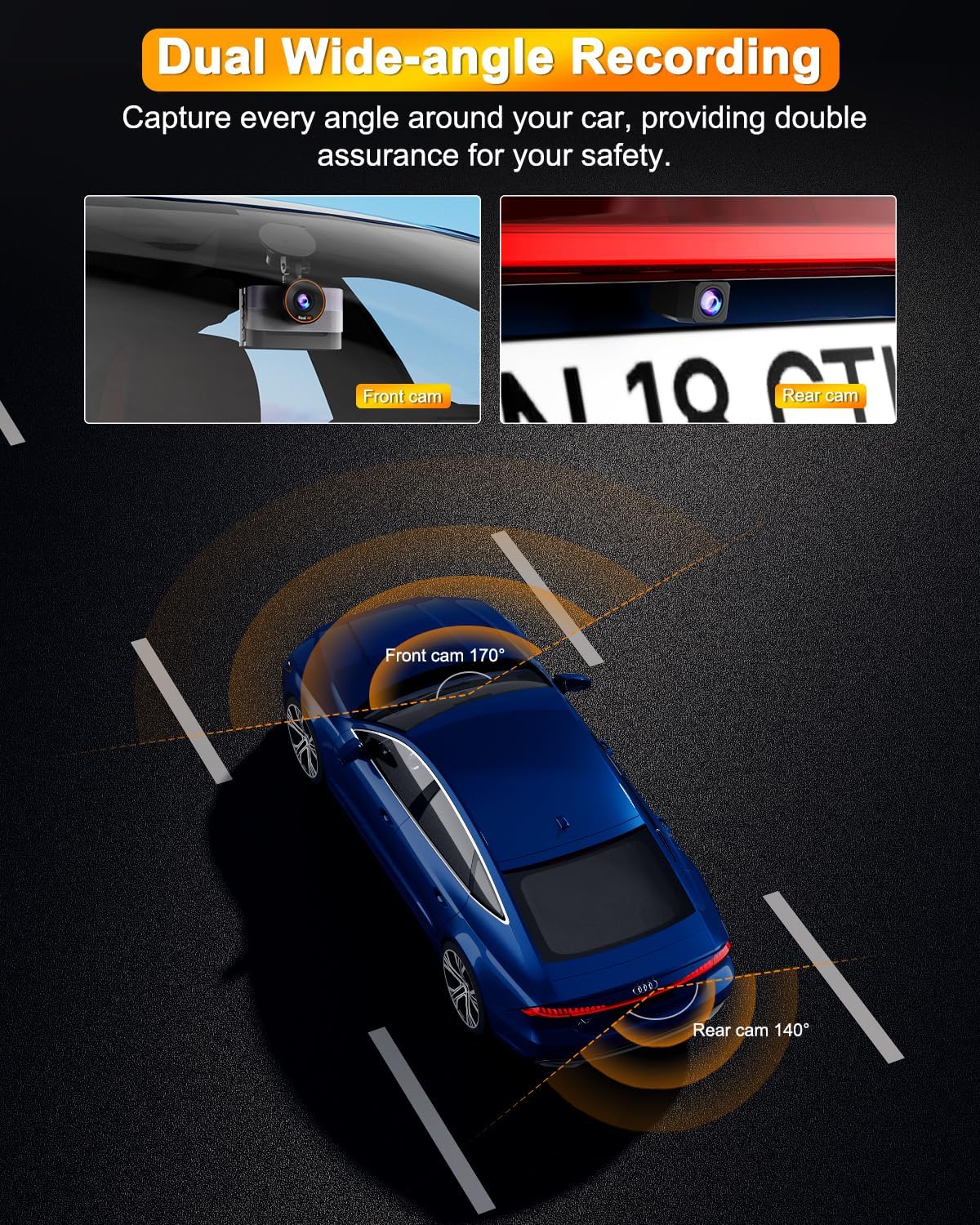
Image: An illustration demonstrating the dual wide-angle recording capabilities, showing the 170° field of view for the front camera and 140° for the rear camera, providing comprehensive coverage around the vehicle.
Installation Guide
Front Dash Cam Installation:
- Clean Windshield: Choose a suitable location on your windshield, preferably behind the rearview mirror, to avoid obstructing your view. Clean the area thoroughly.
- Attach Suction Cup Mount: Secure the suction cup mount to the cleaned area of the windshield. Ensure it is firmly attached.
- Mount Dash Cam: Slide the front dash cam onto the mount until it clicks into place.
- Connect Power: Plug the power cable into the dash cam's power port and route the cable along the edge of the windshield and dashboard to the car's cigarette lighter socket. Use the included installation tool to tuck the cable neatly.
Rear Camera Installation:
- Choose Location: Install the rear camera on the rear windshield, ensuring a clear view.
- Secure Camera: Use the adhesive pad or screws to securely attach the rear camera.
- Route Cable: Connect the rear camera cable to the front dash cam and route the cable neatly along the vehicle's interior trim to the front unit.
Note: For optimal performance and a clean installation, consider professional installation if you are unsure about routing cables.
Basic Operation
Power On/Off:
- The dash cam will automatically power on and begin recording when your vehicle's engine starts.
- It will automatically power off a few seconds after the engine is turned off.
Inserting/Removing SD Card:
- Ensure the dash cam is powered off before inserting or removing the 64GB SD card.
- Insert the SD card into the designated slot until it clicks. To remove, gently push the card in until it springs out.
Screen Display:
- The 3-inch IPS screen provides a live view of the front and rear cameras.
- Navigate through menus and settings using the physical buttons on the dash cam.
Advanced Features
WiFi & App Control:
Download the free "Viidure" app from the Google Play Store or Apple App Store. Connect your smartphone to the dash cam's Wi-Fi network (SSID and password displayed on the dash cam screen). Once connected, you can:
- View live footage from both cameras.
- Download recorded videos directly to your phone.
- Adjust dash cam settings.
- Share videos to social media platforms.
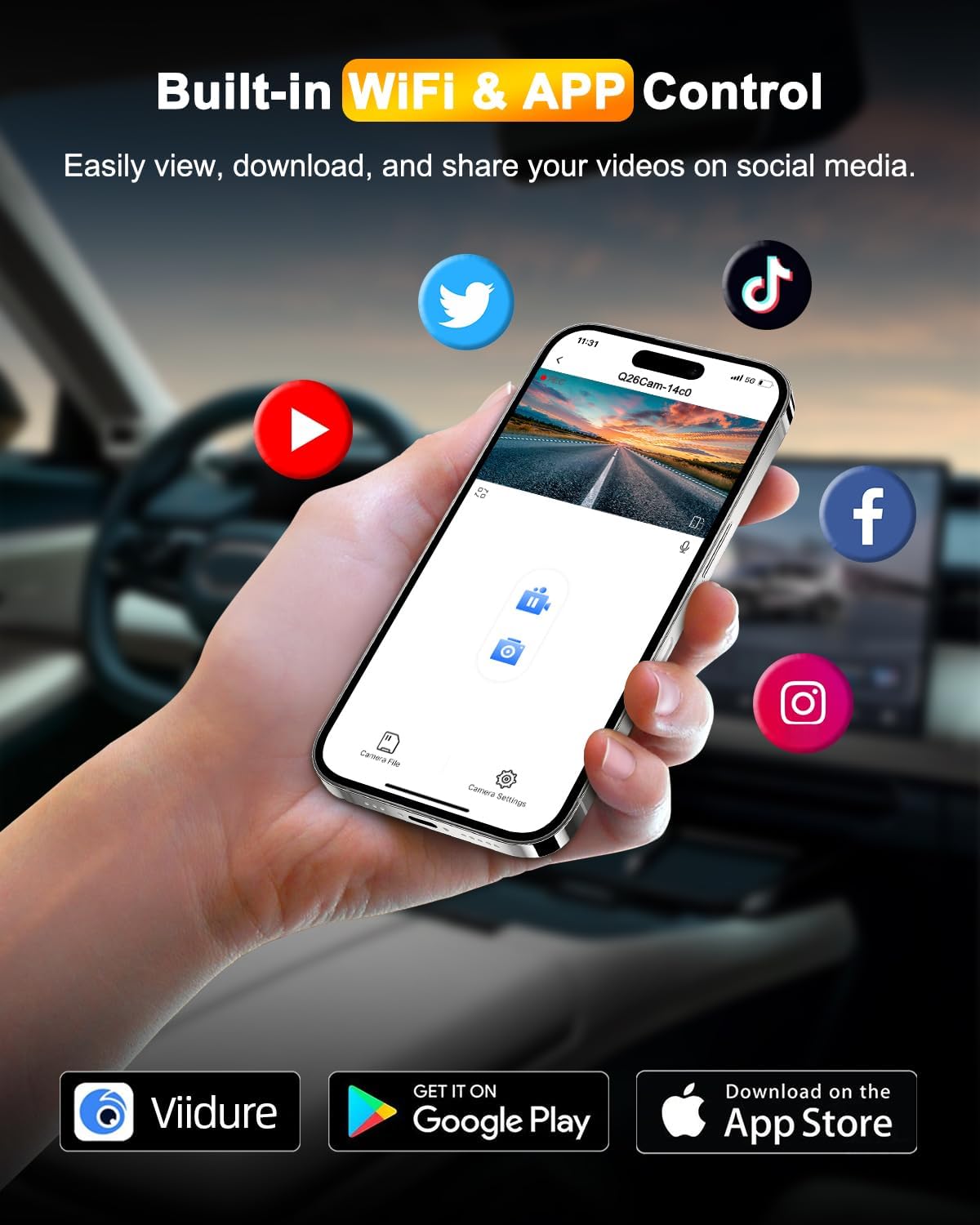
Image: A hand holding a smartphone displaying the dash cam's app interface, showing live footage and options to download the app from Google Play and App Store, along with icons for sharing to Twitter, YouTube, Facebook, and TikTok.
G-Sensor (Accident Lock):
The built-in G-Sensor automatically detects sudden impacts or collisions. When triggered, it will automatically lock the current video segment, preventing it from being overwritten by loop recording. These locked files are stored in a separate folder on the SD card.
Parking Monitoring:
With the 24/7 Parking Monitor feature, the dash cam can automatically record a 30-second video if your parked car is bumped or detects motion. This feature requires a dedicated hardwire kit (not included) for continuous power supply when the vehicle is off.
Loop Recording:
The dash cam continuously records video in short segments (e.g., 1, 3, or 5 minutes). When the SD card is full, the oldest unlocked video segments will be automatically overwritten to make space for new recordings. This ensures continuous recording without manual intervention.
WDR (Wide Dynamic Range) & Night Vision:
WDR technology balances exposure, allowing the camera to capture clear details in both very bright and very dark areas of the scene, especially useful in low-light conditions or when transitioning from dark to bright environments. Combined with the F1.8 large aperture lens and super sensor, it enhances night vision capabilities for clearer nighttime recordings.

Image: A visual comparison demonstrating the effectiveness of Real WDR and Night Vision, showing a scene with WDR Disabled (dark and unclear) versus WDR Enabled (bright and clear), highlighting the F1.8 Large Aperture, Super sensor, and 6-Layer Lens.

Image: Three distinct illustrations explaining key features: G-Sensor (automatically detects collisions and locks files), Parking Monitoring (records 30-second video when bumped, requires hardwire kit), and Loop Recording (newest videos overwrite oldest ones).
Maintenance
- SD Card Formatting: It is recommended to format the SD card regularly (e.g., once a month) to ensure optimal performance and prevent data corruption. Format the card directly through the dash cam's settings menu.
- Lens Cleaning: Keep the camera lenses clean using a soft, lint-free cloth. Avoid abrasive materials that could scratch the lens.
- Firmware Updates: Check the zhiroad official website periodically for any available firmware updates. Updating the firmware can improve performance and add new features.
- Temperature: Avoid exposing the dash cam to extreme temperatures for prolonged periods.
Troubleshooting
| Problem | Possible Cause / Solution |
|---|---|
| Dash cam does not power on. |
|
| Recording stops or freezes. |
|
| Video quality is poor. |
|
| Wi-Fi connection issues. |
|
Specifications
| Feature | Detail |
|---|---|
| Brand | zhiroad |
| Model | B0DPMG279Z |
| Orientation | Front and Rear |
| Front Camera Resolution | 4K (2160p) |
| Rear Camera Resolution | 1080P |
| Front Field of View | 170 Degrees |
| Rear Field of View | 140 Degrees |
| Display Screen | 3-inch IPS |
| Connectivity Technology | Wi-Fi |
| Special Features | 4K Recording, Front and Rear Wide-Angle, Built-in WiFi, App Control, WDR Night Vision, Loop Recording, 24-Hour Parking Monitoring, G-Sensor, Heat Dissipation Design |
| Included Components | 4K Dash Cam, Rear Camera, Power Cable, 64GB Card, Card Reader, User Manual, Reset Pin, Installation Accessories |
| Mounting Type | Windshield Mount |
| Color | Black |
Warranty and Support
zhiroad is committed to providing top-notch products and excellent customer service. If you encounter any issues or have questions regarding your dash camera, please contact our after-sales service team. We offer 24/7 technical support to assist you.
Please refer to your purchase documentation for specific warranty terms and conditions. Keep your proof of purchase for warranty claims.
Related documentsB0DPMG279Z

Ask a question about this manual
Ask about setup, troubleshooting, compatibility, parts, safety, or missing instructions. Manuals+ will review the question and use this page’s manual context to help answer it.