
Denash Denash8i5ha2bkfx-12
Denash H Band Smart Watch User Manual
Model: Denash8i5ha2bkfx-12
1. Introduction
Thank you for choosing the Denash H Band Smart Watch. This device is designed to enhance your daily life with its advanced features, including a high-resolution display, long battery life, multiple sports modes, and convenient communication capabilities. This manual provides detailed instructions on how to set up, operate, and maintain your smartwatch to ensure optimal performance.

Figure 1.1: Denash H Band Smart Watch (Orange) with its magnetic charging cable.
2. Package Contents
Please check the package contents upon unboxing to ensure all items are present:
- 1 x Denash H Band Smart Watch (Orange)
- 1 x User Manual
- 1 x Charging Cable
3. Setup
3.1 Charging the Smart Watch
Before first use, fully charge your smartwatch. Connect the magnetic charging cable to the charging points on the back of the watch and plug the USB end into a standard USB power adapter (not included) or a computer USB port.

Figure 3.1: Rear view of the smartwatch, highlighting the charging contacts and sensors.
The watch features a 380mAh high-capacity battery, ensuring long-lasting battery life after a full charge.
3.2 Powering On/Off
- Power On: Press and hold the side button (crown) for a few seconds until the screen lights up.
- Power Off: From the watch face, swipe down to access quick settings, or navigate to the settings menu. Locate the power off option and confirm. Alternatively, press and hold the side button and select "Power Off" from the options.
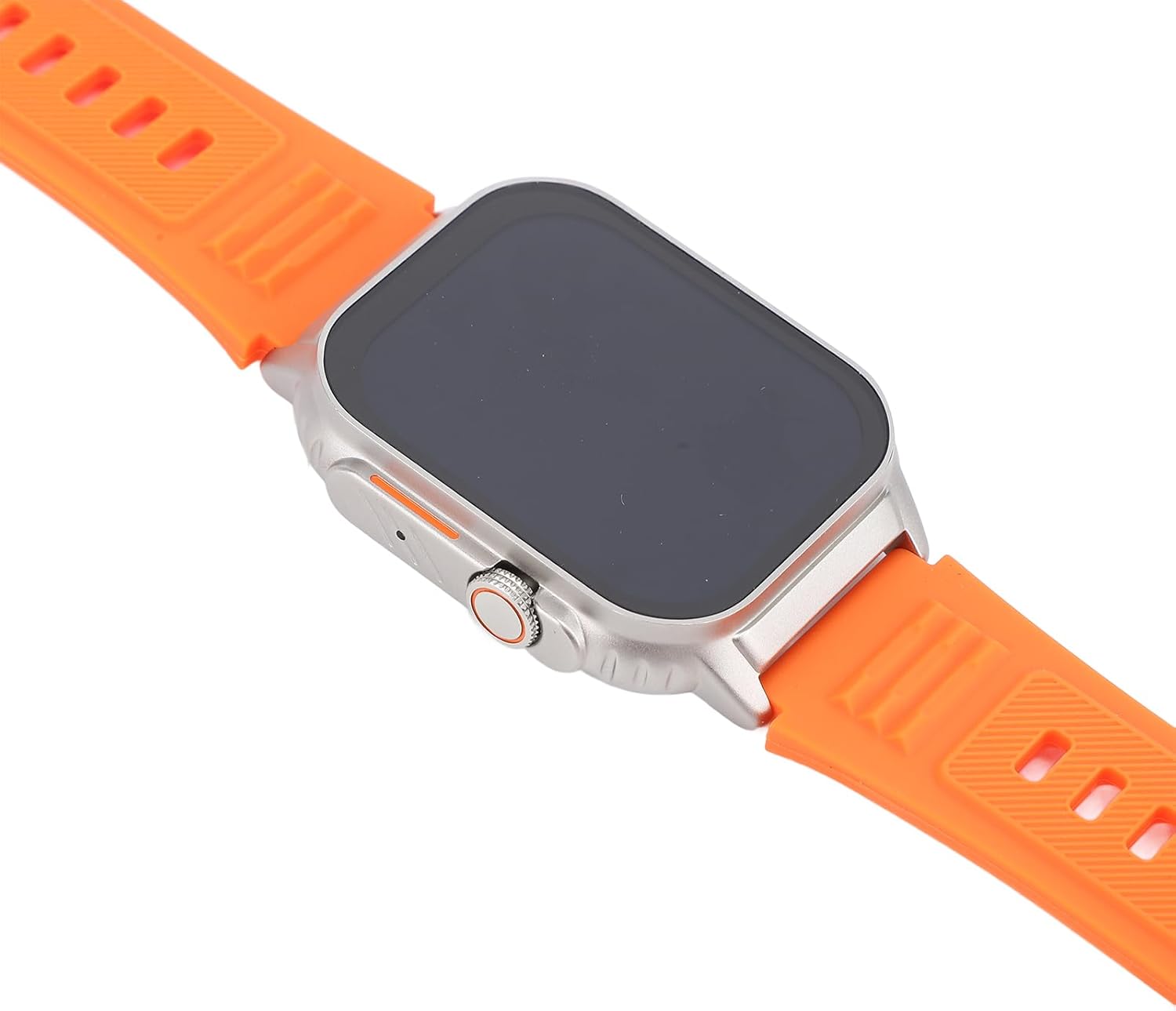
Figure 3.2: Side view of the smartwatch, showing the rotatable crown button used for navigation and power control.
3.3 App Installation (H Band)
To unlock the full potential of your smartwatch, download and install the "H Band" application on your smartphone. The app is available on both iOS and Android app stores. Scan the QR code provided in the physical user manual or search for "H Band" in your app store.
3.4 Pairing with Your Smartphone
- Ensure Bluetooth is enabled on your smartphone.
- Open the "H Band" app on your smartphone.
- Follow the in-app instructions to add a new device. The app will search for available smartwatches.
- Select your Denash H Band Smart Watch from the list of discovered devices.
- Confirm the pairing request on both your smartphone and the smartwatch if prompted.
- Once paired, the watch will synchronize data with the app, including time, date, and notifications.
4. Operating Instructions
4.1 Navigating the Interface
The smartwatch features a 2.01-inch full touch HD screen (240x296 resolution) for intuitive navigation.
- Swipe Up/Down: Scroll through menus and notifications.
- Swipe Left/Right: Access different widgets or quick functions.
- Tap: Select an item or open an application.
- Side Button (Crown): Press to return to the watch face or open the app list. Rotate to scroll through lists or zoom in/out (functionality may vary by app).
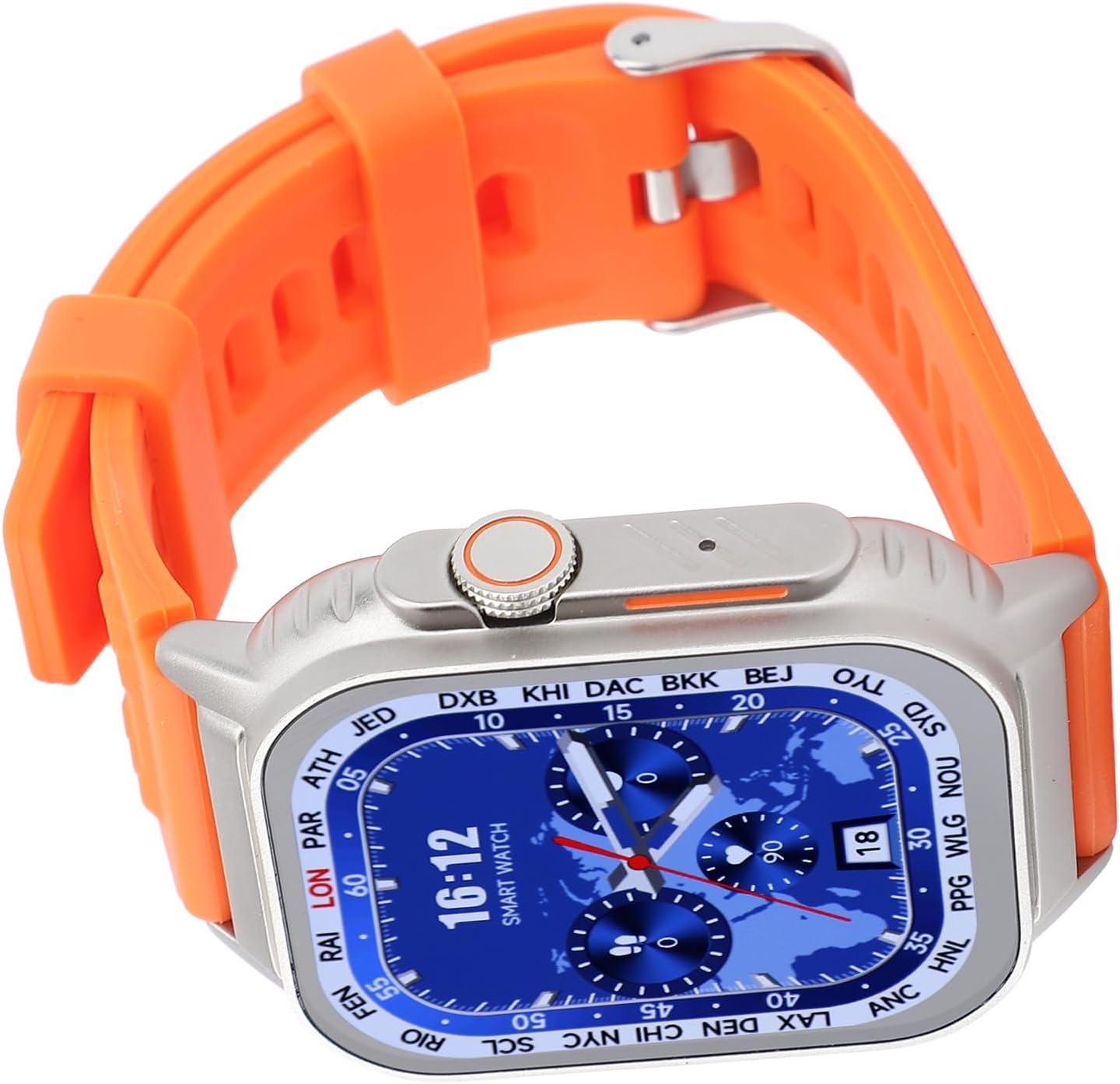
Figure 4.1: The smartwatch display showing a detailed watch face with time, date, and world map, demonstrating the high-resolution screen.
4.2 Bluetooth Calling
Once paired with your smartphone, the smartwatch supports Bluetooth calling, allowing you to make and receive calls directly from your wrist.
- Answering Calls: When a call comes in, tap the green answer icon on the watch screen.
- Making Calls: Access the dialer or contacts list on your watch to initiate a call.
- Viewing Call Records: Check your recent call history directly on the watch.
4.3 Sports Modes and Fitness Tracking
The smartwatch accurately records your daily steps, mileage, and calorie consumption using built-in sensors. It offers multiple sports modes to track various activities.
- Available Modes: Walking, Running, Cycling, and more.
- Starting a Workout: Navigate to the "Sports" or "Workout" app on your watch, select your desired activity, and tap to start.
- Viewing Data: Real-time data is displayed during your workout. After completion, detailed statistics are synced to the H Band app on your phone.

Figure 4.2: The smartwatch being worn during a running activity, demonstrating its use for fitness tracking.

Figure 4.3: The smartwatch on a user's wrist during a cycling session, highlighting its versatility for different sports modes.
4.4 Always On Display
The Always On Display feature allows you to quickly view essential information without fully waking the screen. Simply raise your wrist to see the date, time, message notifications, and fitness data.
4.5 Multifunctionality and IP67 Water Resistance
Your smartwatch offers a range of additional functions:
- WeChat Integration: Chat directly from your wrist.
- Voice Assistant: Use voice commands for various tasks.
- Weather Updates: Get real-time weather forecasts.
- Other Features: Alarm, stopwatch, timer, find phone, remote camera control, and more.
The smartwatch is IP67 water resistant, meaning it can withstand splashes, rain, and brief immersion in water. It is suitable for daily use and light water-related activities, but not recommended for swimming or diving.

Figure 4.4: An overview of the smartwatch's key features, including HD screen, multiple sports modes, and multifunctional capabilities.
5. Maintenance
5.1 Cleaning
- Wipe the screen and strap regularly with a soft, damp cloth.
- Avoid using harsh chemicals, abrasive cleaners, or solvents, as these can damage the watch's finish and components.
- Ensure the charging contacts are clean and dry before charging.
5.2 Storage
- Store the smartwatch in a cool, dry place away from direct sunlight and extreme temperatures.
- If storing for an extended period, ensure the battery is partially charged (around 50%) to prolong its lifespan.
5.3 Battery Care
- Avoid completely draining the battery frequently.
- Do not expose the watch to temperatures below -10°C (14°F) or above 45°C (113°F), as this can affect battery performance and lifespan.
6. Troubleshooting
| Problem | Possible Cause | Solution |
|---|---|---|
| Watch does not power on. | Low battery; device frozen. | Charge the watch for at least 30 minutes. If still unresponsive, perform a forced restart by holding the side button for 10-15 seconds. |
| Cannot pair with smartphone. | Bluetooth off; watch not discoverable; app issue. | Ensure Bluetooth is on for both devices. Restart both the watch and phone. Clear Bluetooth cache on phone. Reinstall H Band app. |
| Notifications not received. | App permissions; notification settings. | Check H Band app notification permissions on your phone. Ensure notifications are enabled within the H Band app for desired applications. Keep the app running in the background. |
| Inaccurate fitness data. | Improper wearing; sensor obstruction. | Ensure the watch is worn snugly on your wrist, about one finger's width above the wrist bone. Clean the sensors on the back of the watch. |
7. Specifications
| Feature | Detail |
|---|---|
| Model Name | Denash8i5ha2bkfx-12 |
| Brand | Denash |
| Screen Size | 2.01 inch |
| Screen Resolution | 240x296 |
| Battery Capacity | 380mAh |
| Bluetooth Version | BLE5.3 |
| Water Resistance Rating | IP67 |
| App Compatibility | H Band |
| Product Dimensions | 6.3 x 4.33 x 1.18 inches |
| Item Weight | 6.1 ounces |
| Material | Silicone + Alloy |
| Color | Orange |

Figure 7.1: Key dimensions of the smartwatch, showing its height and width.
8. Warranty and Support
Denash products are manufactured to high quality standards. For information regarding warranty coverage, please refer to the warranty card included with your product or contact Denash customer support.
If you encounter any issues or have questions about your Denash H Band Smart Watch, please contact our customer support team. Details for support can typically be found on the product packaging or the official Denash website.
Please retain your proof of purchase for warranty claims.
Ask a question about this manual
Ask about setup, troubleshooting, compatibility, parts, safety, or missing instructions. Manuals+ will review the question and use this page’s manual context to help answer it.