
Fenton Track610
Fenton Track610 Bluetooth Party Speaker
User Manual
1. Introduction
Thank you for purchasing the Fenton Track610 Bluetooth Party Speaker. This powerful and versatile audio system is designed to deliver high-quality sound with a dynamic LED light show, perfect for any gathering. Featuring 240W output, a long-lasting battery, and multiple connectivity options, the Track610 ensures your music is always ready to go. Please read this manual carefully to ensure proper use and to maximize your enjoyment of the product.
2. What's in the Box
- Fenton Track610 Bluetooth Party Speaker
- Remote Control
- Wired Microphone
- Power Adapter
- User Manual
3. Product Overview
3.1 Front Panel
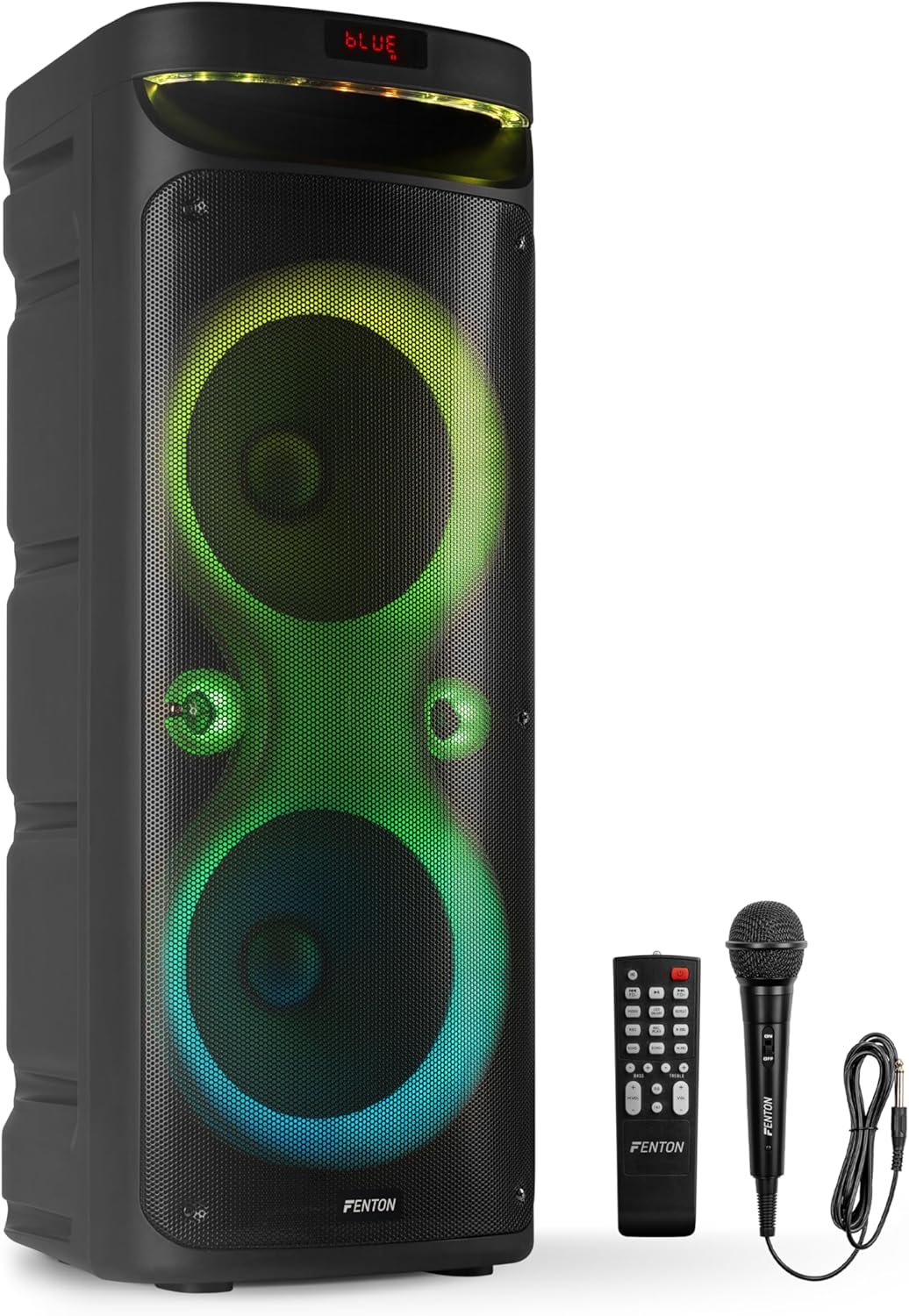
Image: Front view of the Fenton Track610 speaker, showcasing the dual woofers with integrated LED lights, along with the included remote control and wired microphone.
The front panel features the main speaker drivers and the dynamic LED light system. The LED lights can be customized or turned off to suit your preference.
3.2 Top Control Panel
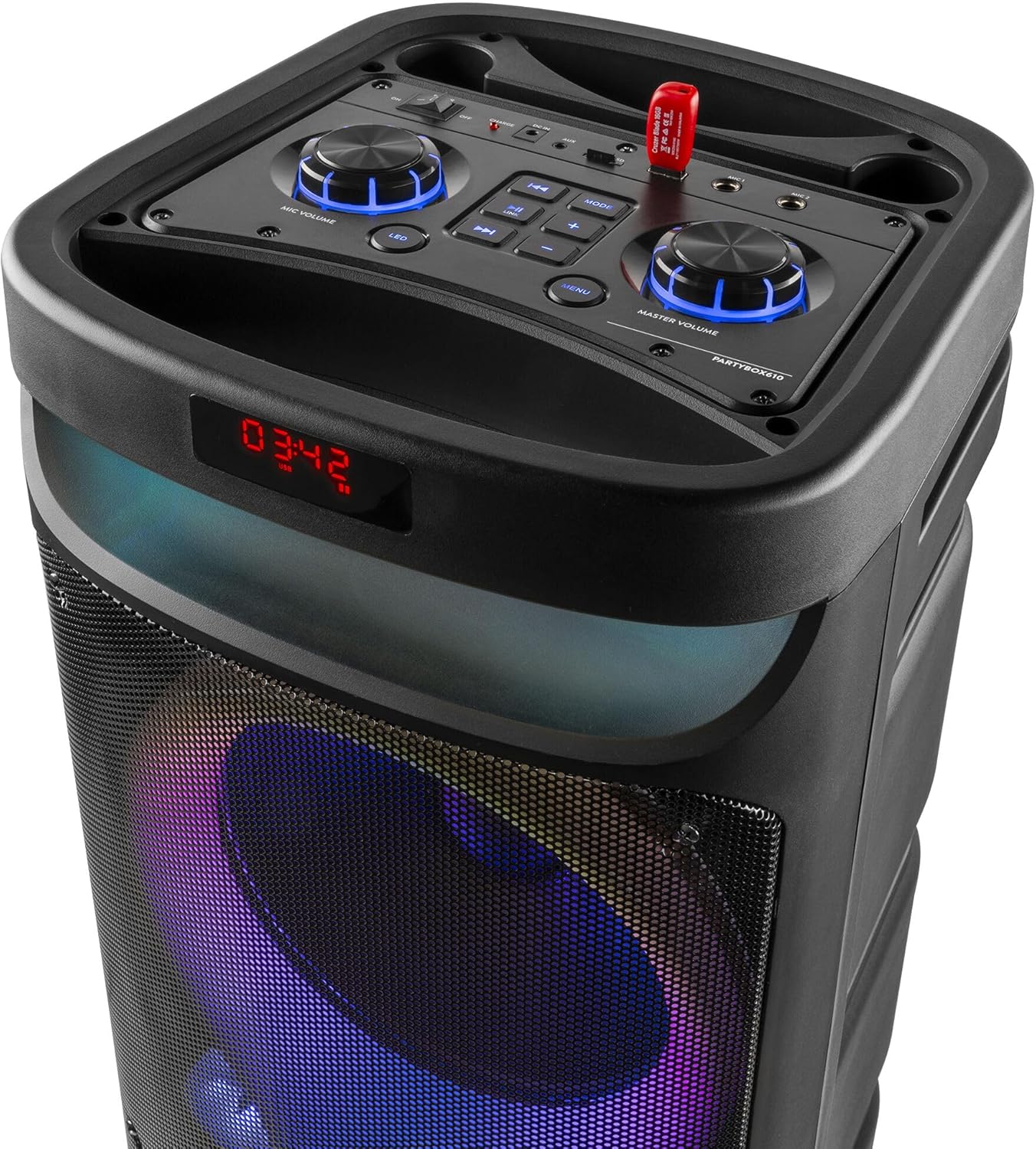
Image: Detailed view of the speaker's top control panel, showing various knobs, buttons, and input ports including a USB drive slot.
The top panel houses all the main controls and input ports:
- Master Volume Knob: Adjusts the overall volume.
- Mic Volume Knob: Controls the microphone input volume.
- Mode Button: Switches between Bluetooth, USB, MicroSD, and AUX input modes.
- LED ON/OFF Button: Toggles the LED light show.
- Playback Controls: Play/Pause, Previous Track, Next Track.
- USB Port: For USB flash drive playback.
- MicroSD Card Slot: For MicroSD card playback.
- AUX Input (3.5mm): For connecting external audio devices.
- Microphone Inputs (2x 6.3mm Jack): For connecting wired microphones.
- Echo Control: Adjusts the echo effect for microphones.
- Bass/Treble Controls: Adjusts bass and treble levels.
3.3 Rear Panel
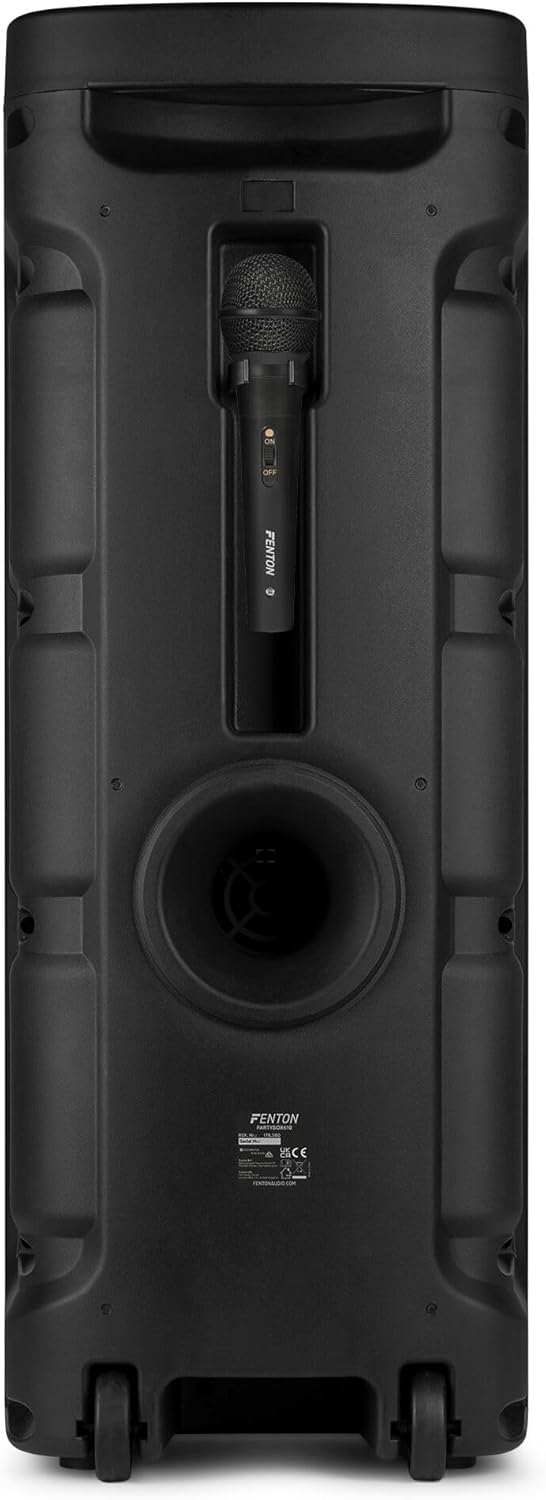
Image: The back of the Fenton Track610 speaker, showing the integrated microphone holder and bass reflex port.
The rear panel includes a convenient microphone holder and a bass reflex port for enhanced low-frequency sound.
3.4 Remote Control
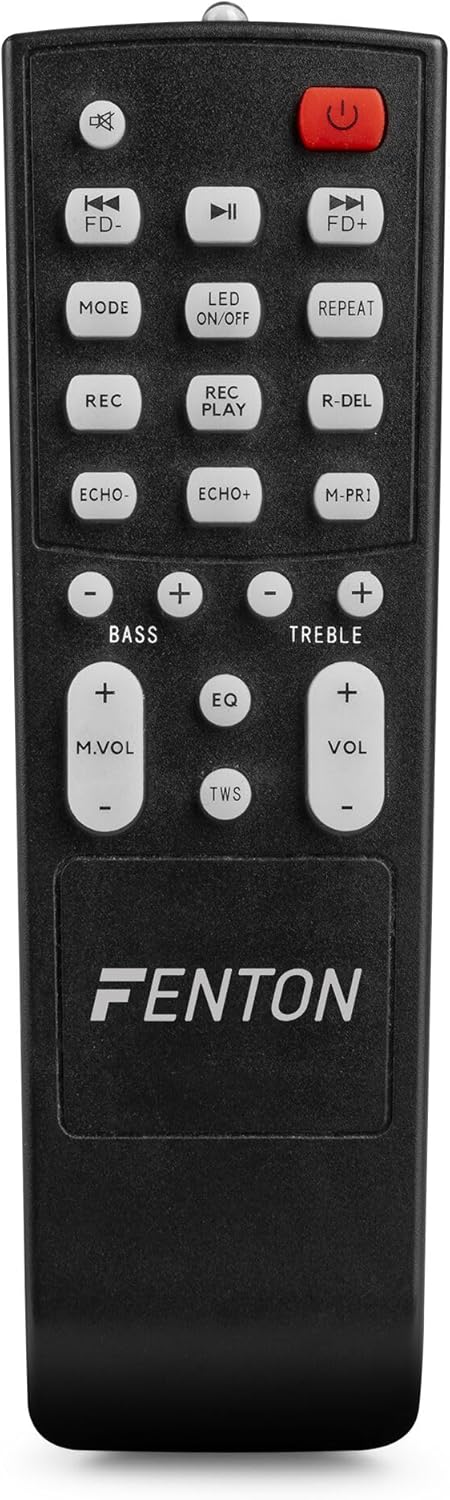
Image: Detailed view of the remote control for the Fenton Track610 speaker, showing various function buttons.
The included remote control allows for convenient operation from a distance, including power, mode selection, playback control, volume adjustment, LED control, and EQ settings.
4. Setup
4.1 Charging the Speaker

Image: The Fenton Track610 speaker positioned outdoors, with a battery icon overlaid, illustrating its portable nature and rechargeable battery.
- Connect the provided power adapter to the DC IN port on the speaker.
- Plug the adapter into a suitable power outlet (220V).
- The charging indicator will illuminate. The speaker takes approximately 4 hours to fully charge.
- A full charge provides up to 10 hours of playback time.
4.2 Powering On/Off
Press and hold the Power button on the top control panel or the remote control to turn the speaker ON or OFF.
5. Operating Instructions
5.1 Bluetooth Pairing

Image: The Fenton Track610 speaker shown with a microphone and a smartphone, highlighting its wireless and wired connectivity options.
- Turn on the speaker. It will automatically enter Bluetooth pairing mode (indicated by a flashing 'BLUE' on the display).
- Enable Bluetooth on your smartphone or other device.
- Search for "Fenton Track610" in your device's Bluetooth list and select it to pair.
- Once connected, the 'BLUE' indicator will stop flashing, and you can start playing music.
5.2 USB/MicroSD Playback
- Insert a USB flash drive or MicroSD card into the corresponding slot on the top panel.
- The speaker will automatically switch to USB/MicroSD mode and begin playing audio files. If not, press the 'MODE' button to select the correct input.
- Use the playback controls (Play/Pause, Previous/Next) on the speaker or remote to manage your music.
5.3 AUX Input
- Connect an external audio device (e.g., MP3 player, laptop) to the AUX IN port using a 3.5mm audio cable.
- Press the 'MODE' button until 'AUX' is displayed.
- Control playback and volume from your connected device.
5.4 Microphone and Karaoke Functions

Image: Two Fenton Track610 speakers shown side-by-side with a microphone, demonstrating the stereo pairing capability and microphone input for karaoke.
- Connect one or two wired microphones to the 6.3mm MIC IN jacks on the top panel.
- Adjust the microphone volume using the 'MIC VOL' knob.
- Use the 'ECHO' control to add or remove echo effects to your vocals.
5.5 LED Light Modes

Image: A close-up view of the Fenton Track610 speaker's front, highlighting the vibrant, multi-colored LED light show.
Press the 'LED ON/OFF' button on the top panel or remote control to cycle through different light modes or to turn the lights off completely.
5.6 Stereo Pairing (TWS - True Wireless Stereo)

Image: Two Fenton Track610 speakers shown with arrows indicating their ability to connect for a stereo sound experience.
You can pair two Fenton Track610 speakers together for a true wireless stereo experience:
- Ensure both Track610 speakers are powered on and in Bluetooth mode, but not connected to any device.
- On one of the speakers (this will be the master speaker), press and hold the 'TWS' button (usually found on the remote or control panel).
- The speakers will attempt to connect to each other. Once successfully paired, you will hear a confirmation sound.
- Now, connect your smartphone or device to the master speaker via Bluetooth as described in section 5.1.
- Audio will now play in stereo through both speakers.
6. Maintenance
6.1 Cleaning
To clean the speaker, use a soft, dry cloth. Do not use abrasive cleaners, waxes, or solvents as they may damage the finish. Ensure no liquids enter the speaker's openings.
6.2 Storage
When not in use for extended periods, store the speaker in a cool, dry place away from direct sunlight and extreme temperatures. It is recommended to charge the battery periodically (e.g., every 3 months) to maintain its lifespan.
7. Troubleshooting
| Problem | Possible Cause | Solution |
|---|---|---|
| No power | Battery is depleted; Power adapter not connected. | Charge the speaker; Ensure power adapter is securely connected to speaker and outlet. |
| No sound | Volume too low; Incorrect input mode; Device not paired (Bluetooth). | Increase volume; Press 'MODE' button to select correct input; Re-pair Bluetooth device. |
| Bluetooth connection unstable | Device too far; Obstructions; Interference. | Move device closer to speaker; Remove obstructions; Avoid other wireless devices. |
| Microphone not working | Microphone not connected properly; Mic volume too low. | Ensure microphone is fully plugged in; Increase 'MIC VOL' knob. |
| TWS pairing fails | Speakers already connected to a device; Speakers too far apart. | Disconnect any Bluetooth devices from both speakers; Ensure speakers are within close proximity. |
8. Specifications
| Feature | Specification |
|---|---|
| Model Number | Track610 |
| Output Power | 240 Watts |
| Battery Life | Up to 10 hours |
| Charging Time | Approx. 4 hours |
| Connectivity | Bluetooth, USB, MicroSD, AUX (3.5mm), 2x Mic (6.3mm) |
| Dimensions (H x W x D) | 84 x 35.5 x 33 cm |
| Weight | 9.9 Kilograms |
| Color | Black |
9. Warranty and Support
For warranty information and technical support, please refer to the warranty card included with your product or visit the official Fenton website. Keep your proof of purchase for any warranty claims.
Related documentsTrack610


Ask a question about this manual
Ask about setup, troubleshooting, compatibility, parts, safety, or missing instructions. Manuals+ will review the question and use this page’s manual context to help answer it.