
1. Introduction
Thank you for choosing the EuroFone S3 Plus Motorcycle Intercom with 2K HD Camera. This device is designed to enhance your riding experience by providing seamless communication, high-definition video recording, and entertainment features. Please read this manual carefully to understand the product's functions and ensure safe and optimal use.

Image 1.1: The EuroFone S3 Plus Intercom unit, showcasing its compact design and control dial.
2. Package Contents
Please verify that all items listed below are included in your package:
- 1 x EuroFone S3 Plus Bluetooth Host Unit
- 1 x Type-C Charging Cable
- 2 x Helmet Clips (1 Screw Clip, 1 Velcro Clip)
- 1 x Stereo Headset
- 1 x Instruction Manual
- 2 x Microphones (1 Hard Mic for open-face helmets, 1 Soft Mic for full-face helmets)
3. Product Overview
Familiarize yourself with the various parts and controls of your S3 Plus intercom unit.

Image 3.1: Detailed diagram of the S3 Plus unit with numbered components.
| No. | Component | Function |
|---|---|---|
| 1 | Camera Lens | Captures 2K HD video footage. |
| 2 | Intercom Button | Activates and manages intercom communication. |
| 3 | Record Button | Starts and stops video recording. |
| 4 | Wi-Fi Button | Activates Wi-Fi for app connection and file transfer. |
| 5 | Rotary Dial | Adjusts volume, navigates menus, and controls music playback. |
| 6 | Multi-function Button | Manages phone calls, voice assistant, and other features. |
| 7 | Power Button | Powers the device on/off. |
| 8 | TF Card / Reset Button | Slot for microSD card; press and hold for reset. |
| 9 | Earphone Mic Jack | Connects the stereo headset and microphone. |
| 10 | Charging Port / K-Line Plug | Type-C port for charging and data transfer. |
4. Setup
4.1. Helmet Installation
The S3 Plus can be mounted on most helmets using either the screw clip or the Velcro clip.
- Choose Clip Type: Select the screw clip for a more permanent attachment or the Velcro clip for easier removal.
- Positioning: Attach the clip to the left side of your helmet, ensuring it is securely fastened and does not obstruct your vision or helmet functionality.
- Mounting the Unit: Slide the S3 Plus host unit onto the installed clip until it clicks into place.
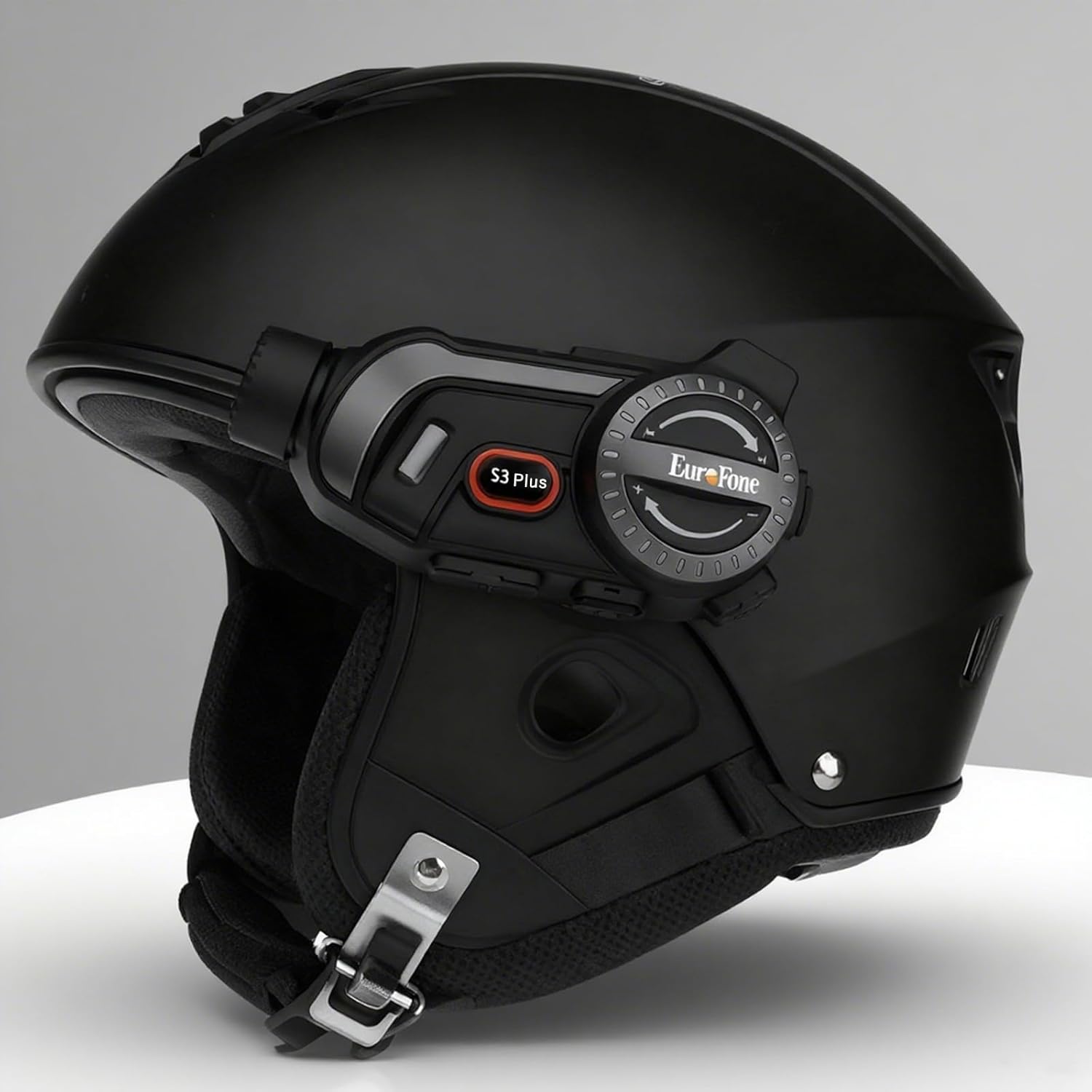
Image 4.1: The S3 Plus intercom unit securely attached to the side of a helmet.
4.2. Headset and Microphone Connection
Connect the stereo headset and microphone to the S3 Plus unit.
- Install Speakers: Place the headset speakers inside the helmet's ear pockets, ensuring they are aligned with your ears for optimal sound.
- Select Microphone: Choose the hard mic for open-face helmets or the soft mic for full-face helmets. Attach the microphone to the inside of the helmet near your mouth.
- Connect to Unit: Plug the headset and microphone cable into the Earphone Mic Jack (9) on the S3 Plus unit.
4.3. Charging the Device
Before first use, fully charge the S3 Plus unit.
- Connect Cable: Insert the Type-C charging cable into the Charging Port (10) on the S3 Plus unit.
- Power Source: Connect the other end of the cable to a USB power adapter (not included) or a computer's USB port.
- Charging Indicator: The LED indicator will show charging status. A full charge takes approximately 1.5 hours.
4.4. Power On/Off
- Power On: Press and hold the Power Button (7) for approximately 3 seconds until the LED indicator lights up and you hear a voice prompt.
- Power Off: Press and hold the Power Button (7) for approximately 3 seconds until the LED indicator turns off and you hear a voice prompt.
5. Operating Instructions
5.1. Bluetooth Pairing
Pair your S3 Plus with your smartphone or other Bluetooth devices.
- Enter Pairing Mode: With the S3 Plus powered off, press and hold the Power Button (7) for about 5-7 seconds until the LED indicator flashes red and blue alternately, indicating pairing mode.
- Enable Bluetooth: On your smartphone or device, enable Bluetooth and search for available devices.
- Select Device: Select "EuroFone S3 Plus" from the list of found devices. If prompted, enter "0000" as the PIN.
- Confirmation: Once paired, the LED indicator will flash blue slowly, and you will hear a voice confirmation.

Image 5.1: Illustration of Bluetooth 5.1 connectivity and extended battery performance.
5.2. Intercom Function
The S3 Plus supports both two-way and multi-person group intercom communication.
- Two-Way Intercom: To initiate a direct intercom call with another S3 Plus unit, ensure both units are powered on and within range (up to 2000m in open terrain). Briefly press the Intercom Button (2) on one unit. The units will connect automatically.
- Group Intercom (Up to 6 Riders): The S3 Plus supports simultaneous communication for up to 6 riders. Follow the pairing instructions in the manual for multi-unit connection. The system features automatic reconnection, so if a rider goes out of range, they will automatically rejoin the conversation when back in range.

Image 5.2: Visual representation of up to 6 riders engaged in group intercom communication.
5.3. Camera Operation
Record your rides in 2K HD quality.
- Insert TF Card: Ensure a microSD (TF) card (Class 10 or higher, up to 128GB) is inserted into the TF Card slot (8) before recording.
- Start/Stop Recording: Briefly press the Record Button (3) to start recording. The LED indicator will change to confirm recording is active. Press again to stop recording.
- Loop Recording: The S3 Plus supports loop recording, automatically overwriting the oldest files when the memory card is full.
- Wi-Fi App Connection: Press the Wi-Fi Button (4) to activate the unit's Wi-Fi. Connect your smartphone to the S3 Plus Wi-Fi network (details in the dedicated app manual). Use the companion app to view live footage, playback recordings, and download files.

Image 5.3: Details on 2K video resolution (2560*1440) and the 135° wide-angle lens for comprehensive capture.
5.4. Music Playback and Sharing
Enjoy music from your paired smartphone and share it with another rider.
- Play/Pause: Briefly press the Multi-function Button (6) to play or pause music.
- Volume Adjustment: Rotate the Rotary Dial (5) clockwise to increase volume, counter-clockwise to decrease volume.
- Next/Previous Track: Press the Rotary Dial (5) forward or backward to skip tracks.
- Music Sharing: While music is playing, activate the music sharing function (refer to the full manual for specific button combinations) to share your audio with a connected intercom unit.

Image 5.4: Two riders enjoying shared music during their journey, illustrating the music sharing feature.
5.5. FM Radio
Tune into FM radio stations for news, weather, and entertainment.
- Activate FM Radio: Press and hold the Intercom Button (2) for approximately 2 seconds to turn on the FM radio.
- Scan Stations: Briefly press the Rotary Dial (5) forward or backward to scan for the next or previous available station.
- Turn Off FM Radio: Press and hold the Intercom Button (2) for approximately 2 seconds again to turn off the FM radio.

Image 5.5: A rider listening to FM radio, highlighting the integrated FM radio functionality.
5.6. Voice Assistant
Access your smartphone's voice assistant (e.g., Siri) hands-free.
- Activate Voice Assistant: Briefly press the Multi-function Button (6) twice to activate your paired smartphone's voice assistant.
- Voice Prompts: The S3 Plus supports voice prompts in Japanese, English, and Chinese, which can be switched as needed.

Image 5.6: Visualizing the voice assistant feature, HIFI audio quality, and key device statistics like weight and battery life.
5.7. Phone Calls
Manage incoming and outgoing phone calls safely while riding.
- Answer Call: When a call comes in, the S3 Plus will automatically answer after approximately 10 seconds, allowing for hands-free communication.
- End Call: Briefly press the Multi-function Button (6) to end an active call.
- Reject Call: Press and hold the Multi-function Button (6) for 2 seconds to reject an incoming call.
- Redial Last Number: Briefly press the Multi-function Button (6) twice to redial the last number.
6. Maintenance
Proper maintenance ensures the longevity and performance of your S3 Plus intercom.
- Cleaning: Use a soft, damp cloth to clean the exterior of the unit. Do not use harsh chemicals or abrasive cleaners.
- Water Exposure: The S3 Plus is IP67 waterproof. While it can withstand rain, avoid prolonged submersion in water or exposure to heavy downpours. If wet, wipe dry immediately with a towel.
- Storage: Store the device in a cool, dry place away from direct sunlight and extreme temperatures when not in use.
- Battery Care: For optimal battery life, avoid fully discharging the battery frequently. Charge the device regularly, even if not in use for extended periods.
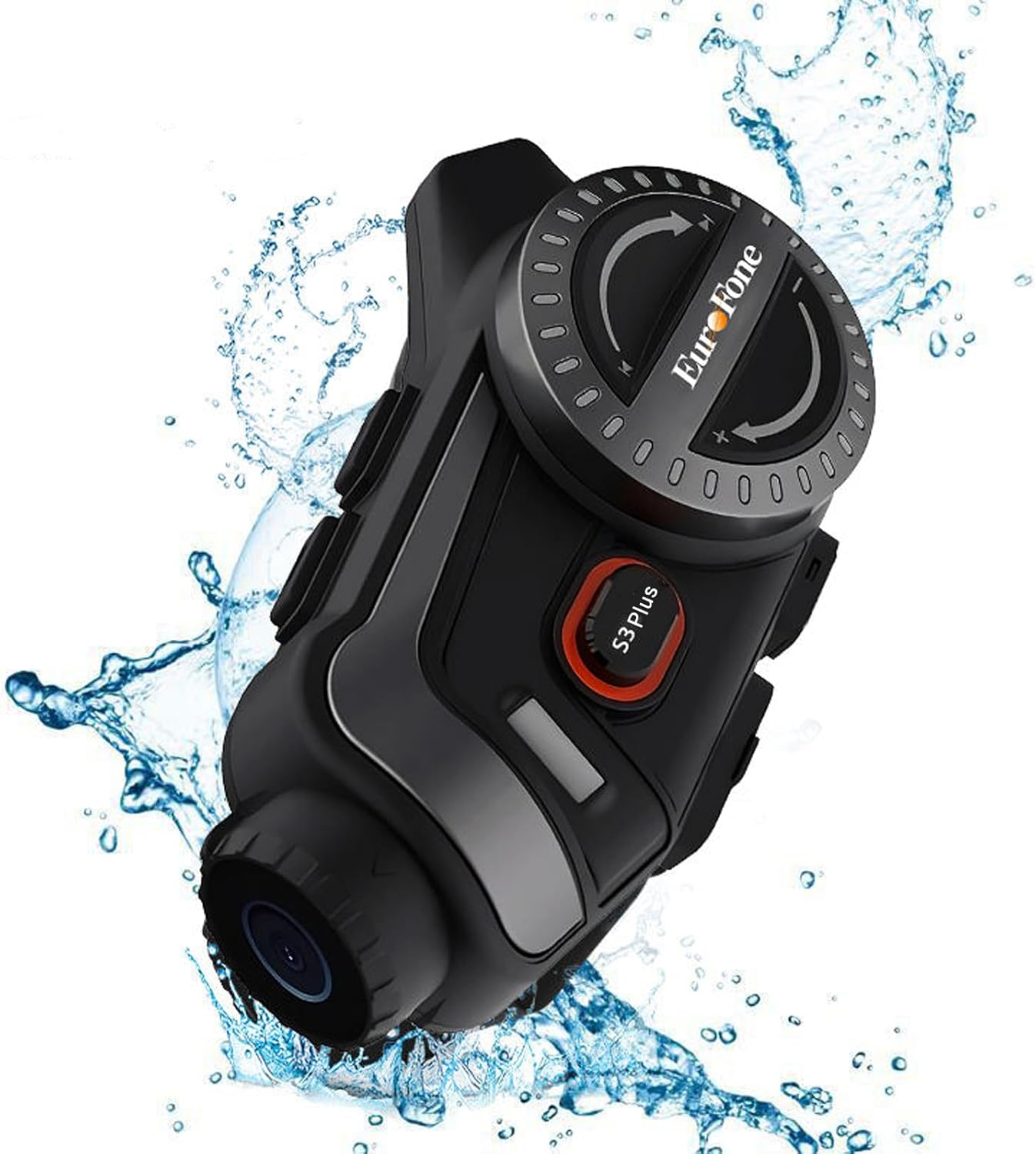
Image 6.1: The S3 Plus unit demonstrating its IP67 waterproof and dustproof capabilities.
7. Troubleshooting
If you encounter issues with your S3 Plus, refer to the following common problems and solutions:
- Device Not Powering On: Ensure the battery is charged. Connect to a charger and try again. If unresponsive, try a factory reset by pressing the Reset Button (8) with a small pin.
- Cannot Pair with Smartphone: Ensure the S3 Plus is in pairing mode (flashing red and blue). Turn off and on your phone's Bluetooth. Clear previous Bluetooth connections on both devices and try again.
- Intercom Connection Issues: Ensure both intercom units are within range and fully charged. Re-initiate the intercom connection. Obstacles can reduce range.
- Poor Audio Quality (Intercom/Music): Check headset and microphone connections. Ensure speakers are correctly positioned in the helmet. The device features CVC8.0 and DSP dual noise cancellation for clear audio, but extreme wind noise can still affect quality.
- Recording Not Working: Ensure a compatible microSD (TF) card is inserted and has sufficient free space. Format the card if necessary (refer to app instructions or connect to PC).
- Wi-Fi App Connection Failure: Ensure the S3 Plus Wi-Fi is activated. Check your smartphone's Wi-Fi settings to confirm connection to the device's network. Ensure the app is up-to-date.
8. Specifications
Key technical specifications of the EuroFone S3 Plus intercom:
| Feature | Specification |
|---|---|
| Model Name | S3 Plus |
| Brand | EuroFone |
| Color | Black |
| Connectivity Technology | Wireless (Bluetooth 5.1) |
| Bluetooth Version | 5.1 |
| Intercom Range | Up to 2000 meters (1500-2000m between 2 units) |
| Group Intercom | Up to 6 riders simultaneous talk |
| Video Resolution | 2K HD (1440p) |
| Camera Lens | 135° Wide Angle, 14mm Sony HD F2.0 |
| Continuous Video Recording | Up to 8 hours |
| Battery Capacity | 2000mAh |
| Continuous Talk Time | Up to 45 hours |
| Music Playback Time | Up to 80 hours |
| Standby Time | Up to 1000 hours |
| Charging Time | Approx. 1.5 hours (Type-C) |
| Waterproof Rating | IP67 |
| Noise Cancellation | CVC8.0 & DSP Dual Noise Cancellation |
| Special Features | FM Radio, Music Sharing, Voice Assistant (Siri compatible), Auto-Answer Calls, Loop Recording, WiFi App Support, GPS Guidance Compatibility |
| Product Dimensions | 5.7 x 10.5 x 3.5 cm |
| Product Weight | 0.45 kg |
9. Warranty and Support
The EuroFone S3 Plus Motorcycle Intercom comes with a 1-year warranty, affirming its quality and reliability. If you have any questions, concerns, or require technical assistance, please do not hesitate to contact our support team. We aim to respond within 24 hours.
For support, please refer to the contact information provided with your purchase or visit the official EuroFone website.


