
Introduction
This manual provides instructions for the setup, operation, and maintenance of your Incase Wireless Mobile Mouse 1850. This compact and comfortable mouse is designed for both left and right-handed users and offers reliable wireless connectivity for various computing environments.
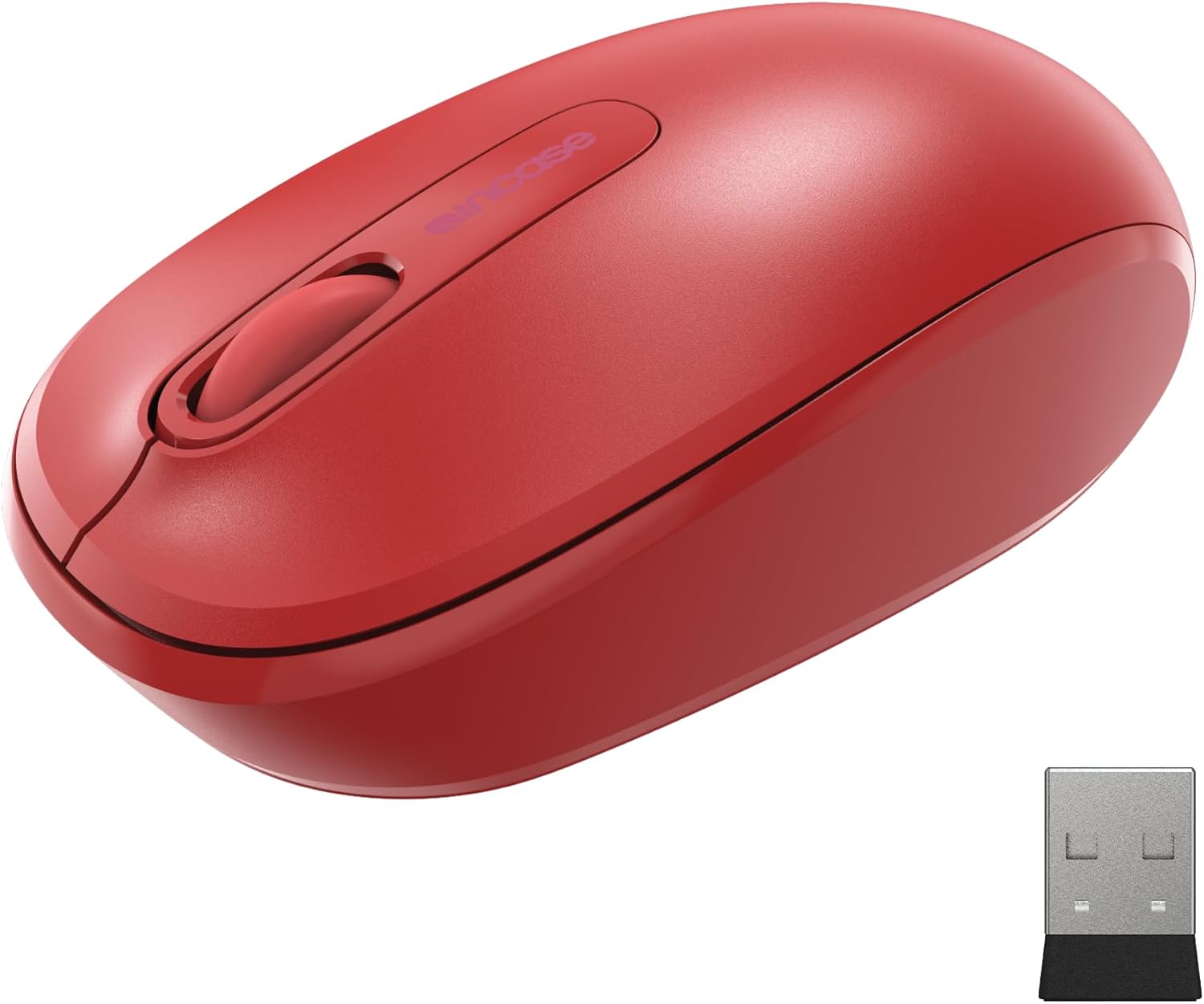
Image: The Incase Wireless Mobile Mouse 1850 in Flame Red, shown alongside its compact USB nano transceiver.
Package Contents
Ensure all items are present in the package:
- Incase Wireless Mobile Mouse 1850
- USB Nano Transceiver
- 1 AA Battery
Setup
1. Installing the Battery
- Locate the battery compartment on the underside of the mouse.
- Slide the battery compartment cover open.
- Insert the included AA battery, ensuring correct polarity (+/-).
- Close the battery compartment cover securely.

Image: The underside of the mouse, illustrating the battery compartment and the slot for storing the USB nano transceiver.
2. Connecting the USB Nano Transceiver
- Remove the USB nano transceiver from its storage slot on the underside of the mouse (if stored).
- Plug the USB nano transceiver into an available USB port on your computer (Mac or Windows 8/10/11).
- Your computer should automatically detect and install the necessary drivers. This may take a few moments.
The nano transceiver is designed for "plug-and-go" convenience and can be left plugged into your computer or stored in the mouse when not in use.
Operation
Power On/Off
Locate the On/Off power switch on the underside of the mouse. Slide the switch to the "On" position to activate the mouse. Slide it to "Off" when not in use to conserve battery life.
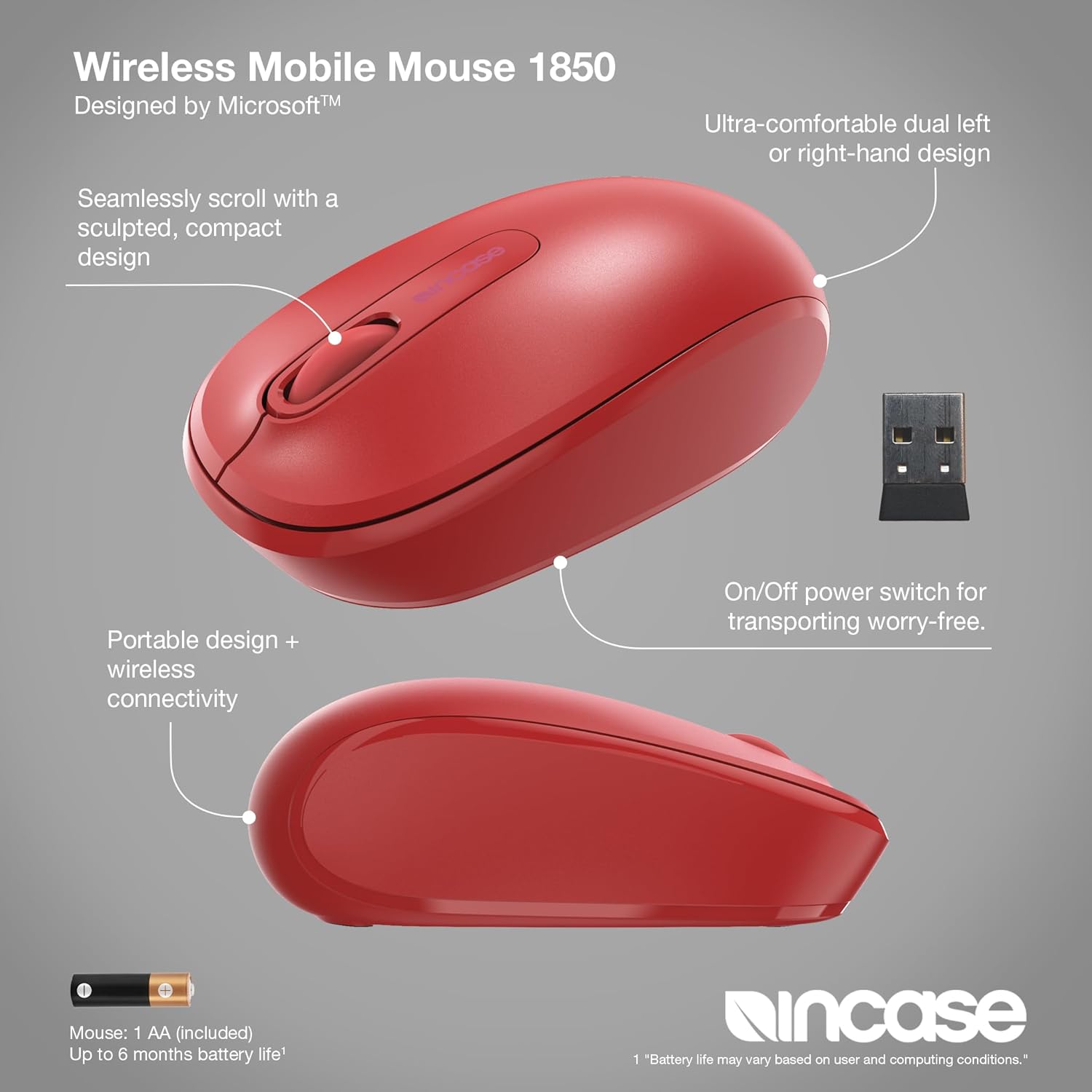
Image: A detailed view of the mouse, pointing out its ambidextrous design, scroll wheel, and the location of the On/Off power switch.
Basic Functions
- Left Click: Press the left button to select items or activate functions.
- Right Click: Press the right button to access context menus.
- Scroll Wheel: Roll the scroll wheel up or down to navigate through documents and web pages. The scroll wheel can also be pressed for middle-click functionality, depending on your operating system settings.
Ambidextrous Design
The Incase Wireless Mobile Mouse 1850 features a symmetrical design, making it comfortable for both left-handed and right-handed users. No special configuration is required for ambidextrous use, though you may adjust primary button settings in your operating system's mouse preferences.
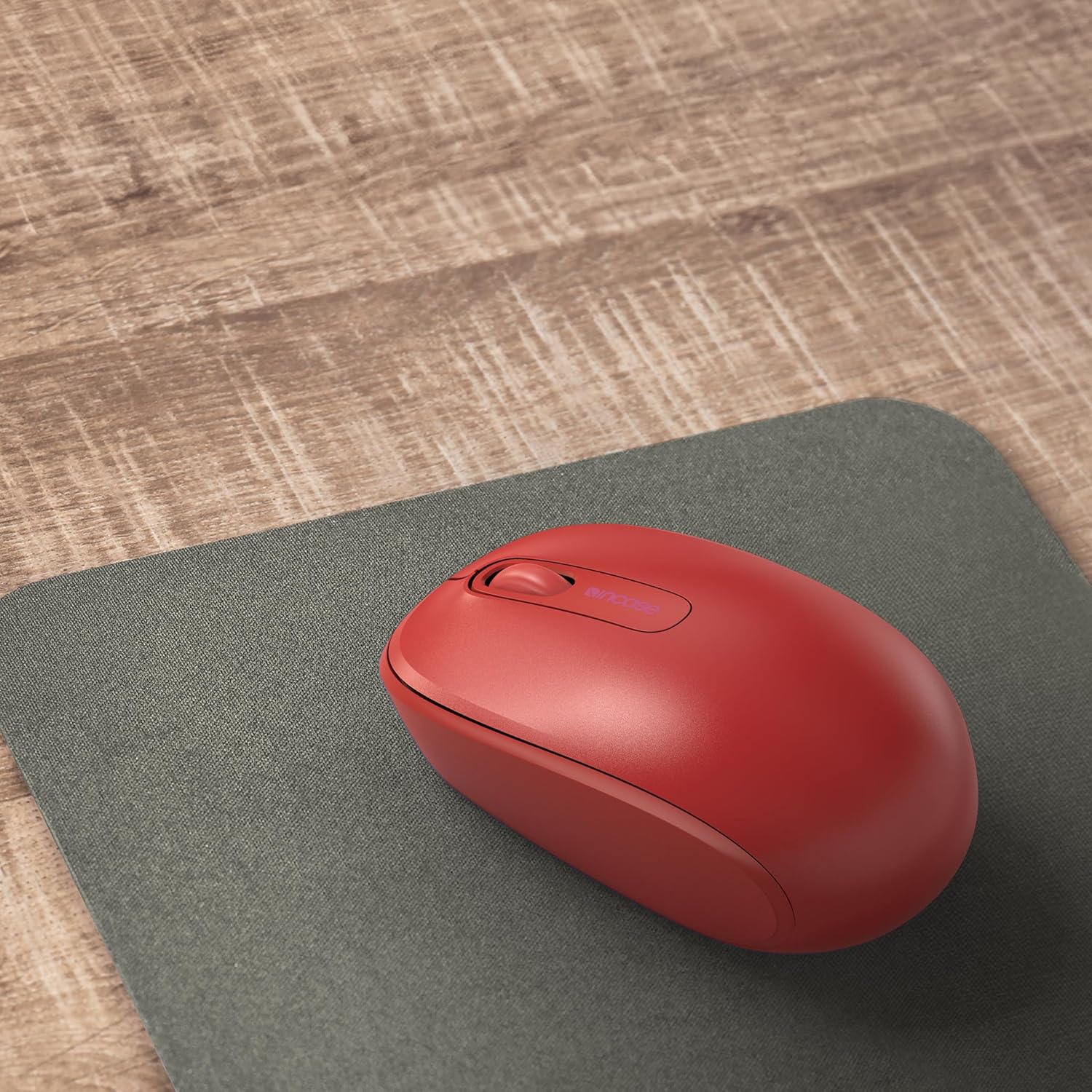
Image: The mouse positioned on a mousepad, demonstrating its ergonomic shape suitable for general use.
Maintenance
Cleaning
- Use a soft, lint-free cloth to wipe the surface of the mouse.
- For stubborn dirt, slightly dampen the cloth with water or a mild cleaning solution. Avoid excessive moisture.
- Do not use harsh chemicals, abrasive cleaners, or solvents.
Battery Replacement
The mouse is designed for up to six months of battery life. When the mouse performance degrades or stops responding, replace the AA battery by following the "Installing the Battery" steps in the Setup section.
Troubleshooting
| Problem | Solution |
|---|---|
| Mouse not responding |
|
| Erratic cursor movement |
|
| Wireless connection issues |
|
Specifications
- Model Number: U7Z-00001
- Connectivity: 2.4 GHz Wireless (USB Nano Transceiver)
- Movement Detection: Optical
- Battery Type: 1 x AA (included)
- Battery Life: Up to 6 months (typical use)
- Dimensions (L x W x H): Approximately 4.0 x 2.3 x 1.5 inches
- Weight: 3.2 ounces (with battery)
- Compatibility: Windows 8, Windows 10, Windows 11, Mac OS
- Special Features: Ambidextrous design, Portable, Lightweight, Nano Transceiver storage

Image: A visual representation of the mouse with its approximate length (4.0 in), width (2.3 in), and height (1.5 in) indicated.
Warranty and Support
Warranty Information
The Incase Wireless Mobile Mouse 1850 is backed by a 1-year limited warranty from the date of purchase. This warranty covers defects in materials and workmanship under normal use. It does not cover damage caused by accident, abuse, misuse, or unauthorized modification.
Please retain your proof of purchase for warranty claims.
Customer Support
For technical assistance, warranty claims, or further information, please visit the official Incase support website or contact their customer service department. Refer to the product packaging or the Incase website for the most current contact details.
You can also visit the Incase Store on Amazon for additional product information.


