
1. Introduction
Welcome to the user manual for your FOXWELL BT301 Battery Tester and NT630 Plus OBD2 Scanner. This comprehensive guide provides detailed instructions on the setup, operation, maintenance, and troubleshooting of both devices. The BT301 is designed for testing 6V and 12V vehicle batteries, while the NT630 Plus offers advanced diagnostic capabilities for OBD2, Anti-lock Braking System (ABS), and Supplemental Restraint System (SRS/Airbag) in vehicles.
Please read this manual thoroughly before operating the devices to ensure correct usage and to prevent damage to the tools or your vehicle.
2. Safety Information
Always observe the following safety precautions when working with vehicle electrical systems and diagnostic tools:
- Wear appropriate eye protection (safety goggles) and protective clothing.
- Ensure the work area is well-ventilated.
- Keep a fire extinguisher nearby when working with batteries.
- Avoid smoking or open flames near vehicle batteries.
- Do not touch hot engine parts or exhaust systems.
- Keep the devices dry and clean. Do not expose them to moisture or extreme temperatures.
- Only use the provided cables and accessories.
- Disconnect the devices from the vehicle when not in use.
3. Package Contents
Verify that all items are present in your package:
- FOXWELL BT301 Battery Tester Unit
- FOXWELL NT630 Plus OBD2 Scanner Unit
- OBDII Diagnostic Cable (for NT630 Plus)
- Battery Clamp Cable (for BT301)
- USB Cable (for updates)
- User Manual (this document)
4. Product Overview
4.1 FOXWELL BT301 Battery Tester
The BT301 is a dedicated 6V and 12V battery tester designed to accurately assess the health of your vehicle's battery, cranking system, and charging system. It supports various battery types including AGM flat plate, AGM spiral, GEL, EFB, and regular flooded batteries.
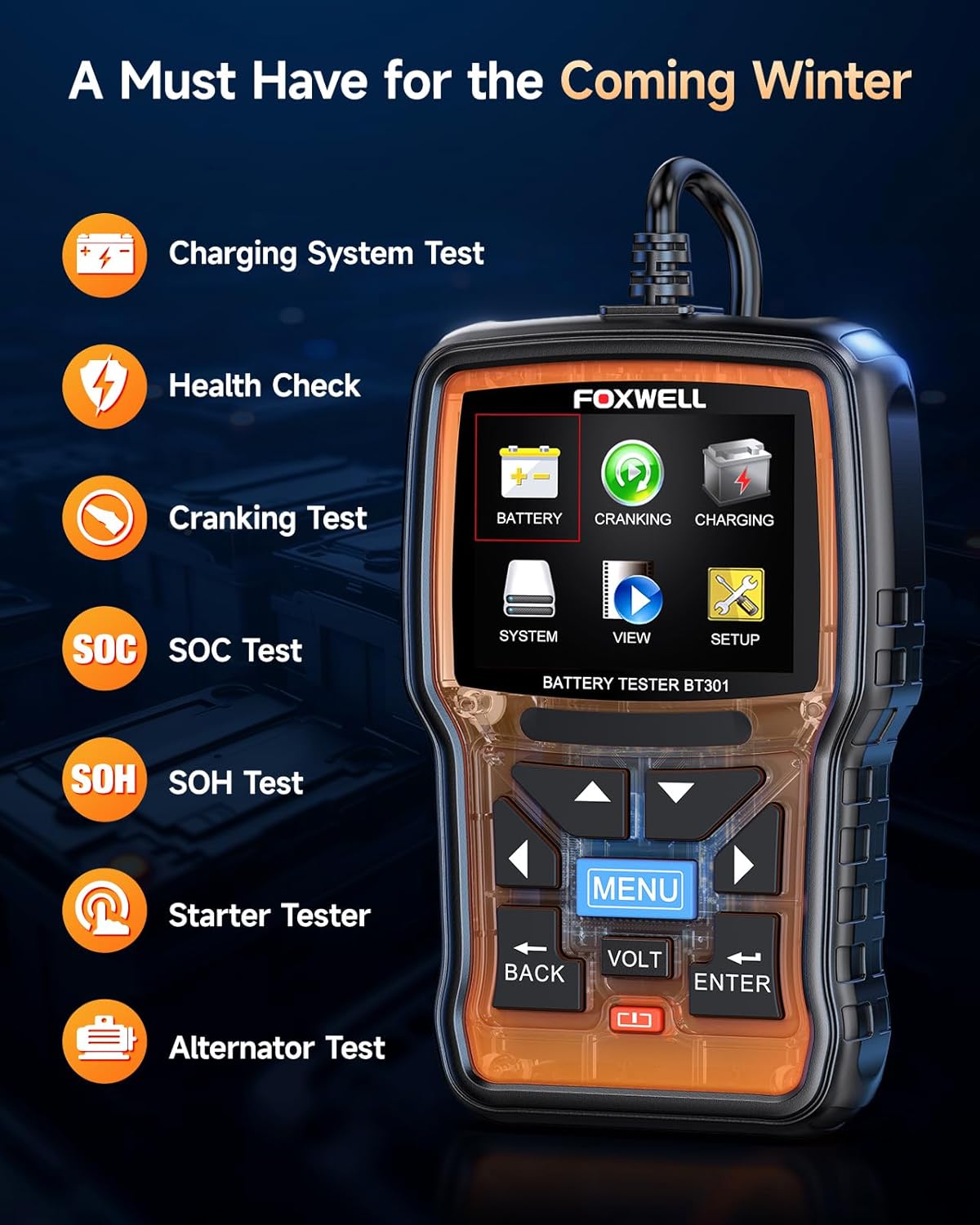
Image 4.1: FOXWELL BT301 Battery Tester displaying its main menu options.
Key Features of BT301:
- Battery Health Check: Provides a comprehensive analysis of battery condition.
- Cranking Test: Evaluates the starter motor's performance.
- Charging System Test: Assesses the alternator and regulator's output.
- SOC Test: State of Charge test.
- SOH Test: State of Health test.
- Supports 6V and 12V batteries.
- Compatible with various battery types: AGM Flat Plate, AGM Spiral, GEL, EFB, Regular Flooded.
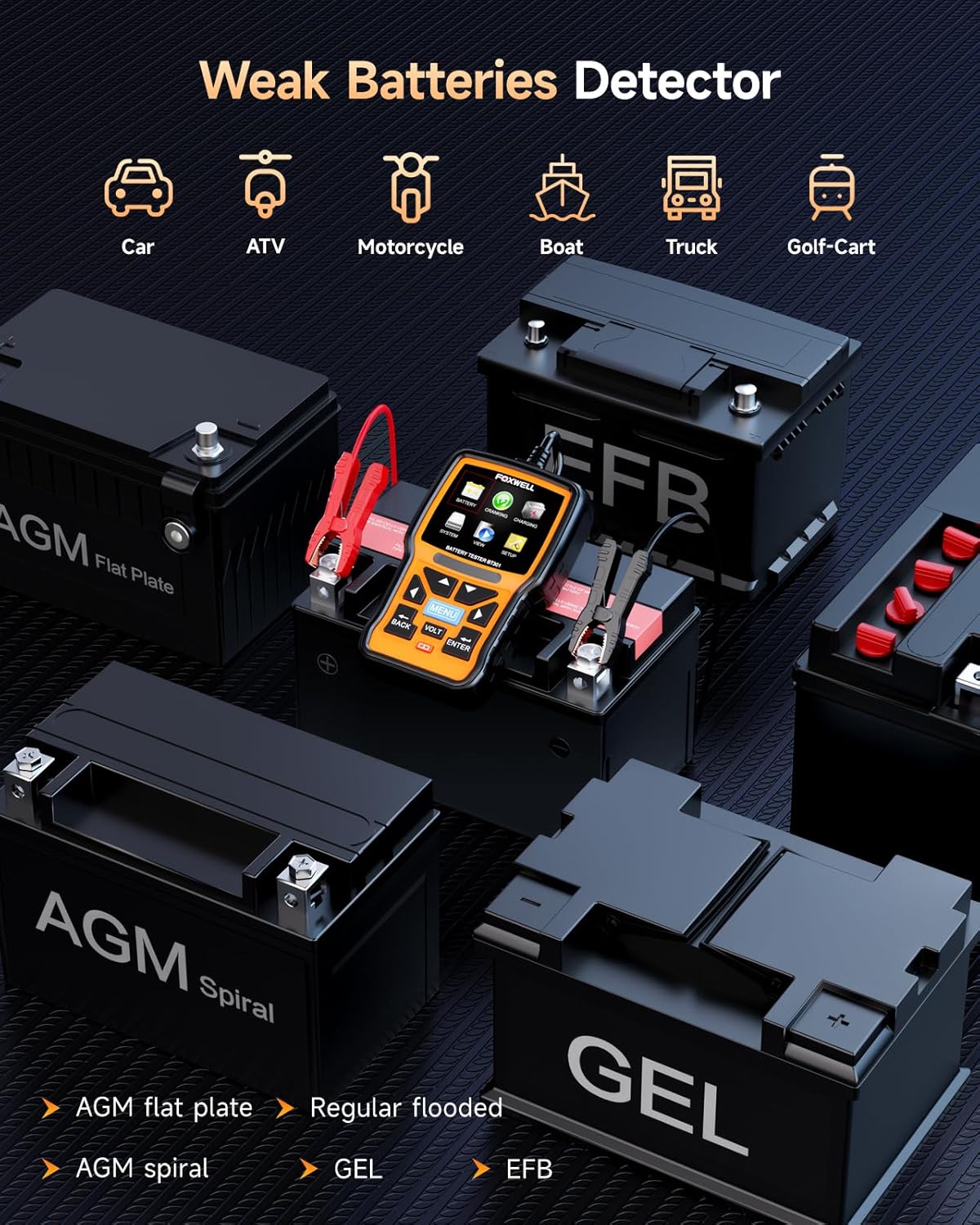
Image 4.2: The BT301 Battery Tester demonstrating compatibility with multiple battery types.
4.2 FOXWELL NT630 Plus OBD2 Scanner
The NT630 Plus is a powerful diagnostic tool that provides full OBD2 functions, along with specialized diagnostics for Anti-lock Braking System (ABS) and Supplemental Restraint System (SRS/Airbag). It also includes advanced service functions such as ABS Auto Bleed, Steering Angle Sensor (SAS) Calibration, Oil Service Light Reset, and Electronic Parking Brake (EPB) Reset.
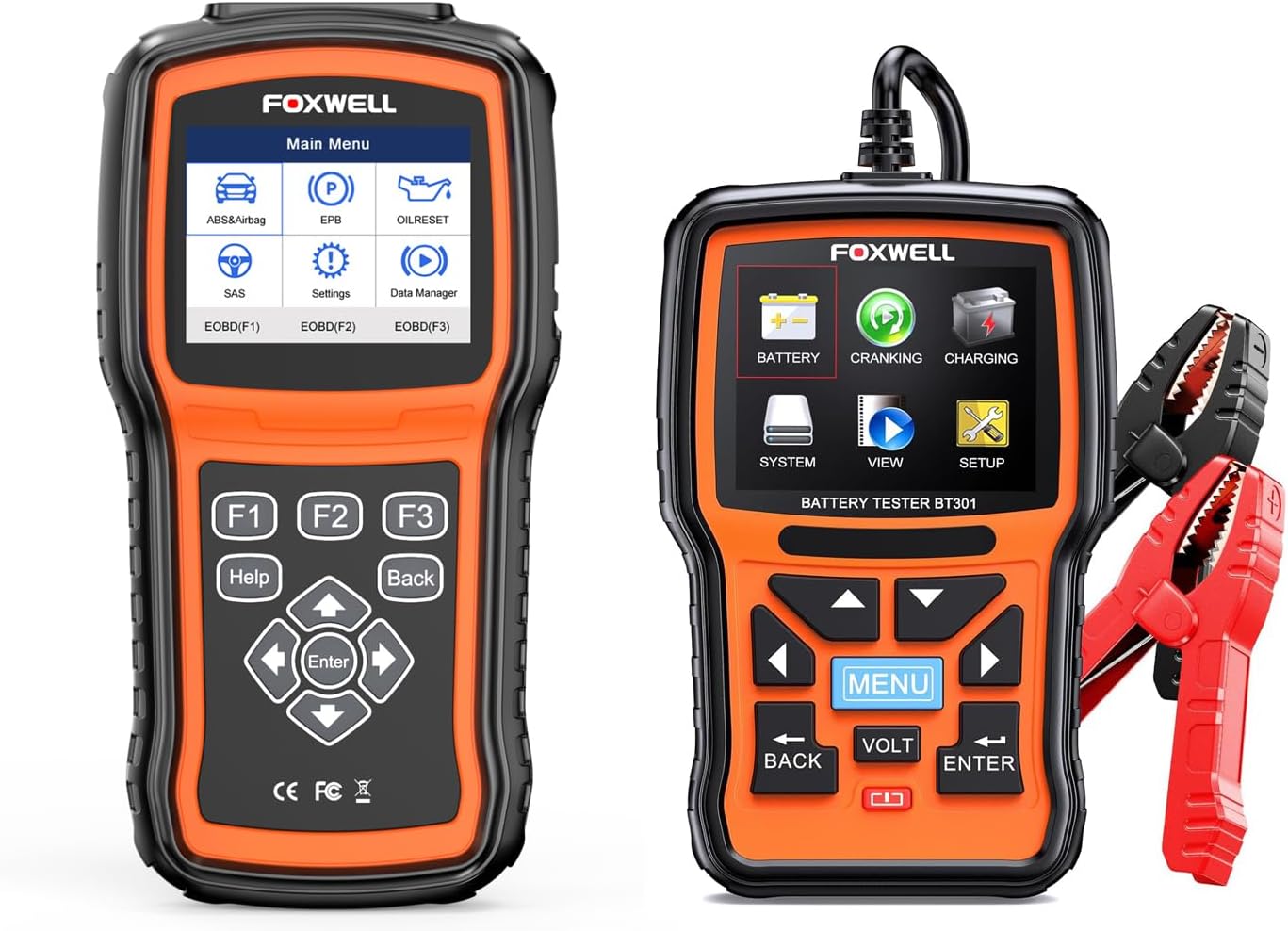
Image 4.3: The FOXWELL NT630 Plus OBD2 Scanner (left) and BT301 Battery Tester (right).
Key Features of NT630 Plus:
- Full OBD2/EOBD Functions: Read/Clear Codes, Live Data, Freeze Frame, I/M Readiness, O2 Monitor Test, On-Board Monitor Test, Component Test, Vehicle Info, Modules Present.
- ABS System Diagnostics: Reads and clears ABS fault codes, performs active tests, and supports ABS Auto Bleed.
- SRS/Airbag System Diagnostics: Reads and clears SRS fault codes, performs active tests.
- SAS Calibration: Resets the steering angle sensor.
- Oil Service Light Reset: Resets the oil service light after an oil change.
- EPB Reset: Resets the electronic parking brake after maintenance.
- Automatic VIN identification.

Image 4.4: Visual representation of the three main diagnostic systems covered by the NT630 Plus.
5. Setup
5.1 Initial Setup for BT301
Connecting the BT301:
- Ensure the vehicle's ignition is off.
- Connect the red positive (+) clamp to the positive terminal of the battery.
- Connect the black negative (-) clamp to the negative terminal of the battery.
- The BT301 will power on automatically.
5.2 Initial Setup for NT630 Plus
Connecting the NT630 Plus:
- Locate the vehicle's 16-pin Data Link Connector (DLC), usually under the dashboard on the driver's side.
- Ensure the vehicle's ignition is in the 'ON' position (engine can be off).
- Plug the OBDII diagnostic cable into the vehicle's DLC.
- Connect the other end of the cable to the NT630 Plus unit.
- The NT630 Plus will power on automatically.
6. Operating Instructions
6.1 Using the BT301 Battery Tester
Main Menu Navigation:
Use the arrow keys (Up, Down, Left, Right) to navigate through menu options. Press the ENTER button to confirm a selection and the BACK button to return to the previous screen. The MENU button typically returns to the main menu.
Performing a Battery Test:
- From the main menu, select BATTERY and press ENTER.
- Select the appropriate battery type (e.g., Regular Flooded, AGM, GEL) and press ENTER.
- Input the battery's Cold Cranking Amps (CCA) rating, usually found on the battery label, and press ENTER.
- The BT301 will perform the test and display the results, such as battery voltage, measured CCA, and overall battery health (e.g., 'GOOD BATTERY', 'CHARGE BATTERY', 'REPLACE BATTERY').

Image 6.1: Example of battery test results displayed on the BT301 screen.
Cranking System Test:
- From the main menu, select CRANKING and press ENTER.
- Follow the on-screen prompts to start the engine.
- The BT301 will analyze the cranking voltage and time, providing a result on the starter's performance.
Charging System Test:
- From the main menu, select CHARGING and press ENTER.
- Follow the on-screen prompts, which may include revving the engine to a specific RPM.
- The BT301 will measure the alternator's output and ripple voltage, indicating the charging system's health.
6.2 Using the NT630 Plus OBD2 Scanner
Main Menu Navigation:
The NT630 Plus features function buttons (F1, F2, F3) for quick access, along with directional arrows, ENTER, BACK, and HELP buttons. Use the arrow keys to navigate and ENTER to confirm selections.
OBD2 Diagnostics:
- From the main menu, select EOBD(F1) or EOBD(F2) (depending on the specific menu layout) and press ENTER.
- Select Read Codes to view current, pending, and permanent diagnostic trouble codes (DTCs).
- Select Clear Codes to erase DTCs and turn off the Check Engine Light (MIL). Ensure the underlying issue is resolved before clearing codes.
- Select Live Data to view real-time sensor data from the vehicle's engine control unit (ECU).
- Select Freeze Frame to view a snapshot of sensor data recorded when an emission-related fault occurred.
ABS System Diagnostics:
- From the main menu, select ABS&Airbag and press ENTER.
- Select ABS from the submenu.
- Choose options like Read Codes, Clear Codes, or Live Data to diagnose the ABS system.
- For ABS Auto Bleed, select this function and follow the on-screen instructions carefully. This procedure helps remove air from the brake system after component replacement or fluid changes.

Image 6.2: Visual guide to the ABS Auto Bleed function.
SRS/Airbag System Diagnostics:
- From the main menu, select ABS&Airbag and press ENTER.
- Select SRS/Airbag from the submenu.
- Choose options like Read Codes or Clear Codes to diagnose the Supplemental Restraint System.

Image 6.3: Overview of diagnostic functions available for ABS and SRS/Airbag systems.
Special Functions (NT630 Plus):
- SAS Calibration: Select SAS from the main menu. This function is used to reset the steering angle sensor after steering system repairs or alignment. Follow the on-screen prompts carefully.
- Oil Service Light Reset: Select OIL RESET from the main menu. This function allows you to reset the oil service light after an oil change, ensuring the vehicle's maintenance schedule is correctly updated.
- EPB Reset: Select EPB from the main menu. This function is essential when servicing components of the electronic parking brake system, such as replacing brake pads. It safely retracts and re-engages the parking brake calipers.

Image 6.4: Visual explanation of the SAS Calibration, Oil/Service Light Reset, and EPB Reset functions.
7. Maintenance
7.1 Device Care
- Cleaning: Use a soft, damp cloth to clean the device casing. Do not use abrasive cleaners or solvents.
- Storage: Store the devices in a dry, cool environment, away from direct sunlight and extreme temperatures.
- Software Updates: Periodically check the FOXWELL official website for software updates to ensure your devices have the latest vehicle coverage and functionalities. Connect the device to a computer using the provided USB cable for updates.
- Cable Inspection: Regularly inspect the diagnostic cables and battery clamps for any signs of damage or wear. Replace damaged cables immediately.
8. Troubleshooting
If you encounter issues while using your FOXWELL devices, refer to the table below for common problems and their solutions.
| Problem | Solution |
|---|---|
| Device does not power on. | For BT301: Ensure battery clamps are securely connected to the correct battery terminals. For NT630 Plus: Verify the OBDII cable is firmly connected to the vehicle's DLC and the ignition is ON. Check vehicle's fuse for the OBDII port. |
| NT630 Plus fails to link with vehicle. | Confirm the vehicle's ignition is ON. Check if the OBDII cable is properly connected. Ensure the vehicle is OBDII compliant (most vehicles from 1996 onwards). Try connecting to a different OBDII compliant vehicle to rule out device issue. |
| BT301 shows 'Battery Error' or inconsistent results. | Ensure battery terminals are clean and free of corrosion. Verify that the correct battery type and CCA rating were entered. Ensure a stable connection of the battery clamps. |
| Cannot clear DTCs with NT630 Plus. | Ensure the ignition is ON and the engine is OFF. If the underlying fault is still present, the codes will reappear immediately. Address the root cause of the DTCs first. |
| Screen is frozen or unresponsive. | Disconnect the device from the vehicle/battery, wait a few seconds, and reconnect. If the issue persists, perform a software update if available. |
9. Specifications
9.1 FOXWELL BT301 Battery Tester
- Operating Voltage: 6V - 12V
- Test Range: 100-2000 CCA
- Display: Backlit LCD
- Operating Temperature: 0°C to 50°C (32°F to 122°F)
- Storage Temperature: -20°C to 70°C (-4°F to 158°F)
9.2 FOXWELL NT630 Plus OBD2 Scanner
- Display: Color TFT screen
- Operating Voltage: 8V - 18V (from vehicle battery)
- Connectivity: OBDII 16-pin DLC, USB
- Operating Temperature: 0°C to 60°C (32°F to 140°F)
- Storage Temperature: -20°C to 70°C (-4°F to 158°F)
- Protocols: Supports all OBDII protocols (ISO9141-2, ISO14230-4, SAEJ1850, ISO15765-4)