
1. Introduction
Thank you for choosing the ELECCTV W1 2K QHD 5G/2.4G WiFi Wireless Outdoor Security Camera. This manual provides essential information for the proper installation, operation, and maintenance of your device. Please read it thoroughly before use and retain it for future reference.
Key Features:
- Dual-Band WiFi Connectivity: Supports both 2.4GHz and 5GHz networks for flexible and stable connections.
- 2K QHD Resolution: Provides clear and detailed video footage.
- Color Night Vision: Enhanced visibility in low-light conditions with full-color imaging.
- AI Motion Detection: Intelligent detection of human and bird movement to reduce false alerts.
- Two-Way Audio: Built-in microphone and speaker for real-time communication.
- Siren and Spotlight: Integrated deterrents for enhanced security.
- IP65 Weatherproof: Designed for outdoor use in various weather conditions.
- Wire-Free Design: Rechargeable battery for flexible placement.
- Dual Storage Options: Supports Micro SD card (up to 256GB, not included) and optional cloud storage.
- Smart Home Integration: Compatible with Amazon Alexa and Google Assistant.
Package Contents:
- ELECCTV W1 Security Camera (Quantity: 2 for this model)
- Mounting Accessories
- USB Charging Cable
- User Manual
2. Product Overview
Familiarize yourself with the camera's physical features and capabilities.

Image 2.1: The ELECCTV W1 camera demonstrating its 130-degree wide-angle view and 33ft night vision range, highlighting both infrared and color night vision capabilities.

Image 2.2: The ELECCTV W1 camera illustrating its IP65 weatherproof design, indicating resistance to rain, sun, and snow, with an operating temperature range of -4°F to 113°F.

Image 2.3: The ELECCTV W1 camera demonstrating its versatile installation, suitable for mounting on walls or under eaves, for both indoor and outdoor environments.
3. Setup Guide
3.1 App Installation
- Download the O-KAM Pro App from the App Store (iOS) or Google Play Store (Android).
- Register for a new account or log in if you already have one.
3.2 Camera Charging
Before initial use, fully charge the camera using the provided USB cable and a 5V/1A power adapter (not included). The charging indicator light will change once fully charged.
3.3 Network Connection
The ELECCTV W1 supports both 2.4GHz and 5GHz WiFi networks.
- Open the O-KAM Pro App and tap 'Add Device' or the '+' icon.
- Follow the on-screen instructions to select your camera model and connect it to your home WiFi network. Ensure your phone is connected to the same WiFi network during setup.
- Scan the QR code displayed on your phone with the camera lens when prompted.
- Wait for the camera to connect to the network. A voice prompt will confirm successful connection.

Image 3.1: Illustration of the ELECCTV W1 camera's dual-band WiFi capability, supporting both 5GHz and 2.4GHz frequencies for stable and fast connectivity.

Image 3.2: Screenshots from the O-KAM Pro app demonstrating the easy setup process for connecting the camera to a dual-band WiFi network.
3.4 Mounting the Camera
Choose a suitable location for optimal coverage. The IP65 rating allows for outdoor installation.
- Mark the drill holes using the mounting bracket as a template.
- Drill holes and insert wall anchors if necessary.
- Secure the mounting bracket to the wall or ceiling.
- Attach the camera to the mounting bracket and adjust the angle for desired coverage.
4. Operating Instructions
4.1 Live View
Access real-time video footage from your camera through the O-KAM Pro App. Simply select the camera from your device list to view the live feed.

Image 4.1: A smartphone screen showing simultaneous live streaming from four ELECCTV cameras, providing comprehensive coverage.
4.2 Two-Way Audio
Use the two-way audio feature to communicate with visitors or deter intruders.
- While in live view, tap the microphone icon in the app.
- Speak into your phone to transmit audio through the camera's speaker.
- Release the microphone icon to listen for a response.

Image 4.2: A user communicating with a delivery driver via the camera's two-way audio feature, demonstrating real-time interaction.
4.3 Motion Detection & Alerts
The camera utilizes AI to detect motion and send alerts to your phone.
- AI Motion Detection: Configurable to detect humans and birds, reducing notifications from irrelevant movements.
- Custom Delineated Area: Set specific detection zones within the camera's field of view to focus on critical areas.
- Siren and Spotlight: Activate these features manually or automatically upon detection to deter unwanted activity.

Image 4.3: An illustration of the camera's AI Precision Detection, showing its ability to accurately identify persons and birds within the monitored area.

Image 4.4: The camera's Night Guard Security feature, depicting how it activates spotlights and a 120dB siren to deter intruders at night.
4.4 Night Vision
The camera provides clear visibility even in complete darkness.
- Color Night Vision: Utilizes integrated lights to provide full-color images at night.
- Infrared Night Vision: Automatically switches to black and white mode in very low light conditions if color night vision is off.
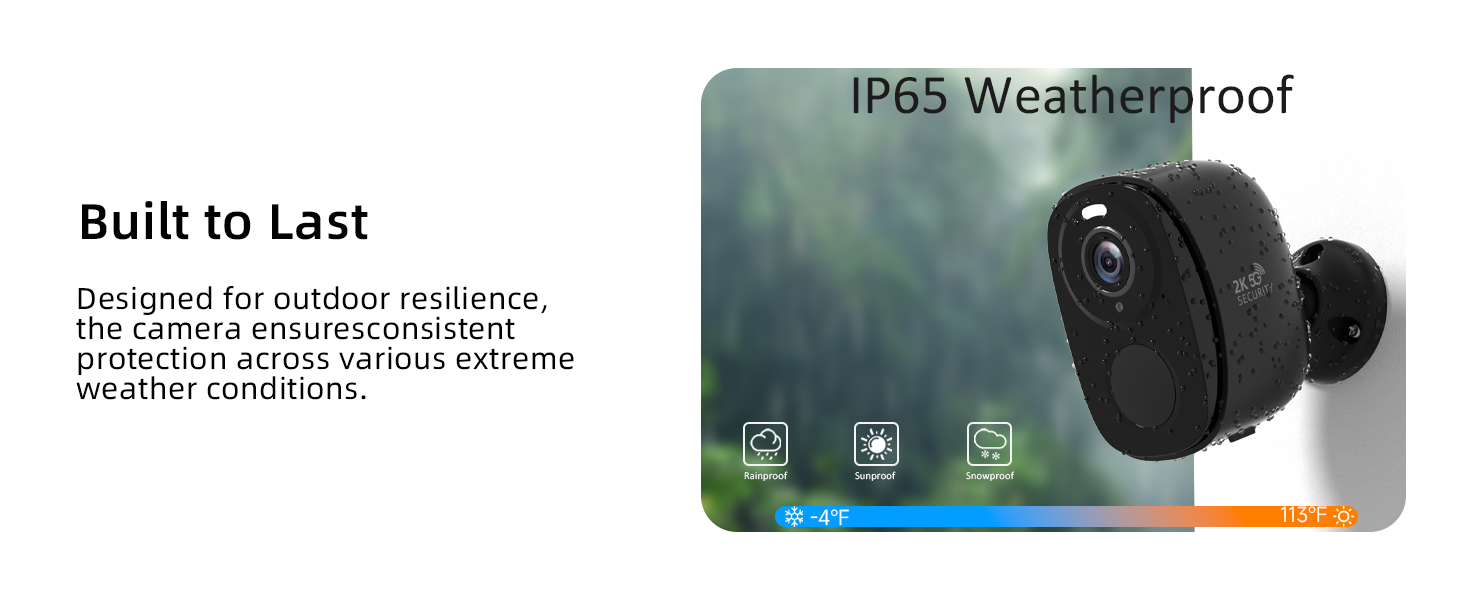
Image 4.5: A comparison showing the camera's day and night security capabilities, emphasizing the clarity of 2K QHD Color Night Vision.
4.5 Storage Options
The camera offers flexible video storage solutions.
- Micro SD Card: Insert a Micro SD card (up to 256GB, not included) into the designated slot for local storage.
- Cloud Storage: An optional subscription-based cloud storage service is available for secure off-site backup.
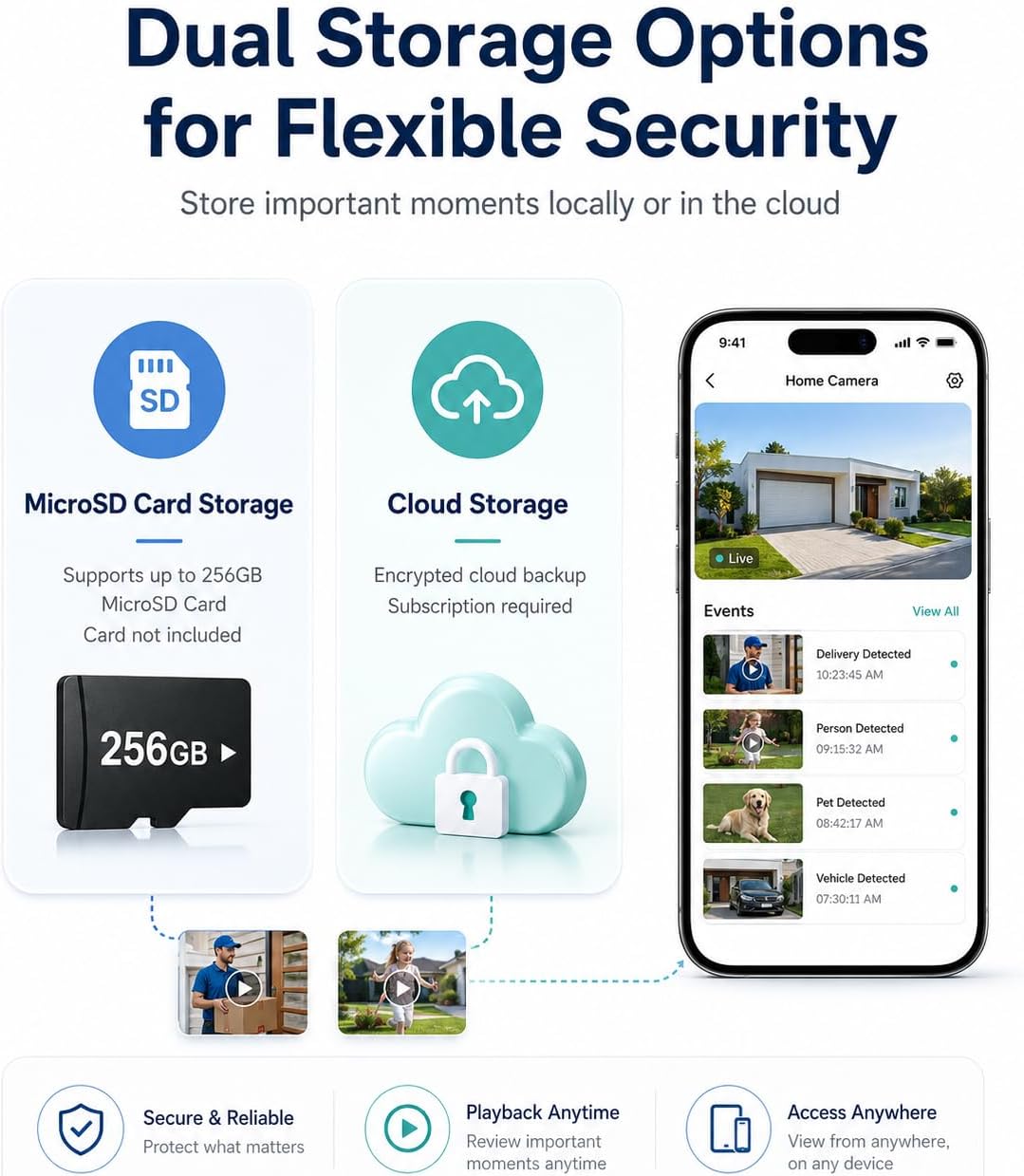
Image 4.6: An overview of the camera's dual storage options, including local Micro SD card storage (up to 256GB) and encrypted cloud storage (subscription required).
4.6 Smart Home Integration
The camera can be integrated with smart home platforms.
- Amazon Alexa: Link your O-KAM Pro account to Alexa for voice control and live view on compatible devices.
- Google Assistant: Connect your camera to Google Assistant for similar voice commands and streaming.
4.7 Bird Identification Feature
This advanced feature can identify various bird species. Note that this feature requires a separate subscription or payment within the O-KAM Pro App.

Image 4.7: The camera's bird identification feature, showing a bird detected and classified, alongside its night vision capabilities for human detection.
Video 4.1: This video illustrates the family safety and security features of the ELECCTV W1 camera, showcasing its ability to monitor and protect your home environment.
Video 4.2: This video highlights the wireless outdoor functionality of the ELECCTV W1 security camera, demonstrating its ease of installation and use in an outdoor setting.
5. Maintenance
5.1 Battery Charging
The camera's rechargeable battery can last 1-3 months depending on usage and settings. When the battery level is low, you will receive a notification via the O-KAM Pro App. Recharge the camera using the USB cable.
5.2 Cleaning
To ensure optimal performance, periodically clean the camera lens and housing. Use a soft, dry cloth. Avoid abrasive cleaners or solvents that could damage the device.
5.3 Firmware Updates
Regularly check the O-KAM Pro App for available firmware updates. Updates often include performance improvements, new features, and security enhancements. Follow the in-app instructions to update the firmware.
6. Troubleshooting
If you encounter issues with your ELECCTV W1 camera, refer to the following common problems and solutions:
| Problem | Possible Cause | Solution |
|---|---|---|
| Camera fails to connect to WiFi. | Incorrect WiFi password; camera too far from router; router not supporting 2.4GHz or 5GHz. | Verify WiFi password. Move camera closer to router. Ensure router supports both 2.4GHz and 5GHz bands. Reset camera and try again. |
| Frequent disconnections. | Weak WiFi signal; network interference. | Improve WiFi signal strength (e.g., use a WiFi extender). Reduce interference from other devices. |
| Motion alerts are too frequent or not triggered. | Sensitivity settings too high/low; detection zone not optimized. | Adjust motion detection sensitivity in the app. Refine the custom detection zones to focus on relevant areas. |
| Poor night vision quality. | Lens obstruction; external light sources interfering. | Clean the camera lens. Ensure no objects are blocking the view. Minimize direct external light sources that might cause glare. |
| Battery drains quickly. | High activity in detection zone; frequent live view access; extreme temperatures. | Reduce motion detection sensitivity or frequency. Limit live view access. Ensure camera is within optimal operating temperature range. |
| Micro SD card not detected. | Card not inserted correctly; incompatible card; card corrupted. | Reinsert the Micro SD card. Ensure it is a compatible type (up to 256GB). Format the card in the app or on a computer. |
If the problem persists, please contact customer support.
7. Specifications
| Feature | Detail |
|---|---|
| Brand | ELECCTV |
| Model Name | W1 |
| Connectivity Technology | Wireless (2.4GHz & 5GHz Wi-Fi, Bluetooth) |
| Video Capture Resolution | 2K QHD |
| Viewing Angle | 130 Degrees |
| Special Features | 2-Way Audio, AI Motion Detection, Color Night Vision, Siren |
| Indoor/Outdoor Usage | Outdoor |
| Water Resistance Level | IP65 Water Resistant |
| Power Source | Battery Powered (Rechargeable) |
| Compatible Devices | Smartphone (iOS/Android), Amazon Alexa, Google Assistant |
| Storage Options | Micro SD Card (up to 256GB), Cloud Storage (subscription required) |
| Item Weight | 0.02 Kilograms |
| Item Dimensions | 1 x 1 x 1 inches (Approximate) |
8. Warranty and Support
8.1 Warranty Information
ELECCTV products are covered by a limited warranty from the date of purchase. Please refer to the warranty card included in your package or visit the official ELECCTV website for detailed warranty terms and conditions. This warranty typically covers manufacturing defects and malfunctions under normal use.
8.2 Customer Support
For technical assistance, troubleshooting, or any questions regarding your ELECCTV W1 camera, please contact our customer support team:
- Email: support@elecctv.com (Example email, please refer to actual product documentation for correct contact)
- Website: www.elecctv.com (Example website, please refer to actual product documentation for correct contact)
When contacting support, please have your product model (W1) and purchase information ready.
