
1. Introduction
Thank you for choosing the UPERFECT 24.5-inch Portable Monitor. This device is designed to enhance your productivity and entertainment with its high-resolution display, fast refresh rate, and versatile connectivity. This manual provides essential information for safe and efficient use of your monitor. Please read it thoroughly before operation and retain it for future reference.
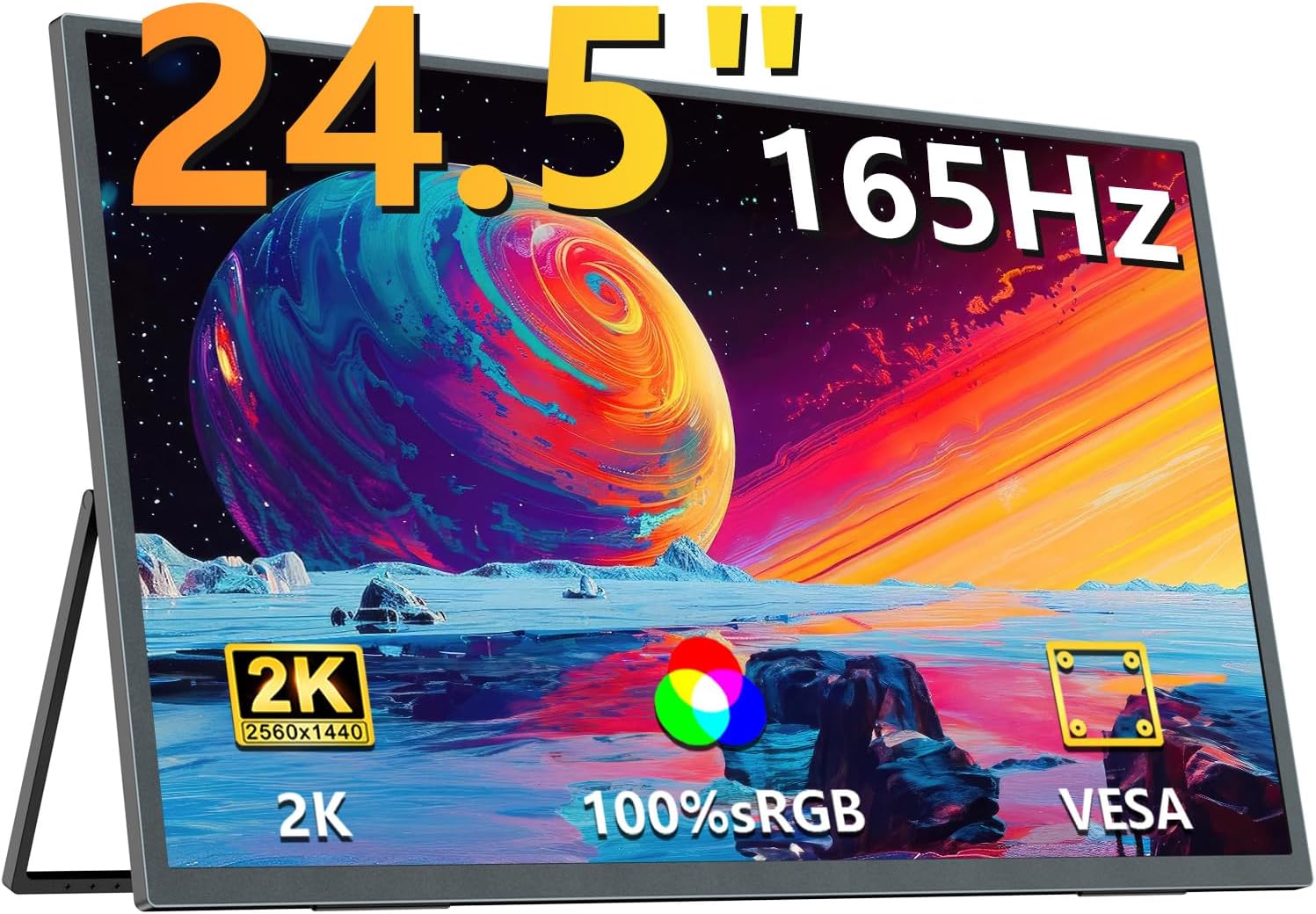
The UPERFECT 24.5-inch Portable Monitor, showcasing its sleek design and integrated stand.
2. Product Features
- Expansive 24.5-inch Display: Enjoy a significantly larger viewing area compared to smaller portable monitors, ideal for multitasking and immersive experiences. The ultra-thin 5mm profile ensures portability and space-saving setup.
- 2K QHD Resolution & HDR Support: Features a WQHD 2560x1440 IPS panel with 400 nits brightness and 100% sRGB color gamut, providing accurate and vibrant colors for professional tasks and entertainment. Supports HDR10 for enhanced contrast and detail.
- 165Hz Refresh Rate & 1ms Response Time: Experience ultra-smooth visuals with a 165Hz refresh rate and 1ms (GtG) response time, perfect for gaming and fast-paced content. Supports AMD FreeSync Premium to eliminate screen tearing and stuttering.
- Versatile Multi-Position Design: Equipped with an integrated, smart stand allowing 0° to 180° angle adjustment for flexible viewing. The monitor is also VESA compatible (75mm, M4*4mm screw holes) for mounting on arms or walls.
- Multiple Connectivity Options: Features USB Type-C, Mini HDMI, and Micro USB-B OTG ports for broad compatibility with laptops, smartphones, game consoles, and other devices.
- Eye Care Technology: Includes Blue Light Cut and Flicker-Free technologies to reduce eye strain during extended use.
- Built-in Speakers: Integrated speakers provide audio output for convenience.
3. Package Contents
Please check the package contents upon unboxing:
- UPERFECT 24.5-inch Portable Monitor
- USB Type-C to Type-C Cable (for power and video)
- Mini HDMI to HDMI Cable (for video)
- Power Adapter
- User Manual

The monitor and its essential connection cables.
4. Setup Instructions
4.1 Physical Setup
The monitor features an integrated stand for easy placement on any flat surface. The stand allows for angle adjustments from 0° to 180°.
- Using the Integrated Stand: Gently pull out the stand from the back of the monitor. Adjust it to your desired viewing angle. The anti-slip rubber feet ensure stability.
- Vertical Orientation: The monitor can be rotated to a vertical position. Ensure the stand is adjusted to provide stable support.

The integrated stand offers flexible angle adjustments and supports both horizontal and vertical display modes.
4.2 VESA Mounting
For alternative mounting solutions, the monitor is VESA compatible.
- VESA Standard: 75mm x 75mm.
- Screw Size: M4 x 4mm (screws are not included and must be sourced separately).
- Installation: Attach a compatible VESA mount (e.g., monitor arm, wall mount) to the designated screw holes on the back of the monitor. Ensure the mount can support the monitor's weight.

The monitor can be attached to a VESA-compatible arm for ergonomic positioning.
4.3 Connecting to Devices
The monitor supports various connection types:
- USB Type-C (Full-featured): Connect a single USB Type-C cable from your device (laptop, smartphone) to the monitor's full-featured Type-C port. This provides both power and video signal. Your device must support USB Type-C 3.1 or Thunderbolt 3/4 with DisplayPort Alt Mode.
- Mini HDMI: Connect the Mini HDMI cable from the monitor to your device's HDMI port. An external power source (via the included power adapter or a separate USB-C power supply) will be required for the monitor.
- Micro USB-B OTG: This port is for connecting peripherals like a keyboard or mouse to the monitor, which can then be used with a connected device (e.g., smartphone in desktop mode).

Overview of the monitor's ports and control buttons.

Connecting the monitor to a device using a single USB Type-C cable for both power and video.
5. Operating Instructions
5.1 Power On/Off
Press the 'ON/OFF' button located on the side of the monitor to power it on or off.
5.2 On-Screen Display (OSD) Menu
Use the 'Menu' button to access the OSD menu. Navigate through options using the '+' and '-' buttons, and confirm selections with the 'Return' button.
Common OSD settings include:
- Brightness/Contrast: Adjust display luminance and contrast levels.
- Color Settings: Modify color temperature, hue, and saturation.
- Input Source: Manually select the video input (USB-C, HDMI).
- Audio: Control volume for the built-in speakers or connected headphones.
- Game Mode: Activate presets like 'FPS Mode' for optimized gaming visuals.
- HDR: Enable or disable High Dynamic Range.
5.3 Display Modes
When connected to a PC or laptop, you can configure various display modes:
- Extended Mode: Expands your desktop across both screens, providing more workspace.
- Mirror Mode (Duplicate): Duplicates your primary display onto the portable monitor.
- Second Screen Only: Displays content only on the portable monitor.
These settings are typically configured within your operating system's display settings.

The monitor supports both horizontal and vertical display modes, configurable via your connected device's settings.
5.4 Refresh Rate Configuration
The monitor supports up to a 165Hz refresh rate. To utilize this, ensure your connected device's graphics card and output port (HDMI 2.0 or Type-C DP Alt Mode) support 165Hz at 2K resolution. The refresh rate is typically set within your operating system's display settings or your graphics card control panel.

Visual comparison of 60Hz versus 165Hz refresh rates, demonstrating smoother motion at higher refresh rates.
6. Maintenance
Proper maintenance ensures the longevity and performance of your monitor.
- Cleaning the Screen: Use a soft, lint-free cloth specifically designed for electronics. Lightly dampen the cloth with water or a screen-cleaning solution. Do not spray liquid directly onto the screen.
- Cleaning the Body: Wipe the monitor body with a soft, dry cloth. Avoid abrasive cleaners or solvents.
- Storage: When not in use, store the monitor in a cool, dry place, away from direct sunlight and extreme temperatures.
- Handling: Always handle the monitor by its edges. Avoid applying pressure to the screen.
7. Troubleshooting
If you encounter issues with your monitor, refer to the following common solutions:
| Problem | Possible Cause / Solution |
|---|---|
| No display / Black screen |
|
| Screen is dim |
|
| No audio |
|
| Screen flickering / Tearing |
|
| Monitor tips over easily |
|

Illustration of correct and incorrect monitor viewing angles for stability and ergonomics.
8. Specifications
| Feature | Specification |
|---|---|
| Brand | UPERFECT |
| Model Number | M245T01-S |
| Screen Size | 24.5 inches |
| Resolution | 2560 x 1440 (WQHD) |
| Refresh Rate | Up to 165Hz |
| Response Time | 1ms (GtG) |
| Panel Type | IPS |
| Brightness | 400 nits |
| Color Gamut | 100% sRGB |
| Aspect Ratio | 16:9 |
| Viewing Angle | 178° |
| Surface | Non-glare |
| Connectivity | USB Type-C (full-featured), Mini HDMI, Micro USB-B OTG |
| VESA Compatibility | 75mm x 75mm (M4*4mm screws) |
| Product Dimensions | 56.3 x 8 x 32.4 cm |
| Product Weight | 1.2 kg |
| Voltage | 12 Volts |
9. Warranty and Support
The UPERFECT 24.5-inch Portable Monitor comes with a 2-year warranty from the date of purchase, covering manufacturing defects and malfunctions under normal use. This product is certified to meet relevant electrical appliance safety standards.
For any questions, technical assistance, or warranty claims, please contact UPERFECT customer support. Refer to the contact information provided in the included Japanese instruction manual or visit the official UPERFECT website for support details.
Please have your product model number (M245T01-S) and purchase date ready when contacting support.


