1. Introduction
This manual provides comprehensive instructions for the setup and operation of your Cogeco Universal Remote Control, model URC1056B04. This remote is designed to control various home entertainment devices, including televisions, DVD players, and cable boxes from providers such as Rogers, Atlas, and Videotron. Please read these instructions carefully to ensure proper functionality and to maximize your remote control experience.

Image 1.1: The Cogeco Universal Remote Control URC1056B04 alongside its original user guide, illustrating the remote's layout and initial packaging.
2. Key Features
- Full Universal Control: The URC1056B04 can manage your entire home theater setup, including the cable box, TV, DVD/Blu-ray player, and audio devices.
- All On Master Power Key: With a single keypress, you can turn all your programmed devices on or off simultaneously.
- Volume Lock: You can lock the volume and mute functions to either your TV or audio device, ensuring consistent audio control regardless of the active device.
3. Setup and Programming
Follow these steps to set up your URC1056B04 universal remote control. Ensure you point the remote at your equipment during the setup process.
3.1. Battery Installation
- Remove the battery cover from the back of the remote control.
- Insert two (2) AA batteries, ensuring the positive (+) and negative (-) terminals align with the markings inside the battery compartment.
- Replace the battery cover securely.

Image 3.1: The remote control shown with its battery installation guide, detailing the steps for inserting two AA batteries.
3.2. Device Programming (Code Entry Method)
This method involves entering a specific code for your device brand. Refer to the code list provided with your remote or an online code finder for your device's brand.
- Turn on the device you wish to program (e.g., TV, DVD player, Cable Box).
- Press the corresponding mode key on the remote for the device type you wish to set up (e.g., TV, DVD, CBL).
- Hold down the SETUP button until the selected mode key blinks twice.
- Using the digit keys on the remote, enter the 4-digit code for your device brand from the code list.
- After entering the code, the mode key should blink twice to confirm successful programming.
- Test the remote to confirm that it controls your device as expected. If it does not, try again with the next code listed for your brand.

Image 3.2: A visual guide illustrating the four steps for setting up the remote control, including selecting the device mode, holding SETUP, entering the code, and testing functionality.
3.3. Device Programming (Code Search Method - Quick Setup)
This method allows the remote to search for the correct code automatically.
- Turn on the device you wish to program.
- Press the corresponding device key (TV, DVD, etc.).
- Press and hold SETUP until the LED blinks twice.
- Press 9-9-1. The LED will blink twice.
- Press CH+ repeatedly until your device turns off.
- Press SETUP when the device turns off to save the code.
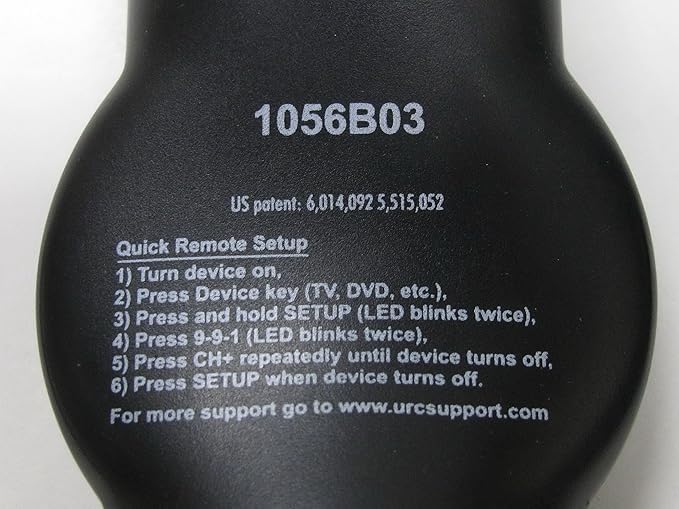
Image 3.3: The back of the URC1056B04 remote control, displaying quick setup instructions for programming devices using the code search method.
4. Basic Operation
4.1. All On Master Power
The MASTER POWER key (often labeled PWR) allows you to turn all programmed devices on or off with a single press. Ensure all devices are properly programmed for this feature to work effectively.
4.2. Volume Lock
The volume and mute functions can be locked to a specific device (e.g., your TV or audio receiver) even when you are controlling another device (e.g., your cable box). Consult the full user guide or manufacturer's support for specific instructions on how to enable and configure the volume lock feature.
5. Maintenance
5.1. Cleaning
To clean your remote control, use a soft, dry cloth. For stubborn dirt, slightly dampen the cloth with water. Avoid using harsh chemicals, abrasive cleaners, or excessive moisture, as these can damage the remote's electronics or finish.
5.2. Battery Replacement
Replace batteries when the remote's performance diminishes or if the indicator light (if present) signals low battery. Always replace both AA batteries at the same time with new ones. Dispose of old batteries according to local regulations.
6. Troubleshooting
- Remote not responding: Ensure batteries are correctly installed and not depleted. Point the remote directly at the device.
- Device not programming: Double-check the device code. Try all codes listed for your brand. Ensure the device is on during programming. If using the code search method, ensure you press SETUP immediately after the device turns off.
- Specific functions not working: Some advanced functions may not be supported by all universal remote codes. Ensure you have selected the correct device mode.
- Cannot program specific cable boxes (e.g., Cisco Netbox): Compatibility can vary. While the URC1056B04 is universal, some specific or older models of cable boxes may not be fully supported. Consult the manufacturer's support website for updated code lists or compatibility information.
7. Specifications
| Feature | Detail |
|---|---|
| Model Number | URC1056B04 |
| Connectivity Technology | Infrared |
| Max Number of Supported Devices | Multiple (Universal) |
| Compatible Devices | Television, DVD Player, Cable Box, Audio Devices |
| Power Source | 2 x AA Batteries |
| Item Weight | 7 ounces (approx.) |
| Package Dimensions | 3.94 x 0.79 x 0.79 inches (approx.) |
8. Warranty and Support
For warranty information, detailed code lists, or additional support, please refer to the documentation included with your purchase or visit the manufacturer's official support website. General support for Universal Remote Control products can often be found at www.urcsupport.com.


