
Devo G1
DEVO G1 Video Smart Lock User Manual
Model: G1 | Brand: Devo
Your comprehensive guide to installation, operation, and maintenance.
Introduction
The DEVO G1 Video Smart Lock is an advanced 6-in-1 keyless entry system designed to enhance your home security and convenience. It integrates multiple unlocking methods, a built-in camera, and a doorbell function, all manageable via a dedicated mobile application. This manual provides detailed instructions to help you set up, operate, and maintain your smart lock effectively.

Image: Front and back view of the DEVO G1 Video Smart Lock, showcasing its sleek design and key components.
Packing List
Before beginning installation, please verify that all components listed below are included in your package.
- Exterior Assembly (Front Lock)
- Interior Assembly (Rear Lock)
- Deadbolt & Strike Plate
- Rechargeable Lithium Battery (10000mAh)
- Charging Cable (USB-C)
- IC Cards (x2)
- Keys (x2)
- Mounting Plate
- Screws (various types: A, B, C, D, E)
- Measuring Cardstock
- User Manual
Video: An unboxing video of the DEVO G1 Smart Lock, showing all included components and packaging.

Image: A visual representation of the complete packaging list for the DEVO G1 Smart Lock, including all hardware and accessories.
Specifications
| Feature | Description |
|---|---|
| Model Name | G1 |
| Dimensions (L x W x H) | 2.99 x 1.19 x 7.24 inches |
| Material | Aluminum |
| Lock Type | Biometric, Deadbolt, Combination Lock, Keypad |
| Unlocking Methods | Fingerprint, App Remote, IC Card, Passcode, Traditional Key, Voice Control |
| Battery Capacity | 10,000 mAh (Rechargeable Lithium Polymer) |
| Water Resistance Rating | IP65 |
| Connectivity | Wi-Fi (2.4GHz) |
| Voice Assistant Compatibility | Alexa, Google Voice Assistant |
| Operating Temperature | 5°F to 122°F (-15°C to 50°C) |
| Door Thickness Compatibility | 1.38" to 2.17" (35mm to 55mm) |

Image: Detailed dimensions and door compatibility requirements for the DEVO G1 Smart Lock, including door thickness, cross bore diameter, door hole diameter, and backset.
Setup and Installation
The DEVO G1 Smart Lock is designed for easy DIY installation, typically taking about 15 minutes with a screwdriver and no drilling required for most standard US doors. Follow these steps for a smooth setup.
1. Check Door Dimensions
Before installation, use the provided measuring cardstock to confirm your door's dimensions meet the requirements:
- Door Thickness: 1-3/8" to 2-1/8" (35mm to 55mm)
- Cross Bore Diameter: 2-1/8" or 1-1/2" (54mm or 38mm)
- Door Hole Diameter: 1" (25mm)
- Backset: 2-3/8" or 2-3/4" (60mm or 70mm)
Video: A comprehensive installation guide for the G1 Video Smart Lock, detailing each step from door measurement to final assembly.
2. Install the Deadbolt and Strike Plate
Ensure the deadbolt faces up. If your backset is 70mm, rotate the faceplate of the latch 180° to extend its length. Secure the deadbolt and strike plate using the appropriate screws.
Image: Visual guide for installing the deadbolt and strike plate, ensuring correct orientation and secure fastening.
3. Install the Front Lock (Exterior Assembly)
Ensure the latch is in the unlocked state. Insert the tailpiece parallelly into the slot of the deadbolt. Carefully feed the wires through the door hole.
4. Install the Mounting Plate
Run the wires from the front lock through the mounting plate. Choose the correct screws (A, B, or C) based on your door's thickness (50-55mm: Screw A, 40-50mm: Screw B, 35-40mm: Screw C). Secure the mounting plate to the door.
5. Install the Rear Lock Assembly (Interior Assembly)
Rotate the knob on the rear lock to a vertical position to ensure the door lock is in the unlocked state. Connect the wires from the front lock to the corresponding ports on the interior assembly. Secure the interior assembly with Screw E.
6. Insert Lithium Battery and Cover
Fully charge the 10000mAh lithium battery before first use. Insert the charged battery into the designated compartment in the rear lock assembly. Close the battery cover. Insert Plug D into the bottom hole of the rear lock assembly for a finished look.

Image: The 10000mAh rechargeable battery and the emergency Type-C power port for the DEVO G1 Smart Lock.
Operating Instructions
The DEVO G1 Smart Lock offers multiple convenient ways to unlock and manage access.
Unlocking Methods
- Fingerprint: Place your registered fingerprint on the sensor.
- Passcode: Enter your numerical passcode on the keypad. The anti-peeping keypad allows you to enter random digits before or after your actual code for added security.
- IC Card: Tap the provided IC card against the designated area on the lock.
- Traditional Key: Use the physical key as a backup.
- App Remote Control: Use the TUYA APP to remotely unlock the door.
- Voice Control: Integrate with Alexa or Google Assistant for voice-activated unlocking.

Image: Visual demonstration of the six different unlocking methods available for the DEVO G1 Smart Lock: App, Fingerprint, Key, IC Card, Keypad, and Voice.
Video: Demonstrates various unlocking methods for the Devo G1 Video Smart Lock, including fingerprint, passcode, and app control.
TUYA APP Features
The TUYA APP provides comprehensive control and monitoring capabilities for your smart lock:
- Remote Unlock: Grant access from anywhere.
- Generate One-Time Passwords: Create temporary access codes for guests or service providers.
- User Management: Add, modify, or delete user fingerprints, passcodes, and IC cards.
- Real-Time Notifications: Receive alerts for lock activity.
- Real-Time Monitoring & Video Storage: View live video feed and store video clips and images. Free storage for the first month (up to 30 clips/images, overwritten every 3 days).
- Access Log: Review a history of who entered and when.
- Auto-Lock: Configure the lock to automatically secure itself after a set period.
- Low Battery Alerts: Receive notifications when the battery is low.

Image: Overview of the multifunctional app, highlighting features like real-time notification, access log, user management, auto-lock, and remote unlock.
Video: Tutorial on connecting the Devo G1 Smart Lock to Wi-Fi and using the mobile application for various functions.
Doorbell and Two-Way Audio
The integrated doorbell allows visitors to alert you, and the HD camera with two-way audio enables communication with anyone at your door, even when you're away.

Image: Illustrates real-time monitoring and Full HD Video with Night Vision capabilities, showing both day and night views.

Image: Illustrates the 2-way audio and HD video capabilities, allowing real-time viewing and communication with visitors.
Maintenance
- Battery Charging: The 10000mAh rechargeable battery provides long-lasting performance. When the low battery alert is triggered, charge the battery using the provided USB-C cable.
- Cleaning: Use a soft, dry cloth to clean the lock's exterior. Avoid abrasive cleaners or solvents that could damage the finish or electronic components.
- Environmental Protection: The lock has an IP65 water resistance rating, making it suitable for outdoor use and resistant to dust and water splashes. However, avoid submerging the lock in water.
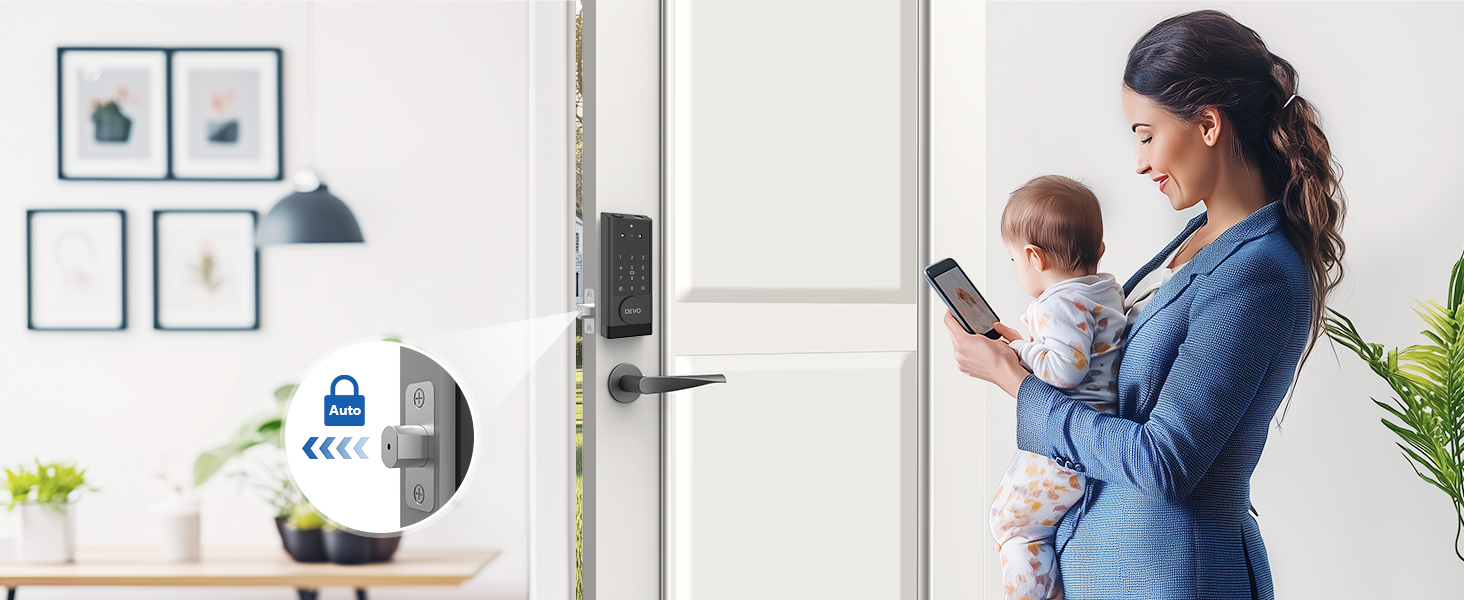
Image: Highlights the rechargeable nature of the smart lock with its 10000mAh battery, Type-C charging, auto-lock, and real-time battery status via the app.

Image: Illustrates the IP65 waterproof rating and temperature resistance of the DEVO G1 Smart Lock, suitable for various weather conditions.
Troubleshooting
If you encounter issues with your DEVO G1 Smart Lock, refer to the common problems and solutions below:
- Lock not responding:
- Check battery level. Recharge if necessary.
- Ensure the lock is properly installed and all connections are secure.
- Fingerprint not recognized:
- Ensure your finger is clean and dry.
- Try re-registering your fingerprint in the app.
- Ensure the fingerprint sensor is clean.
- App connectivity issues:
- Ensure your phone's Bluetooth and Wi-Fi are enabled.
- Verify the lock is within range of your Wi-Fi router (2.4GHz network).
- Restart the TUYA APP and try reconnecting.
- Check your Wi-Fi password in the app settings.
- Passcode not working:
- Ensure you are entering the correct passcode.
- Be mindful of the anti-peeping feature; ensure the correct sequence is embedded within any extra digits.
- Try resetting the passcode via the app.
- Doorbell not ringing/Two-way audio not working:
- Check app notification settings.
- Ensure microphone and speaker permissions are granted to the TUYA APP on your phone.
- Verify stable Wi-Fi connection.
Warranty and Support
DEVO is committed to providing top-notch service. For any questions, technical assistance, or warranty claims, please contact DEVO customer support. Refer to the product packaging or the official DEVO website for the most current contact information.
Please retain your proof of purchase for warranty purposes.
Related documentsG1


Ask a question about this manual
Ask about setup, troubleshooting, compatibility, parts, safety, or missing instructions. Manuals+ will review the question and use this page’s manual context to help answer it.