
1. Introduction
This manual provides comprehensive instructions for the installation, operation, maintenance, and troubleshooting of your Redragon RGMS-1000W PRO 80+ Gold 1000 Watt Power Supply. Please read this manual thoroughly before installation and retain it for future reference.
2. Safety Information
Always observe the following safety precautions to prevent injury or damage to your system:
- Ensure the power supply is disconnected from the AC power outlet before installation or handling.
- Do not open the power supply unit. High voltages are present inside, and it contains no user-serviceable parts.
- Install the power supply in a well-ventilated area, away from heat sources and moisture.
- Use only the modular cables provided with this power supply. Using incompatible cables may cause damage.
- Ensure all cables are securely connected before powering on the system.
3. Package Contents
Verify that all items are present in your package:
- Redragon RGMS-1000W PRO Power Supply Unit
- Modular Cable Set (including 12VHPWR cable)
- AC Power Cord
- Mounting Screws
- User Manual
4. Product Overview
The Redragon RGMS-1000W PRO is a high-performance power supply designed for modern computing systems. It features 80 Plus Gold certification for energy efficiency, ATX 3.1 and PCIe 5.1 readiness for next-generation components, and a fully modular design for improved cable management.

Image: Key features of the Redragon RGMS-1000W PRO Power Supply, including 80 Plus Gold certification, 1000W output, FDB low-noise fans, and 100% Japanese capacitors.

Image: Angled view of the Redragon RGMS-1000W PRO 80+ Gold 1000 Watt Power Supply.
Key Features:
- 80 Plus Gold Certification: Ensures high energy efficiency, reducing heat generation and operating costs.
- ATX 3.1 & PCIe 5.1 Ready: Fully compatible with the latest high-performance GPUs, including NVIDIA RTX 40/50 series.
- 100% Japanese Capacitors: Provides enhanced reliability and durability for stable power delivery.
- Smart ECO Low Noise Fan: Features a Zero RPM mode, where the fan activates only when the temperature reaches 60°C, ensuring quiet operation under light loads.
- Fully Modular Cables: Allows for custom cable management, reducing clutter and improving airflow within the PC case.
- Compact 150mm Size: Designed for broad chassis compatibility.
5. Setup and Installation
5.1 Pre-installation Checklist
- Ensure your PC case has adequate space for the power supply (150mm length).
- Gather necessary tools: Phillips head screwdriver.
- Confirm compatibility with your motherboard and graphics card.
5.2 Physical Installation
- Turn off your computer and unplug the AC power cord from the wall outlet.
- Open your computer case.
- Carefully place the Redragon RGMS-1000W PRO into the power supply mounting bay of your PC case.
- Secure the power supply to the case using the provided mounting screws.
5.3 Cable Connections
The RGMS-1000W PRO features a fully modular design, allowing you to connect only the cables required for your system. Refer to the diagram below for included cable types.
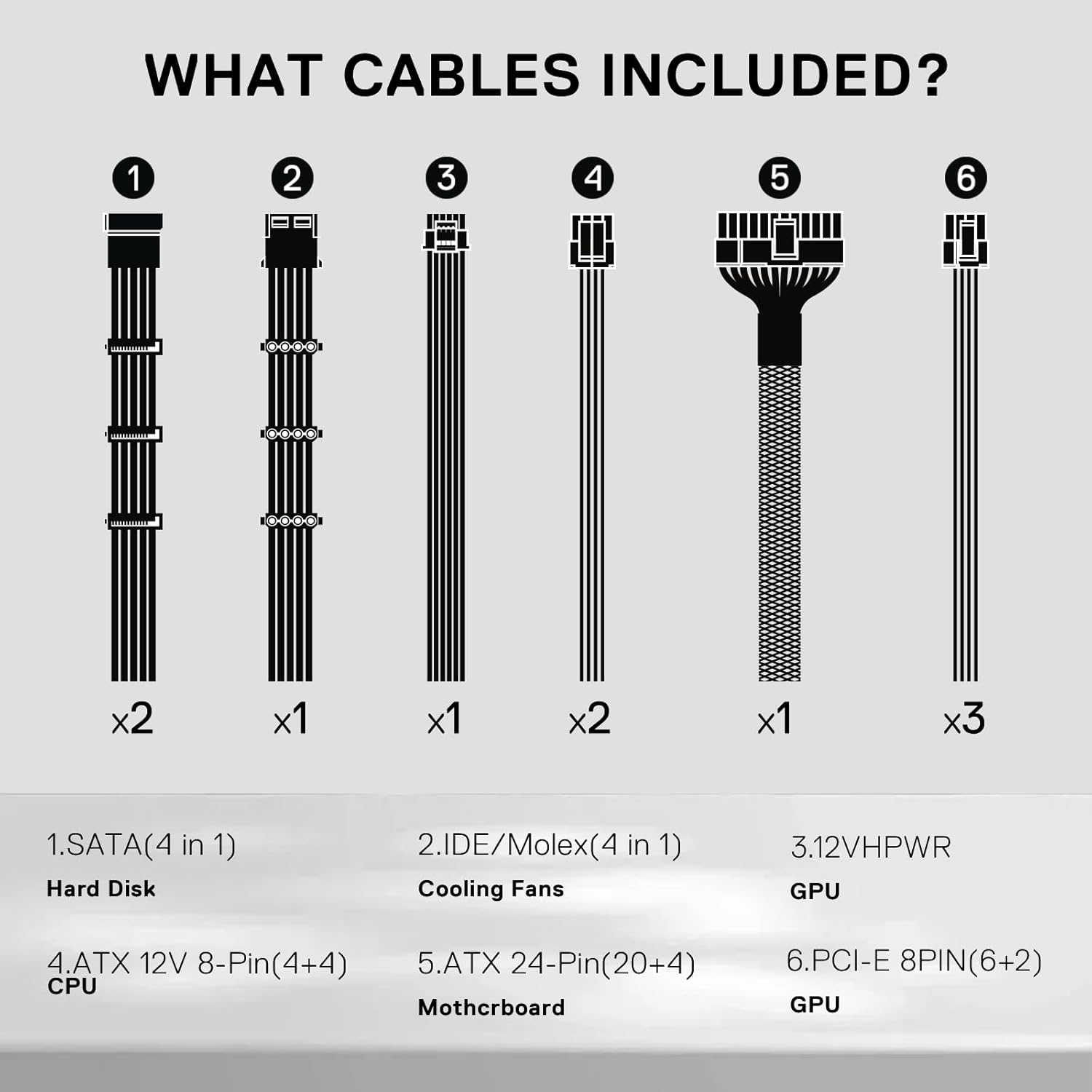
Image: Diagram showing the types and quantities of modular cables included: SATA (x2), IDE/Molex (x1), 12VHPWR (x1), ATX 12V 8-Pin (x2), ATX 24-Pin (x1), PCI-E 8PIN (x3).
- Motherboard Power: Connect the 24-pin ATX cable to the corresponding port on your motherboard and the power supply. Connect the 8-pin (4+4) ATX 12V CPU power cable(s) to your motherboard and the power supply.
- Graphics Card Power: For modern high-performance GPUs, use the dedicated 12VHPWR cable (PCIe 5.1) if your card supports it. Otherwise, use the 8-pin (6+2) PCIe cables. Ensure the correct number of connectors are used as specified by your GPU manufacturer.

Image: The Redragon RGMS-1000W PRO Power Supply is ready for PCIe 5.1 and ATX 3.1, featuring a 12VHPWR cable for high-power GPUs.
- Peripheral Power: Connect SATA power cables to your SSDs, HDDs, and other SATA-powered devices. Use Molex cables for older peripherals or case fans if needed.
- Cable Management: Utilize the fully modular design to route cables efficiently, improving airflow and aesthetics.

Image: Close-up of the sturdy mesh paracord sleeving on the modular cables, designed for durability and ease of management.
Important Note on Cable Bending:
When routing cables, especially the 12VHPWR cable, avoid sharp bends near the connector. Leave at least 35mm from the connector before bending the cable to prevent damage and ensure stable power delivery.

Image: Visual guide on proper cable bending, emphasizing a minimum 35mm distance from the connector to prevent damage.
6. Operation
6.1 Powering On/Off
- After all connections are secure, plug the AC power cord into the power supply and a wall outlet.
- Flip the main power switch on the back of the power supply to the 'ON' position.
- Power on your computer using the case's power button.
6.2 Fan Operation (Zero RPM Mode)
The RGMS-1000W PRO features a Smart ECO Low Noise Fan with a Zero RPM mode. In this mode, the fan remains off under low to moderate loads to ensure silent operation. The fan will automatically activate when the internal temperature of the power supply reaches approximately 60°C to maintain optimal cooling.

Image: The 120mm FDB silent fan of the Redragon RGMS-1000W PRO, illustrating efficient and quiet airflow.
6.3 RGB Lighting Control
If your model includes RGB lighting, a button on the back of the power supply allows you to cycle through various lighting effects or turn the lighting off. This control is independent of motherboard RGB software.
7. Maintenance
7.1 Cleaning
To ensure optimal performance and longevity, periodically clean the power supply:
- Disconnect the power supply from the AC outlet before cleaning.
- Use compressed air to gently remove dust from the fan grille and ventilation openings.
- Do not use liquid cleaners or immerse the unit in water.
8. Troubleshooting
If you encounter issues with your power supply, refer to the following common troubleshooting steps:
8.1 No Power
- Ensure the AC power cord is securely plugged into both the power supply and the wall outlet.
- Verify that the main power switch on the back of the power supply is in the 'ON' position.
- Check all modular cable connections to the power supply and components (motherboard, GPU, etc.) are firm.
- Test the wall outlet with another device to confirm it is receiving power.
8.2 System Instability or Crashes
- Ensure all power connectors are correctly and fully seated. Loose connections can cause instability.
- Verify that your system's power requirements do not exceed the 1000W capacity of the power supply.
- Check for proper ventilation within your PC case to prevent overheating of components, including the PSU.
8.3 Excessive Fan Noise
- Recall that the fan operates in Zero RPM mode under light loads. Increased fan speed under heavy load is normal.
- Ensure there are no obstructions (e.g., loose cables) blocking the fan intake or exhaust.
- Clean any dust accumulation from the fan grille as described in the Maintenance section.
8.4 Coil Whine
While some power supplies may exhibit minor coil whine under specific loads, the Redragon RGMS-1000W PRO is designed to minimize this. If you experience significant coil whine, ensure all components are properly grounded and connections are secure. If the issue persists, contact customer support.
9. Specifications
Below are the technical specifications for the Redragon RGMS-1000W PRO Power Supply:

Image: Performance graphs for efficiency and noise, alongside a detailed power output table for the Redragon RGMS-1000W PRO.
| Feature | Specification |
|---|---|
| Model Name | RGMS-1000W-PRO |
| Output Wattage | 1000 Watts |
| Efficiency Certification | 80 Plus Gold |
| Form Factor | ATX12V |
| Connector Type | ATX 3.1, PCIe 5.1 (12VHPWR) |
| Cooling Method | Air (120mm FDB Fan with Zero RPM Mode) |
| Capacitors | 100% Japanese Capacitors |
| Product Dimensions (L x W x H) | 150mm x 87mm x 140mm (approx. 5.9 x 3.4 x 5.5 inches) |
| Item Weight | 7.5 pounds |
| Maximum Input Voltage | 240 Volts (AC) |

Image: The compact 150mm length of the Redragon RGMS-1000W PRO Power Supply, highlighting its full-modular cabling compatibility.
10. Warranty and Support
10.1 Warranty Information
The Redragon RGMS-1000W PRO Power Supply comes with a 5-year warranty from the date of purchase. This warranty covers defects in materials and workmanship under normal use. Please retain your proof of purchase for warranty claims.

Image: Redragon customer support team, emphasizing the 5-year product warranty.
10.2 Customer Support
For technical assistance, warranty claims, or any questions regarding your Redragon product, please visit the official Redragon website or contact their customer support channels. Refer to the product packaging or the Redragon website for the most current contact information.


