
NYXI Flexi
NYXI Flexi Wireless PC Controller
Model: Flexi
Introduction
The NYXI Flexi Wireless PC Controller is a versatile gaming peripheral designed for enhanced control across multiple platforms, including PC, Nintendo Switch, iOS, and Android devices. It features advanced Hall Effect sensing joysticks and analog triggers for precise input, along with interchangeable D-pad and left joystick modules, and mappable back buttons for a customized gaming experience. This manual provides detailed instructions for setup, operation, maintenance, and troubleshooting to ensure optimal performance of your controller.
Setup Guide
Package Contents
Please verify that all items are present in your package:
- NYXI Flexi Wireless PC Controller
- USB Wireless Dongle
- USB-C Charging Cable
- Interchangeable D-pad Module
- Interchangeable Left Joystick Module
- User Manual (this document)
Initial Charging
Before first use, fully charge the controller. Connect the USB-C charging cable to the controller's charging port and the other end to a USB power source (e.g., PC, USB wall adapter). The indicator lights on the controller will show charging status and turn off or change color when fully charged.
Connecting to Devices

Image: The NYXI Flexi Wireless PC Controller shown alongside its dedicated USB wireless dongle.
PC (Wireless Dongle)
- Insert the USB wireless dongle into an available USB port on your PC.
- Turn on the controller by pressing the Home button.
- The controller will automatically pair with the dongle. The indicator lights will stabilize once connected.
PC (Bluetooth)
- Ensure your PC's Bluetooth is enabled.
- On the controller, press and hold the Bluetooth pairing button (refer to controller diagram for location) until the indicator lights flash rapidly.
- On your PC, go to Bluetooth settings and select "Add a device". Choose the NYXI Flexi Controller from the list of available devices.
- Confirm pairing. The indicator lights on the controller will stabilize upon successful connection.
Nintendo Switch
- From the Switch HOME Menu, select "Controllers" > "Change Grip/Order".
- On the NYXI Flexi controller, press and hold the Sync button (usually a small button on the top or back) until the player indicator lights begin to flash.
- Once paired, the player indicator light(s) corresponding to the controller number will remain lit.
iOS/Android
- Enable Bluetooth on your iOS or Android device.
- On the controller, press and hold the Bluetooth pairing button until the indicator lights flash rapidly.
- On your device, go to Bluetooth settings and select the NYXI Flexi Controller from the list of available devices.
- Confirm pairing. The indicator lights on the controller will stabilize upon successful connection.
Operating Instructions
Button Layout
The NYXI Flexi controller features a standard button layout with face buttons (A, B, X, Y), a D-pad, two joysticks, shoulder buttons (L1/R1), triggers (L2/R2), and additional function buttons (Home, Share, Options, Turbo, Macro, M1-M4 back buttons).
Interchangeable Modules
The controller allows you to customize your layout by swapping the D-pad and left joystick modules, as well as the ABXY button caps. This feature enables users to switch between symmetrical and asymmetrical joystick configurations.
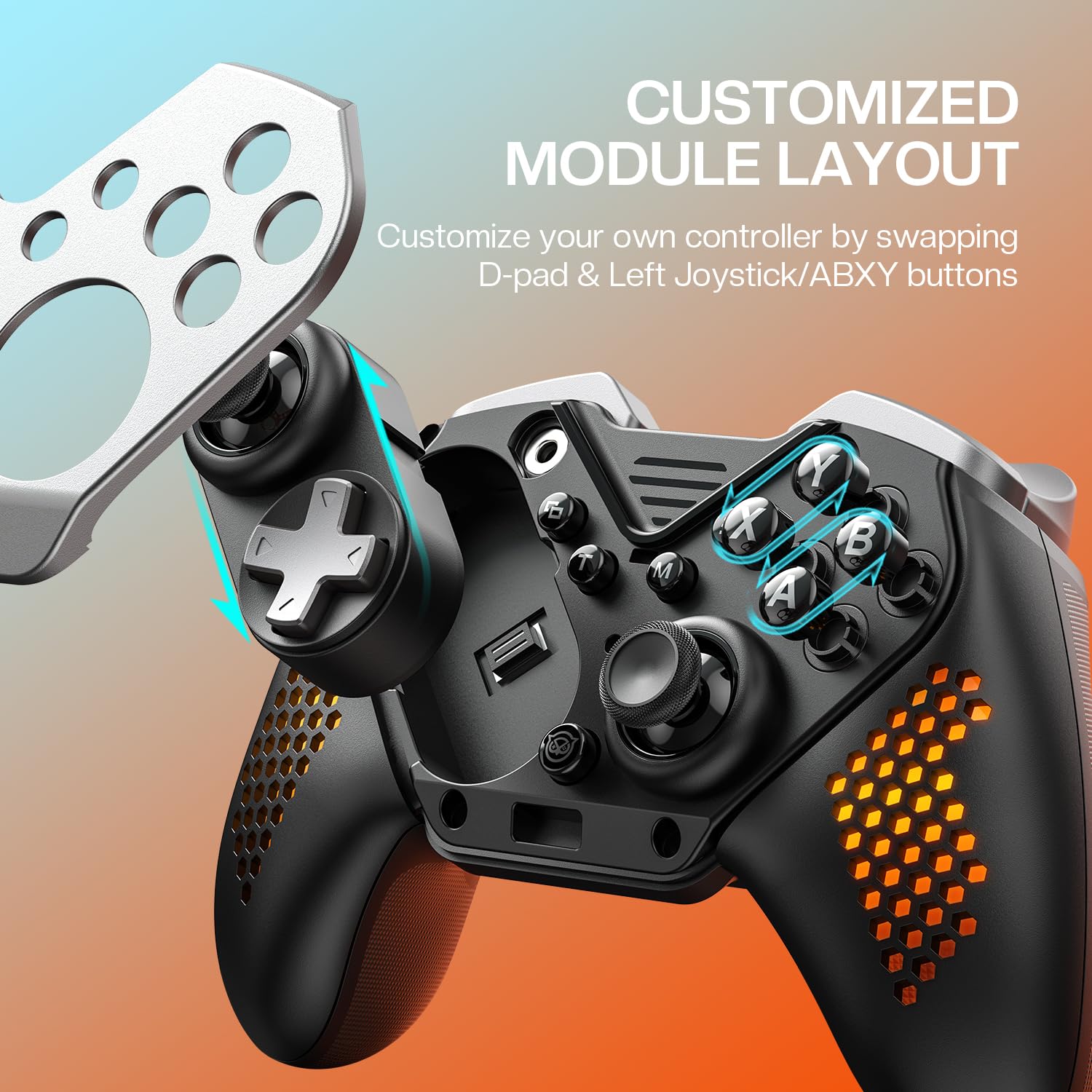
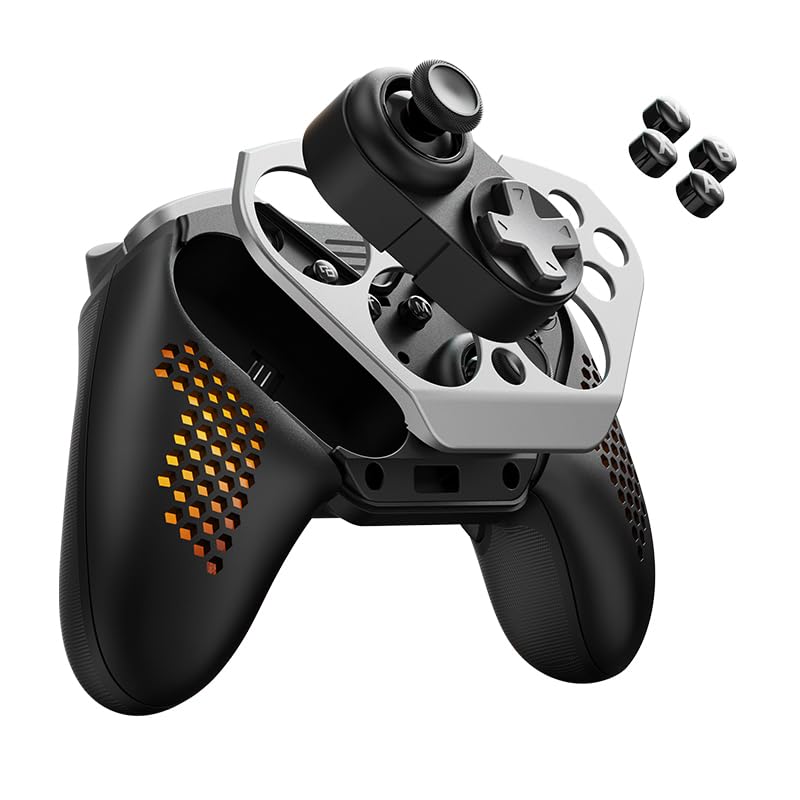
Images: The NYXI Flexi controller demonstrating the swapping of its D-pad and left joystick modules, and an exploded view showing the modular design.
- To swap modules, gently lift the magnetic faceplate from the controller.
- Carefully remove the desired module (D-pad or left joystick) by pulling it upwards.
- Insert the alternative module into the slot, ensuring it clicks securely into place.
- Replace the magnetic faceplate.
Hall Effect Joysticks and Analog Triggers
The controller is equipped with Hall Effect joysticks and Hall Linear Analog Triggers. This technology uses magnetic fields for input sensing, providing enhanced precision, reduced drift, and extended lifespan compared to traditional potentiometer-based components.

Image: A visual representation highlighting the Hall Effect Joysticks and Hall Linear Analog Triggers, emphasizing their precise sensing capabilities.
Programmable Back Buttons (M1-M4)
The four back buttons (M1, M2, M3, M4) can be programmed to replicate any other button on the controller, allowing for quick access to complex commands or frequently used actions.

Image: The rear view of the NYXI Flexi controller, illustrating the location of the programmable M1, M2, M3, and M4 quick-latch buttons.
- Press and hold the "M" button (Macro/Mapping button) for 3 seconds until the indicator light flashes.
- Press the back button (M1, M2, M3, or M4) you wish to program.
- Press the button you want to map to the back button (e.g., A, B, X, Y, L1, R1, etc.).
- Press the "M" button again to save the mapping. The indicator light will stop flashing.
- To clear a mapping, repeat steps 1-2, then press the "M" button without pressing another button.
For more detailed programming instructions, including advanced macro functions, please refer to the official online manual: nyxigame.com/pages/np05_manual
Turbo Function
The Turbo function allows a button to be pressed repeatedly as long as it is held down. To activate Turbo for a button, press and hold the Turbo button, then press the desired action button. To deactivate, repeat the process.
Vibration Adjustment
The controller's vibration intensity can be adjusted. Refer to the controller's specific button combinations (usually involving the Turbo button and D-pad up/down) for detailed adjustment steps.
RGB Lighting Adjustment
The NYXI Flexi features adjustable breathing RGB lights on its grips. You can cycle through different lighting modes and colors to personalize your controller's appearance.

Image: The NYXI Flexi controller showcasing its adjustable breathing RGB lights on the textured grips.
Specific button combinations (e.g., Light button + D-pad) are used to change lighting effects, brightness, or turn the lights off. Consult the quick start guide or online manual for precise instructions.
Multi-Platform Compatibility
The NYXI Flexi controller is designed for broad compatibility, supporting a range of gaming platforms.

Image: The NYXI Flexi controller displayed with icons representing its multi-platform compatibility, including Windows, Apple, Android, and Nintendo Switch.
- PC: Connect via USB wireless dongle or Bluetooth.
- Nintendo Switch: Connect via Bluetooth.
- iOS Devices: Connect via Bluetooth.
- Android Devices: Connect via Bluetooth.
Maintenance
Proper maintenance ensures the longevity and optimal performance of your NYXI Flexi controller.
- Cleaning: Use a soft, dry cloth to wipe the controller. For stubborn dirt, slightly dampen the cloth with water or a mild electronic cleaner. Avoid harsh chemicals or abrasive materials.
- Storage: Store the controller in a cool, dry place away from direct sunlight, extreme temperatures, and high humidity.
- Battery Care: To preserve battery life, avoid fully discharging the controller frequently. If storing for an extended period, charge the battery to approximately 50% before storage.
- Module Care: When swapping modules, handle them gently to avoid damaging the connectors. Keep the modules clean and free of debris.
Troubleshooting
If you encounter issues with your NYXI Flexi controller, refer to the table below for common problems and their solutions.
| Problem | Possible Cause | Solution |
|---|---|---|
| Controller not connecting | Low battery; Incorrect pairing mode; Out of range; Interference. | Charge the controller. Ensure correct pairing mode for your device. Move closer to the device. Reduce wireless interference. Try re-pairing. |
| Input lag or delayed response | Wireless interference; Distance from receiver; Low battery. | Ensure no obstructions between controller and receiver. Move closer to the device. Charge the controller. Try connecting via USB cable if supported by game/device. |
| Buttons unresponsive | Software glitch; Physical debris; Controller not powered on. | Restart the controller and device. Check for physical obstructions under buttons. Ensure controller is powered on and connected. |
| Joystick drift | Calibration issue; Minor debris. | Recalibrate joysticks (refer to online manual for specific steps). Ensure no debris around the joystick base. |
| RGB lights not working | Lights turned off; Software issue. | Press the dedicated light button or combination to cycle modes/turn on. Restart controller. |
If the issue persists after trying these solutions, please contact NYXI customer support.
Technical Specifications
- Model: Flexi
- Dimensions: 4.33 x 2.76 x 6.3 inches (110 x 70 x 160 mm)
- Weight: 1.26 pounds (approx. 570 grams)
- Connectivity: 2.4GHz Wireless Dongle, Bluetooth
- Compatibility: PC (Windows), Nintendo Switch, iOS, Android
- Joysticks: Hall Effect Sensing
- Triggers: Hall Linear Analog
- Special Features: Interchangeable D-pad & Left Joystick, Mappable Back Buttons, Adjustable Turbo, Adjustable Vibration, Adjustable RGB Lighting
Warranty and Support
NYXI products are manufactured to high quality standards and are subject to a limited warranty from the date of purchase. Please retain your proof of purchase for warranty claims.
For detailed warranty information, technical support, or further assistance, please visit the official NYXI support page or contact customer service:
Official Manual & Support: nyxigame.com/pages/np05_manual
For general inquiries, you may also visit the NYXI Store on Amazon: NYXI Amazon Store
Related documentsFlexi


Ask a question about this manual
Ask about setup, troubleshooting, compatibility, parts, safety, or missing instructions. Manuals+ will review the question and use this page’s manual context to help answer it.