
1. Introduction
This manual provides essential information for the safe operation and maintenance of your Ruko U11S Drone and R111S GPS Tracker. Please read this manual thoroughly before operating the product to ensure proper usage and to prevent damage or injury. The Ruko U11S is an entry-level drone designed for ease of use, featuring a 4K camera and advanced positioning systems for both indoor and outdoor flight. The R111S GPS Tracker enhances flight safety by providing real-time tracking capabilities.
2. Package Contents
Upon opening your Ruko U11S Drone package, please verify that all the following items are included:

Image: All components included in the Ruko U11S Drone package, neatly arranged. This includes the U11S drone, remote controller, two flight batteries, a carrying case, extra propeller blades, a screwdriver, and USB charging cables.
- 1 x Ruko U11S Drone
- 2 x Flight Batteries
- 1 x Remote Transmitter
- 1 x Phone Holder
- 2 x USB Charging Cables
- 4 x Extra Propeller Blades
- 1 x Screwdriver
- 10 x Screws
- 1 x User Manual (this document)
- 1 x Gift Box
- 1 x Carrying Case
3. Setup
3.1 Charging the Batteries
Ensure both the drone's flight batteries and the remote transmitter's built-in battery are fully charged before first use. The flight batteries provide approximately 20 minutes of flight time each, totaling 40 minutes with both batteries.

Image: Two Ruko drone batteries connected to a charging cable, indicating their charging status with LED lights. Each battery provides approximately 20 minutes of flight time.
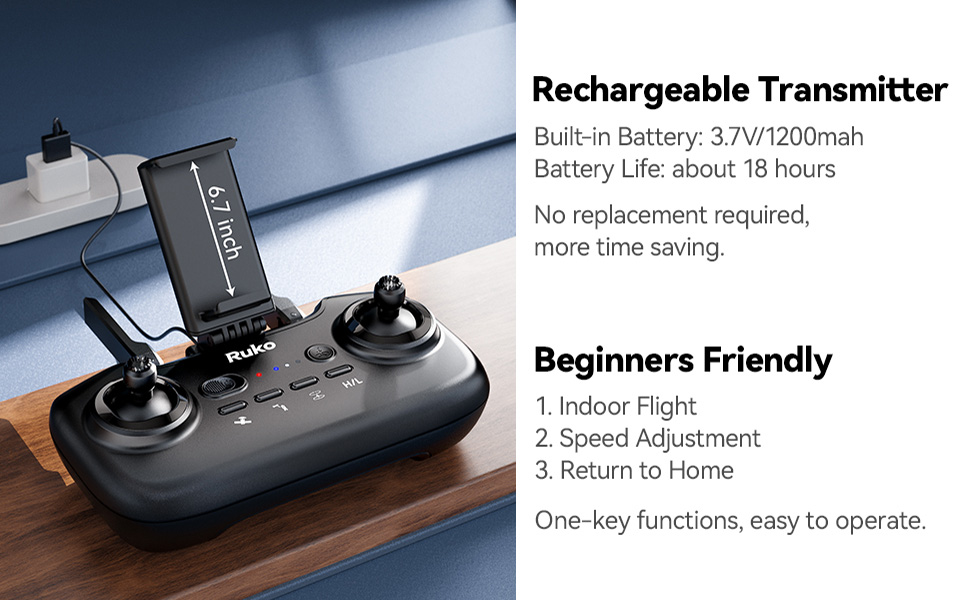
Image: The Ruko remote transmitter with a smartphone mounted, connected to a charging cable. The transmitter has a built-in 3.7V/1200mAh battery, offering about 18 hours of operation on a full charge.
3.2 Installing the R111S GPS Tracker
The R111S GPS Tracker can be installed in various ways to suit different aircraft types. It is designed to integrate with the aircraft's original positioning function for enhanced tracking.

Image: Demonstrates four installation methods for the R111S GPS tracker: using two Velcro straps, two pieces of double-sided tape, one adjustable zip tie mount, and eight self-locking zip ties. These options allow for secure attachment to various drone models.
- Velcro: Use the provided Velcro strips for quick attachment and removal.
- Double-sided Tape: For a more permanent and low-profile attachment.
- Adjustable Zip Tie Mount: Provides a secure fit for various drone frames.
- Self-locking Zip Ties: For robust and long-term attachment.
The R111S can be used with various RC aircraft, including FPV drones, gliders, helicopters, and fixed-wing aircraft, providing precise real-time tracking within a 500-1000 meter range.

Image: The R111S GPS tracker is shown attached to different types of remote-controlled aircraft, highlighting its wide compatibility. Examples include an FPV racing drone, a fixed-wing glider, an RC helicopter, and an RC jet fighter.
4. Operating Instructions
4.1 First Flight Considerations
The Ruko U11S is designed to be beginner-friendly, offering features like Beginner Mode, One-key Take Off & Landing, and Indoor Mode for an easier learning experience.

Image: The Ruko U11S drone hovering indoors, with visual cues indicating its beginner-friendly features: Beginner Mode, One-key Take Off & Landing, and Indoor Mode, making it an ideal choice for first-time pilots.
4.2 Flight Modes and Features
- Optical Flow Positioning: Provides stable and safe indoor flight.
- GPS Positioning: Ensures a free and stabilized outdoor flight, helping the drone lock height precisely and hover stably for better photos and videos.
- 90° Adjustable 4K UHD Camera: Capture high-quality pictures and videos directly to your phone.

Image: A detailed view of the Ruko U11S drone's camera, emphasizing its 4K UHD capability and 90-degree adjustable angle, allowing for a broader vision and versatile photo/video capture.
4.3 Intelligent Flight Functions
- Follow-me Mode: The drone will automatically follow you, capturing your movements within a set distance.
- Point of Interest: By activating this function and setting a radius, the drone will fly in a circle around a designated target.
- Waypoint Fly: Draw a custom route on the app screen, and the drone will follow the specified path.
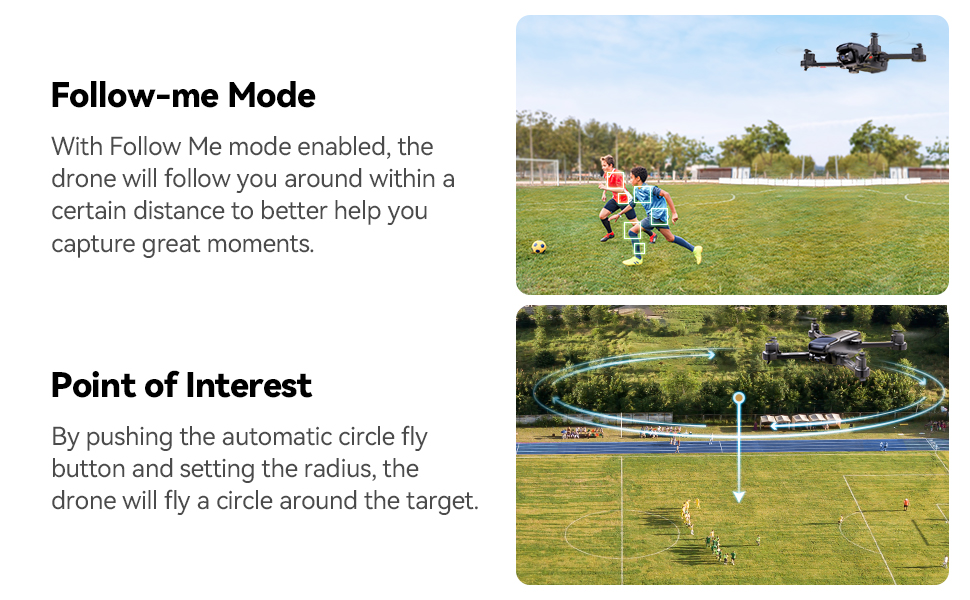
Image: Two diagrams illustrating advanced flight modes: 'Follow-me Mode' where the drone tracks a moving subject, and 'Point of Interest' where the drone orbits a central point, capturing dynamic footage.

Image: Two diagrams demonstrating advanced navigation features: 'Waypoint Fly' showing a drone following a pre-set route on a map, and '3 RTH Modes' illustrating how the drone can return to its home point due to low battery, signal loss, or a one-key command, ensuring the drone is not lost.
4.4 Return-to-Home (RTH) Modes
The Ruko U11S drone features three Return-to-Home (RTH) modes to prevent loss of the aircraft:
- Low Battery RTH: The drone automatically returns when the battery is critically low.
- Signal Loss RTH: If the connection between the drone and controller is lost, the drone will return to its last recorded home point.
- One-key RTH: Manually initiate the return-to-home function with a single button press.
5. Safety Guidelines
Always prioritize safety during drone operation. Adhere to local regulations and guidelines for drone flight.
- FAA Compliance: The FAA requires registration of this drone if flown in the US. You can register using the serial number affixed to the drone body.
- Pre-flight Check: Always ensure propellers are securely attached and undamaged. Check battery levels for both drone and controller.
- Environmental Awareness: Avoid flying in strong winds, rain, or other adverse weather conditions. Maintain a clear line of sight with the drone.
- Respect Privacy: Be mindful of privacy when flying near residential areas or private property.

Image: A visual representation of the Ruko U11S drone, highlighting its built-in Remote ID module and compliance with FAA Remote ID regulations. A note indicates that the Remote ID serial number is located on a sticker on the side of the drone.
6. Maintenance
Regular maintenance ensures the longevity and optimal performance of your Ruko U11S drone.
- Propeller Inspection: Regularly check propellers for any cracks, bends, or damage. Replace damaged propellers immediately using the provided spares and screwdriver.
- Battery Care: Store batteries in a cool, dry place. Do not overcharge or over-discharge. If storing for extended periods, charge to approximately 50-60%.
- Cleaning: Use a soft, dry cloth to clean the drone body and camera lens. Avoid using harsh chemicals or solvents.
- Storage: When not in use, store the drone and its components in the provided carrying case to protect them from dust and physical damage.
7. Troubleshooting
This section addresses common issues you might encounter with your Ruko U11S drone.
| Problem | Possible Cause | Solution |
|---|---|---|
| Drone does not power on | Low battery; Battery not properly inserted | Charge drone battery; Reinsert battery firmly |
| Cannot connect to remote controller | Controller battery low; Pairing issue | Charge controller; Refer to pairing instructions in quick start guide |
| Unstable flight / Drifting | Improper calibration; Strong winds | Perform IMU/compass calibration; Fly in calm conditions |
| Poor image/video quality | Dirty camera lens; Insufficient lighting | Clean lens with soft cloth; Fly in well-lit areas |
| R111S tracker not responding | Tracker battery low; Out of range | Charge R111S; Ensure drone is within 500-1000m range |
| Lost aircraft | Beyond RTH range; GPS signal lost | Activate R111S buzzer alarm (Range: 500-1000m, Accuracy: 2-3m, Audibility: 10m) |

Image: A family searching for a drone in a wooded area, illustrating the utility of the R111S GPS tracker's buzzer alarm feature. The image details the alarm's range (500-1000m), accuracy (2-3m), and audibility (10m), aiding in locating a lost aircraft.
8. Specifications
| Feature | Detail |
|---|---|
| Drone Model | Ruko U11S |
| Camera Resolution | 4K UHD, 90° Adjustable |
| Flight Time | Up to 20 minutes per battery (40 minutes total with 2 batteries) |
| Positioning Systems | GPS Positioning, Optical Flow Positioning |
| Remote Controller Battery | 3.7V/1200mAh (approx. 18 hours battery life) |
| R111S Tracker Range | 500-1000 meters (tracking) |
| R111S Tracker Audibility | 10 meters (buzzer alarm) |
| R111S Tracker Battery Life (Buzzer Off) | 3.0 hours |
| R111S Tracker Battery Life (Buzzer On) | 2.5 hours |
| FAA Compliance | Built-in Remote ID Module, FAA Remote ID Compliant |
9. Warranty and Support
Ruko provides customer support for its products. In case of any operational difficulties or inquiries, please contact the support team using the information below.

Image: Ruko customer support details, including a phone number (+1 (888) 892-0155) and email address (service@rukotoy.com), along with operating hours (Mon-Fri: 8 AM to 2 AM (next day) PST; Sat-Sun: 8 AM to 5 PM (PST)).
- Phone Support: +1 (888) 892-0155 (Mon-Fri: 8 AM to 2 AM (next day) PST; Sat-Sun: 8 AM to 5 PM (PST))
- Email Support: service@rukotoy.com
- Online Resources: Visit the official Ruko website for FAQs, firmware updates, and additional support materials.


