
1. Introduction
Thank you for choosing the intpw P9 USB C Hub Multiport Adapter. This device expands the connectivity of your USB-C enabled laptop, tablet, or smartphone, providing a comprehensive solution for various peripherals and display needs. Please read this manual carefully to ensure proper usage and optimal performance.
1.1 Product Overview
The intpw P9 USB C Hub is a 9-in-1 multiport adapter designed for efficiency and convenience. It features a durable aluminum alloy casing with an ergonomic 32-degree bevel design and rubber mats for stability.

Image: Overview of the intpw P9 USB C Hub, highlighting its 9 ports including USB-C 3.0, USB-A 3.0, USB-A 2.0, USB-C PD, SD/MicroSD card slots, and HDMI port.

Image: Detailed view of the hub's ergonomic design, featuring a 32-degree bevel, aluminum alloy construction, and non-slip rubber mats.
1.2 Package Contents
- intpw P9 USB C Hub Multiport Adapter
- User Manual
2. Setup Instructions
The intpw P9 USB C Hub is designed for plug-and-play functionality, requiring no additional drivers for most operating systems.
2.1 Connecting the Hub
- Connect the USB-C cable of the intpw P9 Hub to a compatible USB-C port on your host device (laptop, tablet, etc.). Ensure the host USB-C port supports DisplayPort Alt Mode for video output.
- For power delivery, connect your laptop's original power adapter to the USB-C PD port on the hub.
- Connect your desired peripherals (monitor, USB devices, SD/TF cards) to the corresponding ports on the hub.
Important Note:
- Do not unplug or plug the PD charger when using the USB-C hub. This can cause temporary disconnection of connected devices, loss of HDMI signal, or data transfer interruption.
- The USB-C PD port supports power input only and does not support data transfer or video output.
- For optimal charging, use at least a 65W power supply to charge your laptop via the hub.

Image: The intpw P9 USB C Hub connected to a laptop, demonstrating its plug-and-play capability and how it solves the issue of insufficient computer ports.
3. Operating Instructions
3.1 HDMI 4K@30Hz Video Output
Connect an HDMI cable from the hub's HDMI port to your HDTV, monitor, or projector. The hub supports 4K resolution at 30Hz, providing an immersive visual experience. Ensure your host device's USB-C port supports DisplayPort Alt Mode.
- Mirror Mode: Duplicate your laptop's screen onto an external display.
- Extend Mode: Extend your desktop across multiple screens for increased productivity.

Image: Illustration of Mirror Mode and Extend Mode functionality when connecting a laptop to an external display via the intpw P9 USB C Hub.

Image: A laptop connected to a large 4K monitor, demonstrating the hub's ability to support 4K@60Hz display output for high-resolution video.
3.2 High-Speed Data Transfer
- USB 3.0 Ports (3x): Transfer data at speeds up to 5Gbps. Ideal for external hard drives, SSDs, and high-speed flash drives.
- USB 2.0 Ports (2x): Connect peripherals like keyboards, mice, and printers. These ports offer speeds up to 480Mbps.
Note:
- USB 3.0/2.0 data ports are not recommended for charging devices.
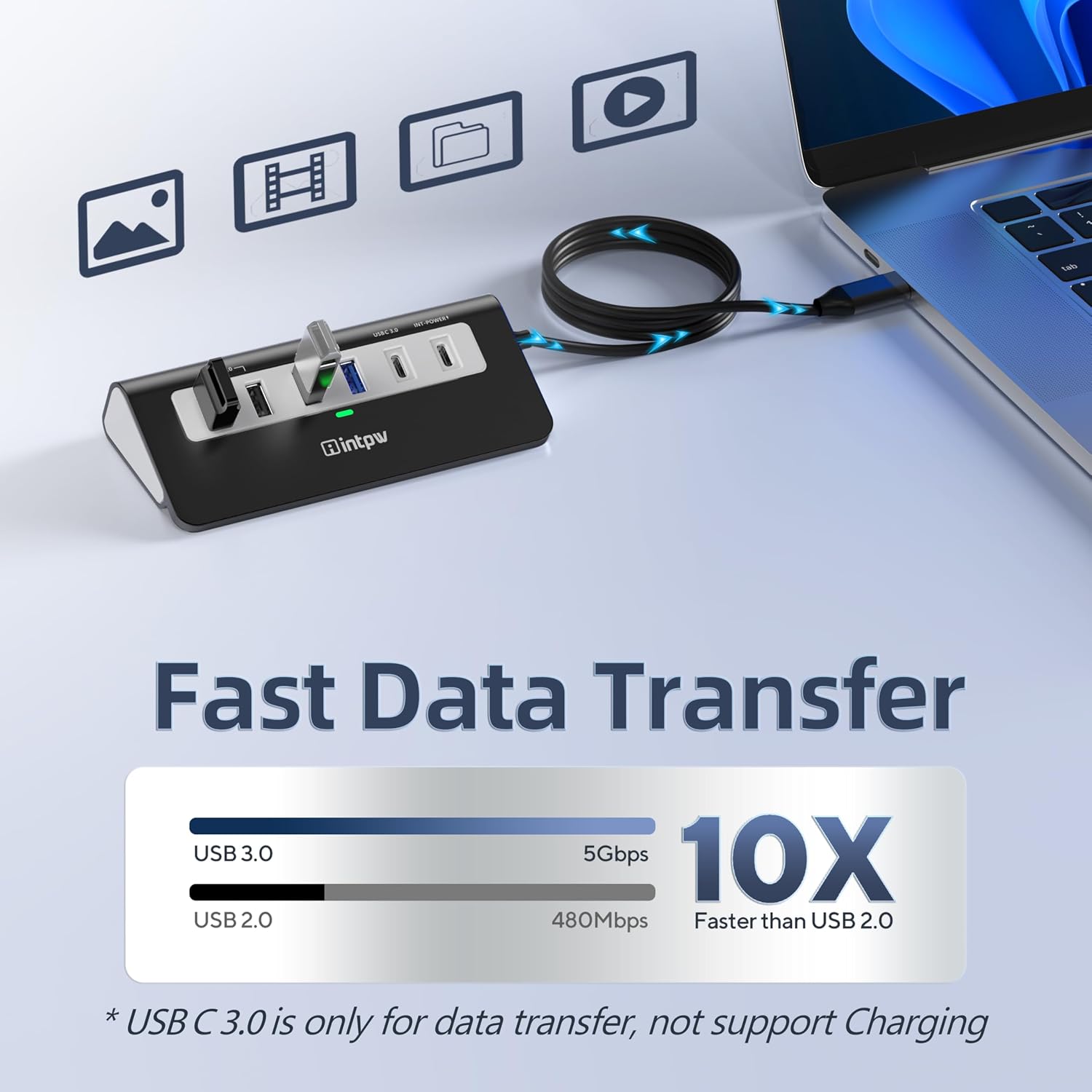
Image: Visual representation of fast data transfer capabilities, comparing USB 3.0 (5Gbps) and USB 2.0 (480Mbps) speeds.
3.3 Power Delivery (PD 100W)
The dedicated USB-C PD port allows you to charge your Type-C laptop or tablet with up to 100W power pass-through. This ensures your device remains powered while using the hub's other functions.
Note:
- The PD port does not support data transfer.
- For stable operation and charging, use your laptop's original power adapter or a compatible 65W+ USB-C PD charger.

Image: The intpw P9 USB C Hub facilitating 100W fast charging for a laptop, with indicators for over-voltage, over-temperature, and over-current protection.
3.4 SD/TF Card Reader
The integrated SD and TF (MicroSD) card slots support data transfer up to 104MB/s, allowing quick access to photos and videos from your memory cards.

Image: The intpw P9 USB C Hub demonstrating universal SD/TF card compatibility, with cards inserted and indicating data transfer speeds up to 104MB/s.
4. Compatibility
The intpw P9 USB C Hub is widely compatible with various devices and operating systems. For full functionality, especially video output, ensure your device's USB-C port supports DisplayPort Alt Mode.
4.1 Host Device Compatibility
- MacBook Air/Pro series (latest models)
- iPad Pro, iPad Air
- iPhone 15/16/17 Series (Pro Max, Pro, Air, Plus, Standard)
- Type-C Laptops (e.g., Lenovo, Samsung, Dell, HP, Microsoft Surface)
- iMac, Steam Deck
- Most other Type-C devices that support DisplayPort Alt Mode.
Important:
Please verify the capabilities of your laptop's USB-C port. Not all USB-C ports support video output or power delivery. Look for symbols like a lightning bolt (Thunderbolt), 'P' (Power Delivery), or 'D' (DisplayPort Alt Mode) next to the port.

Image: A guide to identifying USB-C port capabilities, distinguishing between Thunderbolt/DisplayPort Alt Mode, charging-only, and data-only ports.
4.2 Operating System Compatibility
- Windows 7/8/10/11
- macOS (latest versions)
- Chrome OS
- Linux

Image: A compatibility chart illustrating the range of devices (keyboard, mouse, printer, hard drive, webcam, controller, USB driver, USB fan) and operating systems (Windows, macOS, Linux) supported by the hub.
5. Maintenance
- Keep the hub away from water, fire, and corrosive liquids.
- Avoid dropping or subjecting the hub to strong impacts.
- Clean the hub with a soft, dry cloth. Do not use harsh chemicals or abrasive materials.
- Store the hub in a cool, dry place when not in use.
6. Troubleshooting
6.1 No Video Output via HDMI
- Ensure your host device's USB-C port supports DisplayPort Alt Mode.
- Try connecting the HDMI cable directly to your device (if applicable) to confirm the monitor and cable are working.
- Check display settings on your operating system to ensure the external monitor is detected and configured correctly.
- Restart your host device.
6.2 USB Devices Not Recognized
- Ensure the hub is securely connected to your host device.
- Try connecting the USB device to a different port on the hub.
- Connect the USB device directly to your host device to verify its functionality.
- If using high-power USB devices (e.g., external hard drives), ensure the hub is connected to a power source via the PD port.
6.3 Slow Charging or No Charging
- Ensure your power adapter is connected to the hub's USB-C PD port.
- Verify that your power adapter provides sufficient wattage (at least 65W recommended for laptops).
- Confirm that the USB-C port on your host device supports Power Delivery.
7. Specifications
| Feature | Specification |
|---|---|
| Model Number | P9 |
| Ports | 1x 4K HDMI, 1x PD 100W USB-C, 3x USB 3.0, 2x USB 2.0, 1x SD Card Slot, 1x TF Card Slot |
| HDMI Resolution | Up to 4K@30Hz |
| USB 3.0 Data Transfer Rate | Up to 5Gbps |
| USB 2.0 Data Transfer Rate | Up to 480Mbps |
| PD Charging | Up to 100W (input) |
| SD/TF Card Speed | Up to 104MB/s (UHS-I) |
| Material | Aluminum Alloy |
| Cable Length | Approx. 19.7 inches (0.5 meters) |
| Dimensions (L x W x H) | 8.27"L x 4.72"W x 2.2"H |
| Operating System | Chrome OS, Linux, Mac OS X, Windows 7/8/10/11 |
8. Warranty and Support
The intpw P9 USB C Hub comes with an 18-month warranty from the date of purchase. This warranty covers manufacturing defects and malfunctions under normal use.
For technical support, warranty claims, or any questions regarding your product, please contact intpw customer service through the retailer where you purchased the product or visit the official intpw website.
Official intpw Store: intpw Amazon Store
9. Product Video
Video: An official product video from intpw showcasing the P9 Black USB C Hub for laptops and PCs, demonstrating its features and connectivity.


