
1. Introduction and Overview
This manual provides detailed instructions for the installation, operation, and maintenance of your Leadfan Android Car Stereo Radio. This advanced in-dash system features a 10.1-inch touchscreen, Android 12 operating system, and supports wireless Apple CarPlay and Android Auto, GPS navigation, Bluetooth 5.1, and more. It is specifically designed for seamless integration into Toyota Tundra (2007-2013) and Toyota Sequoia (2008-2018) vehicles.

Figure 1.1: Leadfan Android Car Stereo Radio and included components.
This image displays the main unit of the Leadfan Android Car Stereo Radio, showcasing its large 10.1-inch touchscreen with a user interface resembling a smartphone's home screen, featuring various app icons. Below the main unit, a backup camera, a bundle of wiring harnesses, and a smartphone illustrating wireless CarPlay and Android Auto connectivity are visible, highlighting the product's comprehensive features and accessories.
2. Product Compatibility
The Leadfan Android Car Stereo Radio is engineered for specific Toyota models and years. Ensure your vehicle matches the compatibility requirements for proper fit and function.
2.1 Compatible Vehicle Models
- Toyota Tundra: 2007, 2008, 2009, 2010, 2011, 2012, 2013
- Toyota Sequoia: 2008, 2009, 2010, 2011, 2012, 2013, 2014, 2015, 2016, 2017, 2018
2.2 JBL Audio System Compatibility
This car stereo offers specific models compatible with vehicles equipped with the JBL audio system. Please verify your vehicle's audio configuration before selecting the appropriate unit.

Figure 2.1: Vehicle Dashboard Compatibility and JBL Audio System.
This image illustrates the visual transformation of a Toyota Tundra/Sequoia dashboard, showing the original factory radio on the right and the Leadfan car stereo installed on the left. It also provides visual cues for identifying compatibility with JBL audio systems, indicating which factory radio configurations are suitable for this product.
3. Package Contents
Upon opening the package, ensure all the following components are present and in good condition:
- Leadfan 10.1-inch Android Car Stereo Main Unit
- Backup Camera
- Rear View Input Cable
- GPS Antenna
- USB Cables (x2)
- Power Cable
- RCA Cable
- WiFi Antenna
- Bluetooth Antenna
- Original USB Cable
- CanBus Decoder (if applicable for your vehicle model)
- User Manual

Figure 3.1: Package List and Unit Dimensions.
This image provides a visual representation of the car stereo's dimensions (10.1 inches, 280mm x 173mm) and a clear layout of all accessories included in the package. It serves as a checklist for users to confirm they have received all necessary components for installation and operation.
4. Installation Guide
The Leadfan Android Car Stereo Radio is designed for a plug-and-play installation in compatible Toyota Tundra and Sequoia models. However, professional installation is recommended if you are unfamiliar with car audio wiring.
4.1 Pre-Installation Checklist
- Ensure the vehicle's ignition is off and the battery is disconnected before starting.
- Confirm all package contents are present.
- Identify your vehicle's specific wiring harness configuration (e.g., with or without JBL audio system).
4.2 Wiring and Connections
The provided wiring harness is designed to connect directly to your vehicle's factory harness. Match the connectors carefully. For vehicles with a JBL audio system, ensure you have selected the correct product variant (Style C) for proper audio integration.
- Power Connection: Connect the main power harness to the vehicle's corresponding power and ground wires.
- Speaker Connections: Connect the speaker wires from the stereo harness to the vehicle's speaker wires.
- USB Cables: Route the USB cables to a convenient location for connecting external devices.
- GPS Antenna: Mount the GPS antenna in a location with a clear view of the sky, typically on the dashboard or under the windshield.
- WiFi/Bluetooth Antennas: Connect the WiFi and Bluetooth antennas to the designated ports on the back of the unit.
- Backup Camera: Connect the backup camera cable to the 'Backup Camera' input on the stereo. Ensure the camera's power wire is connected to the vehicle's reverse light circuit for automatic activation.
- RCA Cables: Use RCA cables for external amplifier, subwoofer, or auxiliary video inputs/outputs as needed.
- Steering Wheel Control (SWC): Connect the SWC wires to your vehicle's steering wheel control wires. Configuration may be required in the stereo's settings.

Figure 4.1: Backup Camera Wiring Diagram.
This diagram provides a visual guide for connecting the backup camera, detailing the power and video signal connections to the car stereo and the vehicle's reverse light circuit. It highlights the camera's features such as high definition, night vision, wide angle, and waterproof design.
4.3 Post-Installation
- Securely mount the stereo in the dashboard.
- Reconnect the vehicle battery.
- Turn on the ignition and test all functions of the stereo.
5. Initial Setup and Configuration
After successful installation, perform the initial setup steps to optimize your car stereo's performance.
5.1 Power On and Initial Boot
Turn on your vehicle's ignition. The stereo should power on automatically. The first boot may take slightly longer as the Android system initializes.
5.2 Wi-Fi Connection
To access online features, download apps, and use online maps, connect the stereo to a Wi-Fi network (e.g., your phone's hotspot).
- Go to Settings > Network & Internet > Wi-Fi.
- Select your desired Wi-Fi network and enter the password.
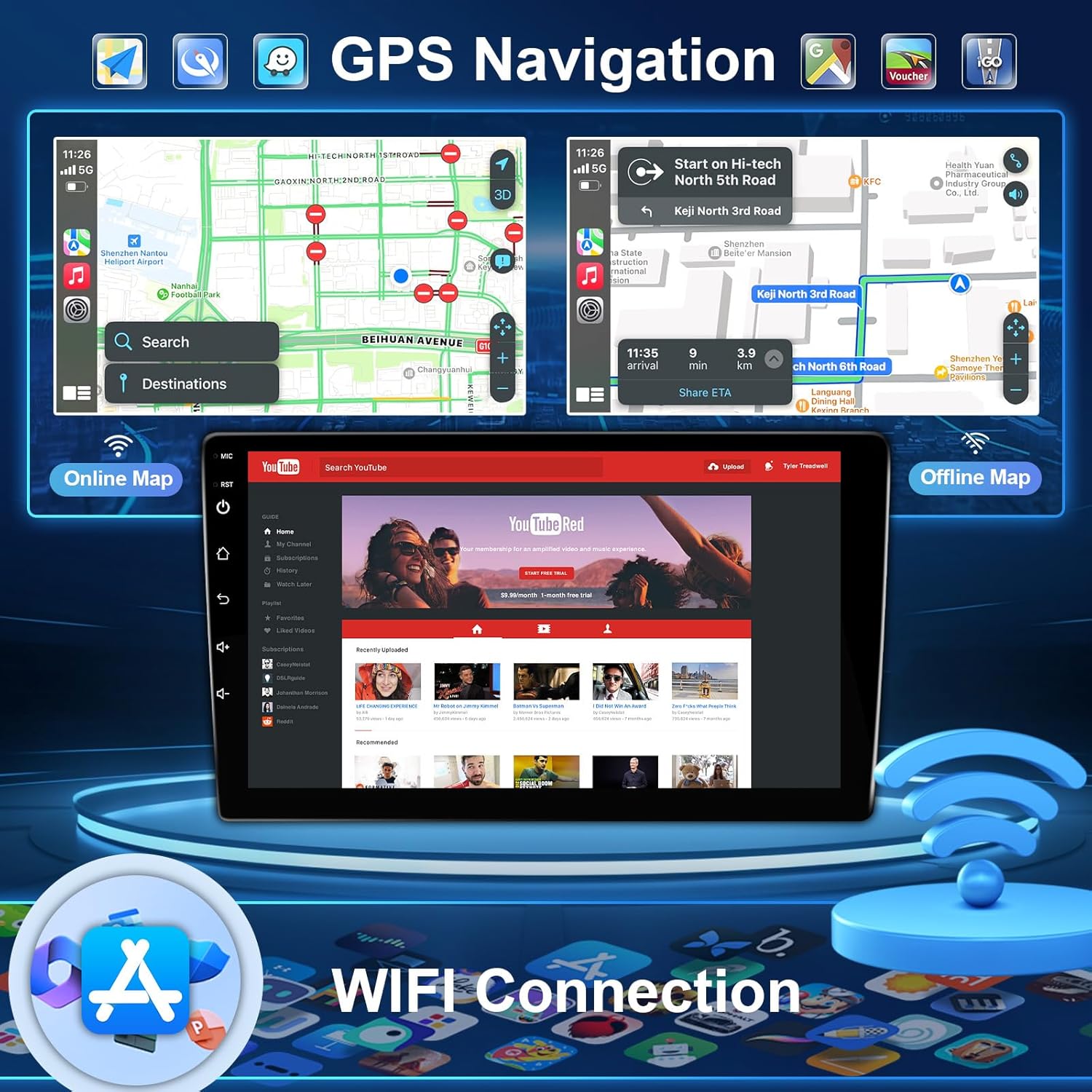
Figure 5.1: GPS Navigation and Wi-Fi Connection.
This image demonstrates the car stereo's capabilities for GPS navigation, showing both online and offline map interfaces. It also highlights the Wi-Fi connectivity feature, essential for accessing online services, streaming content, and downloading applications.
5.3 Bluetooth Pairing
Pair your smartphone via Bluetooth for hands-free calling and audio streaming.
- Go to Settings > Connected devices > Pair new device.
- On your smartphone, search for the car stereo's Bluetooth name (e.g., "Leadfan Car Stereo") and pair.
- Confirm the pairing code on both devices.

Figure 5.2: Bluetooth 5.1 and Other Features.
This composite image showcases several key functionalities: the Bluetooth 5.1 interface for hands-free calls and music streaming, the FM radio tuner, the clear display from the backup camera, and the customizable settings for steering wheel controls.
5.4 Steering Wheel Control (SWC) Learning
If your vehicle has steering wheel controls, you can configure them to operate the stereo.
- Go to Settings > Steering Wheel Control.
- Follow the on-screen instructions to assign functions to each button. Typically, you press a button on the steering wheel, then select the corresponding function on the stereo's screen.
6. Operating Instructions
Familiarize yourself with the various functions and features of your Leadfan Android Car Stereo.
6.1 Wireless Apple CarPlay & Android Auto
Connect your smartphone wirelessly to access navigation, music, calls, and messages directly on the stereo's screen.
- For Apple CarPlay: Ensure Wi-Fi and Bluetooth are enabled on your iPhone. Select the CarPlay app on the stereo and follow the prompts to connect.
- For Android Auto: Ensure Wi-Fi and Bluetooth are enabled on your Android phone. Select the Android Auto app on the stereo and follow the prompts. Android Auto supports both wireless and wired connections.
- Voice Control: Use voice commands (e.g., "Hey Siri" or "Hey Google") for hands-free operation.

Figure 6.1: CarPlay, Android Auto, and MirrorLink Features.
This image provides a comprehensive overview of the stereo's smartphone integration capabilities. It visually explains how CarPlay and Android Auto enable access to phone functions like navigation, music, and calls, while also demonstrating the MirrorLink feature for screen mirroring from both iPhone and Android devices.
6.2 Mirror Link Function
Mirror Link allows you to display your smartphone's screen directly onto the car stereo's display.
- For iOS: Supports wireless connection.
- For Android: Supports wireless and wired (USB) connection.
- Access the Mirror Link app on the stereo and follow the instructions to connect your device.
6.3 GPS Navigation
The stereo comes with a built-in GPS module and supports both offline and online navigation maps.
- Online Maps: Requires a Wi-Fi connection or mobile hotspot. Download your preferred navigation app (e.g., Google Maps, Waze) from the app store.
- Offline Maps: Download map data for your region to use navigation without an internet connection.
6.4 Split Screen Function
The split-screen feature allows you to run two applications simultaneously on the 10.1-inch display.
- To activate, long-press the recent apps button or drag an app to one side of the screen.
- Select a second app to occupy the other half of the screen.
- Both applications can be operated independently.

Figure 6.2: 2.5D Touch Screen Features.
This image emphasizes the visual quality and interactive capabilities of the 2.5D IPS touchscreen. It illustrates the crisp 1080P HD display, the convenience of the split-screen mode for multitasking, and the responsive touch interface, enhancing the user experience.
6.5 FM Radio
Access local radio stations with the built-in FM tuner.
- Open the FM Radio app.
- Use the scan function to find available stations or manually tune to a frequency.
6.6 Audio Equalizer (EQ)
Adjust audio settings to your preference using the integrated equalizer.
- Access the EQ settings from the audio menu.
- Choose from preset sound modes or customize individual frequency bands.
7. Maintenance
Proper care and maintenance will extend the lifespan of your car stereo.
- Screen Cleaning: Use a soft, lint-free cloth to clean the touchscreen. For stubborn smudges, slightly dampen the cloth with water or a screen-safe cleaner. Avoid abrasive materials or harsh chemicals.
- General Cleaning: Keep the unit free from dust and debris. Use a soft brush or compressed air to clean vents and ports.
- Software Updates: Periodically check for software updates via the system settings (requires Wi-Fi connection) to ensure optimal performance and access to new features.
- Avoid Extreme Temperatures: Do not expose the unit to extreme heat or cold for prolonged periods, as this can affect electronic components.
8. Troubleshooting
If you encounter issues with your Leadfan Android Car Stereo, refer to the following common problems and solutions.
8.1 No Power / Unit Not Turning On
- Check all power connections and fuses.
- Ensure the vehicle's battery is properly connected and charged.
- Verify the ignition is on.
8.2 No Sound / Distorted Audio
- Check speaker wire connections.
- Ensure the volume is not muted or set too low.
- Verify the correct audio source is selected.
- If your vehicle has a JBL audio system, ensure you have the correct stereo model (Style C) and that all JBL-specific wiring is correctly connected.
8.3 GPS Signal Loss / Inaccurate Navigation
- Ensure the GPS antenna is properly connected and mounted in a location with a clear view of the sky.
- Check your internet connection if using online maps.
- Update map data if using offline maps.
8.4 Bluetooth Connectivity Issues
- Ensure Bluetooth is enabled on both the stereo and your smartphone.
- Delete previous pairings on both devices and try pairing again.
- Move your phone closer to the stereo.
8.5 Backup Camera Not Displaying
- Check the camera's power and video signal connections.
- Ensure the camera's power wire is correctly connected to the vehicle's reverse light circuit.
8.6 Touchscreen Unresponsive
- Perform a soft reset of the unit (refer to the user manual for specific instructions, usually a small reset button).
- Ensure the screen is clean and free of debris.
For issues not covered here or if troubleshooting steps do not resolve the problem, please contact Leadfan customer support.

Figure 8.1: How to Contact Support.
This image provides a visual guide on how to reach out for technical support. It outlines the steps to find the seller's contact information, typically by clicking on the 'sold by' link and then the 'Ask a question' button, encouraging users to provide photos or videos of their issues for quicker resolution.
9. Specifications
| Feature | Specification |
|---|---|
| Model Number | f08666ac-b329-4a69-96cd-500df582b9b2 |
| Operating System | Android 12 |
| Memory (RAM + ROM) | 2GB RAM + 32GB ROM (4-core) |
| Screen Size | 10.1 inches |
| Display Type | 2.5D IPS Touchscreen |
| Connectivity Technology | Bluetooth 5.1, USB, Wi-Fi |
| Special Features | Wireless Apple CarPlay, Android Auto, Mirror Link, GPS Navigation, Split Screen, Steering Wheel Control (SWC), Backup Camera Support, FM Radio, EQ Setting |
| Backup Camera | 1080P, 170° Wide-Angle, IP68 Waterproof, Night Vision |
| Audio Output Mode | Stereo |
| Number of Channels | 2 |
| Control Method | Touch |
| Compatible Devices | Smartphone |
| Package Dimensions | 11.81 x 11.02 x 3.74 inches |
| Item Weight | 4.4 pounds |
10. Warranty and Support
Leadfan is committed to providing high-quality products and customer satisfaction.
10.1 Return Policy
This product is eligible for a 30-day return policy from the date of purchase. Please refer to your retailer's specific return guidelines for detailed information.
10.2 Technical Support
For technical assistance, installation queries, or troubleshooting beyond the scope of this manual, please contact Leadfan customer support through your purchase platform. When contacting support, providing details such as your order number, product model, and a clear description (with photos or videos if possible) of the issue will help expedite the resolution process.


