
TP-Link Deco BE65 Pro
TP-Link Deco BE65 Pro Whole Home WiFi 7 Mesh System User Manual
Model: Deco BE65 Pro (2-pack)
1. Introduction
Welcome to the user manual for your TP-Link Deco BE65 Pro Whole Home WiFi 7 Mesh System. This document provides detailed instructions for setting up, operating, maintaining, and troubleshooting your Deco BE65 Pro system. Please read this manual carefully to ensure optimal performance and a seamless WiFi experience throughout your home.
2. Product Overview
2.1 Key Features
- 11 Gbps Tri-Band WiFi: Delivers ultra-fast speeds with 5764 Mbps (6 GHz), 4324 Mbps (5 GHz), and 688 Mbps (2.4 GHz).
- 5 Gbps Wired Connections: Equipped with two 5 Gbps ports and one 2.5 Gbps port for high-speed wired connectivity.
- Wireless and Wired Combined Backhaul: Utilizes multiple connections simultaneously for enhanced stability and speed between Deco units.
- Multi-Link Operation (MLO): Improves throughput, reduces latency, and enhances reliability by sending and receiving data across different bands and channels concurrently.
- 320 MHz Channels: Doubles bandwidth for more simultaneous transmissions at the fastest possible speeds.
- 6 GHz Band Support: Minimizes congestion with greenfield spectrum, providing robust high-speed connections.
- TP-Link HomeShield: Offers comprehensive network protection, robust parental controls, and real-time IoT security.
- Universal Compatibility: Backward compatible with all previous WiFi generations.
2.2 Package Contents
The TP-Link Deco BE65 Pro (2-pack) includes the following items:
- 2 x Deco BE65 Pro Units (Router, Satellite)
- 2 x Power Adapters
- 1 x Ethernet Cable
- Quick Installation Guide
2.3 Product Components
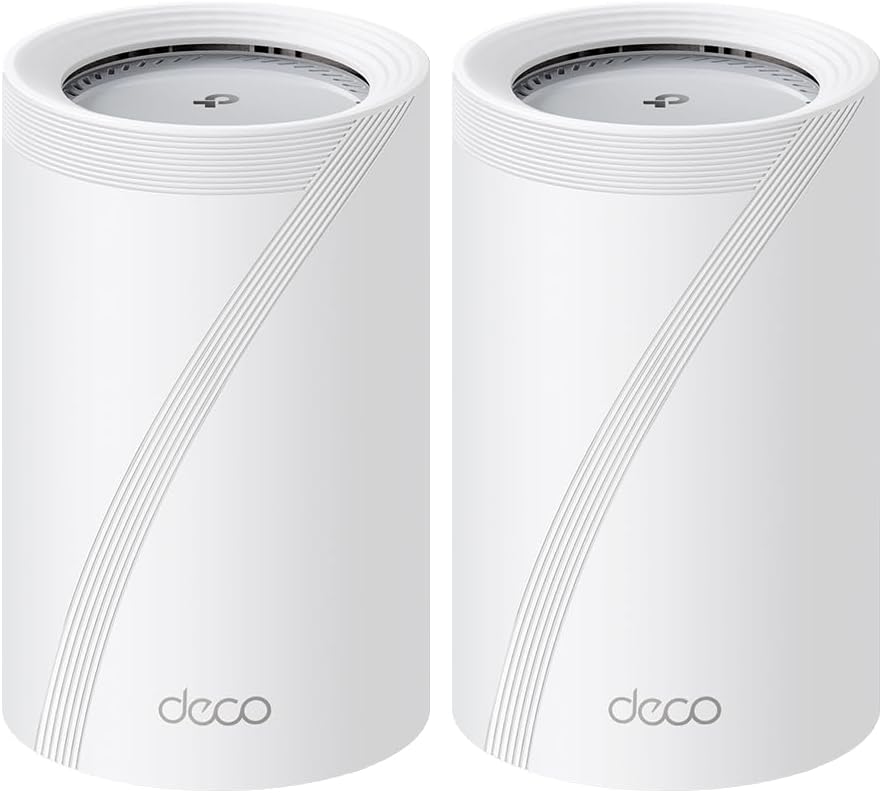
This image displays two white TP-Link Deco BE65 Pro units, showcasing their cylindrical design and sleek appearance. These units work together to create a seamless whole-home mesh WiFi network.

A close-up view of the back of a TP-Link Deco BE65 Pro unit, highlighting its connectivity options. From top to bottom, it features a WPS button, one 2.5 Gbps Ethernet port, two 5 Gbps Ethernet ports, a USB port, and a power input.

An infographic illustrating the key features of the Deco BE65 Pro. It emphasizes Tri-Band Wi-Fi 7 with speeds up to 11 Gbps, support for connecting up to 200 devices, Wireless and Wired Combined Backhaul, TP-Link HomeShield for security, Multi-Link Operation (MLO), 4K-QAM, Seamless AI Roaming, and 320 MHz channels for enhanced bandwidth.

This graphic details the lightning-fast Tri-band WiFi speeds of the Deco BE65 Pro. It shows 6 GHz band at 5764 Mbps, 5 GHz band at 4324 Mbps, and 2.4 GHz band at 688 Mbps, totaling up to 11 Gbps.

An image showcasing the ultra-fast wired performance of the Deco BE65 Pro. It highlights one 2.5 Gbps WAN/LAN port, two 5 Gbps WAN/LAN ports, and one USB port, suitable for connecting devices like desktops, 4K HDTVs, and computers.

A diagram illustrating the 'Wireless and Wired Combined Backhaul' feature. It shows two Deco units connected via 6 GHz, 5 GHz, 2.4 GHz Wi-Fi connections, and an Ethernet Wired Connection, demonstrating how the system uses multiple paths for stronger and more flexible data transmission between units.
3. Setup Guide
3.1 Before You Begin
- Ensure you have an active internet connection from your Internet Service Provider (ISP).
- Download the TP-Link Deco app on your smartphone or tablet (available on iOS and Android).
- Unpack all components and ensure nothing is missing.
3.2 Step-by-Step Installation
- Power On: Plug in one Deco unit and connect it to your modem using the provided Ethernet cable. Wait for the LED light to pulse blue.
- Launch App: Open the TP-Link Deco app and log in or create a TP-Link ID.
- Follow In-App Instructions: The app will guide you through setting up your first Deco unit, including creating a WiFi network name and password.
- Add More Units: Once the first Deco is set up, the app will prompt you to add additional Deco units. Place them strategically around your home for optimal coverage.
- Placement: Refer to Section 5.3 for optimal placement tips.
4. Operating Instructions
4.1 Managing Your Network
The TP-Link Deco app is your central hub for managing your mesh WiFi network. Through the app, you can:
- View connected devices and their network usage.
- Set up a guest network for visitors.
- Configure parental controls and time limits for specific devices.
- Prioritize devices for gaming or streaming (QoS).
- Access TP-Link HomeShield features for network security.
- Perform network diagnostics and speed tests.
4.2 Connecting Devices
To connect your devices (smartphones, tablets, laptops, smart home devices) to the Deco network:
- On your device, open the WiFi settings.
- Select your Deco network name (SSID) from the list of available networks.
- Enter the WiFi password you created during setup.
- Your device should now be connected to the Deco mesh network.
5. Maintenance
5.1 Firmware Updates
Regularly updating your Deco system's firmware is crucial for security, performance, and new features. The Deco app will typically notify you when new firmware is available. You can initiate updates directly from the app's settings menu.
5.2 Cleaning
To maintain optimal performance, keep your Deco units clean. Use a soft, dry cloth to wipe down the exterior. Avoid using liquid cleaners or abrasive materials, as these can damage the device.
5.3 Placement
For the best WiFi coverage and performance:
- Place Deco units in open areas, away from obstructions like large furniture or walls.
- Avoid placing units near devices that emit electromagnetic interference, such as microwaves, cordless phones, or Bluetooth devices.
- Distribute units evenly throughout your home to create a strong, consistent mesh network.
- The main Deco unit should be connected directly to your modem.
6. Troubleshooting
6.1 Common Issues and Solutions
- No Internet Connection:
- Check if your modem is working correctly.
- Ensure the Ethernet cable between the main Deco and the modem is securely connected.
- Restart your modem and then your Deco units.
- Verify your internet settings in the Deco app.
- Slow WiFi Speeds:
- Ensure Deco units are optimally placed (refer to Section 5.3).
- Check for firmware updates.
- Reduce interference by moving Deco units away from other electronics.
- Use the Deco app to run a network optimization or speed test.
- Devices Disconnecting Frequently (e.g., IoT devices like Nest cameras):
- Ensure the device is within range of a Deco unit.
- Check for any specific settings on the IoT device that might affect its connection stability.
- Verify that the Deco firmware is up to date.
- Consider creating a dedicated 2.4 GHz network for older IoT devices if stability issues persist on a combined network.
- Compatibility Issues with ISP Equipment (e.g., Bell Fiber Sagemcom 10gig Port):
- Some ISP-provided modems/gateways may have specific port configurations or firmware that can cause compatibility challenges with high-speed ports (e.g., 5 Gbps or 10 Gbps).
- Ensure your Deco firmware is the latest version, as updates often address compatibility.
- If issues persist, try connecting the Deco to a lower-speed port on your ISP modem (e.g., 2.5 Gbps or 1 Gbps) as a temporary measure, or consult TP-Link support and your ISP for known compatibility solutions.
6.2 Resetting Your Deco System
If you encounter persistent issues, a factory reset may resolve them. To perform a factory reset:
- With the Deco unit powered on, locate the Reset button (usually a small pinhole) on the bottom or back of the unit.
- Use a paperclip or similar object to press and hold the Reset button for approximately 1 second until the LED light turns red.
- Release the button. The Deco unit will restart and revert to factory default settings. You will need to set it up again using the Deco app.
7. Specifications
| Feature | Detail |
|---|---|
| Brand | TP-Link |
| Model Number | Deco BE65 Pro(2-pack) |
| Wireless Communication Standard | 802.11.be, 802.11a, 802.11ax, 802.11b, 802.11n |
| Special Feature | Wi-Fi 7, Tri-Band Connection, Multi-Link Operation, TP-Link HomeShield, Universal Compatibility |
| Connectivity Technology | Wi-Fi 7, Ethernet |
| Compatible Devices | Laptop, Personal Computer, Smartphone, Tablet |
| Recommended Uses For Product | Home |
| Color | White |
| Item Weight | 3.31 pounds |
| Package Dimensions | 9.8 x 9.57 x 4.61 inches |
| Operating System | ZyNOS |
| Manufacturer | TP-Link |
| Date First Available | June 4, 2025 |
8. Warranty and Support
Your TP-Link Deco BE65 Pro system comes with a manufacturer's warranty. For detailed warranty information, please refer to the warranty card included in your package or visit the official TP-Link website. For technical support, product registration, and frequently asked questions, please visit the TP-Link support page at www.tp-link.com/support.
You can also contact TP-Link customer service directly for assistance with setup, troubleshooting, or any other product-related inquiries.
Related documentsDeco BE65 Pro


Ask a question about this manual
Ask about setup, troubleshooting, compatibility, parts, safety, or missing instructions. Manuals+ will review the question and use this page’s manual context to help answer it.