
Guide Sensmart TK421
User Manual: TK Series Thermal Vision Monocular
Model: TK421 | Brand: Guide Sensmart
Introduction
The Guide Sensmart TK421 Thermal Vision Monocular is a high-performance device designed for enhanced visibility in various outdoor conditions, particularly low light or darkness. Featuring a 400x300 resolution sensor and a 50Hz refresh rate, it provides clear thermal imaging for applications such as hunting, wildlife observation, and surveillance. Its compact and durable design ensures reliable operation in challenging environments.
Important Safety Information
- Do not expose the device to extreme temperatures or direct sunlight for prolonged periods.
- Avoid direct eye exposure to the laser beam. Do not direct the laser beam toward people or animals.
- Keep the device away from water unless specifically stated as waterproof. This model is IP66 rated, but general caution is always recommended.
- Use only the specified power adapter and cables for charging.
- Do not attempt to disassemble or repair the device yourself. Contact authorized service personnel.
- Store the device in a cool, dry place when not in use.
Package Contents
Upon opening the package, please verify that all the following items are included:
- Thermal Monocular (TK421)
- Power adapter
- USB cable (Type C)
- Micro HDMI cable
- Lens cap
- Wrist strap
- Inner bag
- Shoulder strap
- Quick start guide
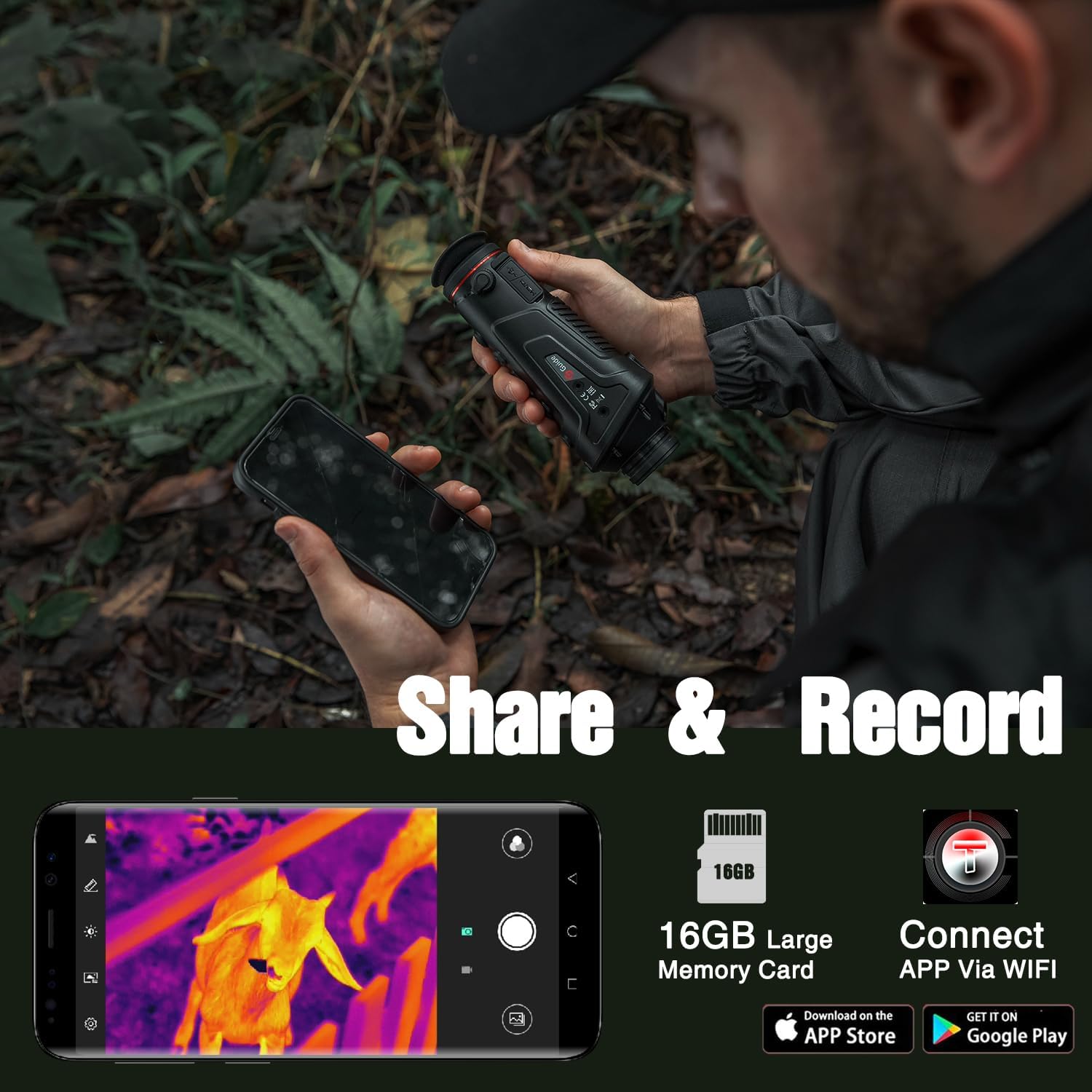
Image: All items included in the TK421 thermal monocular package.
Product Overview
The TK421 thermal monocular is designed for ease of use and durability. Familiarize yourself with its main components:

Image: The TK421 thermal monocular, highlighting its ergonomic shape and button layout.
- Objective Lens: Front lens for thermal image capture.
- Eyepiece: Adjustable for comfortable viewing.
- Control Buttons: Located on the top for power, mode selection, zoom, and recording.
- USB-C Port: For charging and data transfer.
- Micro HDMI Port: For video output.
- Strap Loops: For attaching wrist or shoulder straps.
Setup Guide
1. Charging the Device
Before first use, fully charge the TK421 monocular. The device is equipped with a durable rechargeable battery that provides up to 5 hours of continuous use.
- Connect the provided USB Type-C cable to the monocular's charging port.
- Connect the other end of the USB cable to the power adapter.
- Plug the power adapter into a standard electrical outlet.
- The charging indicator light will show the charging status. It will typically turn off or change color when fully charged.
2. Initial Power On
- Press and hold the Power button (usually marked with a power symbol) for a few seconds until the display activates.
- Adjust the eyepiece focus ring until the display image is clear.
Operating Instructions
Basic Operation
- Power On/Off: Press and hold the Power button.
- Zoom: Use the dedicated zoom buttons (e.g., '+' and '-' or up/down arrows) to adjust magnification (1.7x-6.8x).
- Mode Selection: Press the Mode button to cycle through different viewing modes (e.g., Natural, White Hot, Iron Hot, etc.).
- Capture Photo/Video: Press the Capture button to take a photo or start/stop video recording. The device has 16GB of internal storage.
Advanced Features
- Multiple Color Palettes: The TK421 offers 6 color palettes and 3 scene modes to optimize viewing for different environments and preferences. Experiment with these settings to find the best contrast for your target.
- Rangefinder and Picture-in-Picture (PIP) Mode: Utilize the built-in rangefinder for distance estimation. The Picture-in-Picture mode allows for a magnified view of a specific area while maintaining a wider field of view.
- Infrared Indicator: A built-in Infrared indicator assists in easy target location, with a range of up to 200 meters.
- Wi-Fi Connectivity and TargetIR App: Connect the monocular to your smartphone via Wi-Fi using the TargetIR app for remote control, real-time image/video transmission, and sharing.

Image: Examples of different color palettes available on the TK421 for varied thermal visualization.

Image: Demonstrating the multi-functional capabilities including PIP mode, ranging, and hot spot tracking.

Image: The TK421 connected to a smartphone via Wi-Fi for remote viewing and recording.
Viewing Thermal Imagery

Image: A visual comparison illustrating the enhanced clarity provided by the TK421's thermal imaging capabilities.
Official Product Video
Video: A demonstration of the TK421 thermal monocular in use, showing real-time field observation of wildlife. This video illustrates the device's ability to provide clear thermal imagery for identifying subjects in various environments.
Maintenance
- Cleaning the Lens: Use a soft, lint-free cloth specifically designed for optics to clean the objective lens and eyepiece. Do not use abrasive materials or harsh chemicals.
- Cleaning the Body: Wipe the device body with a soft, damp cloth. Avoid excessive moisture.
- Storage: When not in use for extended periods, store the monocular in its protective bag in a dry, cool environment. Ensure the battery is partially charged (around 50%) before long-term storage.
- Durability: The TK421 features an IP66 waterproof rating and is designed to withstand drops of up to 1 meter, making it suitable for harsh weather conditions.
Image: Highlighting the durable and waterproof features of the TK421 monocular.
Troubleshooting
| Problem | Possible Cause | Solution |
|---|---|---|
| Device does not power on. | Battery is depleted. | Charge the device using the provided power adapter and USB-C cable. |
| Image is blurry or unclear. | Eyepiece not focused; lens is dirty. | Adjust the eyepiece focus ring. Clean the objective lens and eyepiece with a soft, lint-free cloth. |
| Cannot connect to TargetIR app. | Wi-Fi is off; incorrect app settings. | Ensure Wi-Fi is enabled on the monocular and your smartphone. Check app permissions and network settings. Restart both devices. |
| Short battery life. | Frequent use of power-intensive features; old battery. | Reduce screen brightness or turn off Wi-Fi when not needed. Ensure the device is fully charged before use. If battery life significantly degrades, contact support. |
Technical Specifications
| Feature | Detail |
|---|---|
| Model Name | Guide Sensmart-TK 421 |
| Sensor Resolution | 400x300 pixels |
| Pixel Pitch | 17 µm |
| Refresh Rate | 50Hz |
| Zoom Range | 1.7x-6.8x |
| Display Type | 0.4-inch FLOCS screen |
| Display Resolution | 1280x960 |
| Internal Storage | 16GB |
| Battery Life | Up to 5 hours |
| Waterproof Rating | IP66 |
| Drop Resistance | Up to 1 meter |
| Connectivity | Wi-Fi, USB Type-C, Micro HDMI |
| Material | Metal, Plastic |
| Item Weight | 1 Pound |
| Dimensions (LxWxH) | 14.17 x 4.72 x 7.09 inches (Product) |
Warranty and Support
The Guide Sensmart TK421 Thermal Vision Monocular comes with a three-year warranty, providing peace of mind and protection for your investment.
For technical support, warranty claims, or any inquiries regarding your device, please contact Guide Sensmart customer service. Refer to the quick start guide included in your package for specific contact details or visit the official Guide Sensmart website.
Online Resources:
- Visit the Guide Sensmart Store on Amazon for product information and updates.
Related documentsTK421


Ask a question about this manual
Ask about setup, troubleshooting, compatibility, parts, safety, or missing instructions. Manuals+ will review the question and use this page’s manual context to help answer it.