
1. Introduction
Thank you for choosing the Inskam 451 Handheld Endoscope. This device is designed for visual inspection in hard-to-reach areas, offering clear imaging and ease of use. Please read this manual carefully before operating the device to ensure proper usage and to maximize its lifespan.
Key Features:
- 4.5-inch IPS Screen: Provides instant, high-definition viewing of images and videos.
- 720p Camera: Captures clear visuals for detailed inspection.
- 5-meter Rigid Cable: Allows access to deep or distant areas.
- IP67 Waterproof Camera: Suitable for use in wet or submerged environments.
- 6 Adjustable LED Lights: Illuminates dark inspection areas.
- 2000mAh Battery: Offers extended operating time.
- Integrated Stand: Frees your hands for easier operation.
2. Product Overview and Package Contents
Familiarize yourself with the components of your Inskam 451 Endoscope.

Figure 2.1: The Inskam 451 Handheld Endoscope, showing the main display unit and the attached flexible camera cable with its LED-equipped lens.
Package Contents:
- 1 x Inskam 451 Handheld Endoscope Unit
- 1 x Lens Cable (5-meter rigid cable)
- 1 x USB Type-C Charging Cable
3. Setup
3.1 Charging the Device
Before first use, fully charge the endoscope. Connect the provided USB Type-C charging cable to the device's charging port and a suitable USB power adapter (not included).

Figure 3.1: The endoscope features a 2000mAh battery, providing approximately 3 hours of use on a full charge, with a charging time of about 2 hours.
3.2 Inserting TF Card (Optional)
To save images and videos, insert a Micro SD (TF) card (up to 32GB, not included) into the designated TF card slot on the side of the device. Ensure the device is powered off before inserting or removing the card.

Figure 3.2: Detail showing the USB Type-C charging port and the hidden TF card slot, covered by a silicone flap for protection.
3.3 Attaching the Lens Cable
Connect the rigid lens cable to the main unit. Ensure it clicks securely into place. The cable is detachable for easy storage and replacement.
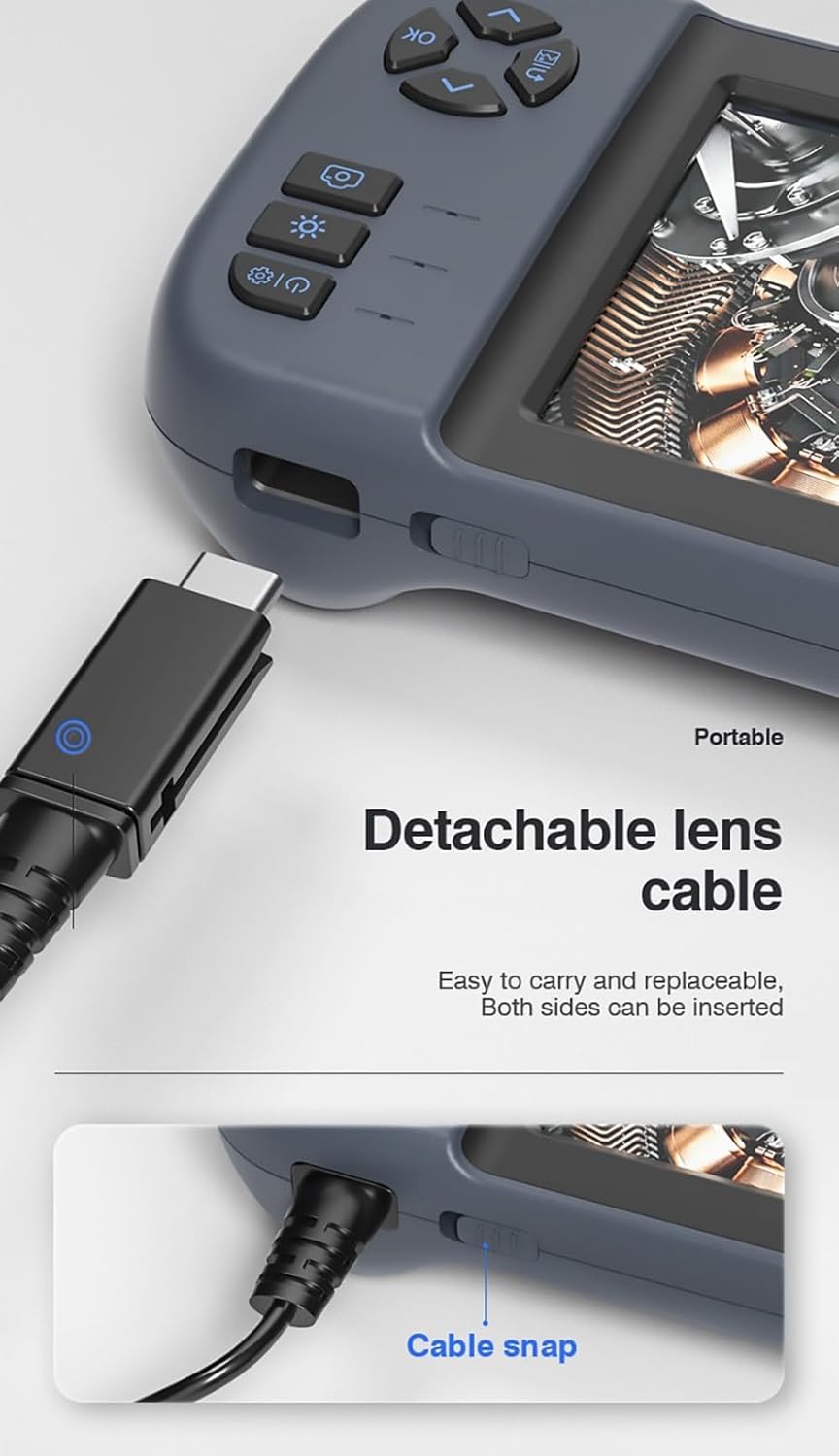
Figure 3.3: The detachable lens cable, designed for easy connection and removal. Both sides of the connector can be inserted.
3.4 Using the Integrated Stand
The Inskam 451 features a built-in bracket on the back, allowing it to stand upright on a flat surface. This frees your hands during inspection tasks.

Figure 3.4: The integrated bracket on the back of the device, which can be extended to allow the endoscope to stand on a desktop.
4. Operating Instructions
4.1 Powering On/Off
Press and hold the power button (usually marked with ⑂) to turn the device on or off. The IPS screen will illuminate upon startup.

Figure 4.1: The 4.5-inch IPS HD screen provides vivid colors and a wide viewing angle for clear inspection.
4.2 Adjusting LED Brightness
The camera head is equipped with 6 adjustable LED lights. Use the dedicated brightness control button (often marked with an asterisk or light icon) to cycle through different brightness levels or turn the lights off.

Figure 4.2: The IP67 waterproof camera head with 6 adjustable LED lights, suitable for harsh environments including submerged conditions.
4.3 Capturing Images and Recording Videos
Once the device is powered on and the camera is positioned, use the dedicated buttons to capture still images or start/stop video recording. Refer to the on-screen icons for current mode (photo/video).
4.4 Viewing Media
Navigate to the playback mode using the menu buttons to review captured images and videos stored on the TF card. You can scroll through files and play videos directly on the screen.
5. Maintenance
5.1 Cleaning the Lens and Screen
Gently wipe the camera lens and the IPS screen with a soft, lint-free cloth. For stubborn smudges, a small amount of lens cleaning solution can be applied to the cloth (not directly to the lens/screen).
5.2 Battery Care
To prolong battery life, avoid fully discharging the battery frequently. Charge the device regularly, even if not in use for extended periods (e.g., once every 3 months).
5.3 Storage
Store the endoscope in a cool, dry place, away from direct sunlight and extreme temperatures. Ensure the lens cable is neatly coiled without sharp bends.
5.4 Water Resistance Precautions
While the camera head is IP67 waterproof, the main unit is not. Do not submerge the main unit in water or expose it to heavy rain. Ensure the USB and TF card ports are properly sealed with their silicone covers when not in use, especially in damp environments.
6. Troubleshooting
| Problem | Possible Cause | Solution |
|---|---|---|
| Device won't turn on | Low battery; Power button not pressed long enough | Charge the device; Press and hold the power button for 3-5 seconds |
| No image on screen | Lens cable not connected properly; Camera lens obstructed | Ensure lens cable is securely connected; Clean the camera lens |
| Cannot save images/videos | No TF card inserted; TF card full or corrupted; TF card not supported | Insert a TF card; Delete old files or use a new card; Use a TF card up to 32GB, formatted to FAT32 |
| LED lights not working | Brightness set to minimum; Malfunction | Press the LED brightness button to increase illumination; Contact support if issue persists |
7. Specifications
| Feature | Specification |
|---|---|
| Model | 451 |
| Screen Size | 4.5 inches IPS |
| Screen Resolution | 480 x 854 pixels |
| Image Resolution | 1920 x 1080 (JPG) |
| Video Recording Resolution | 1280 x 720 (AVI) |
| Camera Waterproof Rating | IP67 |
| Cable Length | 5 meters (Rigid) |
| Depth of Field | 4-10 cm |
| Viewing Angle | 70 degrees |
| Light Source | 6 Adjustable LED lights |
| Battery Capacity | 2000 mAh |
| Operating Temperature | -10 ℃ to 50 ℃ |
| Connectivity | USB Type-C |
| Storage Support | TF Card (up to 32GB) |
| Certifications | CE/RoHS/ISO9001 |
| Product Weight | 488 grams |
| Product Dimensions (L x W x H) | 18 x 11 x 7 cm |
8. Warranty and Support
The Inskam 451 Handheld Endoscope comes with a standard manufacturer's warranty. Please refer to your purchase documentation for specific warranty terms and duration. For technical support, troubleshooting assistance, or warranty claims, please contact the retailer or manufacturer directly.
Manufacturer: Inskam
ASIN: B0DNFSDNXC
For further assistance, please visit the official Inskam website or contact their customer service.


