
1. Product Overview
The REDTIGER F7N Pro is a high-performance dual dash camera system designed to record both front and rear views of your vehicle. It features 4K UHD front recording, 1080P FHD rear recording, a STARVIS 2 sensor for enhanced night vision, built-in Wi-Fi, and GPS functionality. A 64GB memory card is included for immediate use.
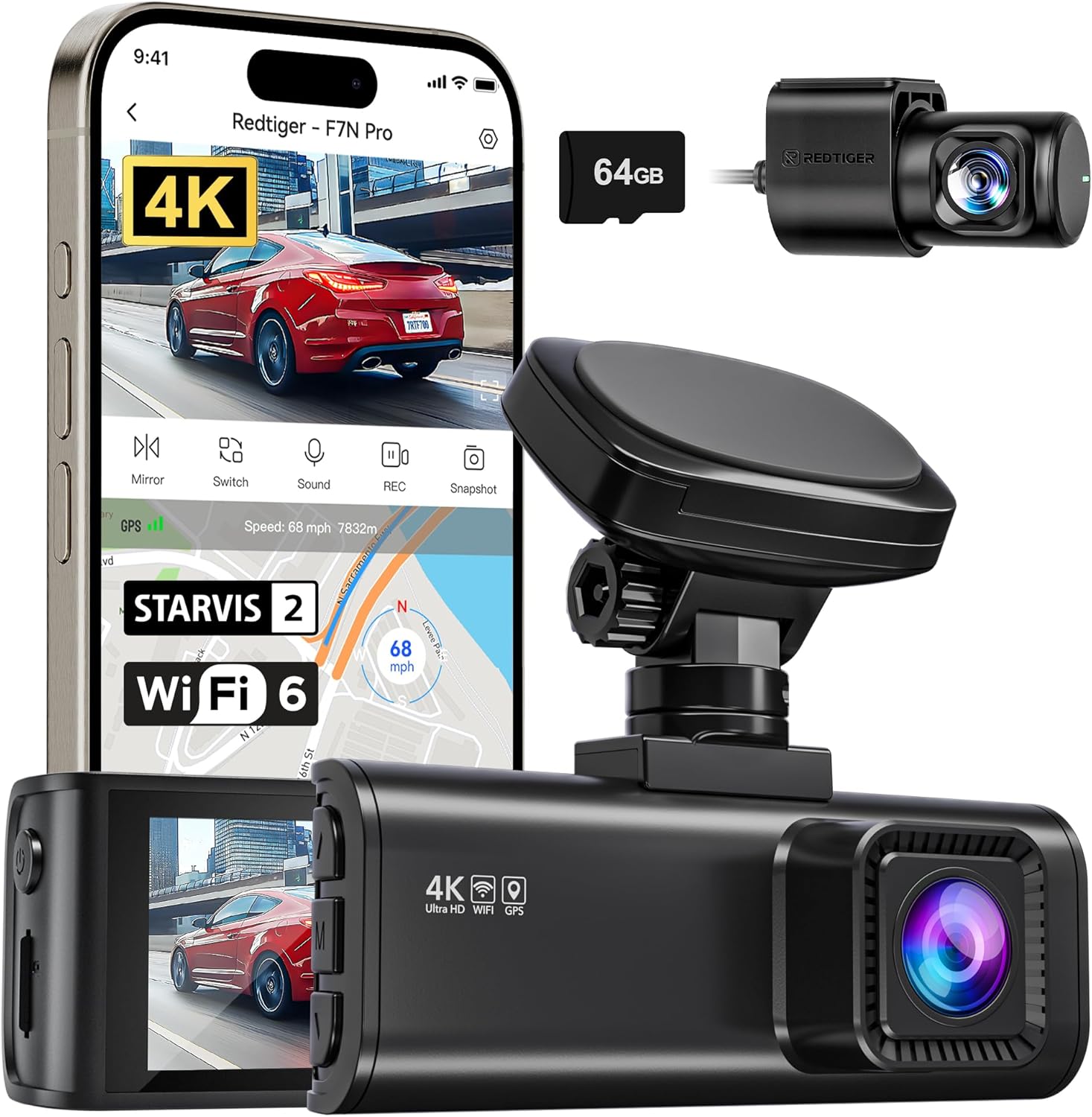
Image 1.1: Overview of the REDTIGER F7N Pro Dash Camera and its accessories, including the main unit, rear camera, CPL lens, and a 64GB SD card.
2. Package Contents
Please verify that all items are present in your package:
- REDTIGER F7N Pro Front Dash Camera
- Rear Camera
- Circular Polarizing Lens (CPL)
- 64GB Memory Card
- Power Cable
- Mounting Bracket
- User Manual
3. Setup and Installation
3.1. Memory Card Insertion
- Ensure the dash camera is powered off.
- Locate the memory card slot on the side of the front camera unit.
- Insert the included 64GB memory card (or another compatible card up to 256GB) into the slot until it clicks into place.
- To remove, gently push the card in until it springs out.
3.2. CPL Lens Installation
The Circular Polarizing Lens (CPL) helps reduce glare and reflections from the windshield and road surface, improving video clarity.
- Align the CPL lens with the front camera lens.
- Gently twist the CPL lens clockwise until it is securely attached.
- Adjust the CPL lens rotation while viewing the live feed on the camera screen or app to minimize glare.

Image 3.2: The Circular Polarizing Lens (CPL) accessory, designed to reduce glare and reflections.
3.3. Mounting the Front Camera
The dash camera uses a dashboard mount with a removable rotating bracket.
- Clean the chosen area on your dashboard or windshield thoroughly.
- Attach the mounting bracket to the front camera unit.
- Remove the protective film from the adhesive pad on the bracket.
- Firmly press the bracket onto the desired location, ensuring a clear view of the road.
- Adjust the camera angle using the rotating bracket for optimal front recording. The camera can be detached from the bracket without removing the adhesive tape.

Image 3.3: The removable rotating bracket, allowing multi-angle adjustment and easy detachment of the camera.
3.4. Installing the Rear Camera
- Mount the rear camera on the rear windshield using its adhesive pad, ensuring a clear view.
- Route the rear camera cable to the front camera unit, tucking it neatly along the vehicle's interior trim.
- Connect the rear camera cable to the designated port on the front camera.
3.5. Power Connection
- Connect the power cable to the front camera's power input port.
- Plug the other end of the power cable into your vehicle's 12V power outlet (cigarette lighter socket).
- The camera will automatically power on and begin recording when the vehicle's ignition is turned on.
4. Operating Instructions
4.1. Basic Recording
The REDTIGER F7N Pro automatically starts recording when powered on. It records simultaneously from the front camera (4K UHD, 3840x2160P) and the rear camera (1080P FHD, 1920x1080P), capturing a wide 170° front and 140° rear field of view.

Image 4.1: Illustration of the dash camera's dual recording capability, capturing 4K resolution from the front and 1080P from the rear.
4.2. Loop Recording and G-Sensor
The camera utilizes loop recording, continuously overwriting the oldest files when the memory card is full to ensure uninterrupted recording. The built-in G-sensor detects sudden impacts or collisions. When an event is detected, the current footage is automatically locked and saved to a protected folder, preventing it from being overwritten by loop recording.
4.3. Night Vision Technology
Equipped with a STARVIS 2 image sensor and WDR/HDR technologies, the F7N Pro delivers clear and detailed video even in low-light conditions. The large F1.5 (front) and F1.8 (rear) aperture combination with 6-layer optical lenses enhances light intake, improving clarity and color contrast during nighttime recording.

Image 4.3: Visual representation of the dash camera's advanced night vision capabilities, highlighting the STARVIS 2 sensor, WDR/HDR, and large aperture lenses.
4.4. 24-Hour Parking Monitoring
The F7N Pro offers 24-hour parking monitoring modes to protect your vehicle when parked. Note: A hardwire kit (ASIN: B09WCTZ3Y8) is required for continuous parking monitoring.
- G-sensor Mode: When the vehicle is parked, the built-in G-sensor automatically triggers a 15-second video recording and locks it if an impact is detected.
- Time-lapse Recording Mode: This mode continuously records at a low frame rate, consuming less power, to monitor the vehicle for potential damage or theft over 24 hours.

Image 4.4: Explanation of the 24-hour parking monitoring feature, illustrating G-sensor mode and time-lapse recording. A hardwire kit is noted as required.
4.5. Built-in GPS
The integrated GPS module provides precise location, speed, and route information, which is embedded into the video files. This data can be reviewed during playback on the camera or via the REDTIGER APP, offering verifiable evidence in case of an incident.

Image 4.5: Display of the GPS route and speed tracking functionality, showing synchronized location, speed, and date information within video playback.
4.6. Wi-Fi Connectivity and REDTIGER APP
The F7N Pro features built-in 5.8GHz Wi-Fi 6, allowing you to connect your Android or iOS smartphone to the camera via the REDTIGER APP. This enables wireless control, live view, video playback, download, and sharing of recorded footage. The app also supports OTA (Over-The-Air) firmware updates.

Image 4.6: Illustration of the built-in 5.8GHz Wi-Fi 6 and GPS features, demonstrating connectivity with the REDTIGER app for camera settings, playback, download, and GPS route viewing.
5. Maintenance
5.1. Memory Card Management
- Regularly format the memory card (at least once a month) within the camera's settings to ensure optimal performance and prevent data corruption.
- Use high-endurance Class 10 or U3 microSD cards for reliable recording. The camera supports up to 256GB.
5.2. Cleaning
- Use a soft, dry cloth to clean the camera lenses and screen. Avoid abrasive materials or chemical cleaners.
- Ensure the mounting area is clean and free of debris for secure attachment.
6. Troubleshooting
If you encounter issues with your REDTIGER F7N Pro, please refer to the following common solutions:
- Camera not powering on: Check the power cable connection to both the camera and the vehicle's power outlet. Ensure the vehicle's ignition is on.
- Recording issues: Format the memory card. Ensure the memory card is inserted correctly and is not full (loop recording should prevent this, but corruption can occur). Try a different compatible memory card.
- Poor video quality: Clean the camera lenses. Ensure the CPL lens is correctly adjusted to reduce glare. Check camera settings for resolution.
- Wi-Fi connection problems: Ensure Wi-Fi is enabled on the camera and your smartphone. Restart both devices. Reinstall the REDTIGER APP.
- GPS not tracking: Ensure the camera has a clear view of the sky. Allow a few minutes for the GPS signal to acquire.
- Parking monitor not working: Verify that a hardwire kit is correctly installed and connected. Check parking monitor settings in the camera menu.
7. Specifications
| Brand | REDTIGER |
| Model Name | F7N Pro |
| Front Video Resolution | 4K (3840 x 2160 pixels) |
| Rear Video Resolution | 1080P (1920 x 1080 pixels) |
| Image Sensor | STARVIS 2 |
| Front Field Of View | 170 Degrees |
| Rear Field Of View | 140 Degrees |
| Connectivity Technology | Wi-Fi (5.8GHz Wi-Fi 6) |
| Special Features | Built-In GPS, Built-In Microphone, Compact Design, G-Sensor, Loop Recording, Low Light, Motion Sensing, Night Vision, Parking Assistant, Wide Dynamic Range, Wide-Angle View Lens |
| Included Components | Memory Card (64GB included, supports up to 256GB) |
| Mounting Type | Dashboard Mount |
| Color | Black |
8. Warranty and Support
For warranty information and technical support, please refer to the official REDTIGER website or contact their customer service directly. Keep your purchase receipt as proof of purchase.


