1. Introduction
This manual provides detailed instructions for the operation and maintenance of your Monowul Smart Watch for Kids, Model P70. Please read this manual thoroughly before use to ensure proper functionality and safety. This device is designed to offer a range of features including health monitoring, activity tracking, communication tools, and educational games for children.

Figure 1: The Monowul Smart Watch for Kids, Model P70.
2. What's in the Box
- Smart Watch
- Charging Cable
- User Manual
- Watch Band
3. Setup
3.1 Charging the Device
Before first use, fully charge the smart watch. Connect the provided charging cable to the watch and a compatible USB power source. A battery icon on the screen will indicate charging status. The watch includes one P76 battery.
3.2 Power On/Off
- To Power On: Press and hold the side button until the screen illuminates.
- To Power Off: Press and hold the side button, then select the "Power Off" option on the screen.
3.3 Initial Configuration
Upon first power-on, follow the on-screen prompts to set the language, time, and date. You can customize watch faces later through the settings menu.
3.4 App Connection (Optional)
The Monowul Smart Watch can function independently for basic features. For advanced functions such as detailed health data analysis, app scheduling for class mode, and downloading storybooks/learning cards, connect the watch to a compatible smartphone (Android 5.0+ or iOS 9.0+). Refer to the watch's settings for Bluetooth pairing instructions.

Figure 2: Smart Watch features with and without app connection. Basic functions like SOS, Sleep, Alarm, Activity, Camera work without an app. Advanced features like Notifications, Weather, Call Records, Sport, and Voice Assistant are available with app connection.
4. Operating Instructions
4.1 Basic Navigation
The watch features a 1.85-inch HD touchscreen. Swipe left/right or up/down to navigate through menus and applications. Tap an icon to select it. The side button typically serves as a back button or to return to the home screen.
4.2 Time Display and Watch Faces
The watch displays time, date, and other information. You can customize the watch face from over 100 personalized options or use your own photos. These can be updated regularly via the connected app.
4.3 Communication Features
- Bluetooth Call: Make and answer calls directly from the watch when connected to a smartphone via Bluetooth.
- Message Notifications: Receive notifications for messages and other alerts from your paired smartphone.
4.4 Camera and Video Recording
The watch is equipped with a camera to take photos and record videos. Access the camera application from the main menu. Photos and videos can be viewed in the gallery. Pop big head stickers are available for creative photo taking.

Figure 3: The smart watch allows users to capture photos and videos, with options for fun stickers.
4.5 Music Player
The watch includes a music player. Music files can be transferred to the watch's internal storage (512 MB capacity) for playback.
4.6 Activity Tracking and Sport Modes
The watch automatically tracks steps, distance, calories burned, and active minutes. It supports over 100 sport modes, allowing users to monitor specific activities like running, walking, cycling, and more. Data can be viewed on the watch and in the connected app.

Figure 4: The smart watch tracks daily activity and offers over 100 sport modes for various physical activities.
4.7 Health Monitoring
The watch provides 24/7 monitoring of heart rate, blood oxygen, sleep, and stress levels. Sleep stages (light/deep) are analyzed using a pediatric health database. Vibration alerts can be triggered for abnormal data. This feature is designed to provide insights into health patterns.

Figure 5: The watch continuously monitors heart rate, stress levels, and blood oxygen saturation.

Figure 6: The watch monitors sleep patterns, including light and deep sleep, providing detailed analysis.
4.8 SOS Function
In an emergency, press and hold the side button for 3 seconds to activate the SOS alarm. This feature is designed to attract attention and signal for help.

Figure 7: The SOS function can be activated by pressing and holding the side button in emergencies.
4.9 Games and Educational Features
The watch includes 8 puzzle games and supports learning cards (20 languages) and storybooks. These features are intended to engage children and support learning. Parents can restrict game access during specific times via the app.
- Storybooks: New storybooks are available for free download weekly via the app.
- Learning Cards: Interactive cards for language and picture learning.
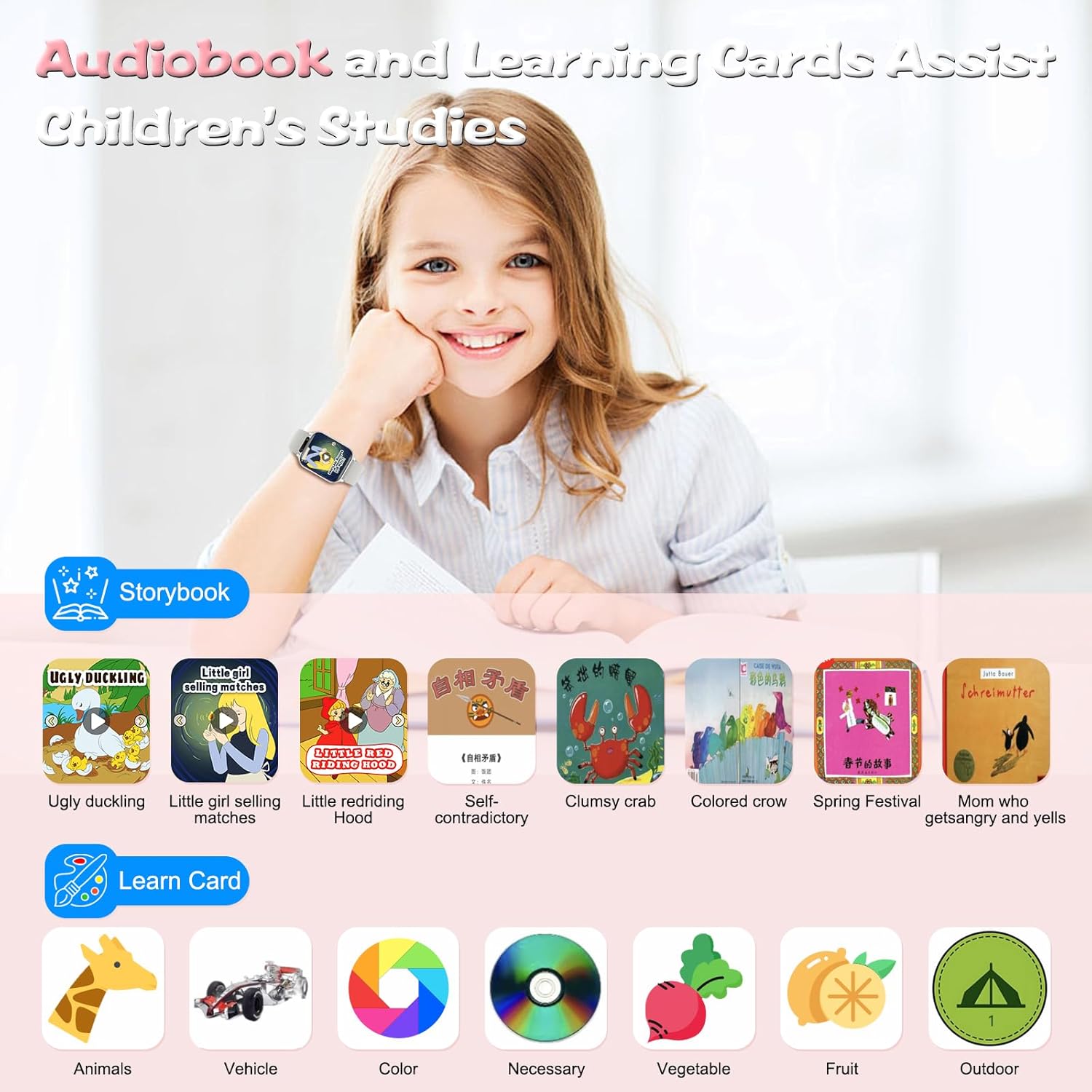
Figure 8: The watch offers audiobooks and learning cards to assist children's studies.
4.10 Alarms and Reminders
Set alarm clocks for various purposes. The watch also provides sedentary and drink water reminders to encourage healthy habits.
4.11 Torch (Flashlight)
A built-in torch function is available for illumination in dark environments.
4.12 Voice Assistant
Utilize the voice assistant for various queries and commands when connected to the app.
4.13 Class Mode
Parents can schedule "Class Mode" via the app with minute-level precision to block distractions during school hours, allowing children to focus on learning.
4.14 Reward System
The watch features an exclusive "Reward Coins" system. Children earn virtual coins by completing fitness goals, learning cards, or specific tasks. These coins can be redeemed for games, audiobooks, or other rewards, promoting self-discipline.

Figure 9: The reward system allows children to earn virtual coins for completing tasks, redeemable for various rewards.
5. Water Resistance
The Monowul Smart Watch is IP68 waterproof, making it suitable for use during storms or pool play. It is resistant to dust and immersion in water up to 1.5 meters for 30 minutes. It is not recommended for deep dives.
Figure 10: The IP68 waterproof rating ensures the watch functions in various water environments, excluding deep dives.
6. Maintenance
- Cleaning: Wipe the watch and band regularly with a soft, damp cloth. Avoid harsh chemicals.
- Charging: Use only the provided charging cable. Avoid overcharging.
- Storage: Store the watch in a cool, dry place when not in use.
- Screen Protection: A screen protector is included for added durability.
7. Troubleshooting
- Watch not turning on: Ensure the watch is fully charged. Press and hold the side button for several seconds.
- Screen unresponsive: Restart the watch. If the screen goes black to save battery, gently twist your arm to reactivate it.
- Connectivity issues: Ensure Bluetooth is enabled on both the watch and the paired smartphone. Check the app for connection status.
- Inaccurate health data: Ensure the watch is worn snugly on the wrist. Avoid excessive movement during measurements.
8. Specifications
| Feature | Detail |
|---|---|
| Model Number | P70 |
| Screen Size | 1.85 Inches |
| Memory Storage Capacity | 512 MB |
| Operating System | Android/iOS compatible |
| Battery Capacity | 350 Milliamp Hours (1 P76 battery included) |
| Connectivity Technology | Bluetooth |
| Water Resistance | IP68 |
| Item Weight | 3.84 ounces |
| Package Dimensions | 7.36 x 2.95 x 0.67 inches |
9. Warranty and Support
For warranty information and customer support, please refer to the contact details provided with your purchase or visit the official Monowul website. Keep your proof of purchase for warranty claims.