
JBL JBLBDL241018-40
JBL PartyBox Club 120 & Wireless Microphones User Manual
Model: JBLBDL241018-40
Introduction
This manual provides essential information for the safe and effective use of your JBL PartyBox Club 120 Portable Bluetooth Party Speaker and the included JBLPBWIRELESSMICAM Digital Wireless Microphones. Please read this manual thoroughly before operating the product to ensure proper setup, operation, and maintenance.
The JBL PartyBox Club 120 delivers powerful JBL Pro Sound with deep bass and a dynamic light show. It is designed for portability with a long-lasting battery and an ergonomic folding handle. The included digital wireless microphones are specifically designed for seamless integration with your PartyBox speaker, enhancing your karaoke or live performance experience.
What's in the Box
Verify that all components are present in your package:
- JBL PartyBox Club 120 speaker
- JBL PartyBox Two-Person Wireless Handheld Microphone System (includes 2 microphones and 1 receiver)
- Power Cable
- Quick Start Guide (this document)
- Safety Sheet
- Warranty Card
Product Overview
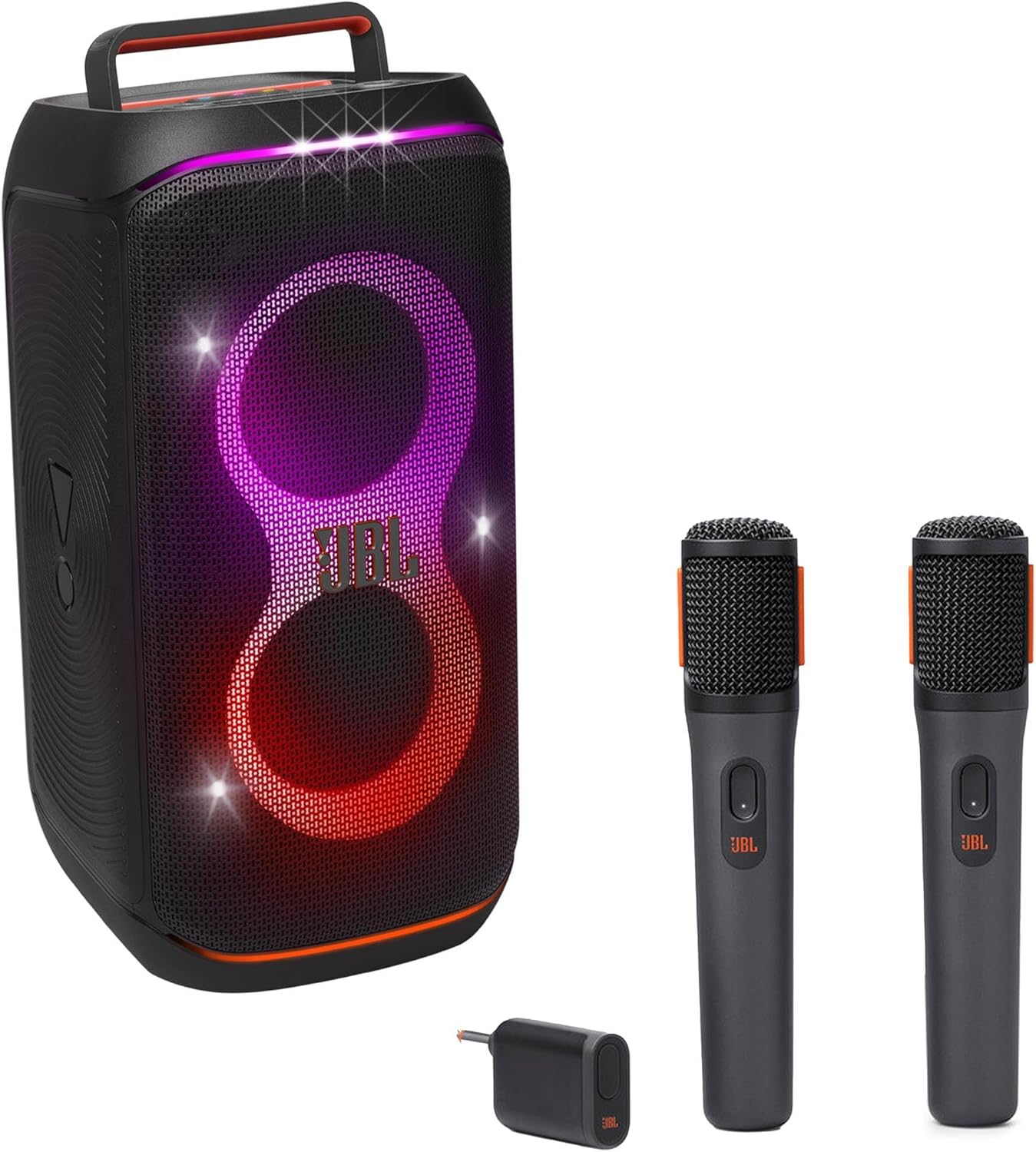
Figure 1: JBL PartyBox Club 120 speaker with two wireless microphones and receiver.
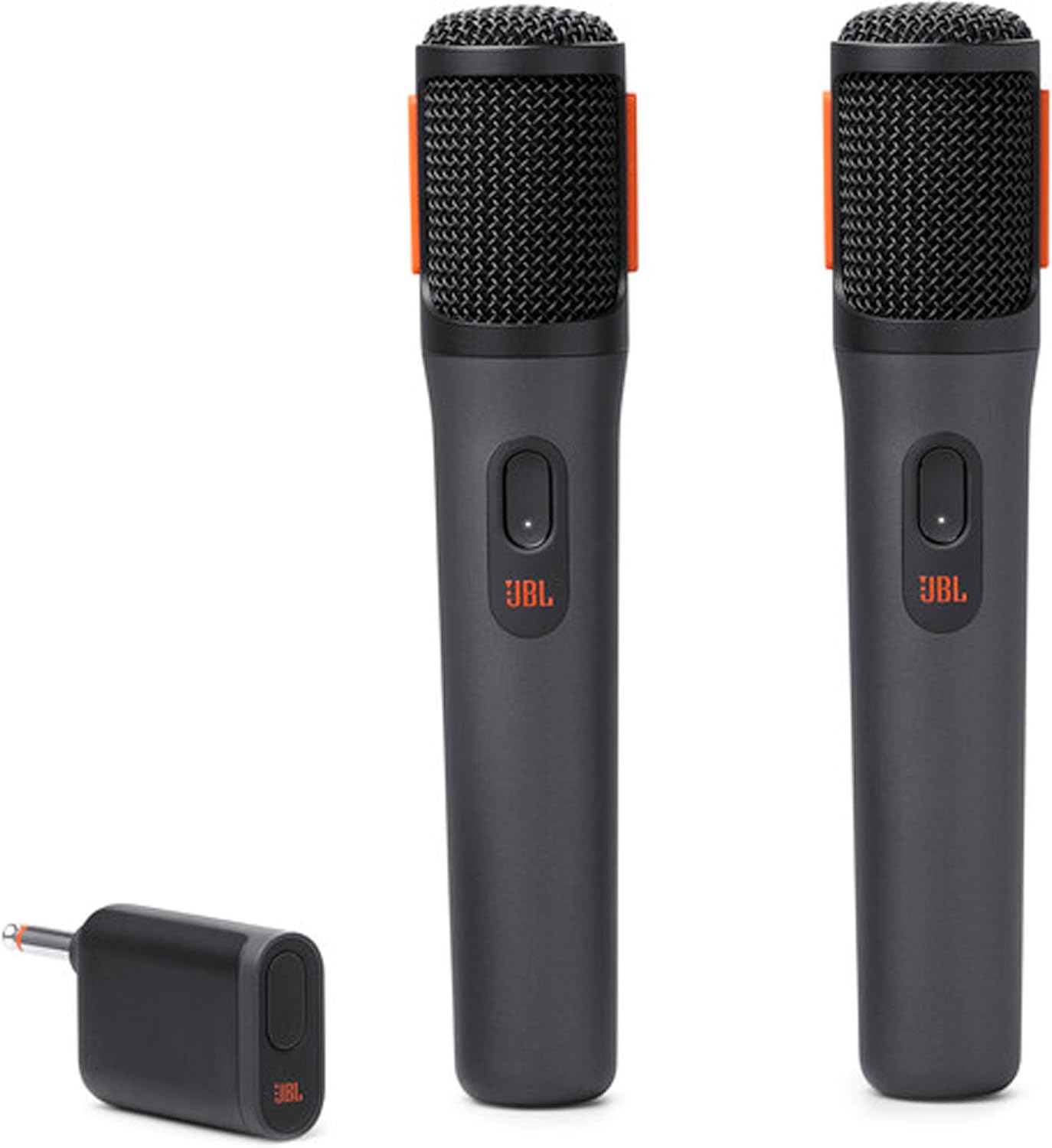
Figure 2: Two JBL wireless microphones with their receiver, designed for use with PartyBox speakers.
JBL PartyBox Club 120 Speaker
The PartyBox Club 120 features a robust design with integrated controls and connectivity options. The front grille houses the speaker drivers and dynamic light show elements. The top panel contains the main control buttons, while the rear panel provides various input and output ports.
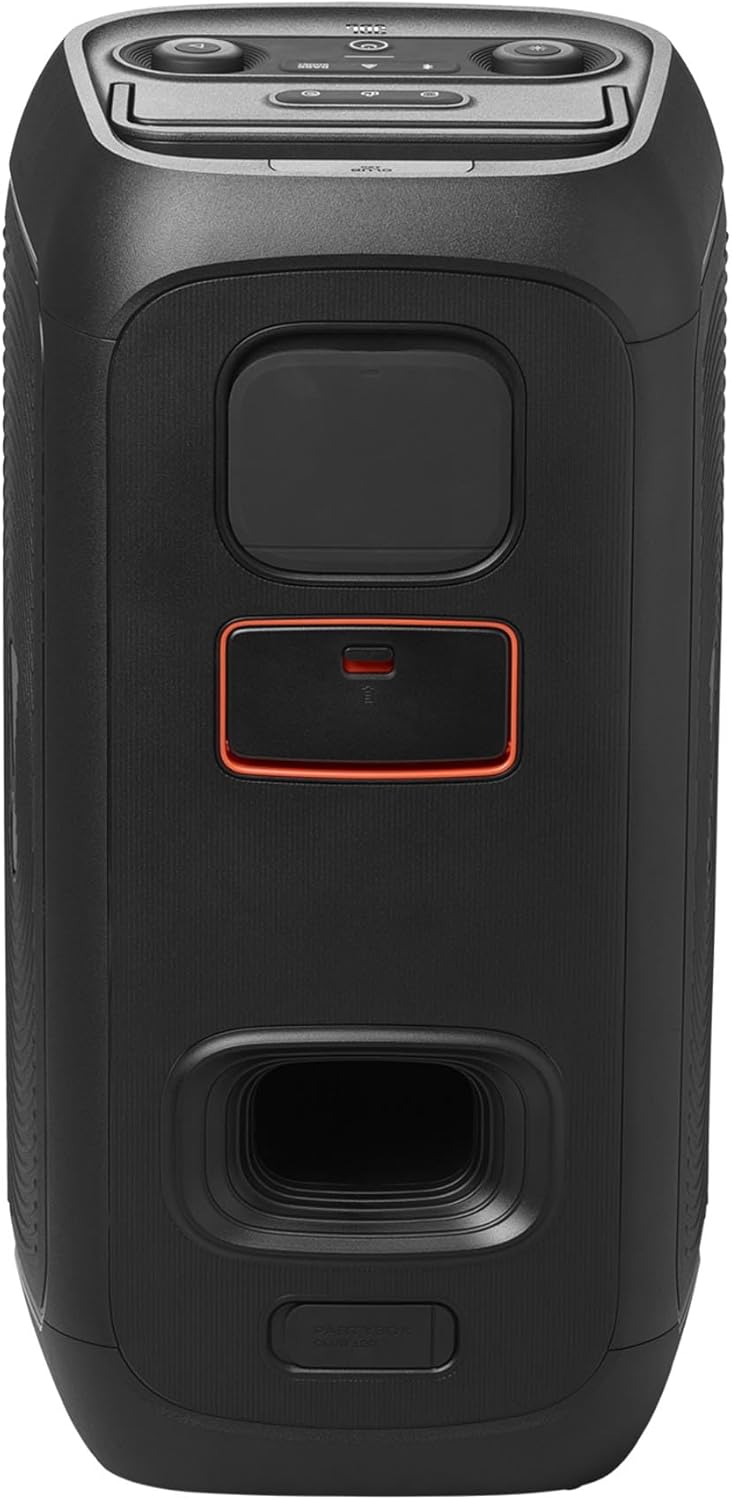
Figure 3: Top panel controls including power, Bluetooth, volume, play/pause, and light show buttons.
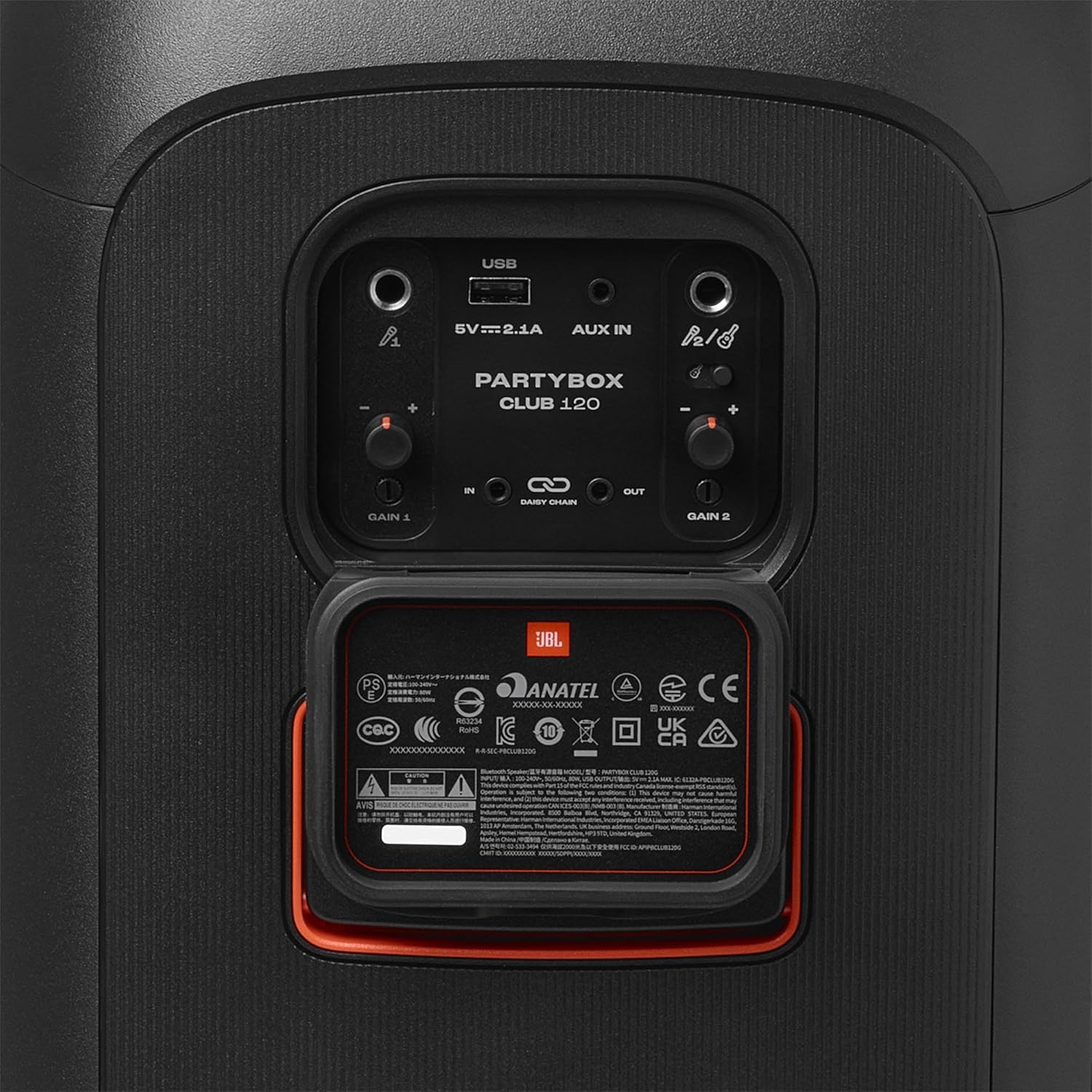
Figure 4: Rear panel with USB, AUX In, Microphone/Guitar inputs, and Daisy Chain In/Out ports.
JBL Wireless Microphones
The two included wireless microphones are pre-paired with the PartyBox Club 120 receiver for immediate use. Each microphone features a power button and an LED display for channel indication.

Figure 5: Wireless microphone with power button and channel display.
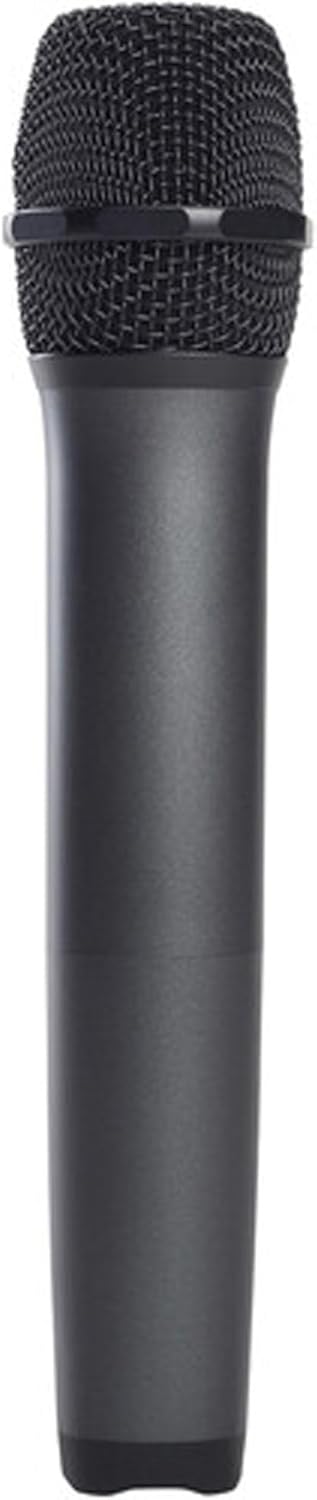
Figure 6: Wireless microphone front view.
Setup
1. Charging the Speaker
Before first use, fully charge the JBL PartyBox Club 120. Connect the provided power cable to the AC power input on the rear of the speaker and then to a power outlet. The battery indicator will show charging status.
2. Connecting Wireless Microphones
Insert the wireless microphone receiver into one of the microphone input jacks (GAIN 1 or GAIN 2) on the rear panel of the PartyBox Club 120. Ensure the receiver is fully seated. The microphones are pre-paired and should connect automatically when powered on.
3. Power On
Press the Power button on the top panel of the PartyBox Club 120 to turn it on. Press the Power button on each wireless microphone to activate them.
4. Bluetooth Pairing
To connect a Bluetooth device:
- Press the Bluetooth button on the PartyBox Club 120. The Bluetooth indicator will flash.
- On your device (smartphone, tablet, etc.), enable Bluetooth and select "JBL PartyBox Club 120" from the list of available devices.
- Once connected, the Bluetooth indicator will glow solid.
The speaker supports multi-point connection, allowing two devices to be connected simultaneously.
5. JBL PartyBox App
Download the JBL PartyBox app from your device's app store for enhanced control, interactive party effects, and stereo pairing with another PartyBox speaker.
Operating
Speaker Controls
- Power Button: Turns the speaker on/off.
- Bluetooth Button: Initiates Bluetooth pairing mode.
- Volume Control: Adjusts the overall speaker volume.
- Play/Pause Button: Controls audio playback from connected Bluetooth or USB devices.
- Light Show Button: Cycles through different light show modes or turns the light show off.
- Bass Boost Button: Enhances bass output.
Microphone Usage
- Power On/Off: Press the power button on the microphone.
- Volume Control: Adjust the GAIN knob corresponding to the microphone input on the speaker's rear panel.
- Channel Selection: The microphones are pre-paired. If interference occurs, refer to the full user guide for manual channel selection instructions.
Input Sources
- Bluetooth: Stream audio wirelessly from your Bluetooth-enabled device.
- AUX In: Connect external audio devices using a 3.5mm audio cable to the AUX IN port.
- USB: Insert a USB drive with audio files into the USB port for playback.
- Microphone/Guitar Inputs: Connect wired microphones or a guitar to the 6.3mm input jacks. Adjust individual GAIN knobs for optimal levels.
- Daisy Chain: Use the DAISY CHAIN IN and OUT ports to link multiple PartyBox speakers for a larger sound system. Connect the DAISY CHAIN OUT of one speaker to the DAISY CHAIN IN of another.
Maintenance
Cleaning
Wipe the speaker and microphones with a soft, dry cloth. Do not use abrasive cleaners or solvents. Ensure all ports are dry before connecting cables.
Battery Care
To prolong battery life:
- Fully charge the speaker before first use.
- Recharge the battery at least once every 3 months if not in regular use.
- Avoid exposing the speaker to extreme temperatures.
Storage
Store the speaker and microphones in a cool, dry place away from direct sunlight and excessive moisture.
Troubleshooting
| Problem | Possible Cause | Solution |
|---|---|---|
| Speaker does not power on | Battery is depleted; Power cable not connected | Connect to power outlet and charge; Ensure power cable is securely connected |
| No sound from speaker | Volume too low; Incorrect input source selected; Device not connected | Increase volume; Select correct input (Bluetooth, AUX, USB); Reconnect device |
| Bluetooth connection issues | Speaker not in pairing mode; Device too far; Interference | Press Bluetooth button to enter pairing mode; Move device closer; Avoid obstacles; Try re-pairing |
| Microphones not working | Microphone not powered on; Receiver not connected; Gain too low; Battery low | Power on microphones; Ensure receiver is fully inserted into mic input; Increase GAIN knob; Replace microphone batteries |
| Light show not working | Light show turned off | Press the Light Show button to cycle through modes |
Specifications
| Feature | Detail |
|---|---|
| Brand | JBL |
| Model Number | JBLBDL241018-40 |
| UPC | 840425818282 |
| Speaker Type | Multimedia |
| Audio Output Mode | Stereo |
| Connectivity Technology | Bluetooth |
| Speaker Maximum Output Power | 160 Watts |
| Battery Life | 12 Hours |
| Water Resistance Level | Not Water Resistant (IPX4 splash-proof for speaker) |
| Woofer Diameter | 5.25 Inches |
| Number of Microphones | 2 (included) |
| Control Method | App, On-device buttons |
| Compatible Devices | Karaoke Machine, Laptop, Smartphone, Tablet |
| Included Components | JBL PartyBox Two-Person Wireless Handheld Microphone System, JBL PartyBox Club 120 speaker |
Warranty
The JBL PartyBox Club 120 and JBLPBWIRELESSMICAM Digital Wireless Microphones come with a Limited Warranty. Please refer to the included warranty card for specific terms and conditions, including coverage duration and claim procedures. Keep your proof of purchase for warranty service.
Support
For further assistance, product registration, or to access the full digital manual, please visit the official JBL website. You can also contact JBL customer support for technical inquiries or service requests.
JBL Official Website: www.jbl.com
Related documentsJBLBDL241018-40


Ask a question about this manual
Ask about setup, troubleshooting, compatibility, parts, safety, or missing instructions. Manuals+ will review the question and use this page’s manual context to help answer it.