
OMOTON B0DN67GQD1
OMOTON 2.4G Wireless Keyboard User Manual
Model: B0DN67GQD1
Introduction
Thank you for choosing the OMOTON 2.4G Wireless Keyboard. This manual provides detailed instructions for setting up, operating, and maintaining your keyboard to ensure optimal performance and longevity. Please read this manual thoroughly before using the product.

Image: The OMOTON 2.4G Wireless Keyboard in grey, shown with its compact design and the included USB-A and Type-C 2-in-1 receiver.
Package Contents
- 1 x OMOTON 2.4G Wireless Keyboard (Grey, 285mm x 120mm)
- 1 x USB 2-in-1 Receiver (USB-A and Type-C compatible)
- 1 x User Manual
Note: 2 AAA batteries are required for operation and are not included in the package.
Setup Guide
1. Installing Batteries
- Locate the battery compartment on the underside of the keyboard.
- Open the battery compartment cover.
- Insert two (2) AAA batteries, ensuring correct polarity (+/-).
- Close the battery compartment cover securely.
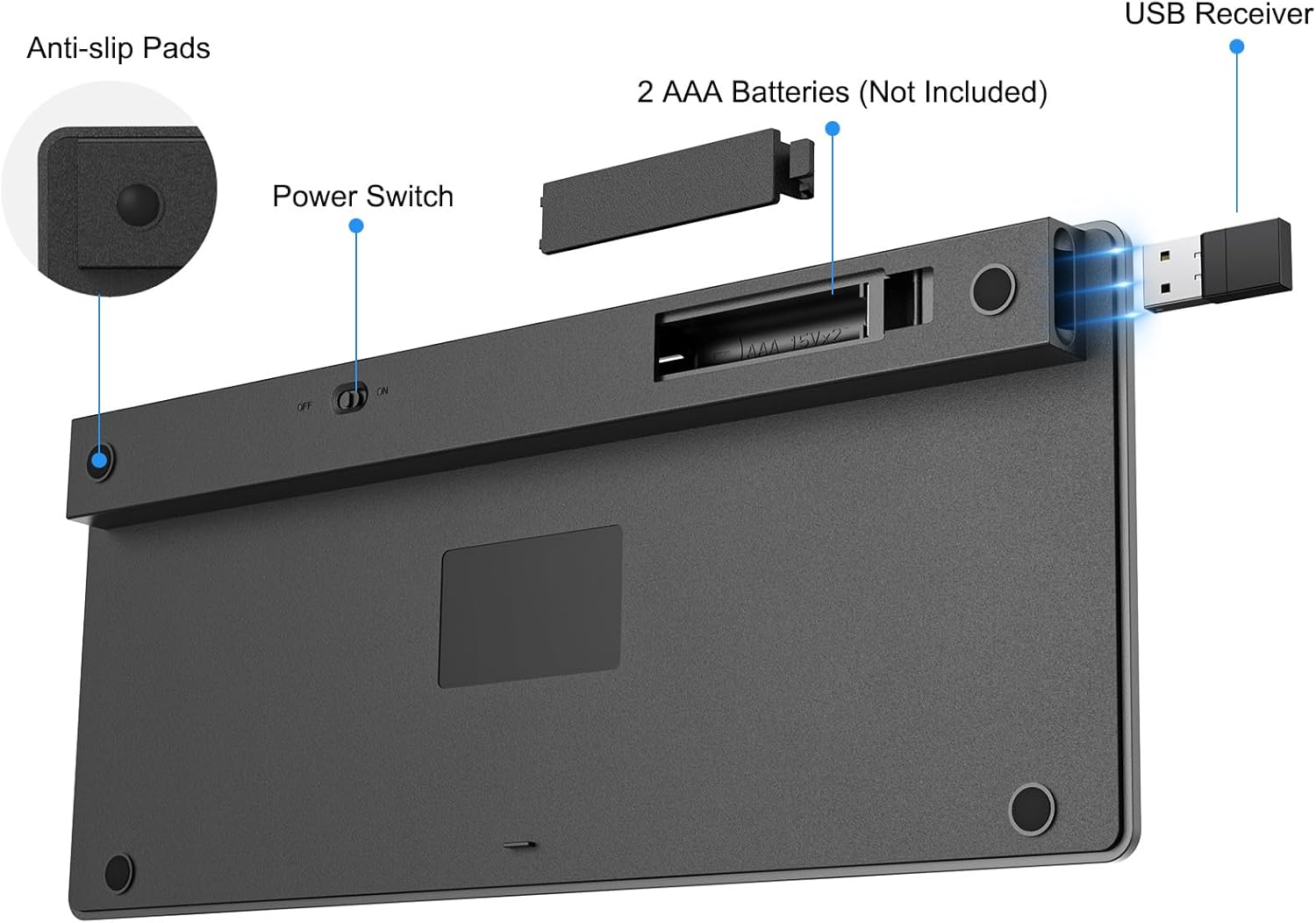
Image: View of the keyboard's underside, highlighting the battery compartment, power switch, and the storage slot for the USB receiver.
2. Connecting the USB Receiver
- Locate the USB 2-in-1 receiver, typically stored within the keyboard's battery compartment or included separately.
- Identify the appropriate USB port on your device (USB-A or USB-C).
- Plug the USB receiver into an available USB port on your computer, laptop, tablet, or smart TV.
- The system should automatically detect and install the necessary drivers.

Image: The versatile USB-A and Type-C 2-in-1 receiver, demonstrating its compatibility with both USB-A and USB-C ports on different laptops.
3. Powering On the Keyboard
- Locate the power switch on the underside of the keyboard.
- Slide the switch to the "ON" position.
- The keyboard is now ready for use.
Operating Instructions
System Compatibility and Switching
This keyboard is compatible with Windows, iOS/iPadOS, Mac OS, and Android operating systems. To ensure proper function of multimedia keys and layout, switch to the correct system mode:
| Operating System | Key Combination |
|---|---|
| Windows | Press Fn + Q |
| iOS / iPadOS | Press Fn + W |
| Mac OS | Press Fn + E |
| Android | Press Fn + R |
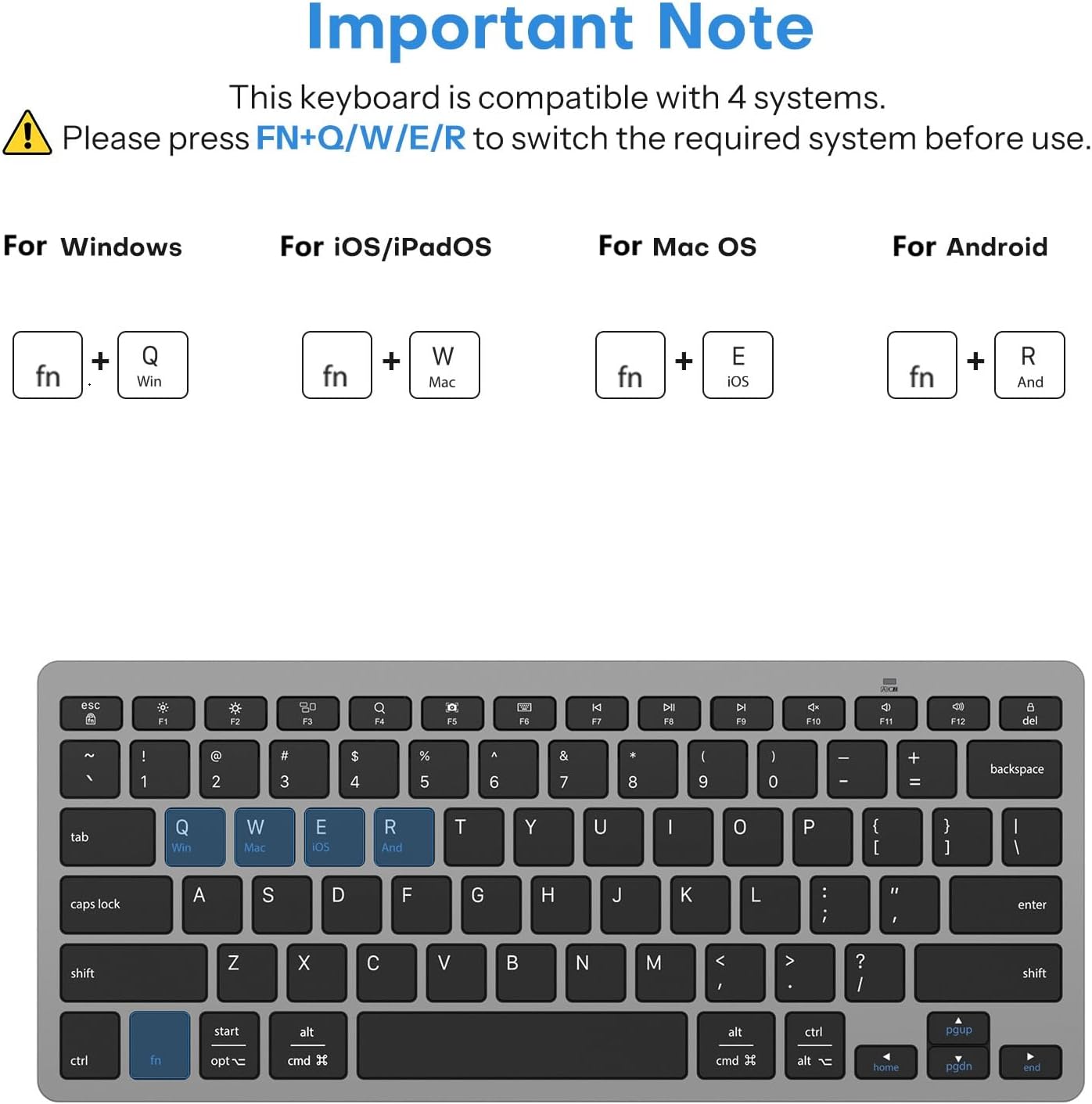
Image: Visual guide illustrating the Fn key combinations (Fn+Q, Fn+W, Fn+E, Fn+R) used to switch the keyboard's compatibility mode for Windows, iOS/iPadOS, Mac OS, and Android respectively.
Multimedia Keys
The keyboard features optimized multimedia keys for quick access to various functions. These functions are typically accessed by pressing the Fn key in combination with the corresponding function key (F1-F12).
- Fn + F1: Esc
- Fn + F2: Brightness -
- Fn + F3: Brightness +
- Fn + F4: Mission Control (Mac OS)
- Fn + F5: Search (Android: N/A)
- Fn + F6: Screenshot (Mac OS: N/A)
- Fn + F7: Virtual keyboard (Mac OS/Android: N/A)
- Fn + F8: Previous Track
- Fn + F9: Play/Pause
- Fn + F10: Next Track
- Fn + F11: Mute
- Fn + F12: Volume -
- Fn + Del: Lock Screen
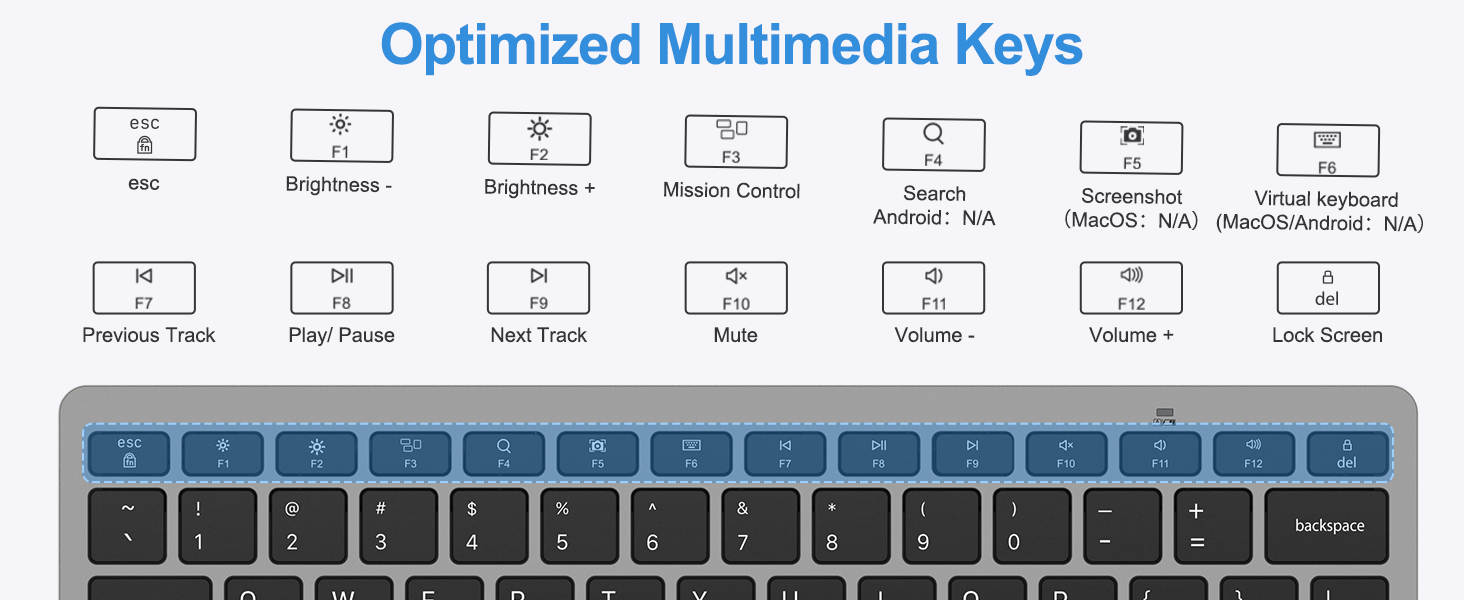
Image: An illustration of the keyboard layout highlighting the row of function keys (F1-F12) and their corresponding multimedia shortcuts when used with the Fn key.
Ergonomic Design Features
The OMOTON 2.4G Wireless Keyboard is designed for comfortable and efficient typing:
- Precision Scissor-Switch Keys: Provides a responsive, quiet, and smooth typing experience.
- Optimal Tilt Angle: Reduces wrist strain during extended typing sessions.
- Non-slip Rubber Feet: Ensures stability on various surfaces.
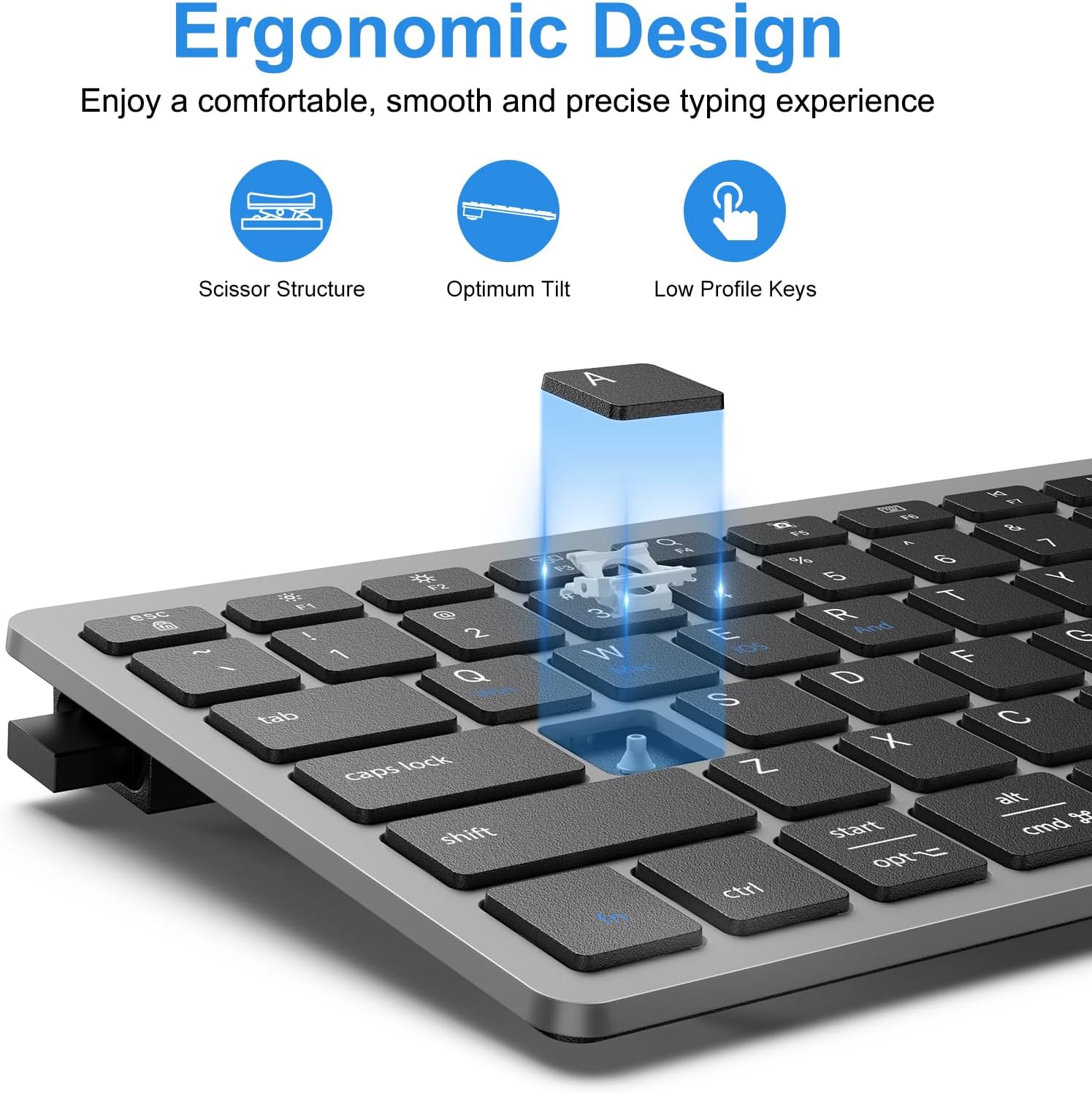
Image: A detailed view of the keyboard's keys, illustrating the internal scissor structure, the optimal tilt angle for comfortable typing, and the low-profile design of the keys.
Maintenance
Cleaning the Keyboard
- Turn off the keyboard before cleaning.
- Use a soft, lint-free cloth slightly dampened with water or a mild cleaning solution.
- Avoid excessive moisture and do not spray cleaners directly onto the keyboard.
- For dust and debris between keys, use compressed air.
Battery Care
- Replace batteries when the keyboard's performance degrades or it stops responding.
- Remove batteries if the keyboard will not be used for an extended period to prevent leakage.
- Dispose of used batteries according to local regulations.
Troubleshooting
| Problem | Possible Cause | Solution |
|---|---|---|
| Keyboard not responding |
|
|
| Keys not typing correctly or repeating |
|
|
| Wireless connection issues |
|
|
Specifications
| Feature | Detail |
|---|---|
| Model | B0DN67GQD1 |
| Connectivity Technology | 2.4G Wireless (USB-A & Type-C Receiver) |
| Compatible Devices | Laptop, PC, Smart TV (Windows 7/8/10, iOS/iPadOS, Mac OS, Android) |
| Keyboard Description | Wireless, Ultra Slim, Compact |
| Key Type | Scissor-Switch Keys |
| Number of Keys | 78 |
| Color | Grey |
| Material | Plastic |
| Product Dimensions (L x W x H) | 11.2 x 4.7 x 0.8 inches (285mm x 120mm) |
| Item Weight | 11.3 ounces |
| Wireless Range | Up to 33ft (10m) |
| Battery Type | 2 x AAA batteries (not included) |
| Battery Life | Up to 6 months (with auto-sleep mode) |

Image: The keyboard being placed into a sleeve, illustrating its slim and portable design with dimensions of 285mm (11.2 inches) in length and 120mm (4.7 inches) in width, and a weight of 260g (0.57lb).
Warranty and Support
For warranty information and technical support, please refer to the official OMOTON website or contact their customer service directly. Contact details can typically be found on the product packaging or the manufacturer's official support page.
You can visit the OMOTON Store for more information: OMOTON Store on Amazon
Related documentsB0DN67GQD1


Ask a question about this manual
Ask about setup, troubleshooting, compatibility, parts, safety, or missing instructions. Manuals+ will review the question and use this page’s manual context to help answer it.