
1. Introduction
This manual provides detailed instructions for the setup, operation, maintenance, and troubleshooting of your ieGeek 5MP Plug-in Indoor Camera. Please read this manual thoroughly before using the product to ensure proper functionality and safety.

2. What's in the Box
Verify that all components are present in the package:
- 5MP 5Ghz WiFi Indoor Security Camera x1
- 5V/1A Power Adapter x1
- Camera Base x1
- USB-C Cable x1
- User Manual x1

3. Setup Guide
3.1 Powering On the Camera
- Connect the provided USB-C cable to the camera's power port.
- Plug the other end of the USB-C cable into the 5V/1A power adapter.
- Insert the power adapter into a standard electrical outlet. The camera will power on and initiate its startup sequence.
3.2 App Installation and Wi-Fi Connection
The ieGeek camera operates with the ieGeek Cam APP, available for both iPhone and Android devices.
- Download the "ieGeek Cam" app from the App Store (iOS) or Google Play Store (Android).
- Open the app and create a new account or log in if you already have one.
- Follow the in-app instructions to add a new device. This typically involves selecting your camera model and connecting it to your Wi-Fi network.
- The camera supports both 2.4GHz and 5GHz Wi-Fi bands. Ensure your phone is connected to the same Wi-Fi network you intend to connect the camera to during the setup process.
- During the connection process, you may be prompted to scan a QR code located on the back of the camera using your phone's camera.
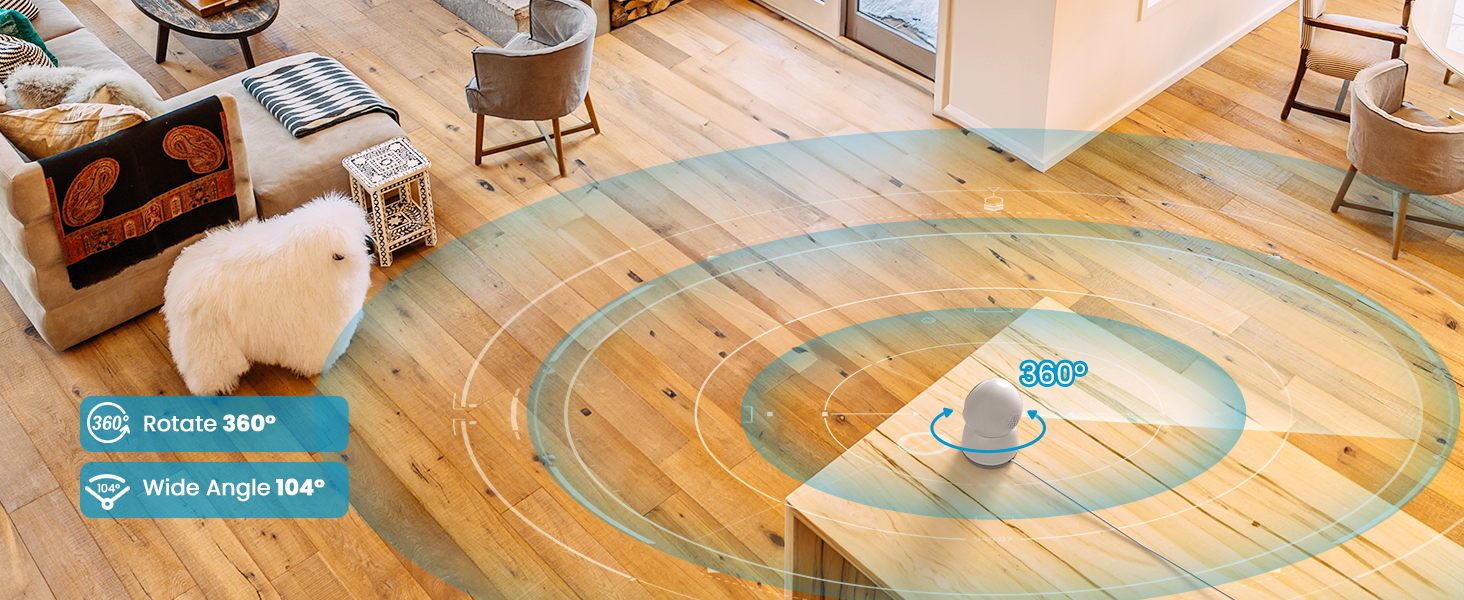
3.3 Placement and Mounting
The camera is designed for indoor use. For optimal performance:
- Place the camera within the field of view you wish to monitor.
- Install it perpendicular to the ground without tilting it for best pan/tilt functionality.
- Avoid installing the camera in corners, near load-bearing walls, or close to large appliances (such as TVs) that might interfere with the Wi-Fi signal.
- If the connection signal is unstable, consider changing the camera's installation location.

4. Operating the Camera
4.1 Live View and Pan/Tilt Control
Once connected, open the ieGeek Cam app to access the live feed. You can control the camera's pan (360° horizontal) and tilt (55° vertical) directly from the app to view different areas of your room.

4.2 Auto Tracking and Motion Detection
The camera features smart motion-sensing technology. When motion is detected, it sends instant alerts to your phone. You can enable automatic motion tracking, which allows the camera to follow detected movement within its 360° horizontal and 55° vertical range.

4.3 Two-Way Audio and Noise Detection
The camera supports two-way audio, allowing you to communicate through the camera using the app. Additionally, noise detection can be enabled to receive real-time notifications for sounds like a baby crying.

![A baby crying in a crib, with an 'Alert Message motion [Bedroom]' notification overlay](https://m.media-amazon.com/images/S/aplus-media-library-service-media/a9f930ca-6491-4422-904c-40114003b2f7.__CR0,0,1464,600_PT0_SX1464_V1___.png)
4.4 Night Vision
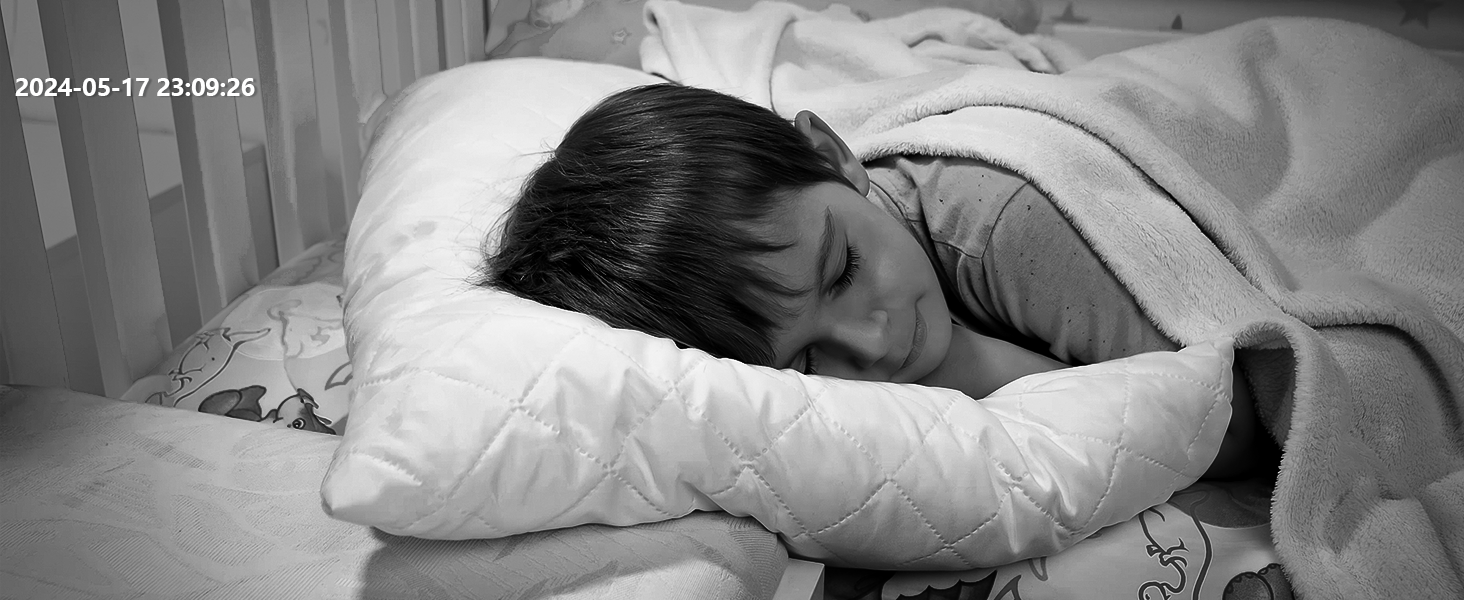
Equipped with built-in infrared LEDs, the camera provides clear night vision up to 50 feet, allowing for monitoring in low-light or dark conditions.
4.5 Storage Options and 24/7 Recording
The camera supports continuous 24/7 recording. Video footage can be stored in two ways:
- Local Storage: Insert a Micro SD card (up to 256GB, not included) into the camera's memory card slot.
- Cloud Storage: A free lifetime cloud storage base service is available, offering 6 seconds of recording and 7-day loop coverage.

4.6 Privacy Protection and Device Sharing
The ieGeek Cam app allows you to manage privacy settings, including turning the camera on/off with one click or customizing its operating schedule. You can also share access to the camera's live feed with multiple users on different devices.

5. Maintenance
5.1 Cleaning the Camera
To maintain optimal image quality, periodically clean the camera lens and body. Use a soft, dry cloth. Avoid abrasive cleaners or solvents that could damage the camera's surface or lens.
5.2 Managing Storage
If using a Micro SD card for local storage, regularly check its capacity through the ieGeek Cam app. You may need to format the card or replace it if it becomes full or corrupted. The memory card slot is located on the head of the camera.
5.3 Resetting the Camera
If you encounter persistent issues or need to reconfigure the camera, a reset option is available. The reset button is located on the head of the camera. Refer to the app for specific instructions on performing a factory reset.
6. Troubleshooting
If you experience issues with your ieGeek camera, please refer to the following common solutions:
- Connection Instability: If the Wi-Fi signal is unstable, try relocating the camera closer to your router or away from large appliances that may cause interference. Factors such as the number and thickness of walls can affect signal strength.
- No Power: Ensure the power adapter is securely plugged into both the camera and a working electrical outlet.
- App Issues: Ensure your ieGeek Cam app is updated to the latest version. Try restarting the app or your mobile device.
- Image Quality: Check if the camera lens is clean. Ensure there is adequate lighting for optimal image capture, especially if not using night vision.
- Motion Detection Not Working: Verify that motion detection is enabled in the app settings and that the sensitivity is appropriately configured. Check the motion zone settings.
For further assistance, please contact our professional customer service at service@iegeek.com.
7. Specifications
| Feature | Detail |
|---|---|
| Model Name | ieGeek SC1 Pro(Black) |
| Indoor/Outdoor Usage | Indoor |
| Compatible Devices | Smartphone, Tablet |
| Power Source | Corded Electric |
| Connectivity Protocol | Bluetooth, Wi-Fi (2.4GHz & 5GHz Dual-Band) |
| Controller Type | ieGeek Cam APP |
| Video Capture Resolution | 1920p (5MP Effective Still Resolution) |
| Night Vision Range | 50 Feet |
| Pan/Tilt Range | 360° Horizontal, 55° Vertical |
| Storage Options | Memory Card (up to 256GB, not included), Cloud Storage |
| Item Dimensions (L x W x H) | 2.74 x 2.75 x 4.33 inches |
| Item Weight | 13.4 ounces |
| Manufacturer | ieGeek |
| UPC | 734931741625 |
8. Warranty and Support
ieGeek offers a 2-year warranty for this indoor security camera. If you encounter any problems during the use of your camera, please do not hesitate to contact our customer service team.
Our dedicated support team is available to provide satisfactory solutions and assistance. You can reach us directly via email at service@iegeek.com.


