1. Introduction
This manual provides essential information for the safe and efficient operation of your VIZIO 50-inch 4K UHD LED Smart TV, model V4K50C-08. Please read this manual thoroughly before using your television and retain it for future reference.
The VIZIO V4K50C-08 Smart TV delivers vivid 4K picture quality with Dolby Vision HDR, enhancing detail, contrast, and color. It features WiFi 6 for faster streaming and gaming, and built-in VIZIO Home for instant access to applications, free channels, and on-demand titles.

Image 1.1: Front view of the VIZIO 50-inch 4K UHD LED Smart TV.
2. Safety Information
Always follow basic safety precautions when using this television to reduce the risk of fire, electric shock, and injury to persons. Keep this manual handy for reference.
- Do not expose this apparatus to rain or moisture.
- Do not block any ventilation openings. Install in accordance with the manufacturer's instructions.
- Do not install near any heat sources such as radiators, heat registers, stoves, or other apparatus (including amplifiers) that produce heat.
- Protect the power cord from being walked on or pinched, particularly at plugs, convenience receptacles, and the point where they exit from the apparatus.
- Only use attachments/accessories specified by the manufacturer.
- Refer all servicing to qualified service personnel.
3. What's in the Box
Your VIZIO 50-inch 4K UHD LED Smart TV package includes the following items:
- VIZIO 50-inch 4K UHD LED Smart TV
- Voice Remote
- 2 AAA batteries (for remote)
- Power Cable
- TV Stand (2 pieces)

Image 3.1: Included components and TV dimensions.
4. Setup
4.1 Attaching the Stand
- Carefully place the TV face-down on a soft, clean surface to prevent damage.
- Align each stand piece with the corresponding slots on the bottom of the TV.
- Secure each stand piece with the provided screws. Ensure they are tightened firmly.
4.2 Connecting Peripherals
Connect your external devices to the appropriate ports on the back or side of your VIZIO TV.
- HDMI: For high-definition video and audio devices (e.g., Blu-ray players, gaming consoles). Your TV features multiple HDMI ports, including HDMI 1 (eARC) for enhanced audio return channel functionality.
- USB: For connecting USB storage devices.
- Antenna: For connecting an over-the-air antenna.
- Audio Out Optical (S/PDIF): For connecting to a soundbar or audio receiver.
- Ethernet: For a wired network connection.
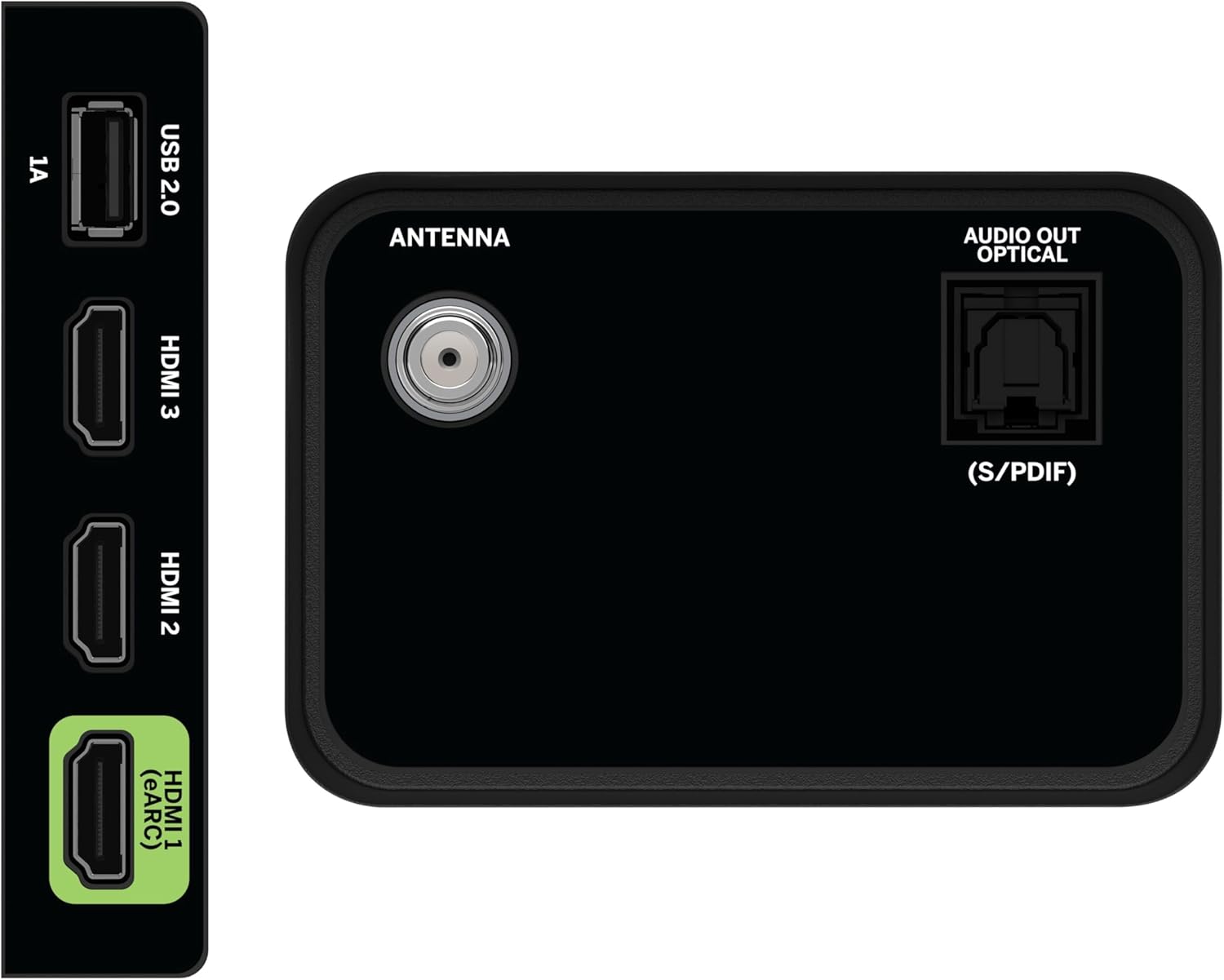
Image 4.1: Rear and side input/output ports.
4.3 Initial Power On & Network Connection
- Plug the power cable into the TV and then into a power outlet.
- Press the Power button on the remote or on the TV.
- Follow the on-screen prompts to select your language, country, and connect to your Wi-Fi network (WiFi 6 supported for faster performance).
4.4 VIZIO Account Setup
A VIZIO Account is required for Smart TV functionality and product updates. Follow the on-screen instructions to create or log in to your VIZIO Account. This allows access to VIZIO Home, app subscriptions, and free channels.

Image 4.2: VIZIO Account setup via mobile device.
5. Operating Your TV
5.1 Remote Control Overview
The included Voice Remote provides intuitive control over your TV. It features dedicated buttons for popular streaming apps and voice assistance integration.
- Input: Switch between connected devices.
- Power: Turn the TV on/off.
- Navigation Pad: Use the directional buttons and OK button to navigate menus.
- Home: Access the VIZIO Home screen.
- WatchFree+: Direct access to VIZIO's free streaming service.
- Voice Button: Activate voice commands.
- Volume/Channel: Adjust volume and change channels.
- App Shortcuts: Quick access to pre-installed streaming applications.

Image 5.1: VIZIO Voice Remote and mobile app functionality.
5.2 Navigating VIZIO Home
The VIZIO Home screen is your central hub for all entertainment. It provides quick access to:
- Apps & Inputs: Browse and launch your favorite streaming apps (Netflix, Prime Video, Hulu, Disney+, etc.) and switch between connected inputs.
- Live TV: Access hundreds of free channels and thousands of free On Demand titles with the built-in WatchFree+ app.
- Trending Now: Discover popular movies and shows.

Image 5.2: The VIZIO Home screen, your destination for easy streaming.
5.3 Picture Settings
Your VIZIO TV features Dolby Vision HDR, HDR10+, HDR10, and HLG for a true-to-life picture with a wider range of color and detail. Adjust picture modes (e.g., Calibrated, Vivid, Game) in the settings menu to optimize your viewing experience.

Image 5.3: Breathtaking details for a crystal-clear 4K picture with Dolby Vision.
5.4 Audio Settings
Experience immersive sound with DTS Virtual:X setting. You can also connect Bluetooth headphones for private listening.

Image 5.4: Pair your wireless Bluetooth headphones for uninterrupted audio.
5.5 Smart Features
The VIZIO Smart TV supports Apple AirPlay and Google Cast Built-in, allowing you to stream content directly from your compatible devices. WiFi 6 ensures better streaming and gaming performance in a congested smart home environment.
5.6 Gaming Features
For gamers, the TV offers Dolby Vision HDR Gaming for enhanced in-game color. When a console or PC is detected, Auto Low Latency Mode is automatically enabled to reduce input lag.

Image 5.5: Venture into game realism with Dolby Vision HDR.
6. Maintenance
6.1 Cleaning Your TV
- Always unplug the TV before cleaning.
- Use a soft, lint-free cloth to gently wipe the screen and cabinet.
- Do not use liquid or aerosol cleaners directly on the TV.
6.2 Software Updates
Your VIZIO TV will automatically receive software updates when connected to the internet. Ensure your TV is connected to a network for optimal performance and access to the latest features.
7. Troubleshooting
If you encounter issues with your VIZIO TV, try the following common solutions:
- No Power: Ensure the power cable is securely connected to both the TV and the outlet. Try a different outlet.
- No Picture/Sound: Check all cable connections (HDMI, audio). Ensure the correct input source is selected.
- Remote Not Working: Replace the batteries. Ensure there are no obstructions between the remote and the TV.
- Network Connection Issues: Restart your router and modem. Reconnect the TV to the Wi-Fi network via the settings menu.
- Poor Picture Quality: Check the source content resolution. Adjust picture settings in the TV menu.
For further assistance, refer to the VIZIO support website or contact customer service.
8. Specifications
| Feature | Specification |
|---|---|
| Brand | VIZIO |
| Model Number | V4K50C-08 |
| Screen Size | 50 Inches |
| Display Technology | LED |
| Resolution | 4K UHD |
| HDR Support | Dolby Vision HDR, HDR10+, HDR10, HLG |
| Refresh Rate | HDMI VRR |
| Connectivity Technology | Bluetooth, HDMI, Wi-Fi (WiFi 6) |
| Special Features | Apple AirPlay, Bluetooth Headphone compatibility, Built-in apps with VIZIO Home, Closed Captioning, Google Chromecast, Sleep Timer, Voice Assistance Integration, Voice Remote |
| Product Dimensions | 9.68"D x 43.69"W x 27.57"H |
| Item Weight | 28.4 pounds |
| Aspect Ratio | 16:9 |
9. Warranty and Support
For warranty information and customer support, please visit the official VIZIO website or refer to the warranty card included with your product. VIZIO provides award-winning customer support to assist with any questions or issues you may have.


