
KTC H24F8
KTC H24F8 24-inch Fast IPS 180Hz Gaming Monitor User Manual
Model: H24F8
1. Introduction
Thank you for choosing the KTC H24F8 24-inch Fast IPS 180Hz Gaming Monitor. This manual provides essential information for setting up, operating, and maintaining your monitor. Please read it thoroughly before use to ensure proper functionality and to prevent damage.
Safety Information
- Always disconnect the power cable from the electrical outlet before cleaning the monitor.
- Do not expose the monitor to rain or moisture to avoid fire or electric shock hazards.
- Do not open the monitor casing. There are no user-serviceable parts inside. Refer all servicing to qualified service personnel.
- Place the monitor on a stable, flat surface to prevent it from falling.
- Ensure proper ventilation around the monitor. Do not block ventilation openings.
2. Package Contents
Please check the package contents upon unboxing. If any items are missing or damaged, contact your retailer.
- KTC H24F8 24-inch Gaming Monitor
- Monitor Stand (Base and Neck)
- Power Adapter and Power Cable
- HDMI Cable
- DisplayPort (DP) Cable
- User Manual

Image 2.1: KTC H24F8 Gaming Monitor. This image shows the monitor displaying a vibrant gaming scene, highlighting its 23.8-inch screen, 1ms response time, 133% sRGB, Fast IPS panel, 190Hz refresh rate, and FHD resolution.
3. Setup
3.1 Assembling the Stand
- Carefully remove the monitor from its packaging, keeping the screen protected.
- Attach the stand neck to the monitor panel. Ensure it clicks securely into place or is fastened with screws if provided.
- Attach the stand base to the stand neck. Tighten the thumb screw or regular screw at the bottom of the base.
- Place the assembled monitor on a stable, flat desk.
3.2 Connecting Cables
Ensure the monitor and your computer are powered off before making any connections.
- Power Connection: Connect the power cable to the monitor's power input, then plug the other end into a power outlet.
- Video Connection:
- DisplayPort (DP): Connect one end of the DP cable to the monitor's DisplayPort input and the other end to your computer's DisplayPort output. This connection supports up to 180Hz refresh rate.
- HDMI: Connect one end of the HDMI cable to the monitor's HDMI input and the other end to your computer's HDMI output. This connection supports up to 180Hz refresh rate.
4. Operating Instructions
4.1 Power On/Off
Press the power button, usually located on the back or bottom of the monitor, to turn the monitor on or off. The power indicator light will illuminate when the monitor is on.
4.2 On-Screen Display (OSD) Menu
The OSD menu allows you to adjust various monitor settings. Navigation is typically done via a joystick or a set of buttons on the back or bottom of the monitor.
- Brightness/Contrast: Adjust the display's brightness and contrast levels.
- Color Settings: Modify color temperature, gamma, and individual RGB values.
- Input Select: Manually switch between HDMI and DisplayPort inputs.
- Picture Mode: Select from preset display modes (e.g., Standard, Game, Movie, Text).
- Audio: Adjust volume if external speakers or headphones are connected to the monitor's audio output.
- OSD Settings: Adjust OSD language, transparency, and timeout.
4.3 Key Features
Fast IPS Panel & High Refresh Rate
The KTC H24F8 features an advanced Fast IPS panel with a 180Hz refresh rate and 1ms response time. This technology provides smooth, fluid motion and reduces ghosting, enhancing the visual experience in fast-paced games and action scenes.

Image 4.1: Smooth Response, Fluid Gaming. This image illustrates the difference between a 190Hz refresh rate (left) and a 60Hz refresh rate (right) in a fast-moving scene, demonstrating the reduced motion blur and smoother visuals at higher refresh rates.

Image 4.2: Fast IPS Panel Technology. This diagram shows the internal structure of a Fast IPS panel, emphasizing its design for rapid response times, improved clarity, wider viewing angles, and minimized motion blur.
FHD Resolution & Eye Care
Experience clear visuals with the 1920 x 1080 Full HD resolution. The monitor also incorporates Low Blue Light and Flicker-Free technology to reduce eye strain during extended use, promoting a comfortable viewing experience.

Image 4.3: Sharp FHD Display. This image highlights the monitor's FHD 1920x1080 resolution, designed to produce a sharp and detailed picture with vibrant colors for an immersive viewing experience.

Image 4.4: Eye Comfort Features. This image shows the monitor displaying a scene with icons indicating 'Low Blue Light' and 'Flicker-Free' technologies, designed to reduce eye strain and provide a comfortable viewing experience.
Color Accuracy & HDR10 Support
The monitor supports 16.7 million colors with a 1000:1 contrast ratio, covering 133% sRGB and 94% DCI-P3 color spaces. HDR10 support enhances brightness and contrast, delivering more vivid colors and improved detail in both bright and dark areas.
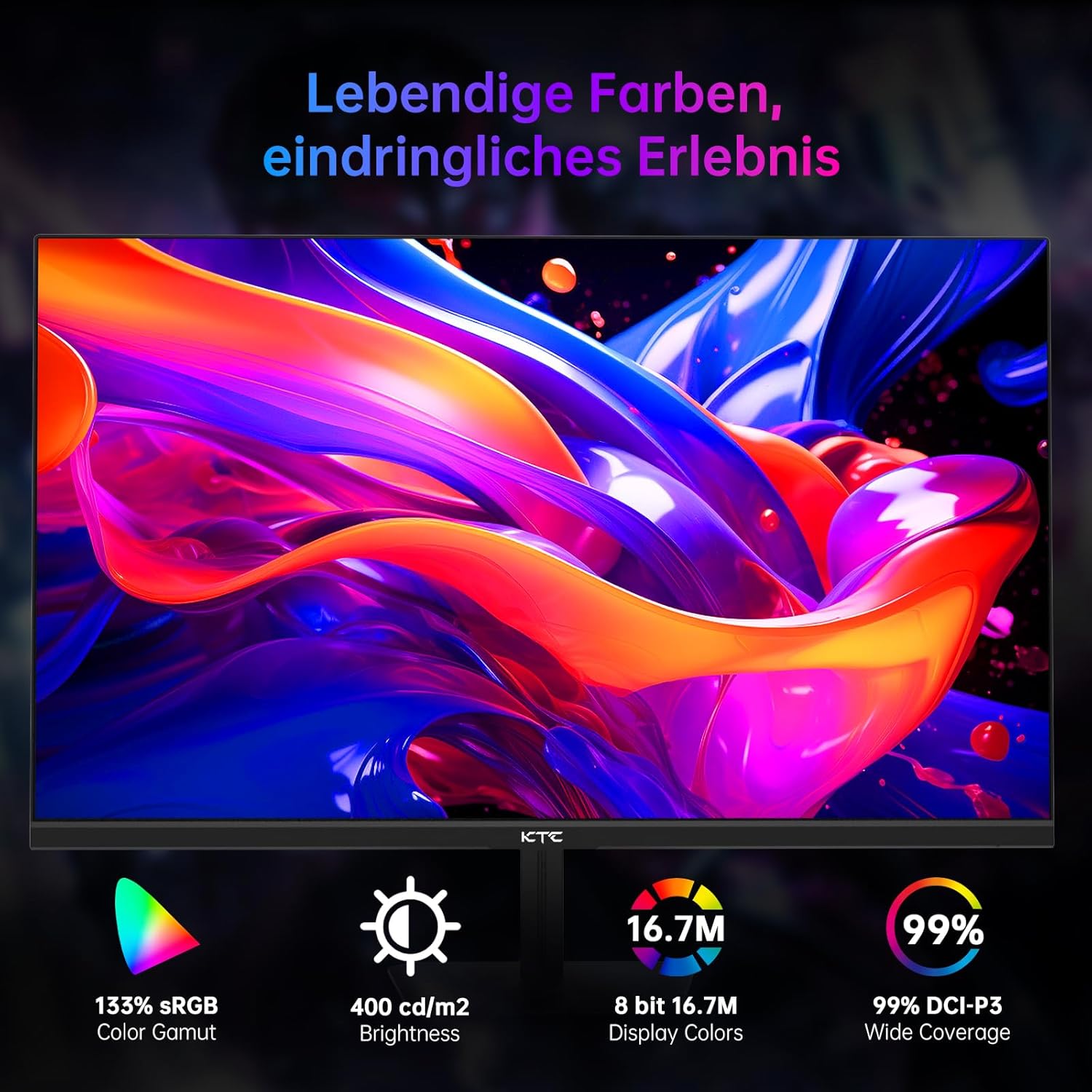
Image 4.5: Vivid Colors and Immersive Experience. This image showcases the monitor's color capabilities, including 133% sRGB Color Gamut, 400 cd/m2 Brightness, 8-bit 16.7M Display Colors, and 99% DCI-P3 Wide Coverage, indicating a rich and accurate color reproduction.

Image 4.6: HDR10 Support. This image demonstrates the monitor's HDR10 support, which provides higher brightness and clearer contrast between light and dark areas, making every detail easily discernible for a more immersive visual experience.
Adaptive Sync & Dynamic Action Sync
Adaptive Sync technology synchronizes the monitor's refresh rate with your graphics card's output, eliminating screen tearing and stuttering for a smooth gaming experience. Dynamic Action Sync reduces input lag, allowing for quicker responses in competitive games.
Game Assist Features
Enhance your gaming with built-in Game Assist features:
- Crosshair: Provides an on-screen crosshair for precise targeting.
- FPS Counter: Displays your game's frames per second in real-time.
- Black Stabilizer: Adjusts the brightness of dark areas without overexposing bright areas, improving visibility in dimly lit game environments.

Image 4.7: Game Assist Features. This image illustrates the monitor's Game Assist functions, including an on-screen Crosshair for aiming, an FPS Counter to display performance, and Black Stabilizer for improved visibility in dark scenes.
5. Maintenance
5.1 Cleaning the Monitor
- Always unplug the monitor from the power outlet before cleaning.
- Use a soft, lint-free cloth slightly dampened with water or a mild, non-abrasive screen cleaner.
- Do not spray cleaner directly onto the screen. Apply it to the cloth first.
- Avoid using benzene, thinner, ammonia-based cleaners, or abrasive pads, as these can damage the screen surface.
- Wipe the screen gently to remove dust and smudges.
6. Troubleshooting
If you encounter issues with your monitor, refer to the following common problems and solutions:
- No Power:
- Ensure the power cable is securely connected to both the monitor and the power outlet.
- Check if the power outlet is functioning correctly by plugging in another device.
- No Signal:
- Verify that the video cable (HDMI or DisplayPort) is securely connected to both the monitor and your computer.
- Ensure the correct input source is selected in the monitor's OSD menu.
- Check if your computer is powered on and not in sleep mode.
- Try a different video cable or port on your computer.
- Flickering Screen:
- Ensure the video cable is properly connected.
- Adjust the refresh rate in your computer's display settings.
- Disable Adaptive Sync (FreeSync/G-Sync) in the OSD menu or your graphics card settings to see if the issue persists.
- Image is too Dark/Bright or Colors are Incorrect:
- Adjust brightness, contrast, and color settings in the OSD menu.
- Reset the monitor to factory default settings via the OSD menu.
- Update your graphics card drivers.
7. Specifications
| Feature | Specification |
|---|---|
| Brand | KTC |
| Model Number | H24F8 |
| Screen Size | 24 inches (23.8 inches visible) |
| Panel Type | Fast IPS |
| Resolution | FHD 1920 x 1080 |
| Aspect Ratio | 16:9 |
| Refresh Rate | 180 Hz |
| Response Time | 1 ms |
| Contrast Ratio | 1000:1 |
| Brightness | 400 cd/m2 (HDR) |
| Color Gamut | 133% sRGB, 94% DCI-P3 |
| Display Colors | 16.7 Million (8-bit) |
| HDR Support | HDR10 |
| Adaptive Sync | Yes (Freesync & G-sync compatible) |
| Connectivity | 2 x HDMI 2.0, 1 x DisplayPort 1.4 |
| Surface Description | Matte |
| Color | Black |
| Energy Efficiency Class (SDR) | E |
| Energy Consumption (SDR) | 18 kWh/1000h |
| Energy Efficiency Class (HDR) | G |
| Energy Consumption (HDR) | 34 kWh/1000h |

Image 7.1: EU Energy Label for KTC H24F8. This label indicates the monitor's energy efficiency class (E for SDR, G for HDR) and consumption, along with a QR code linking to more product information: https://eprel.ec.europa.eu/qr/2056653
8. Warranty and Support
8.1 Warranty Information
This KTC monitor comes with a minimum 1-year warranty provided by the supplier. Please retain your proof of purchase for warranty claims. The availability of spare parts and software updates is not explicitly guaranteed beyond this period.
8.2 Customer Support
For technical assistance, warranty claims, or product inquiries, please contact your retailer or the official KTC customer support channels. Refer to the product packaging or the KTC official website for contact details.
Related documentsH24F8


Ask a question about this manual
Ask about setup, troubleshooting, compatibility, parts, safety, or missing instructions. Manuals+ will review the question and use this page’s manual context to help answer it.