
Cleer Arc 3 Gaming
Cleer ARC 3 Gaming Earbuds User Manual
Model: Arc 3 Gaming
Introduction
Thank you for choosing the Cleer ARC 3 Gaming Earbuds. These true wireless open-ear headphones are designed to provide an immersive audio experience with ultra-low latency, optimized for gaming across various platforms. This manual provides comprehensive instructions for setting up, operating, maintaining, and troubleshooting your new earbuds to ensure optimal performance and longevity.
Product Overview and Key Features
The Cleer ARC 3 Gaming Earbuds combine advanced audio technology with ergonomic design for extended comfort during gaming sessions and daily use. Key features include:
- Ultra-Low Latency: Experience audio-video synchronization under 30ms for seamless gameplay, ideal for VR, PlayStation, PC, and Switch.
- Extended Playtime: Up to 50 hours of total playtime with the charging case (10 hours per earbud, plus 40 hours from case). A quick 5-minute charge provides 1.5 hours of play.
- Exceptional Audio Quality: Features Dolby Atmos audio and Snapdragon Sound with 16.2mm drivers for spatial audio and optimized Dolby Atmos head tracking.
- Intuitive FHD Display & Touch Controls: The charging case features an FHD display for managing Dolby sound effects, EQ settings, and more. Earbuds offer touch controls.
- Wide Compatibility: Dual connections via 2.4GHz USB-C dongle and Bluetooth 5.4, compatible with PS4/5, Switch, Meta Quest 2/3, phones, laptops, and PCs.
- Multipoint Pairing: Connect to two devices simultaneously and switch seamlessly.
- Open-Ear Design: Provides situational awareness while delivering high-quality audio.
Components
The Cleer ARC 3 Gaming Earbuds package includes:
- Cleer ARC 3 Open-Ear Gaming Earbuds (Left and Right)
- Charging Case with FHD Display
- USB-C Dongle
- USB Charging Cable
- User Manual (this document)
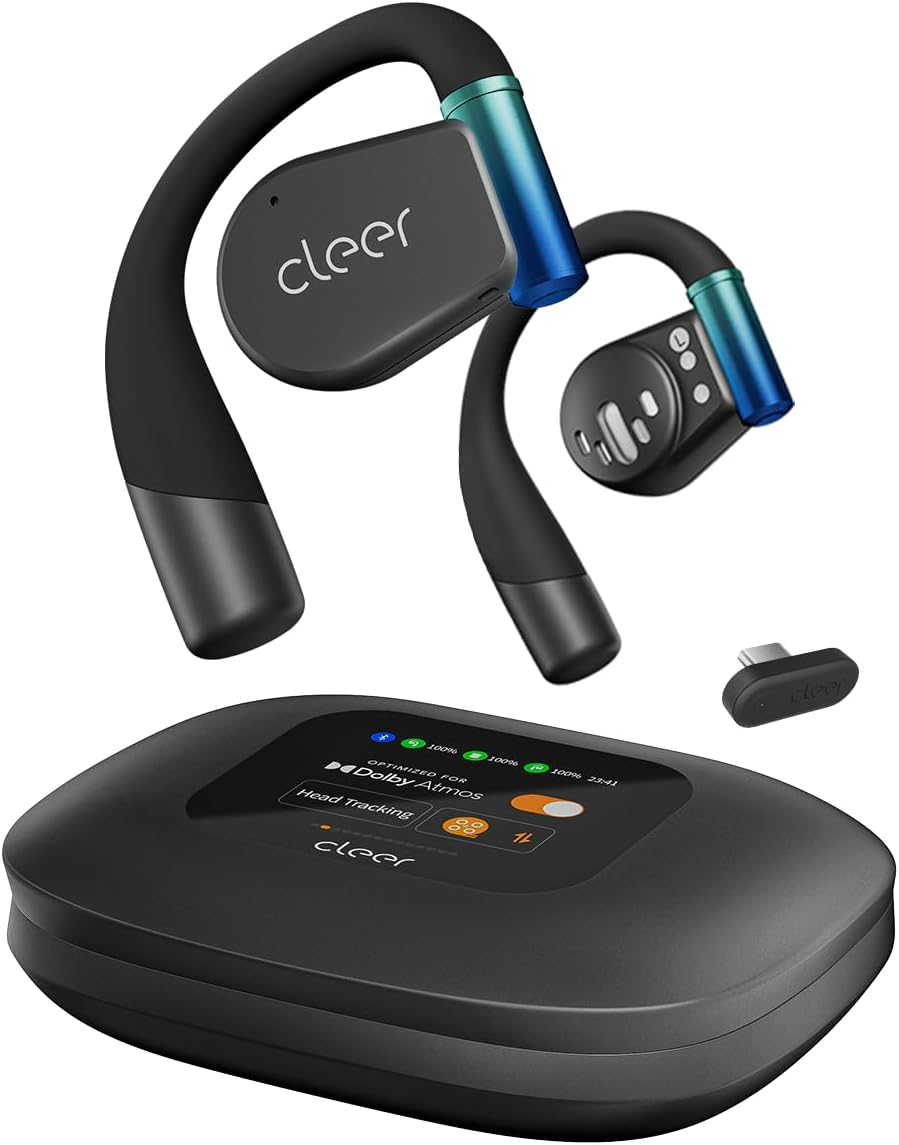
Image: The Cleer ARC 3 Gaming Earbuds, their smart charging case with a display, and the compact USB-C dongle. This image illustrates the main components included with the product.

Image: A person wearing the Cleer ARC 3 earbuds, highlighting their design and the "Powerful Sound Optimized for Dolby Atmos" feature. This demonstrates the earbuds in use and their audio capabilities.

Image: A close-up of the Cleer ARC 3 USB-C dongle, emphasizing its role in achieving ultra-low latency (under 30ms) with Bluetooth 5.4 connectivity. This image focuses on the connectivity technology.

Image: The Cleer ARC 3 earbuds inside their charging case, illustrating the impressive battery life of up to 50 hours total playtime, with details on quick charging. This highlights the product's endurance.

Image: A person wearing the Cleer ARC 3 earbuds, demonstrating their capability for "Crystal Clear Calls" through advanced voice capture and noise-cancelling microphones. This image focuses on communication features.

Image: The Cleer ARC 3 charging case display, surrounded by various gaming devices (PC, PS4/5, Switch, Meta Quest), illustrating the wide compatibility of the earbuds across multiple platforms. This image emphasizes versatility.

Image: The Cleer ARC 3 earbuds in their case next to a smartphone displaying the "Cleer+ App" interface, which allows for personalized controls and customized audio experiences. This image highlights the app integration.
Setup and Initial Pairing
Before first use, ensure your Cleer ARC 3 earbuds and charging case are fully charged. Remove any protective films from the earbuds.
Charging the Earbuds and Case
- Place the earbuds into the charging case.
- Connect the charging case to a power source using a USB-C cable. The FHD display on the case will indicate charging status.
- The case also supports wireless charging.
Dongle Pairing (for PC, PS4/5, Switch, Meta Quest)

Image: A visual guide detailing the three steps for dongle pairing: plugging the dongle into a USB-C socket, long-pressing the MFB button on the dongle, and operating the headphones to enter pairing mode. This clarifies the dongle connection process.
- Step 1: Plug the USB-C Dongle into your device (e.g., PC, PS5, Switch, Meta Quest).
- Step 2: Long press the Multi-Function Button (MFB) on the Dongle until its LED starts flashing alternately between red and white. The Dongle is now ready for pairing.
- Step 3: Operate the headphones to enter pairing mode. Place the headphones close to the Dongle. They will connect automatically. The LED of the Dongle will turn white (breathing).
Note: The Cleer dongle is not compatible with Xbox series. Xbox requires a different authorization.
Bluetooth Pairing (for Phones, Laptops)

Image: A diagram illustrating three methods for Bluetooth pairing the Cleer ARC 3 earbuds: first pairing by pressing the MFB for 2 seconds, touch pad pairing by tapping 5 times, and charging case pairing via the case's display. This provides multiple pairing options.
There are multiple ways to pair your Cleer ARC 3 earbuds via Bluetooth:
- Option 1: First Pairing
- Remove the protective film from the earbuds.
- Press the MFB button on both earbuds for 2 seconds.
- Option 2: Touch Pad Pairing
- Tap the touch pad on either headphone 5 times and wait for the LED indicators to blink red and white.
- Option 3: Charging Case Pairing
- Place both headphones into the case and close the lid.
- Select "Pairing Mode" on the "Auxiliary" page of the charging case display.
- Open the charging case.
After initiating pairing on the earbuds, select "Cleer ARC 3" from the list of available Bluetooth devices on your phone or laptop.
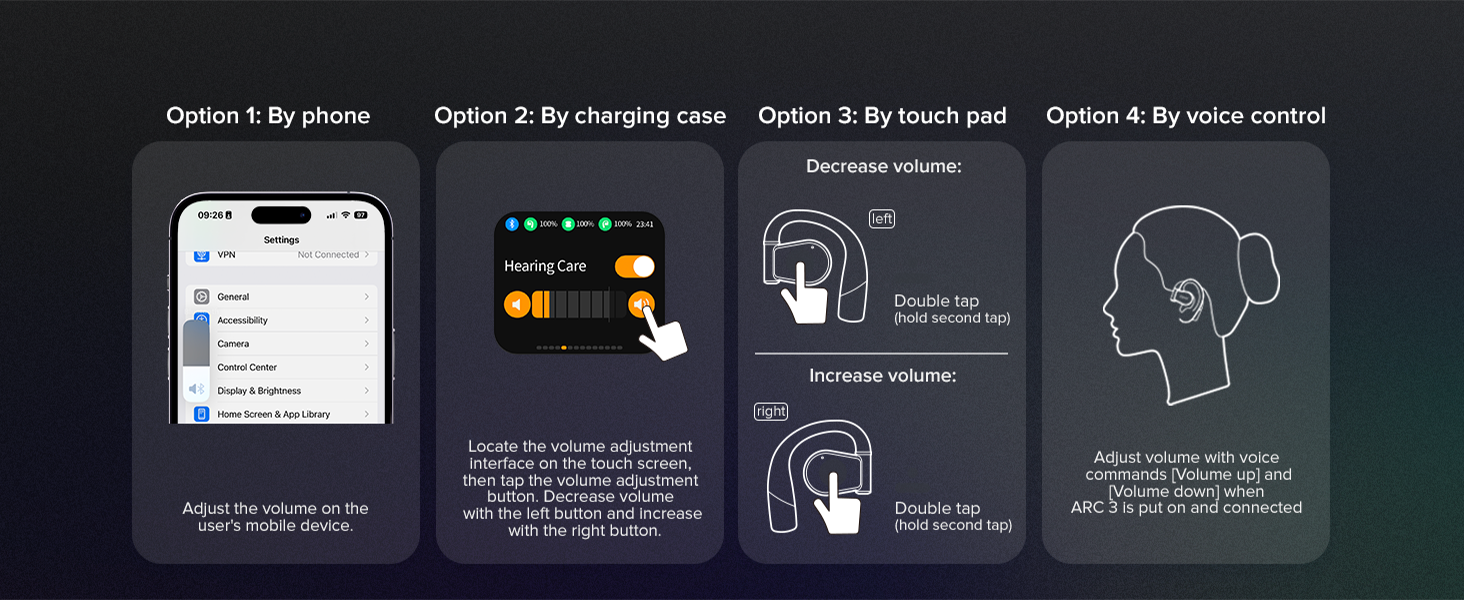
Image: A step-by-step guide for Bluetooth pairing the Cleer ARC 3 on a PC, including enabling Bluetooth, using touch pad pairing, and selecting the device from the list. This provides specific instructions for PC users.
Operating Instructions
Volume Control
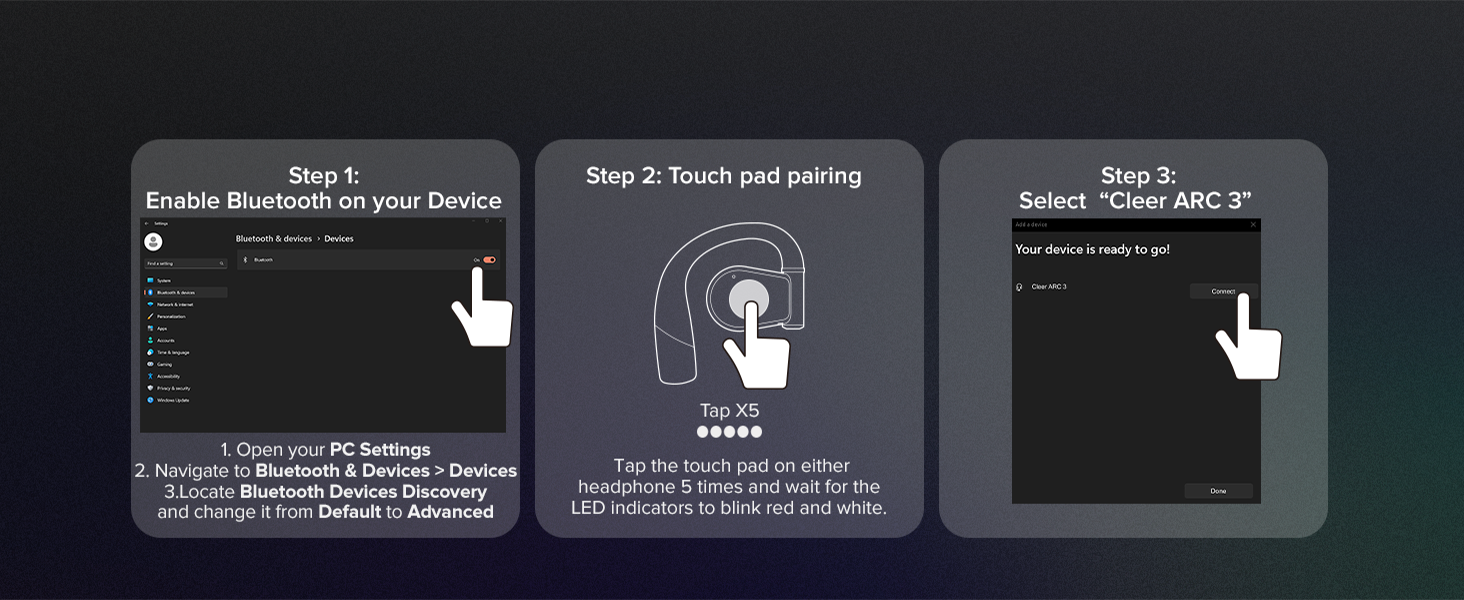
Image: A visual guide illustrating four methods for controlling volume on the Cleer ARC 3: via phone settings, the charging case display, earbud touch pads (double tap), and voice control. This offers comprehensive volume adjustment options.
You can adjust the volume of your Cleer ARC 3 Gaming Earbuds using several methods:
- By Phone/Device: Adjust the volume directly on your connected mobile device or computer.
- By Charging Case: Use the intuitive FHD display on the charging case to locate the volume adjustment interface. Tap the volume adjustment button, then use the left button to decrease and the right button to increase volume.
- By Touch Pad:
- To decrease volume: Double tap the touch pad on the left earbud (hold second tap).
- To increase volume: Double tap the touch pad on the right earbud (hold second tap).
- By Voice Control: Adjust volume using voice commands (e.g., "Volume up", "Volume down") when ARC 3 is worn and connected.
Using the Cleer+ App
The Cleer+ App allows for personalized controls and a customized audio experience. Download the app from your device's app store. Through the app, you can:
- Adjust EQ settings.
- Manage Dolby sound effects and head tracking.
- Access motion control and intelligent voice control settings.
- Monitor battery levels.
- Update firmware for earbuds and dongle.

Image: The Cleer+ App icon alongside smartphone screens displaying the app's interface, which allows users to personalize controls and customize their audio experience. This highlights the software component of the product.
Dual Mode Operation (Game Mode / Music Mode)

Image: A visual representation of the Cleer ARC 3's "Dual Mode" functionality, showing a "Game Mode" for ultra-low latency and a "Music Mode" for high-definition audio. This illustrates the versatility of the earbuds for different uses.
The Cleer ARC 3 supports two primary modes:
- Game Mode (Ultra-low Latency Mode): Optimized for gaming, providing audio-video synchronization under 30ms. This mode is typically active when connected via the USB-C dongle.
- Music Mode (High Definition Audio Mode): Provides high-fidelity audio for music listening. This mode is generally used when connected via Bluetooth.
Switching between modes may be managed automatically based on the connection type or manually via the Cleer+ App or charging case display.
Multipoint Pairing
Leverage Bluetooth 5.4 technology to connect your ARC 3 earbuds to two devices simultaneously. This allows for seamless switching between audio sources, such as listening to game audio via the dongle and taking a call on your smartphone via Bluetooth.
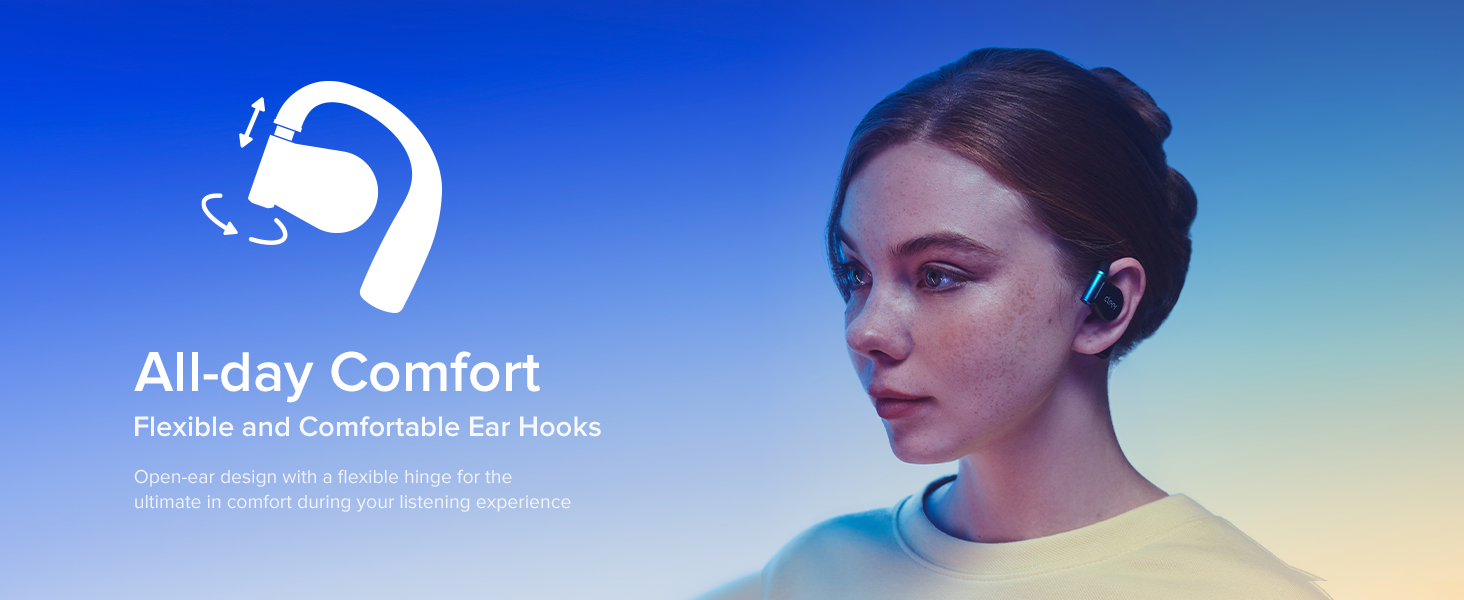
Image: A person simultaneously playing a game and engaging in a phone call, demonstrating the "Play & Chat At the Same Time" feature of the Cleer ARC 3 earbuds through multipoint pairing. This highlights the convenience of dual connectivity.
Maintenance and Care
Proper care ensures the longevity and optimal performance of your Cleer ARC 3 Gaming Earbuds.
- Cleaning: Use a soft, dry, lint-free cloth to clean the earbuds and charging case. Do not use abrasive cleaners or solvents.
- Water Resistance: The earbuds are water resistant. Avoid submerging them in water or exposing them to excessive moisture. Dry them thoroughly if they get wet.
- Storage: When not in use, store the earbuds in their charging case to protect them and keep them charged.
- Temperature: Avoid exposing the earbuds to extreme temperatures (hot or cold).

Image: A close-up of the Cleer ARC 3 earbuds with small water droplets on their surface, visually representing their water-resistant feature. This image emphasizes the durability aspect of the product.
Troubleshooting
If you encounter issues with your Cleer ARC 3 Gaming Earbuds, refer to the following common solutions:
| Problem | Possible Solution |
|---|---|
| Earbuds not pairing/connecting. |
|
| No sound or low volume. |
|
| Audio cutting in/out or distortion. |
|
| Charging case display not responding. |
|
Specifications
| Feature | Detail |
|---|---|
| Model Name | ARC 3 Gaming |
| Wireless Communication Technology | Bluetooth |
| Bluetooth Version | 5.4 |
| Audio Latency | Under 30 Milliseconds |
| Battery Life (Earbuds) | Up to 10 hours |
| Total Playtime with Case | Up to 50 hours |
| Quick Charge | 5 min charge for 1.5 hours playtime |
| Audio Driver Type | Dynamic Driver |
| Audio Driver Size | 16.2 Millimeters |
| Frequency Range | 20Hz to 20,000Hz |
| Earpiece Shape | Open-ear |
| Control Method | App, Touch |
| Water Resistance Level | Water Resistant |
| Item Weight | 4.6 ounces (130.02 Grams) |
| Compatible Devices | Cellphones, Desktops, Gaming Consoles (PS4/5, Switch, Meta Quest 2/3), Laptops, Tablets |
| Manufacturer | Cleer |
| Color | Black |
Warranty and Support
For detailed warranty information, please refer to the warranty card included with your product or visit the official Cleer website. For technical support, product registration, or further assistance, please contact Cleer customer service.
You can also find additional resources and a downloadable PDF user manual at: Cleer ARC 3 User Manual (PDF)
Visit the official Cleer Store for more products and information: Cleer Store on Amazon
Related documentsArc 3 Gaming


Ask a question about this manual
Ask about setup, troubleshooting, compatibility, parts, safety, or missing instructions. Manuals+ will review the question and use this page’s manual context to help answer it.