
Introduction
Welcome to the user manual for your new GMKtec G3 Plus Mini PC. This document provides essential information for setting up, operating, maintaining, and troubleshooting your device. Please read this manual thoroughly before using the product to ensure optimal performance and longevity.

The GMKtec G3 Plus is a compact and powerful mini PC designed for various computing needs, from daily tasks to home entertainment and office work.
Package Contents
Verify that all items listed below are included in your package. If any items are missing or damaged, please contact GMKtec customer support.
- 1 x Nucbox G3 Plus Mini PC
- 1 x Power Adapter & Cable
- 1 x HDMI Cable
- 1 x VESA Mount with Screws
- 1 x User Manual (this document)

This image displays the standard items included in the GMKtec G3 Plus Mini PC retail packaging, ensuring you have everything needed for initial setup.
Product Features
The GMKtec G3 Plus Mini PC is engineered for efficiency and performance, offering a range of features for a seamless computing experience.
- Processor: Intel Twin Lake N150 (4-core/4-thread, up to 3.6 GHz, 6MB Cache), offering enhanced performance over previous generations.
- Memory: 16GB DDR4 3200MHz RAM (expandable up to 32GB).
- Storage: 1TB M.2 2280 NVMe SSD (supports PCIe 3.0, expandable up to 2TB).
- Graphics: Integrated Intel Graphics (up to 1000MHz).
- Operating System: Pre-installed Windows 11 Pro.
- Connectivity:
- WiFi 6 (802.11ax) for high-speed wireless internet.
- Bluetooth 5.2 for connecting wireless peripherals.
- 2.5G Gigabit Ethernet (RJ45) for stable wired network connection.
- Ports:
- 4 x USB 3.2 ports (up to 5 Gbit/s).
- 2 x HDMI 2.0 ports (supports 4K @ 60Hz dual display output).
- 1 x 3.5mm Audio Jack.
- 1 x DC 12V 3A Power Input.
- 1 x Security Lock slot.
- Additional Functions: Supports Wake on LAN, PXE Boot, RTC Wake, and Auto Power On.
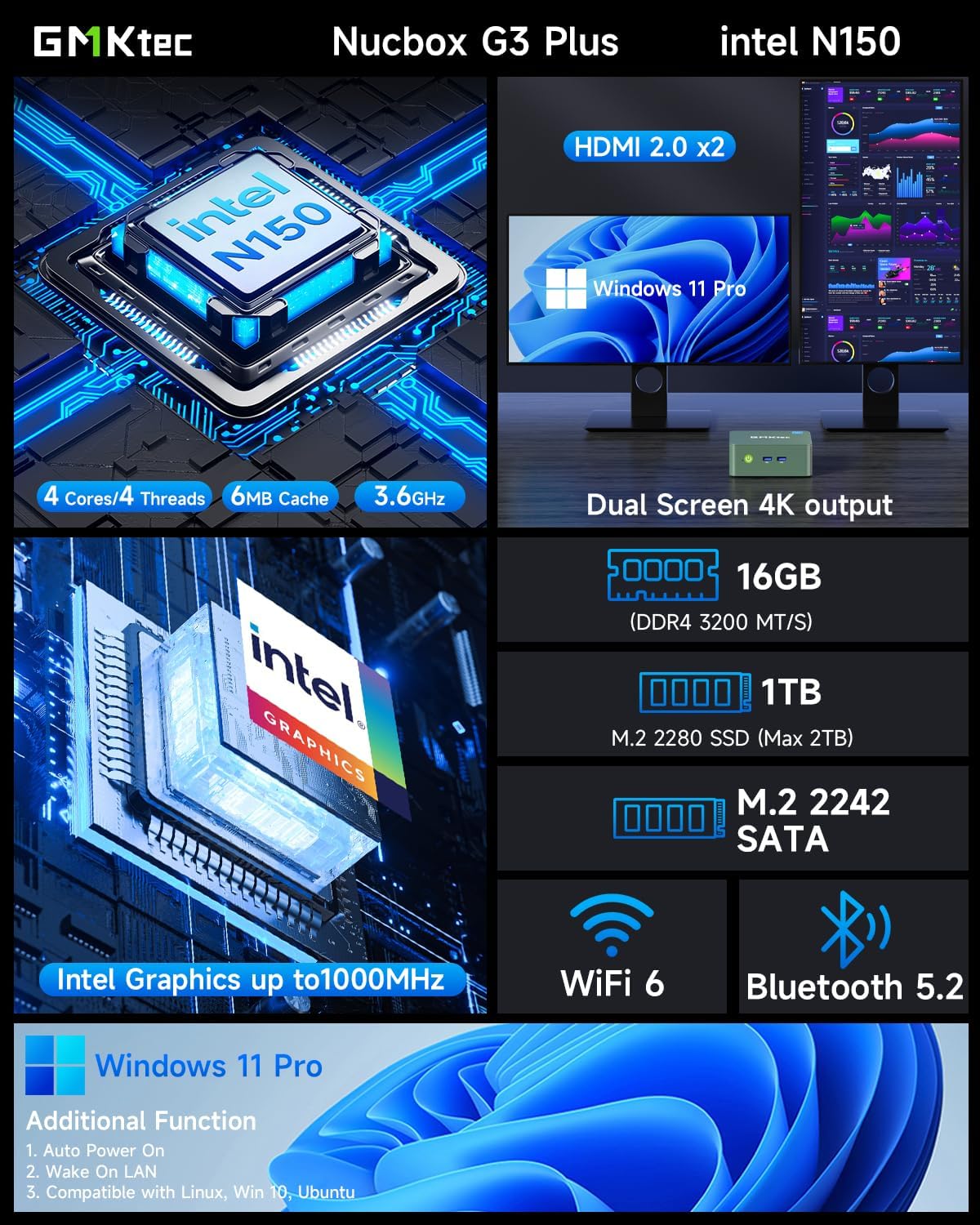
This visual summary details the core specifications and capabilities of the GMKtec G3 Plus, such as its processor, memory, storage, and display outputs.

This graph illustrates the performance advantage of the Intel Twin Lake N150 processor in the GMKtec G3 Plus, showing its improved multi-core and single-core capabilities compared to previous generation CPUs.
Setup Guide
Follow these steps to set up your GMKtec G3 Plus Mini PC.
Step 1: Connect to Display
Connect your monitor(s) to the Mini PC using the provided HDMI cable. The GMKtec G3 Plus supports dual 4K @ 60Hz displays.

This image shows the mini PC connected to two screens, illustrating its ability to support a dual 4K display setup for enhanced productivity or entertainment.
Step 2: Connect Peripherals
Connect your keyboard, mouse, and other USB devices to the available USB 3.2 ports.
Step 3: Connect to Power
Plug the power adapter into the DC 12V 3A port on the Mini PC, then plug the power cable into a wall outlet.
Step 4: Power On
Press the power button located on the front of the Mini PC. The power indicator light will illuminate.

This image provides a clear layout of all available ports on the GMKtec G3 Plus, guiding users on where to connect their peripherals and displays.
Operating Instructions
Initial Boot and Windows Setup
Upon the first boot, the system will guide you through the Windows 11 Pro setup process. Follow the on-screen instructions to configure your language, region, network, and user account.
Connecting to Network
Your Mini PC supports both wired and wireless network connections.
Wired Connection (Ethernet)
Connect an Ethernet cable from your router or modem to the 2.5G Gigabit LAN port on the Mini PC.

This image highlights the advanced wireless capabilities of the mini PC, including the faster speeds and improved performance offered by WiFi 6 and Bluetooth 5.2.
Wireless Connection (Wi-Fi)
During Windows setup or via Windows settings, select your Wi-Fi network and enter the password. The Mini PC supports Wi-Fi 6 (802.11ax) for optimal wireless performance.
Bluetooth Devices
To connect Bluetooth devices (e.g., keyboard, mouse, headphones), go to Windows Settings > Bluetooth & devices, turn on Bluetooth, and pair your device. The Mini PC features Bluetooth 5.2 for stable connections.
Dual Display Setup
The GMKtec G3 Plus supports connecting two monitors simultaneously via its two HDMI 2.0 ports. Once connected, Windows will automatically detect the displays. You can configure display settings (extend, duplicate, etc.) in Windows Display Settings.
Maintenance
Proper maintenance ensures the longevity and optimal performance of your Mini PC.
- Cleaning: Regularly clean the exterior of the Mini PC with a soft, dry cloth. Use compressed air to clear dust from the ventilation grilles to prevent overheating.
- Ventilation: Ensure the Mini PC is placed in a well-ventilated area and that the cooling vents are not obstructed.
- Software Updates: Keep your Windows operating system and drivers updated to ensure security and performance.
- Storage Management: Periodically clean up unnecessary files and applications to maintain optimal storage performance.

This diagram provides insight into the internal design of the mini PC, highlighting key components and the cooling system, which is important for understanding maintenance needs.
Troubleshooting
This section addresses common issues you might encounter.
No Power / System Not Turning On
- Ensure the power adapter is securely connected to both the Mini PC and a working power outlet.
- Verify the power outlet is functional by plugging in another device.
- Try a different power outlet if available.
No Display Output
- Check if the HDMI cable is securely connected to both the Mini PC and the monitor.
- Ensure the monitor is powered on and set to the correct input source (HDMI 1, HDMI 2, etc.).
- Try a different HDMI cable or monitor if possible.
Wi-Fi / Bluetooth Connectivity Issues
- Ensure Wi-Fi/Bluetooth is enabled in Windows settings.
- Restart the Mini PC and your router/modem.
- Check for updated Wi-Fi/Bluetooth drivers on the GMKtec support website.
- Ensure the Mini PC is within range of your Wi-Fi router.
System Slow or Unresponsive
- Close unnecessary applications running in the background.
- Check Task Manager for processes consuming high CPU or RAM.
- Ensure there is sufficient free space on the SSD.
- Run a virus scan.
- Consider updating Windows and drivers.
Specifications
| Feature | Detail |
|---|---|
| Brand | GMKtec |
| Model | GMKtec NUCBOX G3 Plus |
| Processor | Intel Twin Lake N150 (4 Cores, 4 Threads, up to 3.6 GHz, 6MB Cache) |
| Operating System | Windows 11 Pro |
| RAM | 16GB DDR4 3200MHz (Max 32GB) |
| Storage | 1TB M.2 2280 NVMe SSD (PCIe 3.0, Max 2TB) |
| Graphics | Integrated Intel Graphics |
| Wi-Fi | Wi-Fi 6 (802.11ax) |
| Bluetooth | Bluetooth 5.2 |
| Ethernet | 2.5G Gigabit RJ45 |
| USB Ports | 4 x USB 3.2 |
| HDMI Ports | 2 x HDMI 2.0 (4K@60Hz) |
| Audio | 1 x 3.5mm Audio Jack |
| Power Input | DC 12V 3A |
| Dimensions | 18 x 18 x 9 cm (Package) |
| Weight | 850 grams (Package) |
Warranty and Support
GMKtec provides a limited one-year warranty for each Mini PC, effective from the date of purchase. This warranty covers defects arising from design and manufacturing faults.
For any inquiries or technical assistance, please contact GMKtec customer support.
- Amazon Support: For purchase-related queries, log in to your Amazon account, navigate to "Your Orders," and select "Ask Product Question."
- After-Sales Support: For technical support or warranty claims, send an email to support@gmktec.com. GMKtec offers 24/7 customer support.

This image outlines the available channels for customer support and warranty claims, including Amazon's platform and direct email contact for GMKtec's after-sales team.


