
zhiroad Q20
zhiroad 4K Dash Cam Front and Rear User Manual
Model: Q20
Brand: zhiroad
1. Introduction
This user manual provides comprehensive instructions for the installation, operation, maintenance, and troubleshooting of your zhiroad 4K Dash Cam Front and Rear (Model Q20). Please read this manual thoroughly before using the device to ensure proper functionality and safety.

Image: The zhiroad 4K Dash Cam Q20, showing the front camera, rear camera, and a smartphone displaying the companion app interface, along with the included 64GB SD card.
2. Package Contents
Verify that all items listed below are included in your package:
- 1 x Q20 4K Dash Cam (Front)
- 1 x Ultra HD Rear Camera
- 1 x 32GB SD Card (Note: Product description states 64GB, but package contents list 32GB. Please verify upon receipt.)
- 1 x Car Charger (Type-C)
- 1 x 21.3 ft. Rear Camera Connection Cable
- 1 x Suction Mount
- 1 x App Download & Connection Tutorial Manual
- Cable Clips
- 3M Stickers
- Wiring Crowbar

Image: A visual representation of all items included in the dash cam package, such as the front camera, rear camera, cables, mounts, and user manual.
3. Product Overview
The zhiroad Q20 Dash Cam features a compact and durable design, crafted from zinc alloy for enhanced heat dissipation and longevity. It includes both front and rear cameras for comprehensive vehicle coverage.
Front Dash Cam Features:
- 4K Ultra HD Lens: Captures high-resolution video.
- 1.47" IPS Screen: For live view and settings adjustment.
- Built-in WiFi: Enables smartphone app control and video transfer.
- F1.8 Aperture & 6-Layer Lens: Enhances night vision capabilities.
- WDR (Wide Dynamic Range): Improves video clarity in varying light conditions.
- G-Sensor: Automatically locks footage during collisions.
- Loop Recording: Overwrites oldest files when storage is full.
- Detachable Mount Base: Allows easy removal of the camera body.
Rear Camera Features:
- 1080P Full HD Resolution: Provides clear rear view recording.
- 140° Wide Angle: Expansive coverage of the rear view.
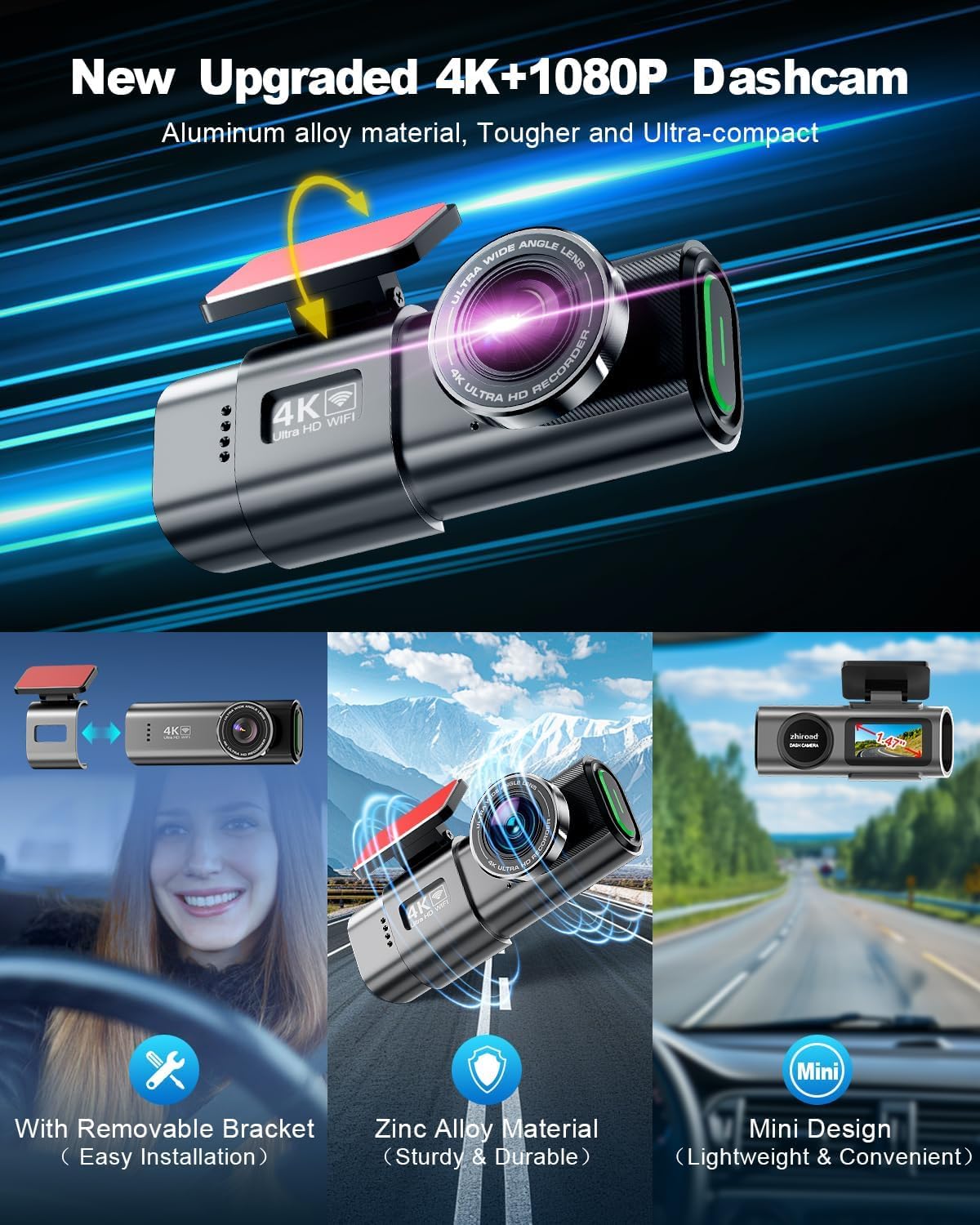
Image: The zhiroad Q20 dash cam highlighting its compact size, durable zinc alloy construction, and removable bracket for convenient installation and removal.
4. Installation Guide
Follow these steps for proper installation of your dash cam system:
4.1. Front Dash Cam Installation
- Clean Windshield: Ensure the area on your windshield where the dash cam will be mounted is clean and dry.
- Attach Mount: Secure the suction mount to the windshield, ideally behind the rearview mirror to avoid obstructing your view.
- Attach Dash Cam: Slide the front dash cam onto the mount until it clicks securely into place.
- Connect Power: Plug the Type-C car charger into the dash cam and route the cable neatly along the windshield edge and down to your car's cigarette lighter socket. Use the provided cable clips and crowbar for a tidy installation.

Image: Illustration of the front dash cam mounted on the windshield, with a diagram showing how to route the power cable for a clean installation.
4.2. Rear Camera Installation
- Mount Rear Camera: Attach the rear camera to the inside of your rear windshield, ensuring a clear view. Use the provided 3M stickers for secure attachment.
- Connect Cable: Connect the 21.3 ft. rear camera connection cable to the rear camera and route it along the vehicle's interior trim to the front dash cam. Plug the other end into the designated port on the front dash cam.

Image: A visual representation of the front and rear dash cameras' wide-angle coverage, illustrating how they capture a broad view of the road.
4.3. Installation Video Guide
Video: This video provides a step-by-step guide on how to properly install the zhiroad dash cam in your vehicle, covering both front and rear camera placement and cable routing.
5. Initial Setup and App Connection
To fully utilize your dash cam's features, connect it to the companion smartphone app:
- Download App: Scan the QR code in your manual or search for "Viidure APP" on the App Store (iOS) or Google Play Store (Android).
- Power On Dash Cam: Ensure the dash cam is powered on and recording.
- Connect to WiFi: On your smartphone, go to WiFi settings and connect to the dash cam's WiFi network (e.g., "Q20Cam-UIHVEU1R"). The default password can be found in the included manual.
- Open App: Launch the Viidure app. It should automatically detect and connect to your dash cam.
- Adjust Settings: Within the app, you can adjust video resolution, loop recording duration, G-sensor sensitivity, and other settings.

Image: The smartphone app interface for controlling the dash cam, showing options for live view, settings, and social media sharing.
5.1. Formatting the Memory Card
It is recommended to format the SD card regularly to ensure optimal performance and prevent data corruption. The dash cam supports up to 256GB SD cards.
- Open the dash cam app on your phone.
- Connect to the dash cam's WiFi.
- Tap the settings icon in the bottom right corner.
- Find and tap "Format", then confirm and wait for completion.
Video: This video demonstrates the process of formatting the memory card using the dash cam's companion app, ensuring proper storage management.
6. Operating the Dash Cam
6.1. Automatic Recording
Once powered on and an SD card is inserted, the dash cam automatically begins recording. The front camera records in 4K Ultra HD (3840x2160P) and the rear camera in 1080P Full HD. Both cameras feature a wide-angle lens (Front 170°, Rear 140°) to capture extensive road details.

Image: Illustration of the dual-channel recording capability, capturing 4K footage from the front and 1080P from the rear.
6.2. Loop Recording
The dash cam utilizes loop recording, which means when the memory card is full, the oldest unlocked video files are automatically overwritten by new recordings. This ensures continuous recording without manual intervention. The included 64GB SD card provides approximately 6 hours of recording time before overwriting begins.

Image: A visual explanation of loop recording, where the dash cam continuously records and overwrites older footage when the memory card is full.
6.3. G-Sensor (Collision Detection)
The built-in G-Sensor automatically detects sudden collisions or impacts. When an event is detected, the current video segment is locked and protected from being overwritten by loop recording. This ensures critical incident footage is preserved.
Image: An illustration demonstrating the G-sensor's function, where it detects a collision and automatically locks the relevant video footage.
6.4. 24-Hour Parking Monitor
For continuous protection, the dash cam offers 24-hour parking monitoring. This feature requires a hardwire kit (sold separately, ASIN: B0DJ2PQ835) to provide constant power. When enabled, the dash cam will record if a collision or impact is detected while the vehicle is parked.

Image: A visual representation of the 24-hour parking monitoring feature, showing a car protected by a shield icon, indicating continuous surveillance.
6.5. Super Night Vision & WDR
Equipped with an F1.8 aperture and a 6-layer lens, the dash cam provides superior night vision, capturing clear video even in low-light conditions. Wide Dynamic Range (WDR) technology further enhances video quality by balancing bright and dark areas, ensuring stable and detailed footage day or night.

Image: A comparison illustrating the effectiveness of Super Night Vision and WDR technology in capturing clearer video imagery with less motion blur in low light.
6.6. Feature Introduction Video
Video: This video provides a comprehensive introduction to the various features of the zhiroad dash cam, including its recording capabilities, safety functions, and connectivity options.
7. Maintenance
- Cleaning the Lens: Use a soft, lint-free cloth to gently wipe the camera lenses. Avoid abrasive materials or harsh chemicals that could scratch the lens.
- SD Card Care: Regularly format the SD card (as described in Section 5.1) to maintain optimal recording performance and prevent data corruption. Replace the SD card if it shows signs of degradation or errors.
- Temperature: Avoid exposing the dash cam to extreme temperatures for prolonged periods. The zinc alloy casing is designed for heat dissipation, but prolonged exposure to direct sunlight in a hot car can still affect performance.
- Firmware Updates: Check the official zhiroad website or app periodically for firmware updates to ensure your dash cam has the latest features and bug fixes.
8. Troubleshooting
| Problem | Possible Cause | Solution |
|---|---|---|
| Dash cam not powering on. | Loose power connection, faulty car charger, vehicle power outlet issue. | Check all cable connections. Test the car charger in another vehicle or use a different charger. Verify the vehicle's power outlet is functional. |
| WiFi connection fails or is unstable. | Incorrect WiFi password, app issue, interference. | Ensure correct WiFi password. Restart both the dash cam and your smartphone. Try reinstalling the app. Minimize other WiFi devices nearby. |
| SD card error / Cannot record. | SD card not formatted, incompatible card, faulty card. | Format the SD card via the app (Section 5.1). Ensure the card is a high-speed (Class 10 or U3) card and within the supported size (up to 256GB). Try a different SD card. |
| Poor video quality (day or night). | Dirty lens, protective film still on lens, incorrect settings. | Clean the camera lenses. Remove any protective film. Check video resolution settings in the app (ensure 4K is selected for front). |
| Loop recording not working / Card fills up. | Locked files, loop recording disabled, faulty SD card. | Manually delete locked files if too many. Ensure loop recording is enabled in app settings. Format the SD card. |
9. Specifications
| Feature | Detail |
|---|---|
| Brand | zhiroad |
| Model Name | Q20 |
| Product Dimensions | 1.57 x 3.94 x 1.97 inches |
| Item Weight | 5.3 ounces |
| Video Capture Resolution | 4K (3840x2160P) Front, 1080P Rear |
| Orientation | Front and Rear |
| Connectivity Technology | Wi-Fi |
| Mounting Type | Windshield Mount |
| Screen Size | 1.47” IPS Screen |
| Wide Angle Lens | Front 170°, Rear 140° |
| Special Features | F2.0 Super Aperture, Built-in Wi-Fi, Mobile App Control, Loop Recording, Parking Monitoring Mode, Night Vision, G-Sensor, WDR |
| Battery | 1 Lithium Metal battery (included) |
| Max SD Card Support | 256GB |
10. Warranty and Support
zhiroad is committed to providing reliable products and excellent customer service. Your Q20 Dash Cam comes with the following:
- 3-Year Warranty: Enjoy free returns and exchanges for three years from the date of purchase.
- 30-Day Return Policy: Return without providing a reason within 30 days of receipt.
- 24-Hour Email Reply: Customer support aims to reply to emails within 24 hours.
- Technical Support: Dedicated technical support is available to provide satisfactory solutions for any issues you may encounter.
For support, please refer to the contact information provided in your product packaging or the official zhiroad website.
Related documentsQ20

Ask a question about this manual
Ask about setup, troubleshooting, compatibility, parts, safety, or missing instructions. Manuals+ will review the question and use this page’s manual context to help answer it.