
1. Introduction
The Wellue Bluetooth Pulse Oximeter (Model 60FWB) is a compact, non-invasive device designed for spot-checking blood oxygen saturation (SpO2) and pulse rate (PR). It features a bright OLED screen, built-in memory, and Bluetooth connectivity for real-time data synchronization with a free mobile application. This device is intended for sports and aviation use only and is not a medical device.
2. What's in the Box
- Wellue Fingertip Pulse Oximeter (Model 60FWB)
- 2 x AAA Batteries
- Carry Pouch
- Lanyard
- User Manual
- Quick Guide
- Warranty Card

Figure 1: Included accessories with the Wellue Pulse Oximeter.
3. Setup
3.1 Battery Installation
- Open the battery compartment cover located on the back of the device.
- Insert the two AAA batteries, ensuring correct polarity (+ and -).
- Close the battery compartment cover securely.
3.2 App Download and Bluetooth Connection
The Wellue Pulse Oximeter can connect to your smartphone via Bluetooth for real-time data viewing and historical tracking using the VHealth app.
- Download the "VHealth" app from the iOS App Store or Google Play Store.
- Ensure your phone's Bluetooth is enabled.
- Turn on the oximeter by inserting your finger.
- Open the VHealth app and select the device for initial connection.
- The app will automatically receive and store data when open and connected.

Figure 2: Bluetooth connectivity and VHealth app interface.
4. Operating Instructions
4.1 Basic Measurement
- Open the clip of the oximeter.
- Insert one finger (preferably the index finger) into the rubber opening of the oximeter, ensuring the finger is in full contact with the sensor.
- Release the clip. The device will automatically power on and begin measurement within 8 seconds.
- Read the SpO2 and Pulse Rate values displayed on the OLED screen.
- The device will automatically power off 3 seconds after the finger is removed.

Figure 3: Automatic power on/off with finger insertion.
4.2 Screen Display
The OLED screen displays the following information:
- Oxygen Saturation (SpO2): Percentage of oxygen-saturated hemoglobin relative to total hemoglobin in the blood.
- Pulse Rate (PR): Number of heartbeats per minute.
- Perfusion Index (PI): Indicates the pulse strength at the measurement site.
- Plethysmograph Waveform: A graphical representation of blood flow through the finger.
- Battery Indicator: Shows remaining battery life.

Figure 4: Key display elements on the OLED screen.
4.3 Menu Navigation and Alarm Settings
While measuring, a long press of the display key (button) allows you to enter the setup menu. Short presses navigate through options, and another long press confirms a selection or exits the menu.
- SpO2 Alarm Low: Set the lower limit for oxygen saturation. If the reading falls below this, an alarm will sound.
- PR Alarm High: Set the upper limit for pulse rate. An alarm will sound if the pulse rate exceeds this.
- PR Alarm Low: Set the lower limit for pulse rate. An alarm will sound if the pulse rate falls below this.
- Beep On/Off: Enable or disable the audible beep for each pulse beat.

Figure 5: Menu setup for alarm thresholds and beep function.

Figure 6: Audible reminder when readings exceed preset limits.
4.4 Built-in Memory
The device can store up to 12 groups of data for Oxygen Level, Pulse Rate, and Perfusion Index. To view historical data, short press the display key when the device is off. You can cycle through the stored records.

Figure 7: Built-in memory display for historical data.
5. App Features (VHealth)
The VHealth app provides enhanced functionality for your pulse oximeter:
- Real-time Data: View your SpO2, Pulse Rate, and Perfusion Index in real-time on your smartphone.
- Historical Data: The app automatically stores all received data, allowing you to track trends over time.
- Detailed Reports: Generate and view comprehensive reports of your measurements.
- User Management: Set up multiple user profiles to track individual health data.
- Customizable Units: Adjust units for various measurements (e.g., weight in kg/lb, height in cm/ft, temperature in °C/°F).
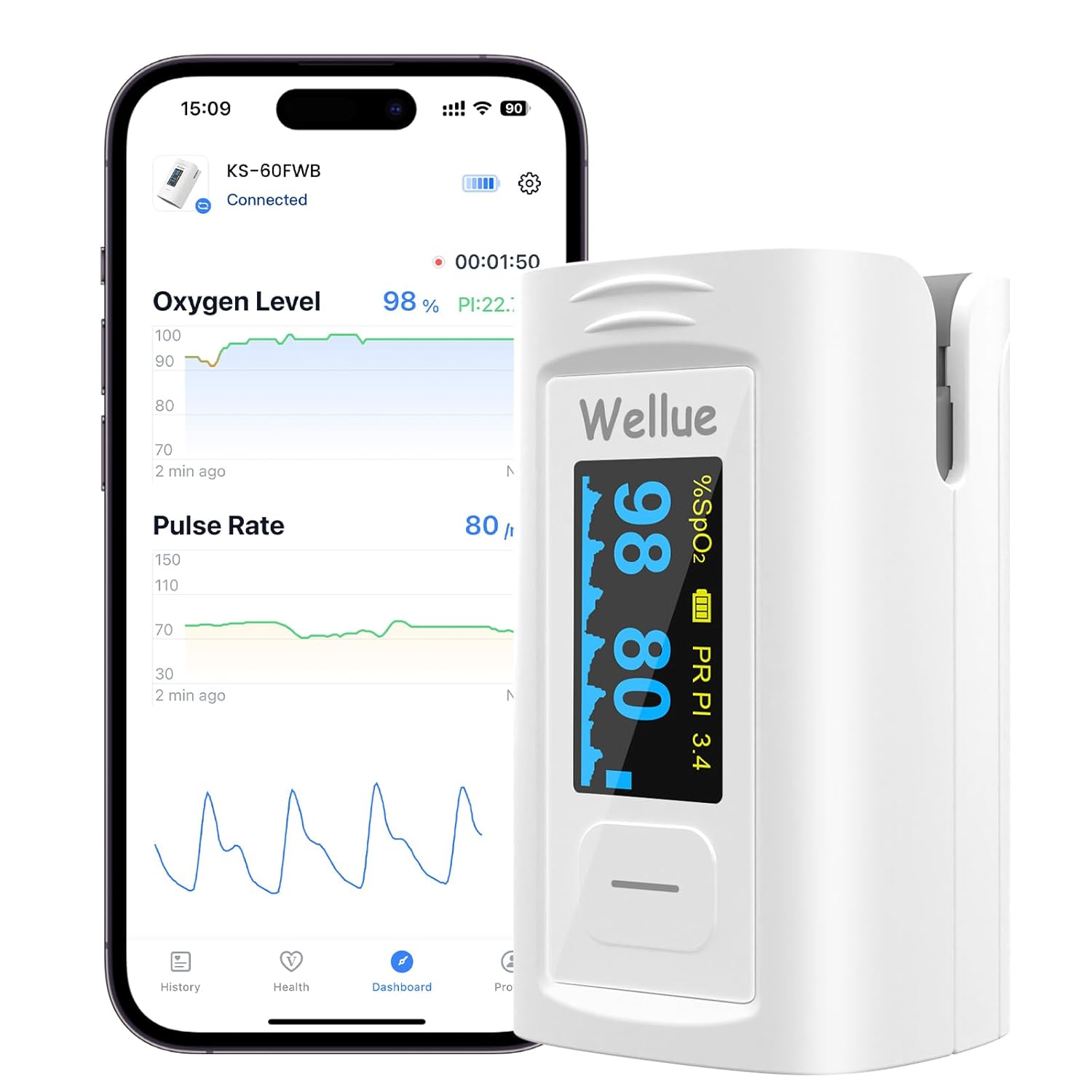
Figure 8: Real-time data display on the VHealth app.
6. Maintenance
- Keep the oximeter clean and dry. Use a soft cloth dampened with alcohol to clean the surface.
- Do not immerse the device in water or other cleaning solutions.
- Remove batteries if the device will not be used for an extended period to prevent leakage.
- Store the device in a cool, dry place away from direct sunlight and extreme temperatures.
- Avoid strong impacts or dropping the device.
- It is recommended that the oximeter should not be applied to the same location for longer than 2 hours. If any abnormal condition is found, please change the position of the oximeter.
7. Troubleshooting
- No Reading/Inaccurate Reading:
- Ensure the finger is fully inserted into the device.
- Check battery levels and replace if necessary.
- Avoid excessive movement during measurement.
- Ensure fingernails are clean and free of thick polish (though the device may read through some dark polishes, clear nails are ideal).
- Cold fingers can affect readings; warm hands before use.
- Bluetooth Connectivity Issues:
- Ensure Bluetooth is enabled on your smartphone.
- Make sure the oximeter is powered on and within range of your phone.
- Restart the VHealth app or your phone.
- Alarm Not Sounding:
- Check the alarm settings in the device menu or VHealth app to ensure they are enabled and set to appropriate thresholds.
- Ensure the beep function is turned on if you desire audible pulse beeps.
8. Specifications
- Model Number: 60FWB
- Measurement Accuracy: <2%
- Measuring Range (SpO2): 35%~100%
- Pulse Rate Display Range: 30bpm~240bpm
- Perfusion Index (PI) Display Range: 0%~20%
- Power Supply: 2 x AAA batteries (included)
- Display: OLED Screen
- Connectivity: Bluetooth
- Package Dimensions: 3.7 x 2.83 x 1.65 inches
- Item Weight: 2.89 ounces
- Manufacturer: Creative Industry
9. Warranty and Support
The Wellue Pulse Oximeter comes with a manufacturer's warranty. Please refer to the included warranty card for specific terms and conditions. For product support, technical assistance, or warranty claims, please contact:
- Email: service@getwellue.com
- Website: www.getwellue.com


