
Introduction
Thank you for choosing the MAONO PD100X XLR/USB Gaming Microphone with BA20 Boom Arm. This manual provides detailed instructions for setting up, operating, and maintaining your microphone system to ensure optimal performance for gaming, streaming, and podcast recording. Please read this manual thoroughly before use.
Product Features
- Clear and Full Sound: The PD100X dynamic microphone features a frequency response of 40Hz-16KHz and a 24-bit/48kHz sampling rate, delivering rich and clear audio. Its customized cardioid capsule accurately captures sound while minimizing ambient noise.
- Personalized Software Control: The Maono Link software offers a user-friendly interface for adjusting mic gain, custom EQ settings, and noise reduction, allowing for tailored audio performance.
- USB/XLR Connectivity: Provides versatile connection options. Use XLR for professional audio interfaces and mixers, or USB for direct connection to PCs, PS4, and PS5.
- Visually Stunning RGB Lighting: Features a unique RGB design with 3 modes and 19 color options, customizable via Maono Link software or the bottom RGB button (USB mode only).
- Flexible Function Keys: Equipped with a 2-in-1 smart knob for independent control of gain and monitoring volume. Includes a built-in headphone monitor jack for real-time audio monitoring (USB mode only).
- Stable BA20 Boom Arm: Constructed from sturdy steel, providing reliable support and flexible positioning for the microphone.

Image: The MAONO PD100X microphone's sound capabilities, including 24-bit Hifi Sound, 7-band Customizable EQ, and 4 tone Presets.

Image: A visual comparison illustrating the superior sound detail and dynamic range of the MAONO PD100X microphone.

Image: Illustration of the dual noise rejection system, combining hardware features like a custom dynamic capsule and pop filter foam with software controls for gain and noise reduction.
Setup
1. Boom Arm Assembly (BA20)
- Attach the clamp base to your desk or table, ensuring it is secure.
- Insert the boom arm into the clamp base.
- Adjust the arm's position and tension using the knobs to achieve desired stability and reach.

Image: The MAONO BA20 boom arm, showcasing its sturdy construction and ability to hold significant weight for stable microphone positioning.

Image: A diagram detailing the MAONO BA20 boom arm's extensive adjustability, including various rotation angles and arm lengths for flexible positioning.
2. Microphone Attachment
- Securely attach the PD100X microphone to the boom arm using the provided microphone clip or shock mount.
- Ensure the microphone is oriented correctly, with the front facing the sound source.
3. Connectivity
The PD100X offers two connection methods:
- USB Connection (for PC, PS4/PS5):
- Connect the USB-C end of the provided cable to the microphone.
- Connect the USB-A end to an available USB port on your computer or gaming console.
- The device should be automatically recognized. Select the MAONO PD100X as your input and output device in your system's sound settings.
- XLR Connection (for Audio Interfaces/Mixers):
- Connect a standard XLR cable (not included) to the XLR port on the microphone.
- Connect the other end of the XLR cable to an XLR input on your audio interface or mixer.
- Ensure phantom power is NOT enabled for this dynamic microphone, as it is not required and could potentially damage the unit.
- Adjust gain levels on your audio interface/mixer as needed.
Operating Instructions
1. Maono Link Software (USB Mode Only)
Download and install the Maono Link software from the official MAONO website. This software allows for advanced control over your microphone's settings:
- Mic Gain: Adjust the input sensitivity of the microphone.
- Custom EQ: Tailor the audio frequency response to your preference.
- Noise Reduction: Activate and adjust the level of ambient noise suppression.
- RGB Customization: Personalize the RGB lighting effects, colors, and brightness.
2. Flexible Function Keys (USB Mode Only)

Image: The MAONO PD100X microphone's control panel, illustrating the mute button, 2-in-1 smart knob for gain and monitoring volume, and headphone jack.
- 2-in-1 Smart Knob: This knob controls both microphone gain and headphone monitoring volume. Rotate to adjust. The LED indicators will change color to show which setting is being adjusted (e.g., red for mute, white for mic gain, blue for headphone gain).
- Mute Button: Press the dedicated mute button to instantly mute or unmute the microphone. The LED indicator will typically show red when muted.
- Headphone Monitor Jack: Plug your headphones into the 3.5mm jack on the microphone for real-time, zero-latency monitoring of your audio.
3. RGB Lighting Control (USB Mode Only)
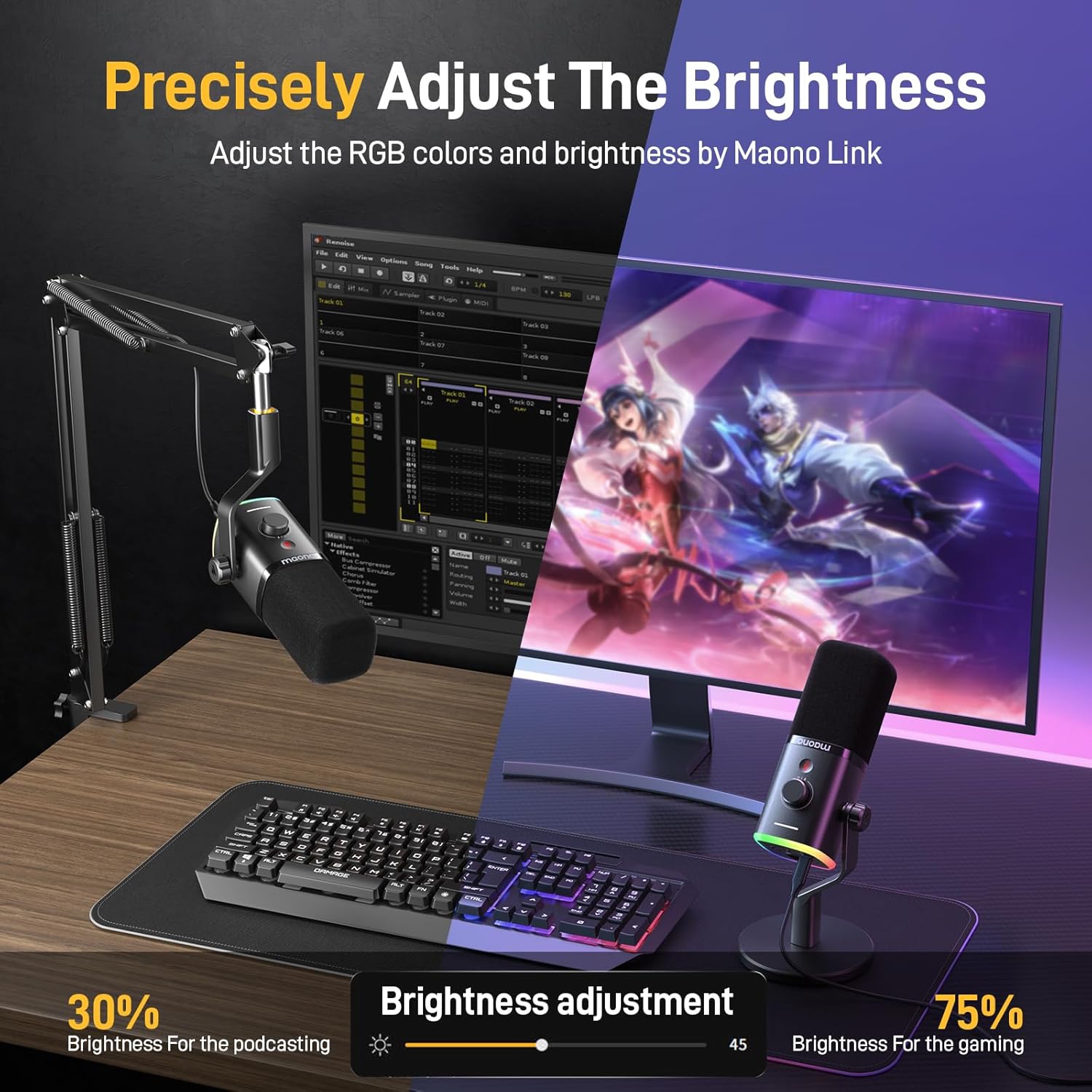
Image: A visual representation of adjusting the RGB lighting brightness via the Maono Link software, demonstrating different settings for various use cases.
The RGB lighting can be adjusted using the Maono Link software or the physical RGB button located at the bottom of the microphone. You can select from 3 modes and 19 color options, and adjust brightness to suit your environment.
Maintenance
- Cleaning: Use a soft, dry cloth to clean the microphone and boom arm. Avoid using harsh chemicals or abrasive materials.
- Storage: When not in use, store the microphone in a clean, dry place away from extreme temperatures and humidity.
- Cable Care: Avoid bending or kinking cables excessively to prevent damage.
Troubleshooting
- No Sound Output (USB):
- Ensure the microphone is correctly connected via USB.
- Check your computer's sound settings to confirm the MAONO PD100X is selected as the input device.
- Verify the microphone is not muted (check the mute button LED).
- Adjust the mic gain knob on the microphone or in the Maono Link software.
- No Sound Output (XLR):
- Ensure the XLR cable is securely connected to both the microphone and the audio interface/mixer.
- Check input gain levels on your audio interface/mixer.
- Confirm phantom power is OFF on your audio interface/mixer.
- Distorted Sound:
- Reduce the mic gain on the microphone or in the Maono Link software/audio interface.
- Ensure you are not speaking too close to the microphone.
- RGB Lights Not Working (USB Mode):
- Ensure the microphone is connected via USB.
- Check settings in the Maono Link software.
- Press the RGB button on the bottom of the microphone to cycle modes or turn on/off.
Specifications
| Feature | Specification |
|---|---|
| Brand | MAONO |
| Model | PD100X |
| Connectivity Technology | USB, XLR |
| Connector Type | XLR, USB-C |
| Polar Pattern | Unidirectional (Cardioid) |
| Frequency Response | 40 Hz - 16 kHz |
| Sampling Rate | 24-bit/48kHz |
| Compatible Devices | Gaming Console, Personal Computer |
| Special Feature | RGB Lighting, Mute Button, Headphone Jack, Boom Arm |
Compatibility
The MAONO PD100X microphone is compatible with a wide range of devices and accessories. The BA20 boom arm is designed to support various microphones.

Image: A compatibility list detailing microphone models that fit the included mic clip (max 1 inch/26mm diameter) and those compatible with a 3/8" to 5/8" adapter, including MAONO PD200X, PD100X, PD100, A04, HyperX QuadCast, SoloCast, Razer Seiren Mini, Seiren X, FIFINE AM8, Blue Snowball, Audio-Technica AT2020, and Shure MV7.
For USB connectivity, the microphone is compatible with PC (Windows, macOS) and gaming consoles like PS4 and PS5. For XLR connectivity, it works with most standard audio interfaces and mixers.
Warranty and Support
MAONO products typically come with a limited warranty. Please refer to the warranty card included in your product packaging or visit the official MAONO website for detailed warranty information and terms. For technical support, troubleshooting assistance, or any product-related inquiries, please contact MAONO customer service through their official website or the contact information provided with your purchase.
You can visit the MAONO Store on Amazon for more information and support resources.


