
ANFIER W10, W12
ANFIER W10/W12 Handheld Translator User Manual
Introduction
The ANFIER W10 and W12 Handheld Translators are advanced portable devices designed to facilitate communication across language barriers. These devices offer real-time voice translation, photo translation, and offline translation capabilities, making them ideal for travel, business, and learning. This manual provides detailed instructions for setup, operation, maintenance, and troubleshooting to ensure optimal use of your translator.
Product Overview
The ANFIER W10/W12 translator features a compact design with an intuitive touchscreen interface. Key functions are easily accessible from the main screen.
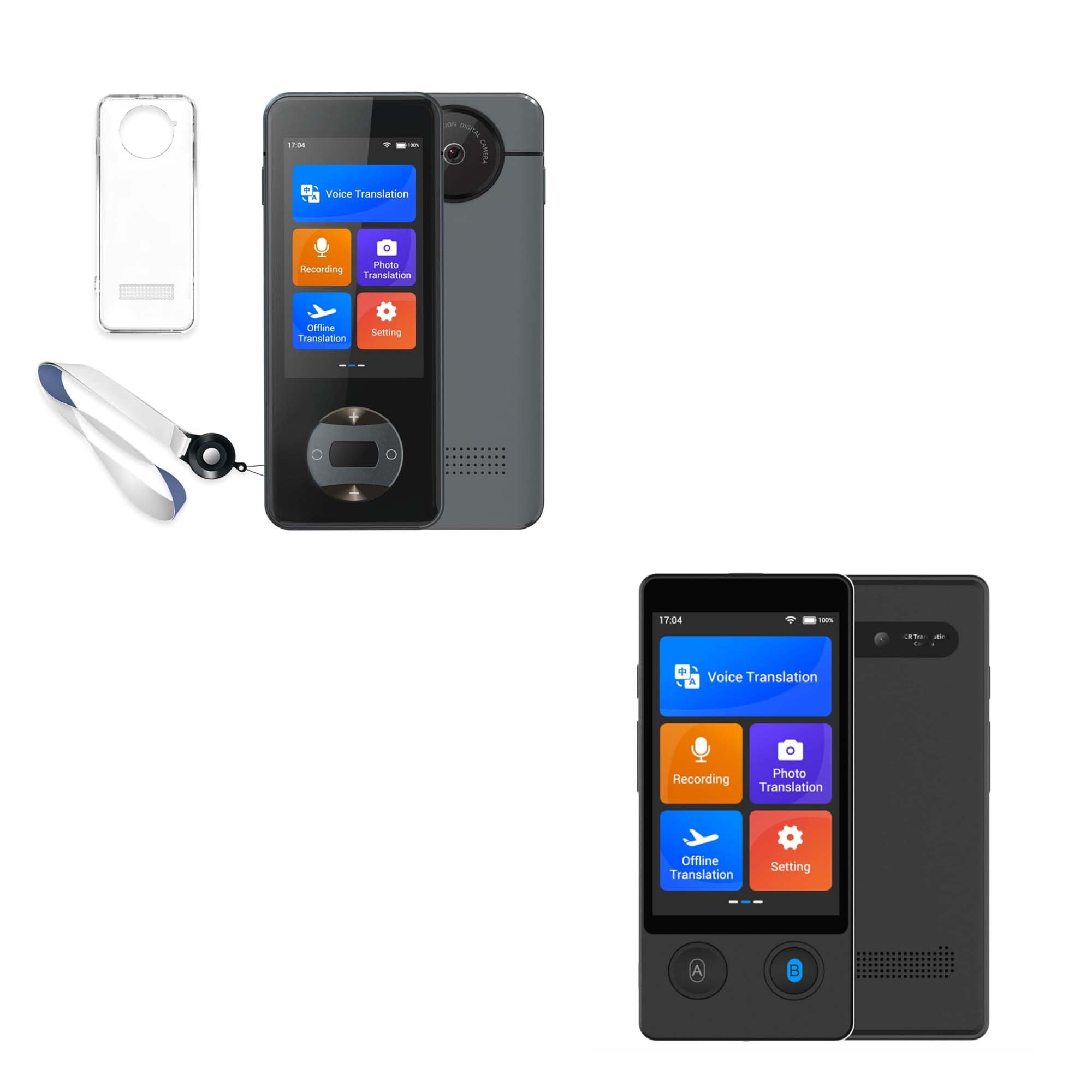
Image: Main screen interface displaying various translation functions.
Key Features:
- Multiple Translation Modes: Voice, Photo, and Offline translation.
- Extensive Language Support: Up to 144 languages for online voice translation, 42 languages for photo translation, and 16 languages for offline voice translation.
- High Accuracy & Speed: Achieves approximately 98% accuracy with a rapid response time of 0.5 seconds.
- Long Battery Life: 1500 mAh battery provides up to 8 hours of continuous translation or 7 days of standby time.
- Voice Recording: Integrated recording function for capturing conversations.
- Adjustable Voice Broadcast: Option to switch between male and female voices for translation output.
Setup
1. Charging the Device
Before first use, fully charge the translator. Connect the device to a power source using the provided USB cable. The battery indicator on the screen will show charging status. A full charge typically takes a few hours.

Image: Device highlighting its 1500 mAh battery capacity and long battery life.
2. Power On/Off
- To Power On: Press and hold the power button (usually located on the side) until the screen lights up.
- To Power Off: Press and hold the power button, then select 'Power Off' on the screen.
3. Initial Language and Wi-Fi Setup
- Upon first power-on, you may be prompted to select a system language. Follow the on-screen instructions.
- Navigate to 'Settings' from the main menu.
- Select 'WLAN' (Wi-Fi) and connect to an available network. A stable internet connection is required for online voice and photo translation.
Operating Instructions
1. Voice Translation (Online)
This mode provides real-time two-way translation for up to 144 languages.
- From the main screen, tap 'Voice Translation'.
- Select the source language (your language) and target language (the language you want to translate to) from the options.
- Press and hold button 'A' (usually indicated on the device or screen) and speak clearly in your source language. Release the button when finished. The device will translate and speak the text in the target language.
- For the other person to speak, they should press and hold button 'B' and speak in their language. The device will translate and speak in your source language.

Image: Real-time two-way voice translation interface.
2. Photo Translation
Translate text from images, supporting 42 languages.
- Tap 'Photo Translation' on the main screen.
- Select the source and target languages.
- Point the device's camera at the text you wish to translate. Ensure the text is well-lit and clear within the frame.
- Tap the capture button. The device will process the image and display the translated text on the screen.

Image: Photo translation feature in action, showing supported languages.
3. Offline Translation
Translate without an internet connection for 16 supported languages. Language packs must be downloaded beforehand.
- Connect to Wi-Fi. Go to 'Settings' > 'Offline download'.
- Select and download the desired language packs.
- Once downloaded, tap 'Offline Translation' from the main screen.
- Select the downloaded source and target languages.
- Use buttons 'A' and 'B' as in online voice translation to perform offline translations.

Image: Demonstrating offline voice translation capability.
4. Recording
The device can record audio for later playback or reference.
- Tap 'Recording' on the main screen.
- Tap the record button to start recording.
- Tap the stop button to end the recording.
- Recordings can be accessed and played back from within the 'Recording' menu.
5. Settings
Access various device configurations through the 'Settings' menu.
- WLAN: Manage Wi-Fi connections.
- System language: Change the device's interface language.
- Time and date: Adjust time and date settings.
- Offline download: Download and manage offline language packs.
- Voice broadcast: Select between male and female voices for translated audio output.
- Display: Adjust screen brightness and other display settings.

Image: Settings menu showing the voice broadcast option.
Maintenance
Cleaning
- Use a soft, dry, lint-free cloth to clean the device's screen and body.
- Avoid using abrasive cleaners, solvents, or aerosol sprays, as these can damage the device.
Storage
- Store the translator in a cool, dry place away from direct sunlight and extreme temperatures.
- If storing for an extended period, ensure the battery is partially charged (around 50%) to prolong its lifespan.
Battery Care
- Do not expose the device to temperatures above 60°C (140°F).
- Avoid fully discharging the battery frequently.
- Use only the provided charging cable or a certified equivalent.
Troubleshooting
Device Not Turning On
- Check Battery: Ensure the device is charged. Connect it to a power source and wait a few minutes before attempting to power on again.
- Hard Reset: If unresponsive, try pressing and holding the power button for 10-15 seconds to perform a hard reset.
Translation Not Working / Inaccurate
- Internet Connection: For online translation, verify that the device is connected to a stable Wi-Fi network.
- Language Selection: Double-check that the correct source and target languages are selected.
- Speak Clearly: Ensure you are speaking clearly and directly into the microphone. Avoid background noise.
- Offline Packs: For offline translation, confirm that the necessary language packs have been downloaded.
- Rephrase: If translation is inaccurate, try rephrasing your sentence.
Screen Unresponsive
- Restart Device: Power off and then power on the device.
- Clean Screen: Ensure the screen is clean and free of debris or moisture.
Specifications
| Model | ANFIER W10 / W12 |
| Battery Capacity | 1500 mAh |
| Continuous Translation Time | Up to 8 hours |
| Standby Time | Up to 7 days |
| Online Voice Translation | 144 languages |
| Photo Translation | 42 languages |
| Offline Voice Translation | 16 languages |
| Translation Accuracy | Approx. 98% |
| Response Time | 0.5 seconds |
| ASIN | B0DMFSPF52 |
| Date First Available | November 8, 2024 |
Warranty and Support
For detailed warranty information, technical support, or customer service inquiries regarding your ANFIER W10/W12 Handheld Translator, please refer to the official ANFIER website or contact their customer support directly. Contact details are typically available on the product packaging or the manufacturer's website.
Ask a question about this manual
Ask about setup, troubleshooting, compatibility, parts, safety, or missing instructions. Manuals+ will review the question and use this page’s manual context to help answer it.