1. Introduction
Thank you for choosing the Inateck Keyboard Case. This manual provides detailed instructions for setting up, operating, and maintaining your new keyboard case, designed to enhance your iPad experience with its versatile functionality and protective features.

Image: The Inateck Keyboard Case with an iPad Pro 11 inch (M4) 2024, showcasing the keyboard and case in an open position.
2. Compatibility
This Inateck Keyboard Case is specifically designed for the following iPad models:
- iPad Pro 11-inch (M4) 2024 (Models: A2836, A2837, A3006)
Please verify your iPad's model number (Axxxx) on the back of your device to ensure compatibility before use.

Image: A visual chart indicating compatible iPad Pro 11-inch M4 (2024) models and incompatible older iPad Pro 11-inch models.
3. Key Features
- Ultra Slim & Lightweight Design: The keyboard is only 0.3 inches thick and weighs approximately 1 pound, making it highly portable.
- Magnetic Detachable Design: The keyboard and protective case connect magnetically, allowing for quick detachment and versatile viewing angles (horizontal and vertical).

Image: Illustration showing the 1-second magnetic detachment of the keyboard from the iPad case.
- Comfortable Typing Experience: Features a 1mm short key travel and scissor switch structure for responsive and comfortable typing.

Image: Close-up view of a keyboard key, highlighting the scissor switch structure and 1mm short key travel for comfortable typing.
- Precise Multi-Touch Trackpad: Equipped with a full-area multi-touch touchpad that supports palm-rejection and various iPadOS gestures for seamless navigation.
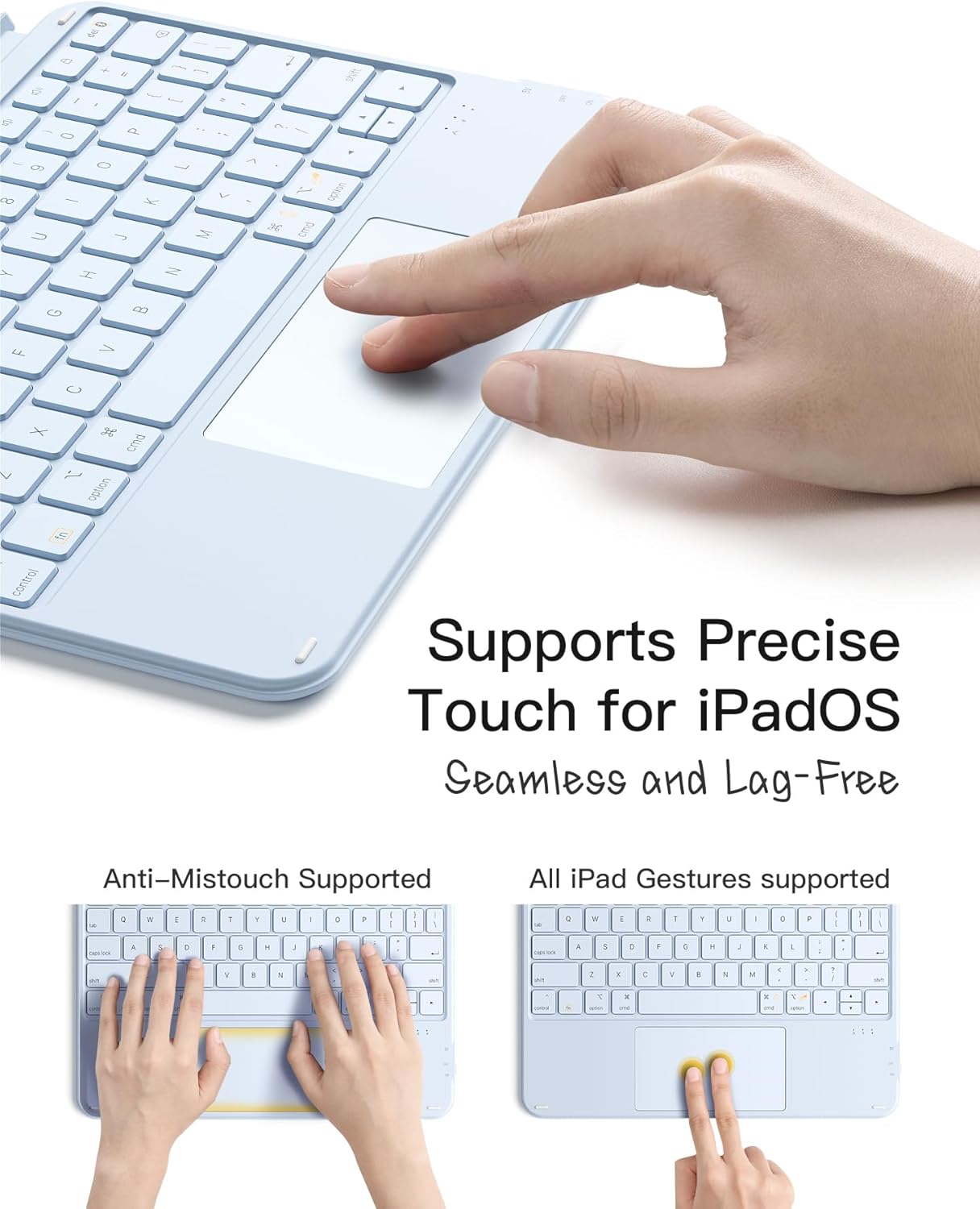
Image: Depiction of the keyboard's trackpad, illustrating anti-mistouch functionality and support for various iPad gestures.
- 7-Color Backlight: The keyboard features a 7-color backlight for typing in low-light conditions.
4. Setup Guide
4.1 Charging the Keyboard
Before first use, ensure the keyboard is fully charged. Connect the included USB-C cable to the charging port on the keyboard and to a power source.
- The charging indicator light will show charging status.
- A full charge typically takes approximately 2-3 hours.

Image: Close-up of the keyboard's side, showing the power ON/OFF switch and the USB-C charging port.
4.2 Pairing with iPad via Bluetooth
- Ensure the keyboard is charged and turned on using the power switch.
- On your iPad, go to Settings > Bluetooth.
- Turn on Bluetooth. Your iPad will search for discoverable devices.
- Locate "Inateck Keyboard" (or similar name) in the "Other Devices" list and tap it to connect.
- A pairing request may appear. Confirm the pairing on both devices if prompted.
- Once connected, the keyboard will appear under "My Devices" as "Connected".
The keyboard will automatically attempt to reconnect to the last paired device when powered on.
4.3 Attaching the iPad to the Case
Gently place your iPad into the protective case, ensuring it snaps securely into place. The case is designed to provide full access to all ports and buttons.
4.4 Attaching/Detaching the Keyboard
The keyboard attaches magnetically to the case. Simply align the magnetic strip on the keyboard with the corresponding area on the case until it clicks into place. To detach, gently pull the keyboard away from the case.

Image: Diagram illustrating the magnetic connection points between the iPad case and the detachable keyboard.
5. Operating Instructions
5.1 Keyboard Usage
The keyboard provides a full QWERTY layout with function keys for iPadOS shortcuts.
- Typing: Begin typing once connected. The scissor-switch keys offer a comfortable and responsive experience.
- Backlight Control: Use the dedicated backlight key (often indicated by a light bulb icon or Fn + specific key) to cycle through backlight colors and brightness levels.
- Function Keys: Utilize the top row of keys for quick access to iPadOS functions such as Home, Search, Brightness, Media Controls, and Volume.
5.2 Trackpad Usage and Gestures
The integrated multi-touch trackpad supports precise cursor control and a variety of iPadOS gestures.
- Clicking: Press down on the trackpad to click.
- Secondary Click (Right-Click): Tap with two fingers or click in the bottom right corner (if enabled in iPad settings).
- Scrolling: Drag two fingers up or down to scroll content.
- Zoom In/Out: Pinch with two fingers to zoom.
- Swipe Between Full-Screen Apps: Swipe left or right with three fingers.
- Show Desktop (Home Screen): Swipe up with three fingers.
- App Exposé: Swipe up with three fingers and hold to view all open apps.
- Drag: Click and hold an item, then drag with one finger.

Image: Visual guide demonstrating various multi-touch gestures supported by the trackpad, including drag, scroll, swipe, zoom, secondary click, show desktop, and App Exposé.
5.3 Versatile Viewing Modes
The magnetic design and adjustable stand allow for multiple viewing and working modes:
- Laptop Mode: iPad attached to the keyboard, ideal for typing and productivity.
- Tablet Mode: Keyboard detached, using the iPad as a standalone tablet.
- Viewing Mode: Case stand allows for comfortable media consumption in horizontal or vertical orientation.
- Drawing Mode: Lay the iPad flat with the case providing a slight incline for drawing or writing.
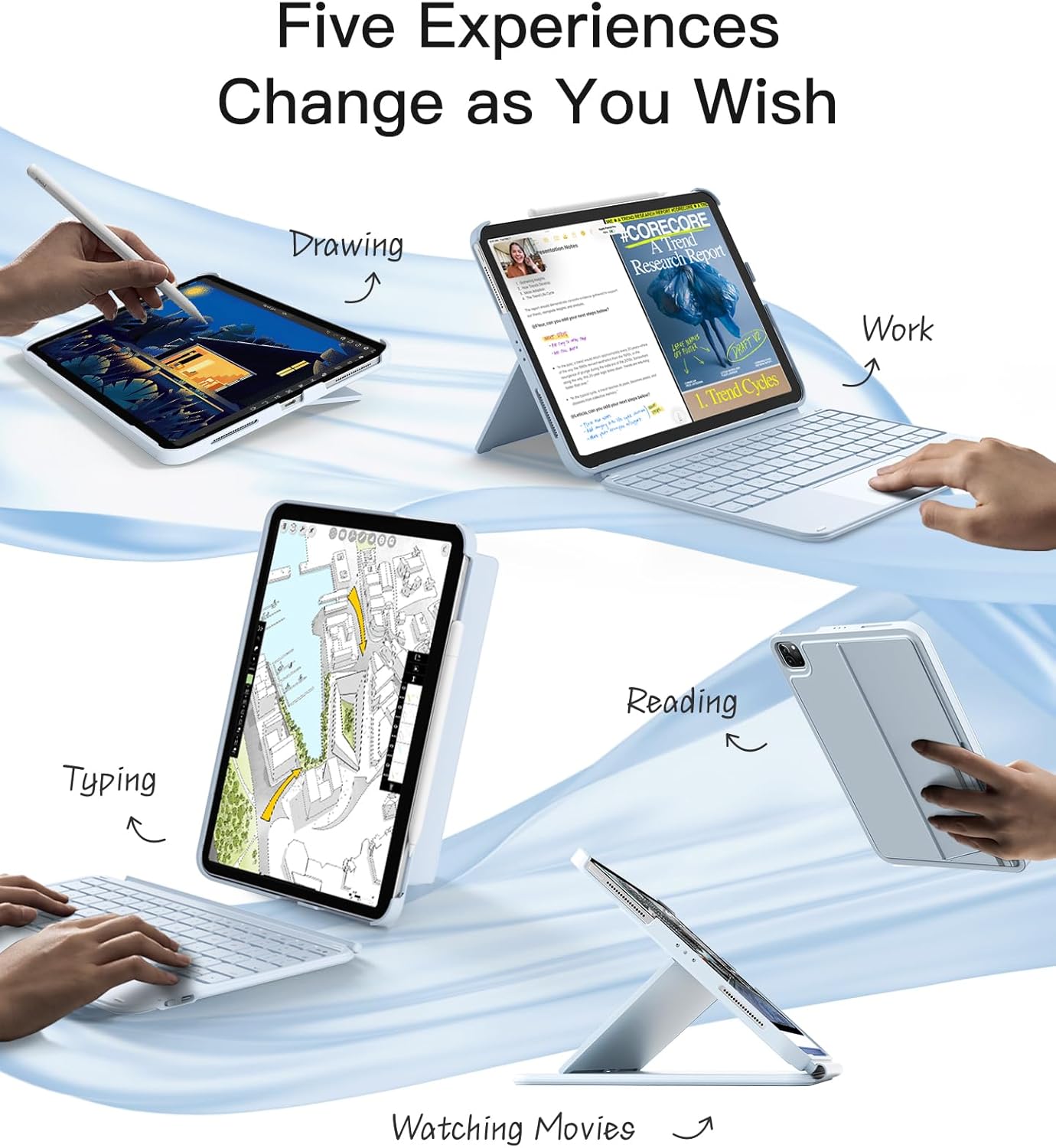
Image: Collage showing five different ways to use the iPad with the Inateck Keyboard Case: drawing, work, typing, reading, and watching movies.
6. Maintenance and Care
Proper care will extend the lifespan of your Inateck Keyboard Case.
- Cleaning: Use a soft, lint-free cloth slightly dampened with water or a mild cleaning solution to wipe down the keyboard and case surfaces. Avoid harsh chemicals or abrasive materials.
- Storage: When not in use, store the keyboard case in a cool, dry place away from direct sunlight and extreme temperatures.
- Avoid Liquids: Do not expose the keyboard to excessive moisture or submerge it in liquids.
- Handle with Care: Avoid dropping the device or applying excessive force to the keys or trackpad.

Image: Close-up of the keyboard surface, highlighting its advanced materials that are comfortable to touch and easy to clean.
7. Troubleshooting
| Problem | Possible Solution |
|---|---|
| Keyboard not connecting via Bluetooth. |
|
| Keys are unresponsive or typing is delayed. |
|
| Trackpad not working or inaccurate. |
|
| Backlight not functioning. |
|
8. Product Specifications
| Feature | Detail |
|---|---|
| Model Number | KB04122-11-BU-US2 |
| Compatibility | iPad Pro 11-inch (M4) 2024 (A2836, A2837, A3006) |
| Connectivity | Bluetooth |
| Keyboard Layout | QWERTY (72 keys) |
| Key Switch Type | Scissor-Switch |
| Key Travel | 1mm |
| Backlight | 7-Color Backlight |
| Trackpad | Full-area Multi-touch, Palm-rejection |
| Power Source | Battery Powered (1 Lithium Ion battery included) |
| Item Weight | 1 pound (approx. 454g) |
| Product Dimensions (LxWxH) | 9.94 x 7.52 x 0.55 inches |
| Manufacturer | Inateck |
| Country of Origin | China |
| Date First Available | November 8, 2024 |
9. Warranty and Support
Inateck products are designed and manufactured to the highest quality standards. For warranty information and customer support, please refer to the warranty card included with your product or visit the official Inateck website.
If you encounter any issues not covered in this manual, please contact Inateck customer service for assistance. Provide your product model number and a detailed description of the issue for faster support.
Inateck Official Website: www.inateck.com


